Document ad hoc trainings
If a colleague explains a device to you right at your workplace, you document this training yourself in my.samedis.care. You both sign directly on the screen, and the medical device officers of your facility then approve the training. In this tutorial, you’ll learn how it works.
1. Self documented
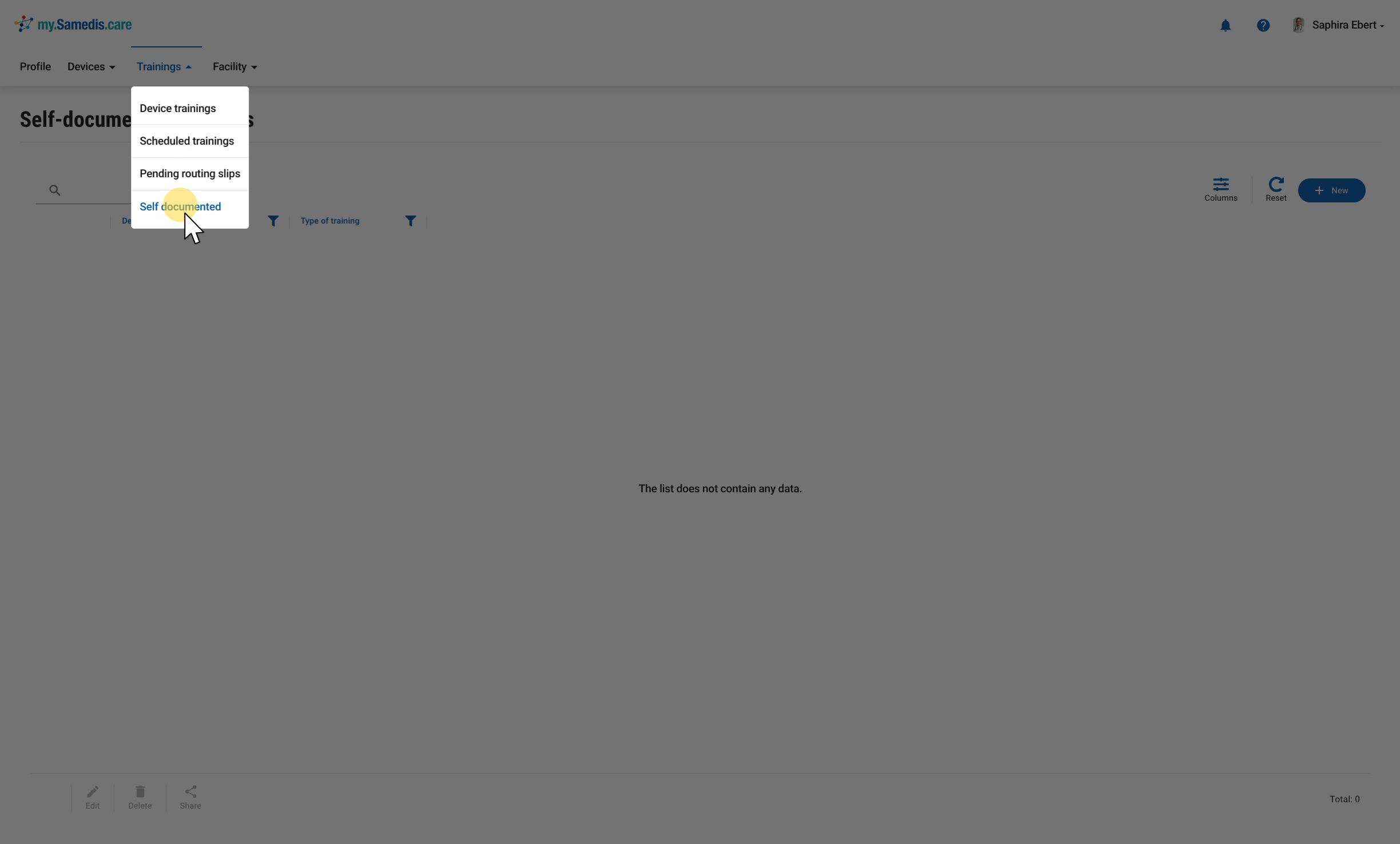
In my.samedis.care, open the Trainings menu and select Self documented.
2. New training
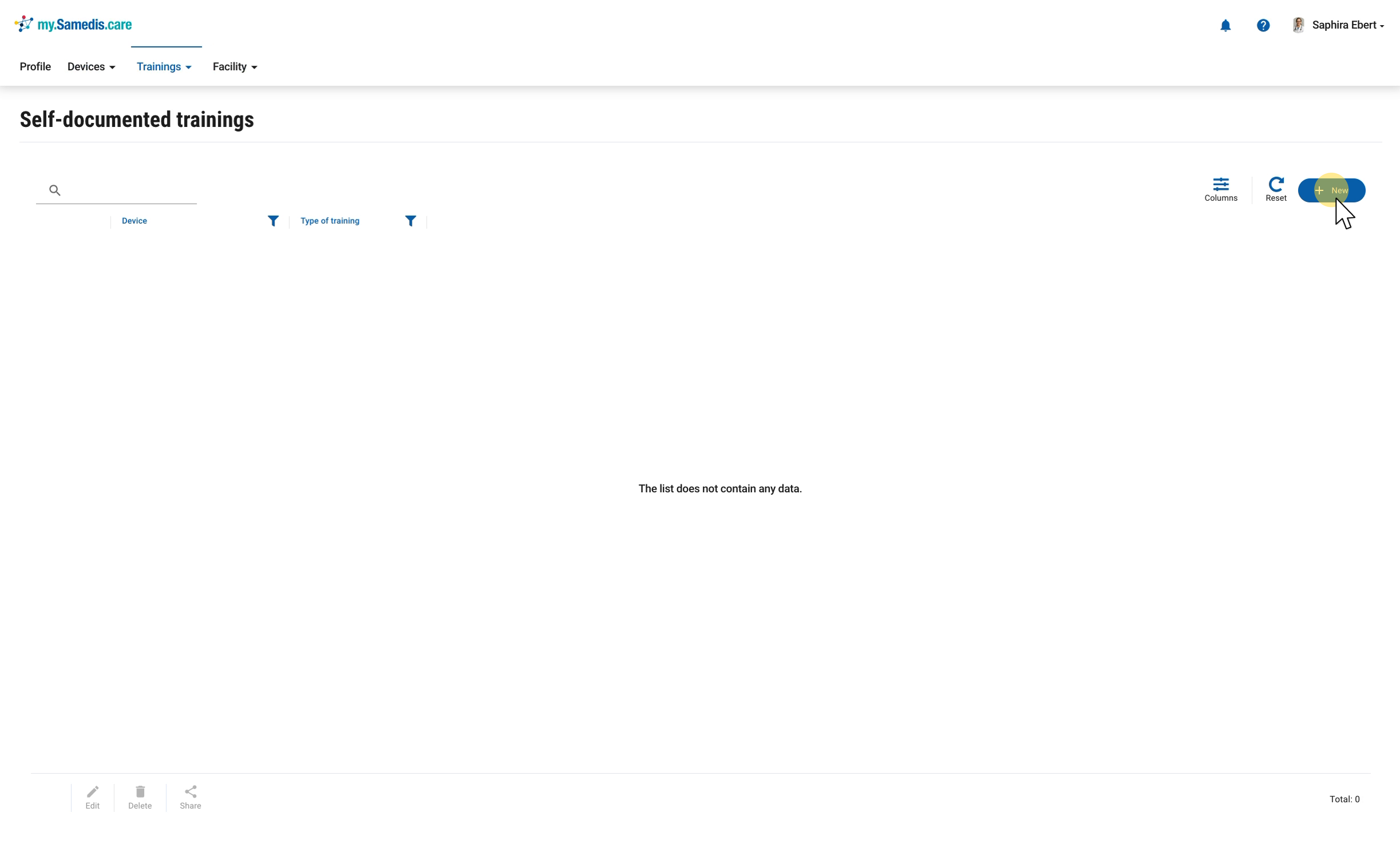
On the Self-documented trainings page, click New at the top right.
3. Ad-hoc documentation
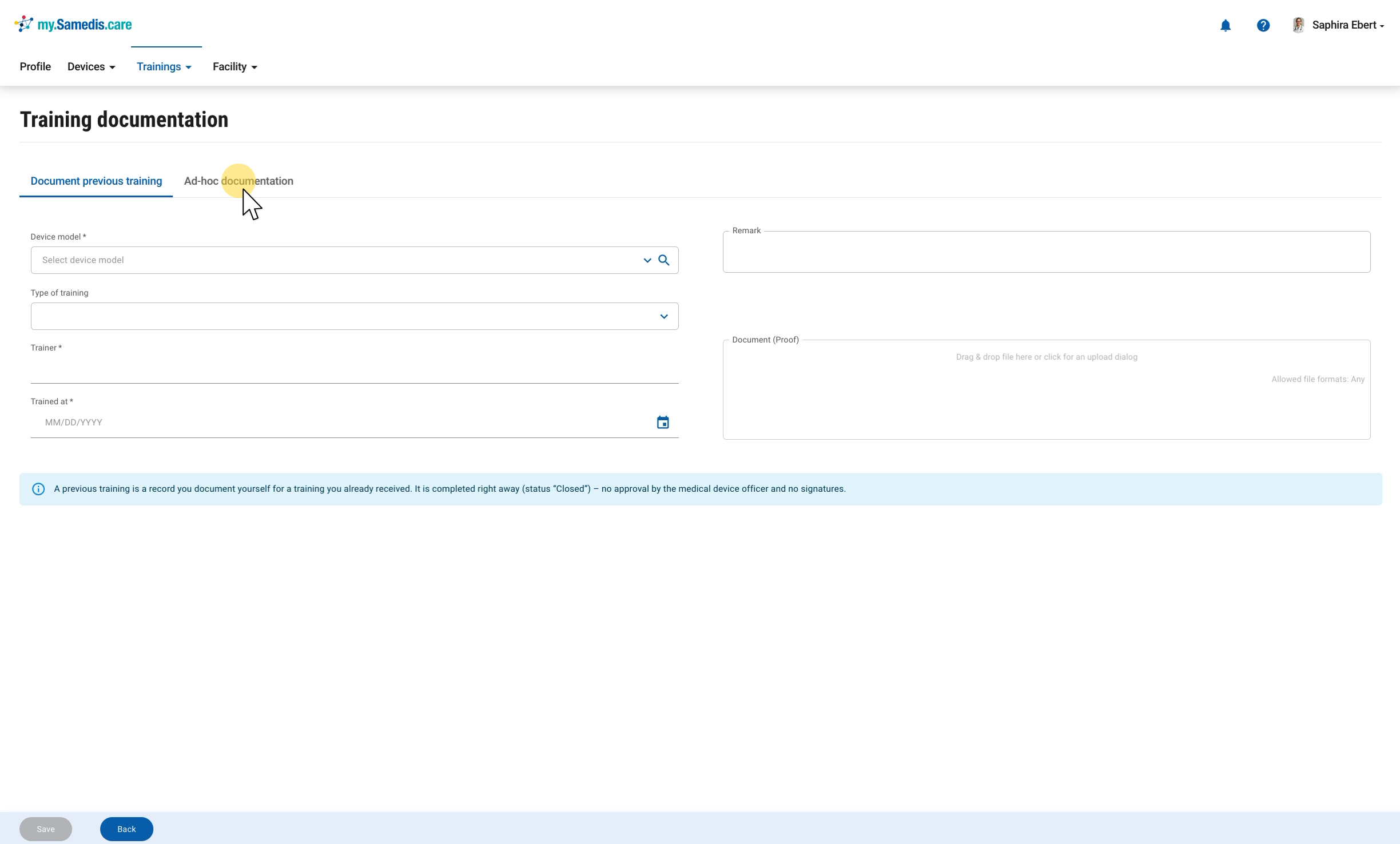
The Training documentation page has two tabs. Document previous training is for trainings that took place some time ago: you enter Device model, Type of training, Trainer and Trained at and can upload proof under Document (Proof). This entry is completed right away, without signatures and without approval. For a training that has just taken place, switch to the Ad-hoc documentation tab.
4. Select device model
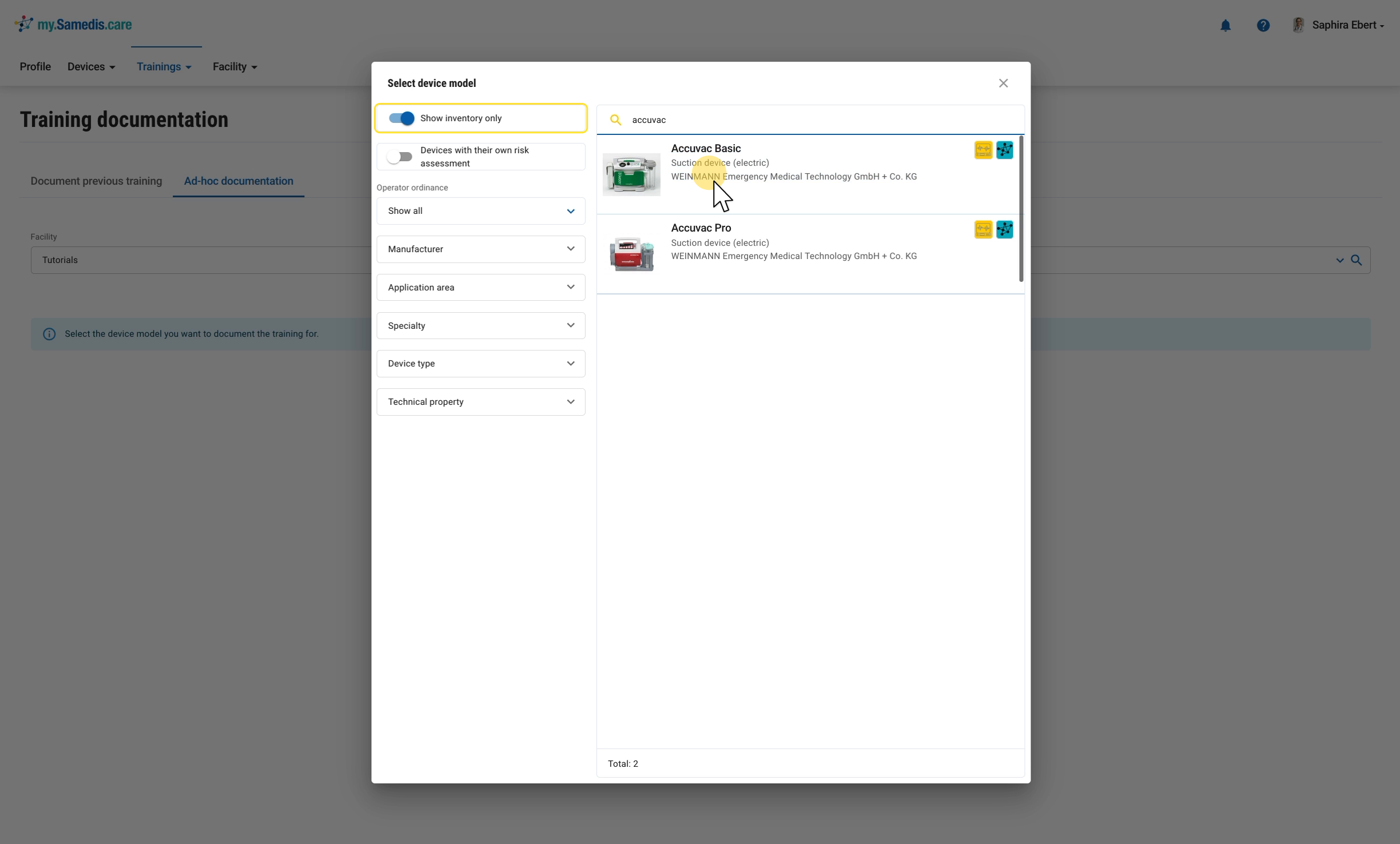
Under Facility, select the facility where you were trained and click the magnifying glass in the Device model field. In the Select device model window, search for the device, for example “Accuvac”, and click it. You don’t need to select a specific inventory item; the training applies to the device model.
Tip
If Show inventory only is switched on, you only see device models that exist as inventory. If it’s off, you search the entire device catalog.
5. Enter trainer
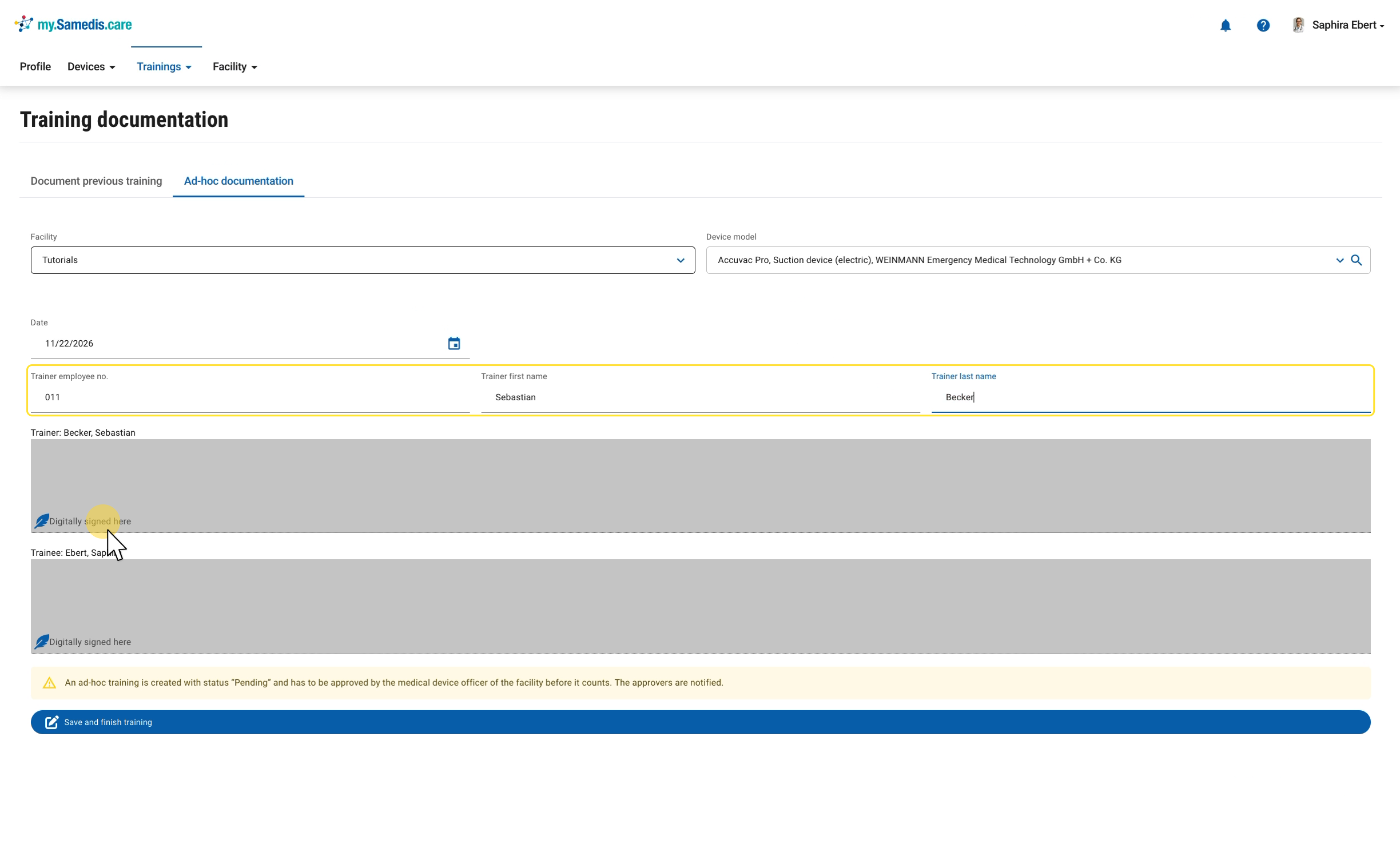
The Date is set to today. Under Trainer employee no., Trainer first name and Trainer last name, enter the details of the person who trained you. Their name then appears above the first signature field; your name is already in the second one. Click Digitally signed here in the upper field.
6. Sign
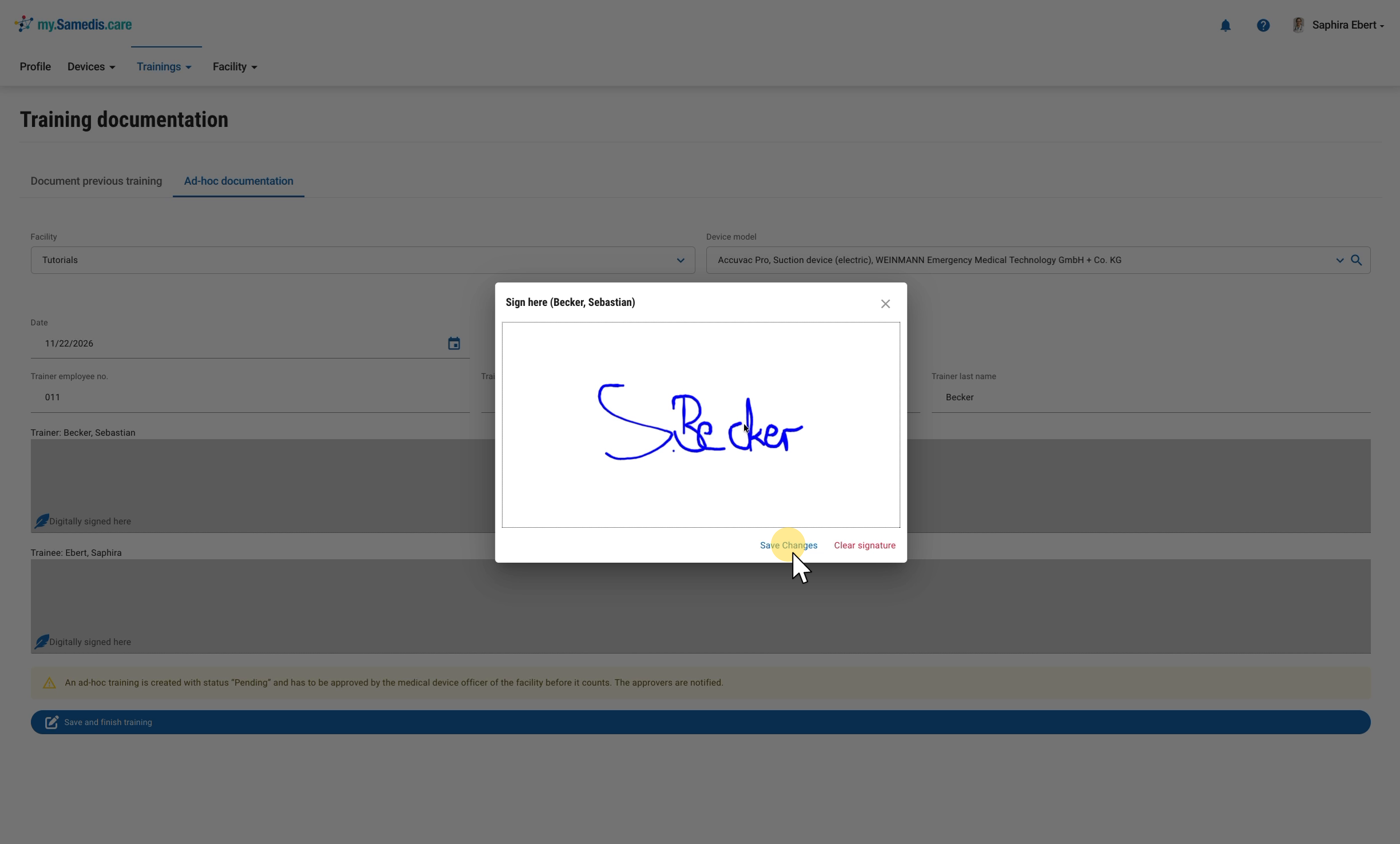
In the Sign here window, the trainer signs in the white area and confirms with Save Changes. Clear signature lets them start over. Then you sign the lower field in the same way.
7. Save and finish training
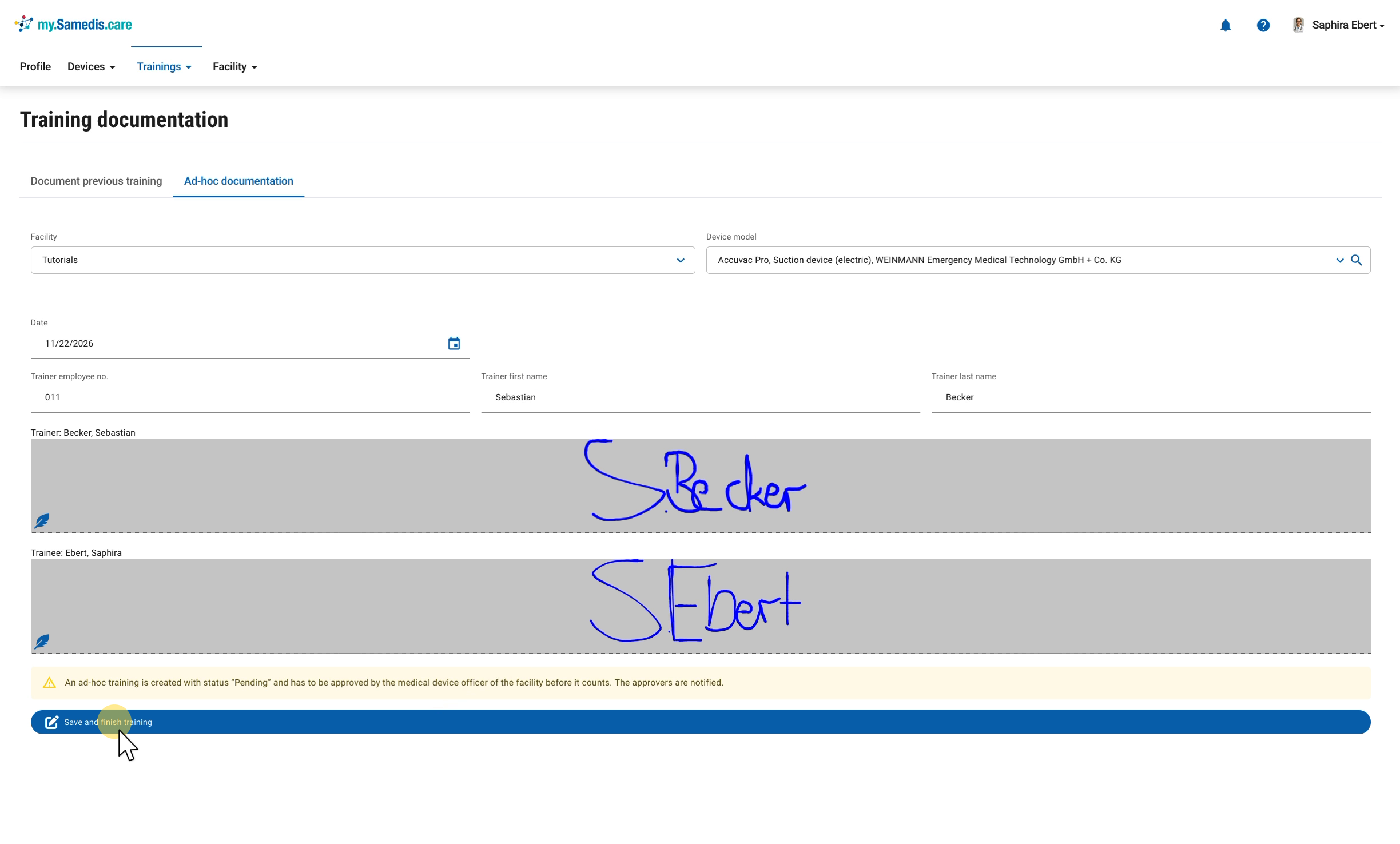
Once both signatures are there, click Save and finish training. The message The training has been saved confirms that the training is now waiting for approval. Until then, you’ll find it under Trainings › Pending routing slips.
Warning
An ad hoc training is created with the status “Pending” and only counts once the medical device officers of your facility have approved it.
8. Approval
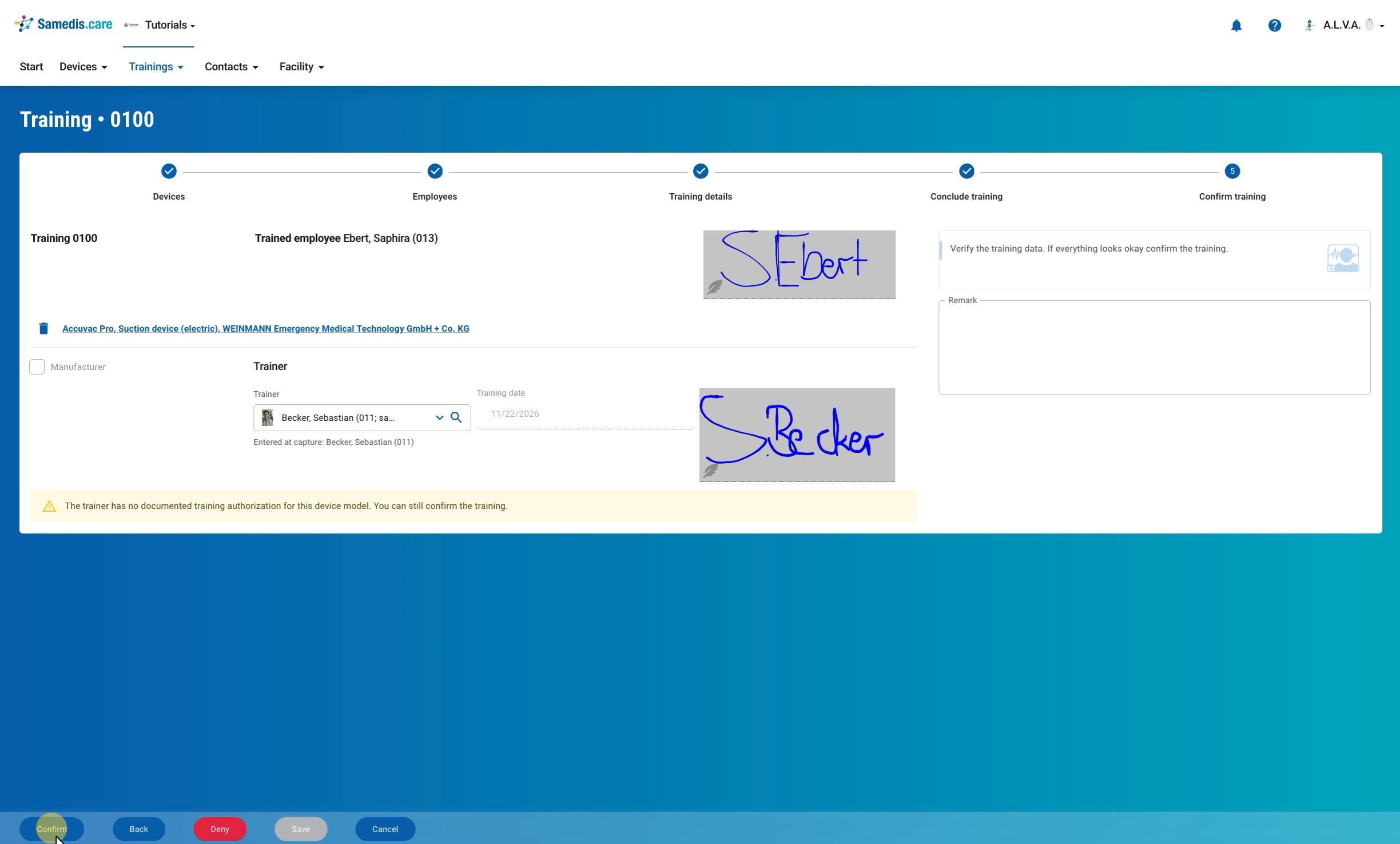
In Samedis.care, the medical device officers receive a notification via the bell that a routing slip is ready for review. The link in it opens the training at the Confirm training step, showing both signatures. With Confirm and Yes in the confirmation prompt they complete the training; with Deny they reject it.
Tip
If no training authorization of the trainer is documented for this device model, Samedis.care shows a notice. The training can still be confirmed.
9. Trained
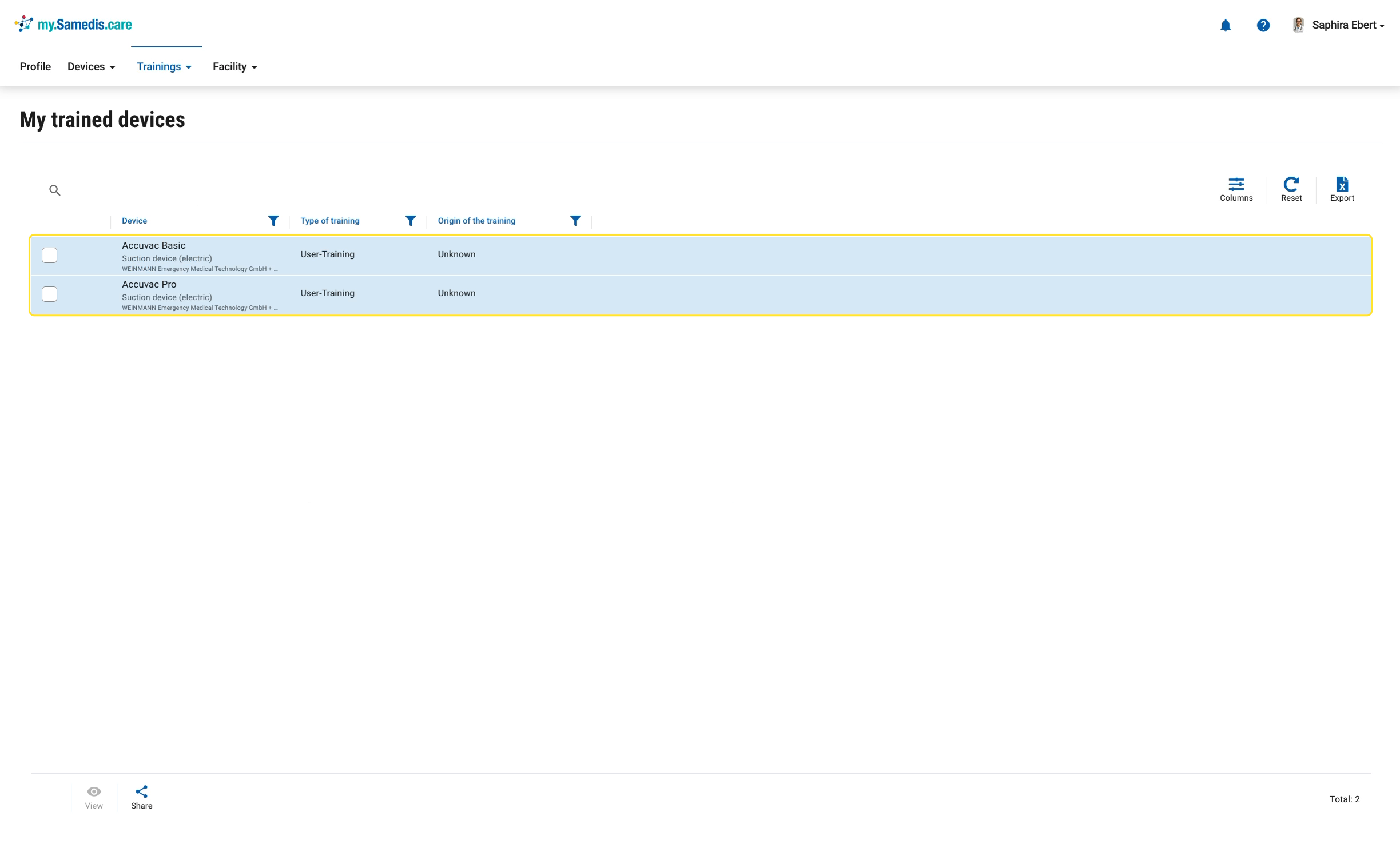
After approval, the device appears in my.samedis.care under Trainings › Device trainings on the My trained devices page, with the type of training User-Training.
Tip
Planned trainings for several people are still documented by the trainer in Samedis.care, as described in the tutorial Document training. The tutorial Your trainings shows what else you’ll find under Trainings.