Show contract information in lists
In this how-to, we look at how to see at a glance in the lists of Samedis.care whether a contract exists for a device.
1. Show columns
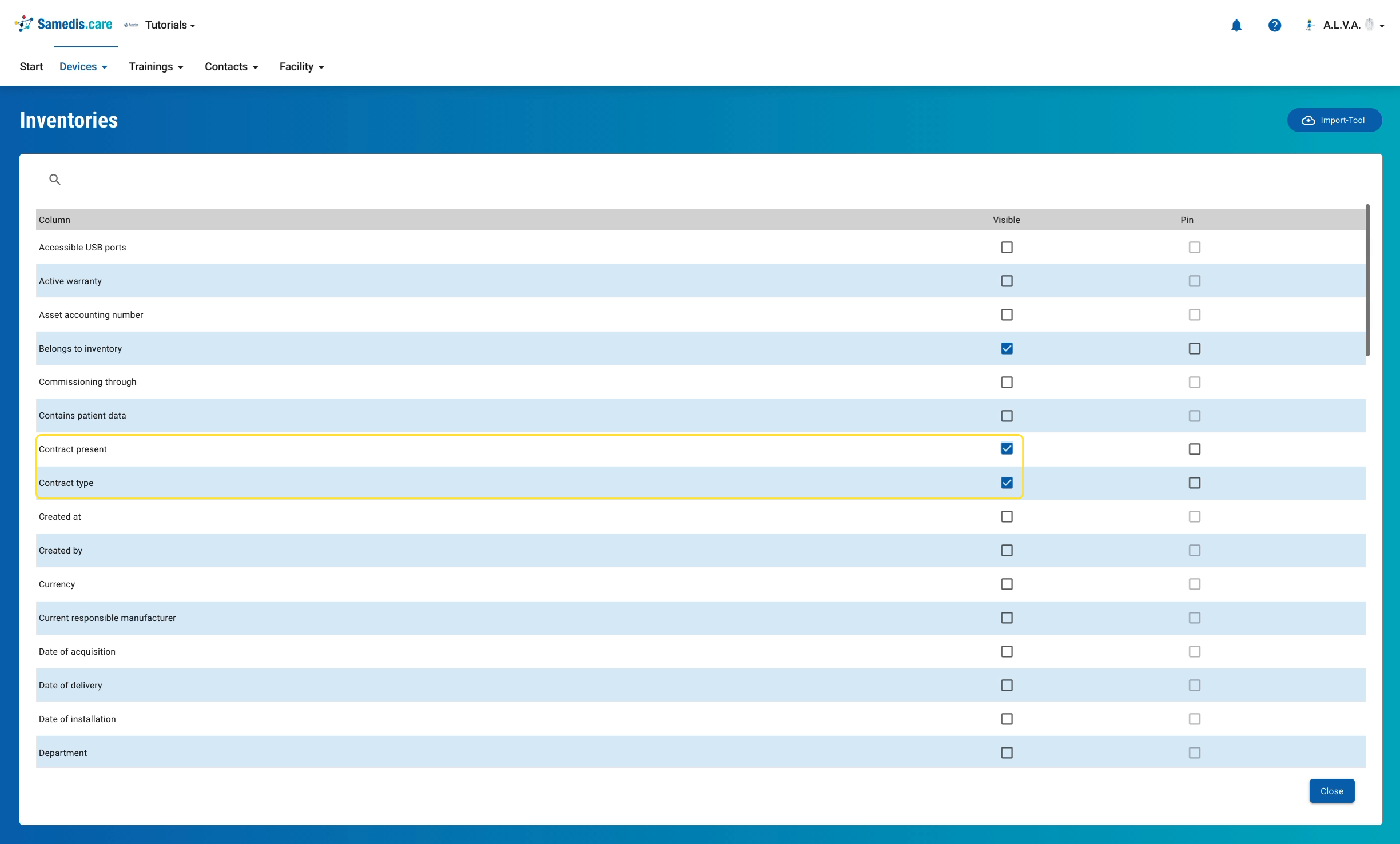
The lists, for example in Device data and Requests, include the columns Contract present and Contract type. They are hidden at first. Click Columns at the top right above the list and tick both under Visible. Use Close to return to the list; the two columns then appear on the right of your view. In the same way, you can also show the Serial number there if needed.
Tip
You only see the contract columns if you have at least the Read contracts right in the Contract registry group. The tutorial Show and hide columns shows how the column selection works in general.
2. Filter, sort and export
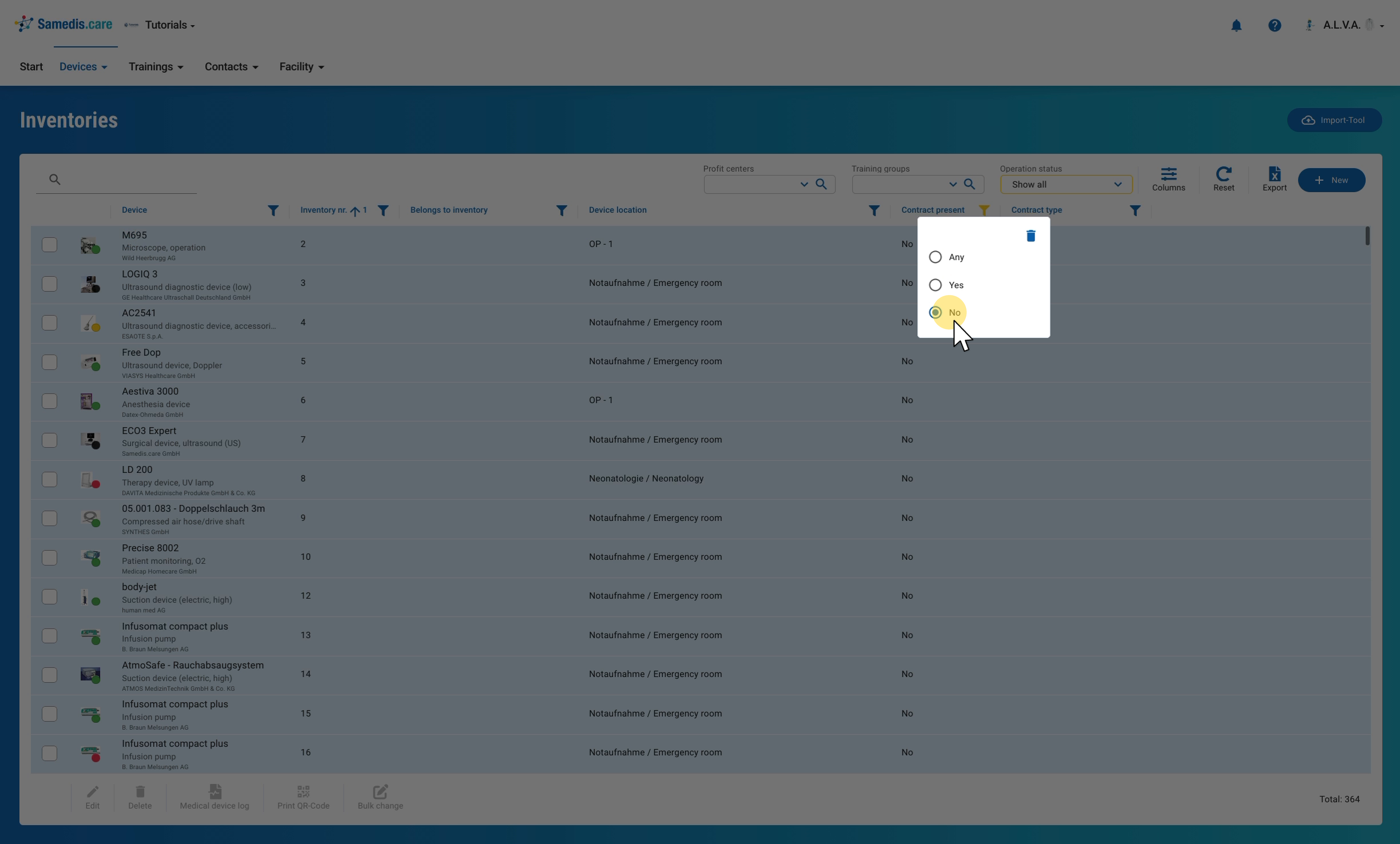
Like all other columns, you can filter and sort these too. To do so, click the filter icon in the Contract present column and choose Yes or No. For example, this lets you quickly find all devices without a contract. Use the trash can icon in the same window to clear the filter again.
Tip
When you export to Excel, the two columns are included as long as they are visible in your view. Learn more in the tutorials Sort and filter and Export.