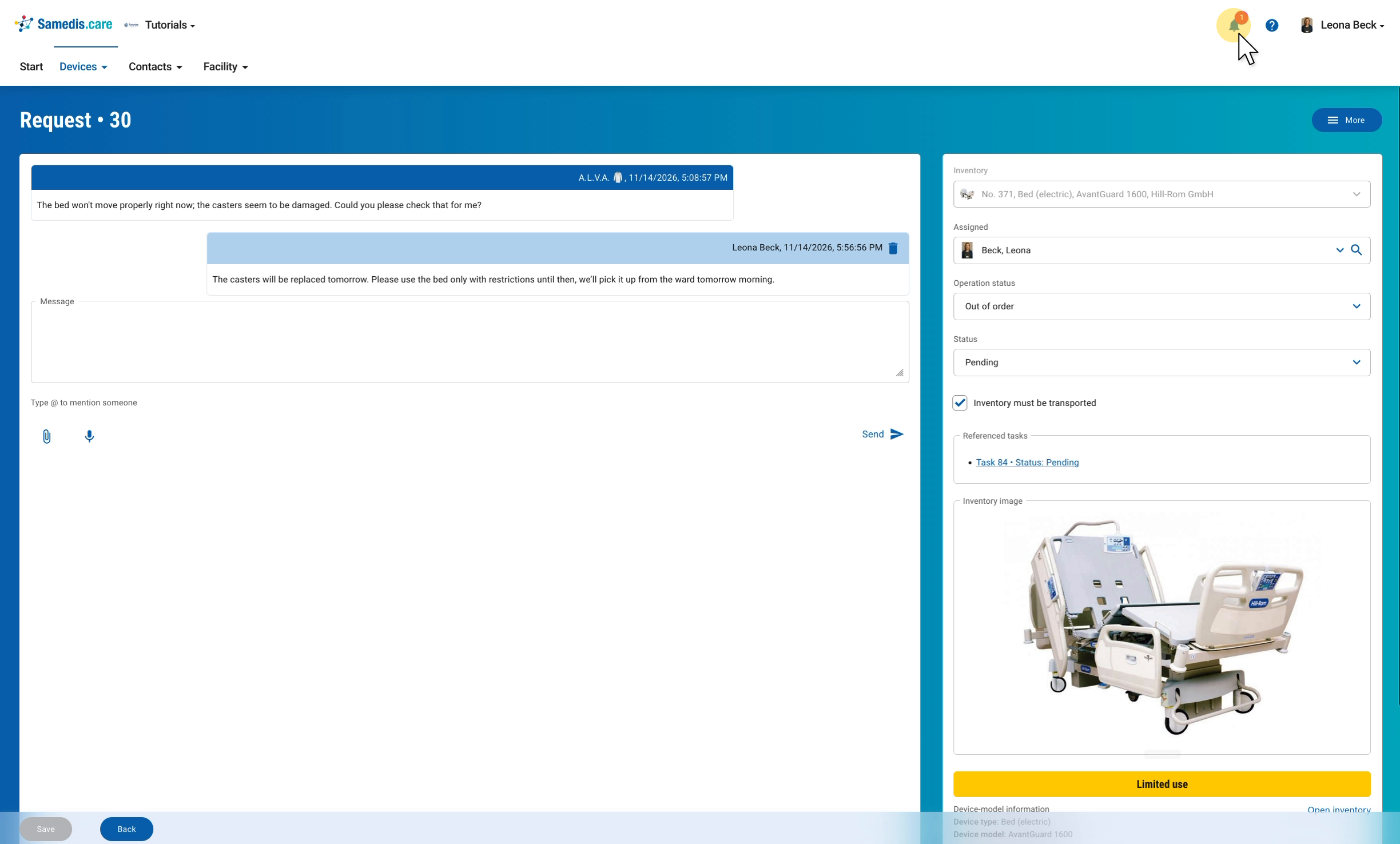
@-mentions in the journal and in requests
In this how-to, we’ll look at how to mention other people with @ in the journal of a task or in a request, so they know right away. In our example, Leona Beck asks her colleague Elisabeth König in a repair task to add the costs and the order number.
1. Mention a person
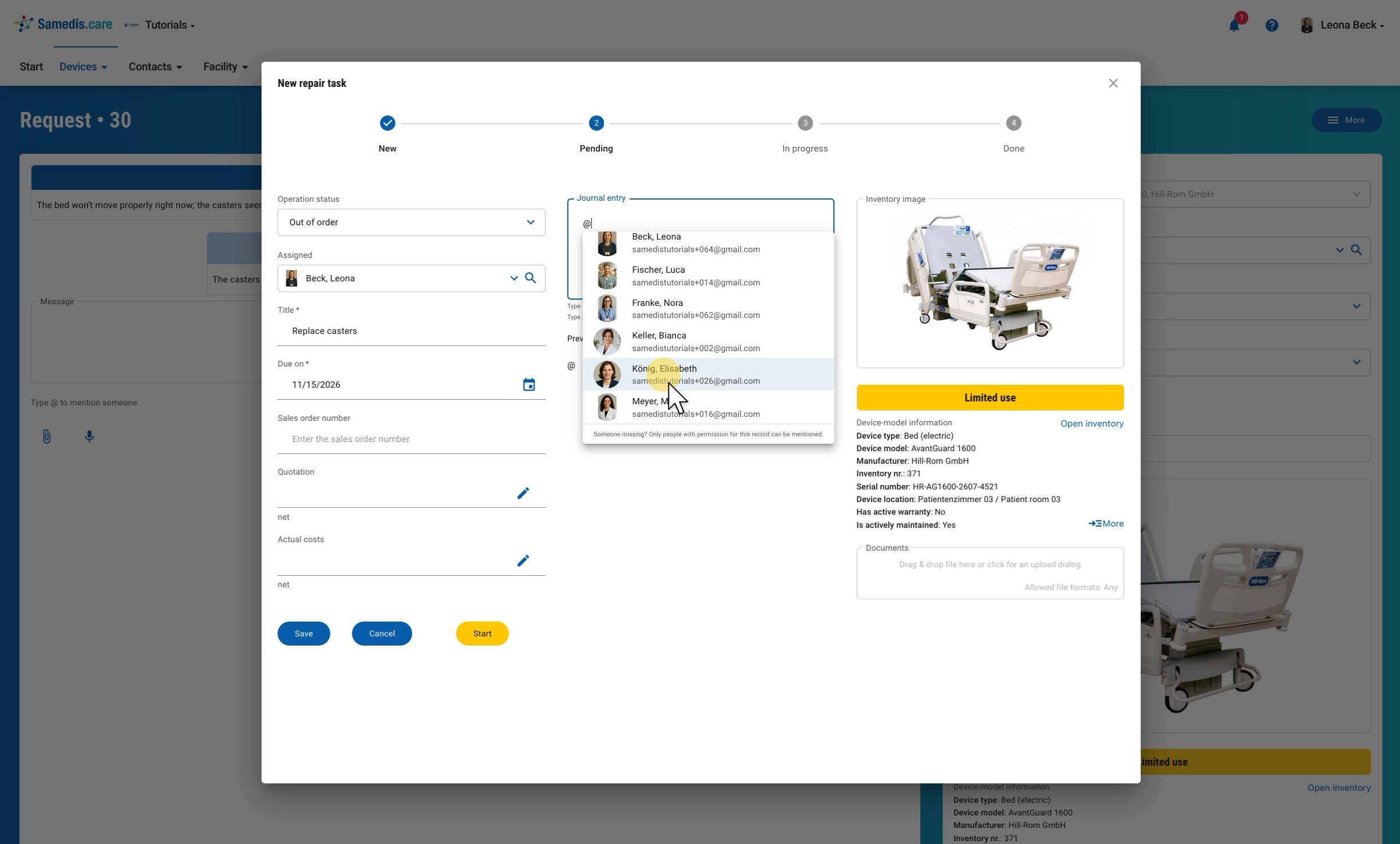
Type @ in the Journal entry of a task or in the Message field of a request. A list of people opens. Select the person you want and continue writing as usual. The mention is highlighted in color.
Tip
Someone missing from the list? Only people with permission for this record can be mentioned.
2. Save the entry
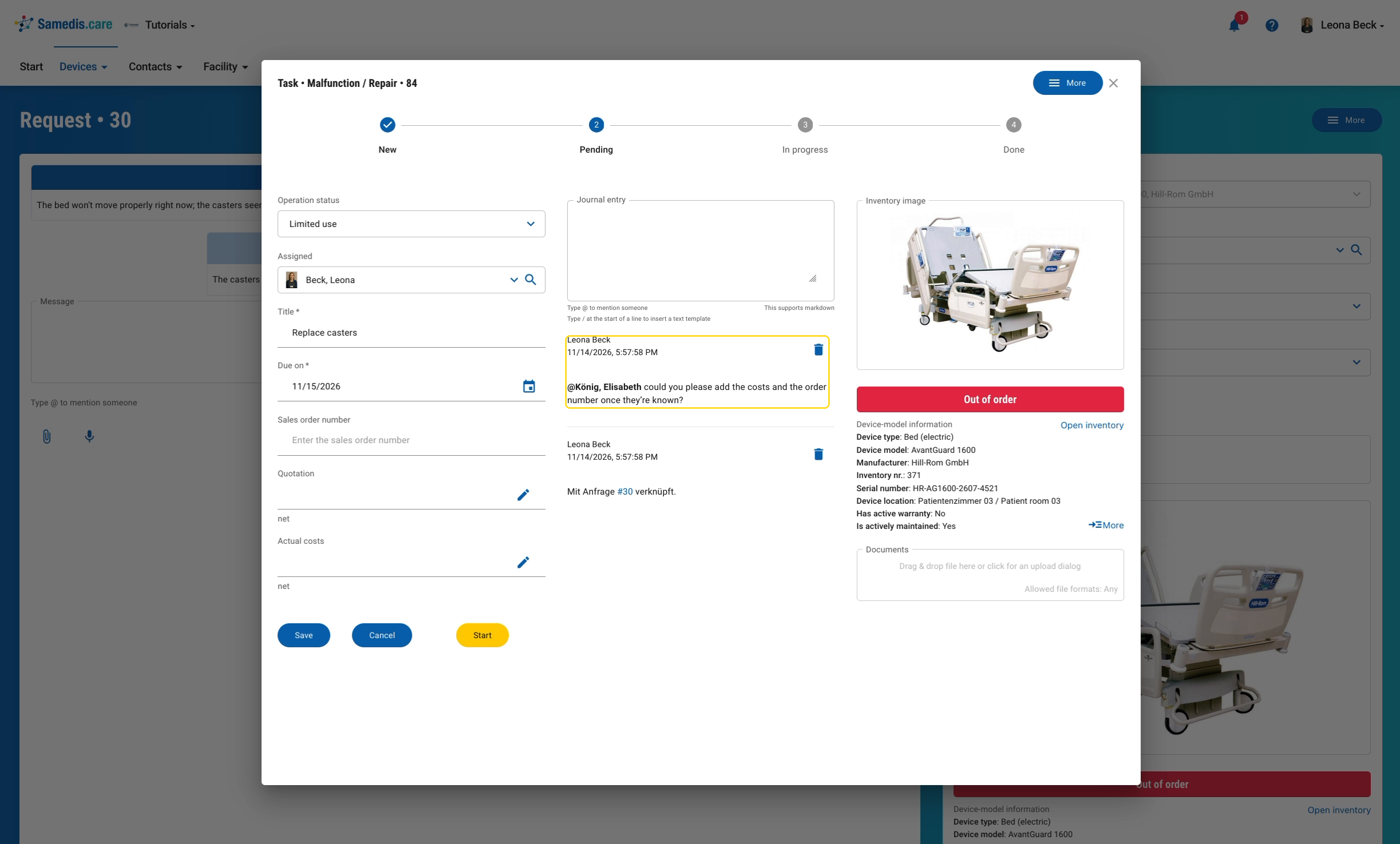
Save the task or send the message. The entry appears in the history, with the mentioned person highlighted in bold.
Warning
A message in a request is also visible to the person who created the request. So it’s better to write internal notes in the journal of the task.
3. Notification
The mentioned person receives a notification via the bell at the top right, with a direct link to the task or request. The number on the bell shows how many new notifications there are. If you mention the same person several times, they still only receive one notification. If you mention yourself, you won’t be notified.
Tip
A notification that has already been sent is not withdrawn, even if you delete the journal entry afterwards.