Service World
The Service World in Samedis.care enables service providers to manage inspections, inventories and requests for their client facilities centrally and efficiently. Transparent collaboration, automated documentation, and shared data ensure a smooth, secure, and time-saving process for both sides.
This tutorial shows you how to connect your facility to the Service World and make the most of its features.
1. Connect central service partner
Do you have a central service partner for all devices?
Then link your entire facility to the service partner. This gives them access to all device data and allows them to centrally manage all related tasks.
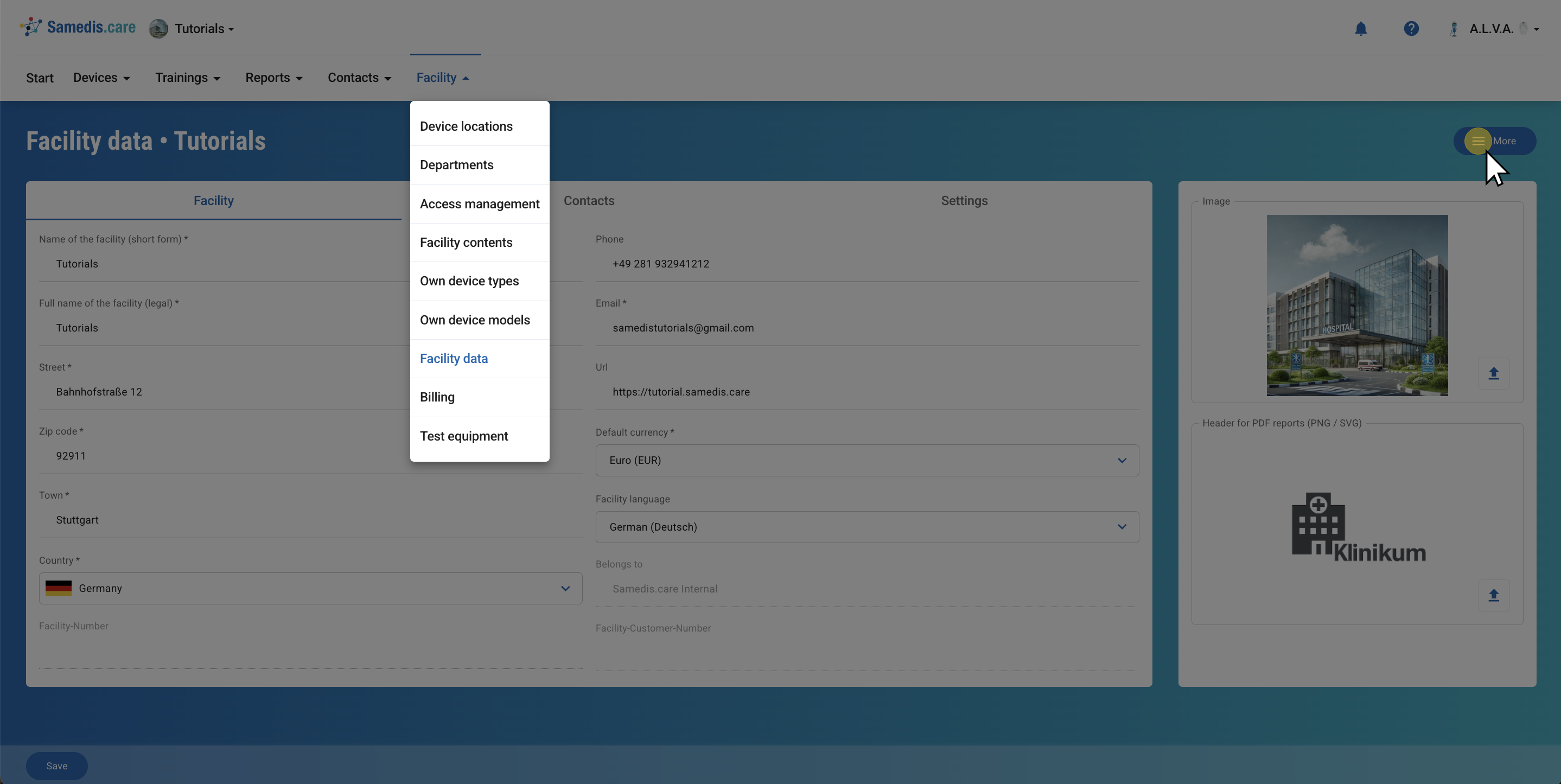
To do this, first open your facility data.
Tip
Your service partner must be using the Samedis.care Service World in order to collaborate with you through the system.
If they don’t have access yet, they should contact Samedis.care directly.
1.1. Connect Enterprise
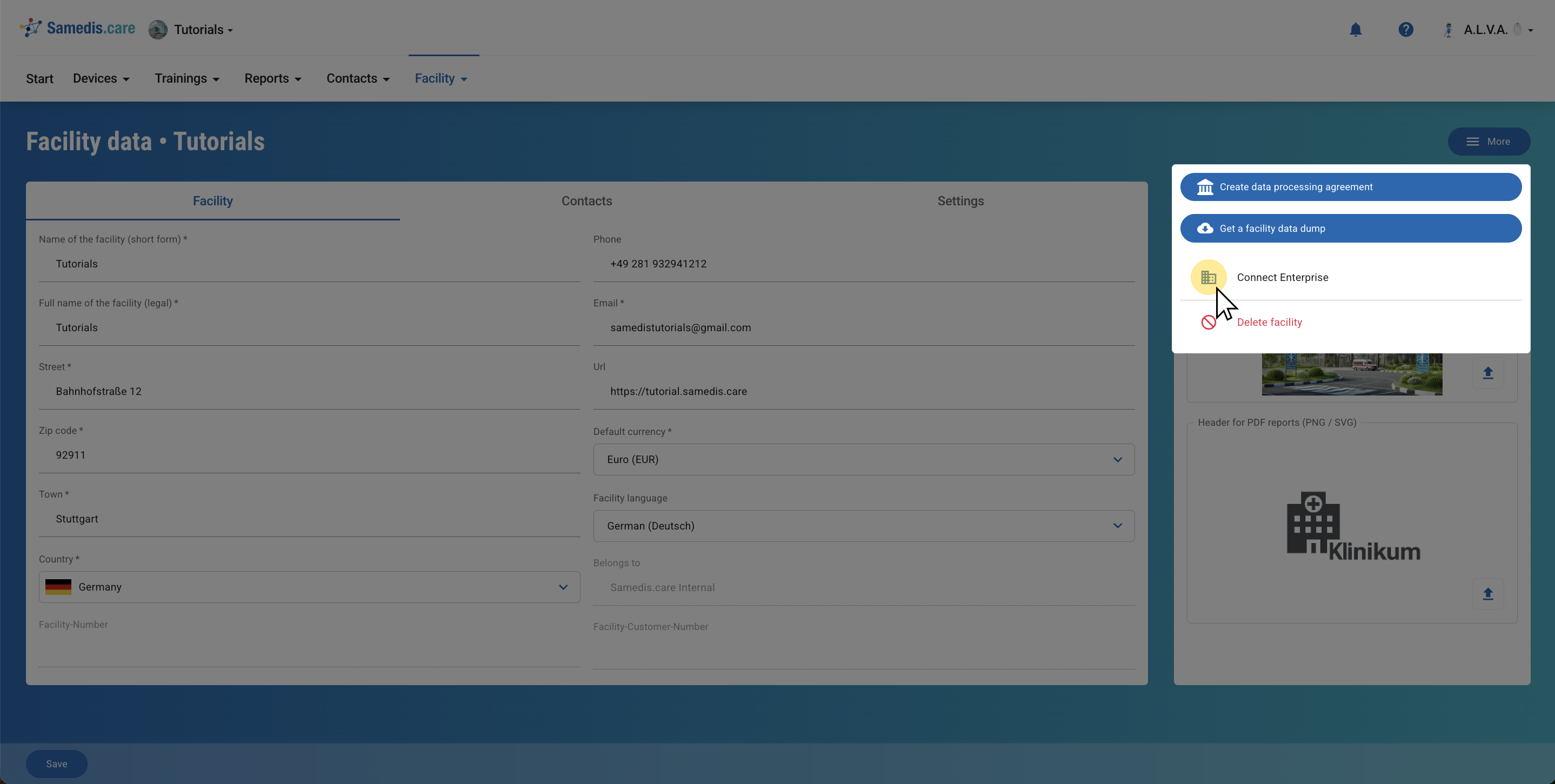
Then go to More and select Connect Enterprise.
1.2. Enterprise pairing code
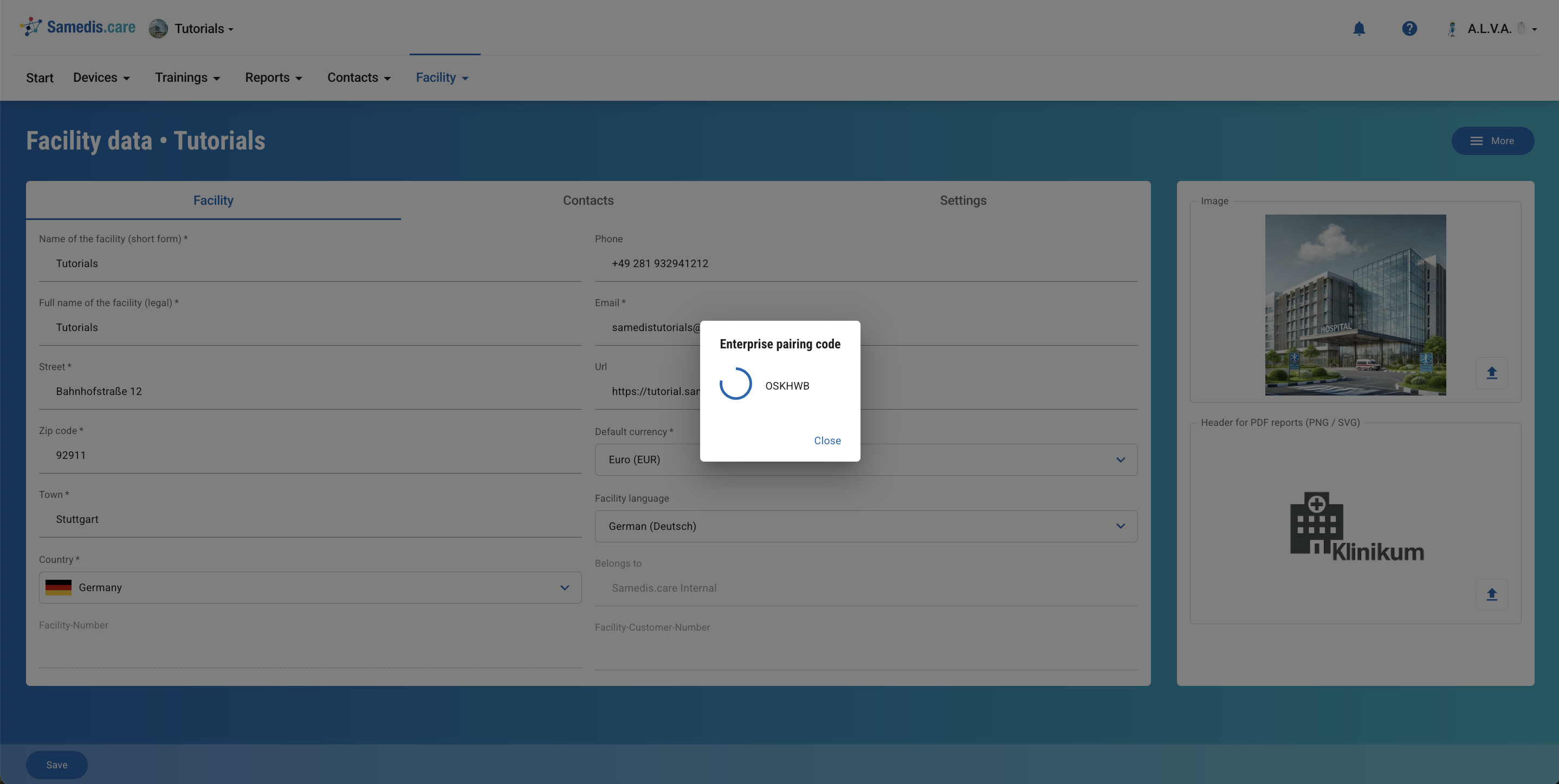
You will now receive a temporary pairing code.
Share this code with the responsible service partner so they can connect your facility to their Service World.
1.3. Confirmation
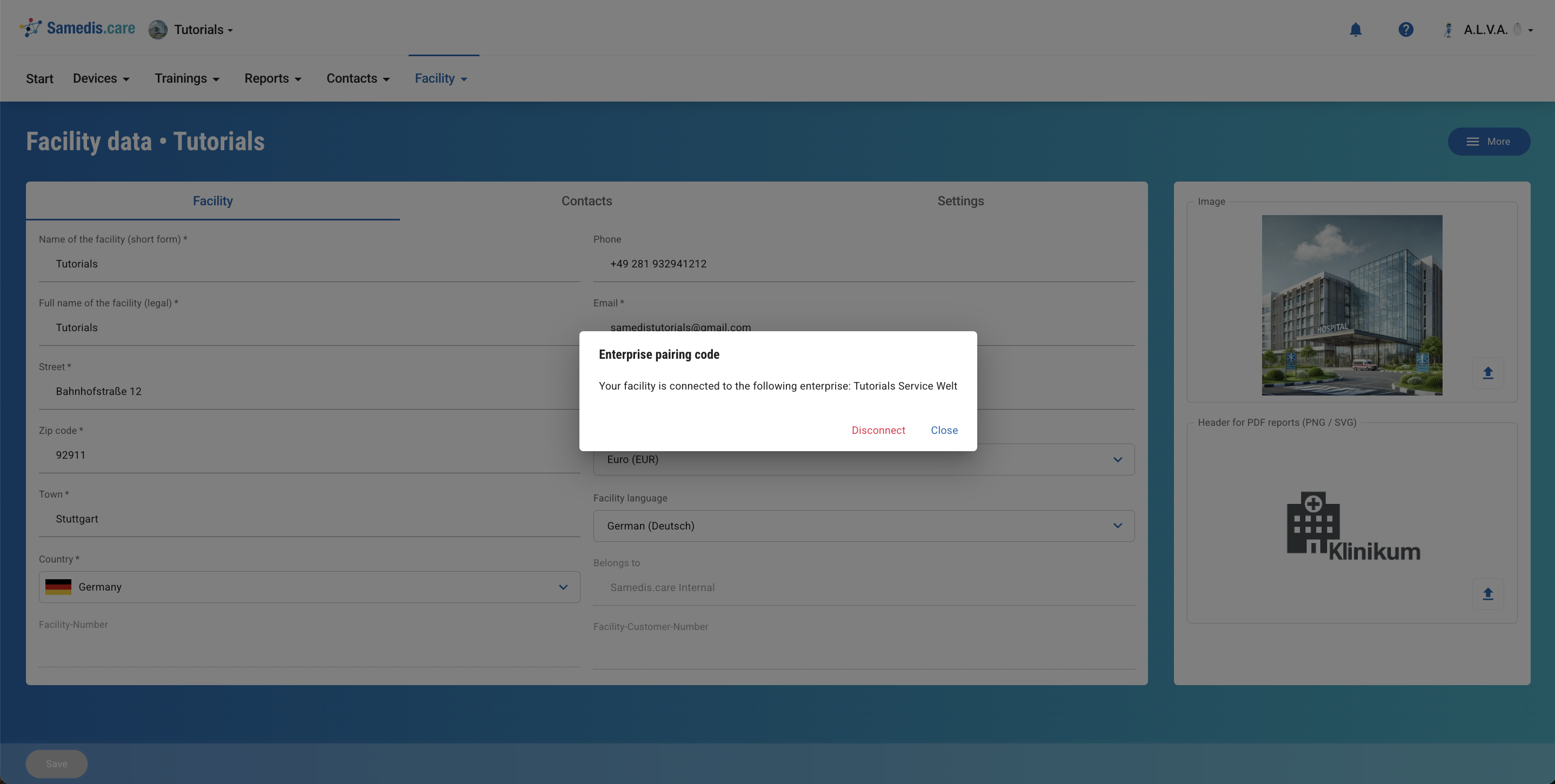
Once the pairing is successful, a confirmation will appear on your screen.
2. Assign device to service partner
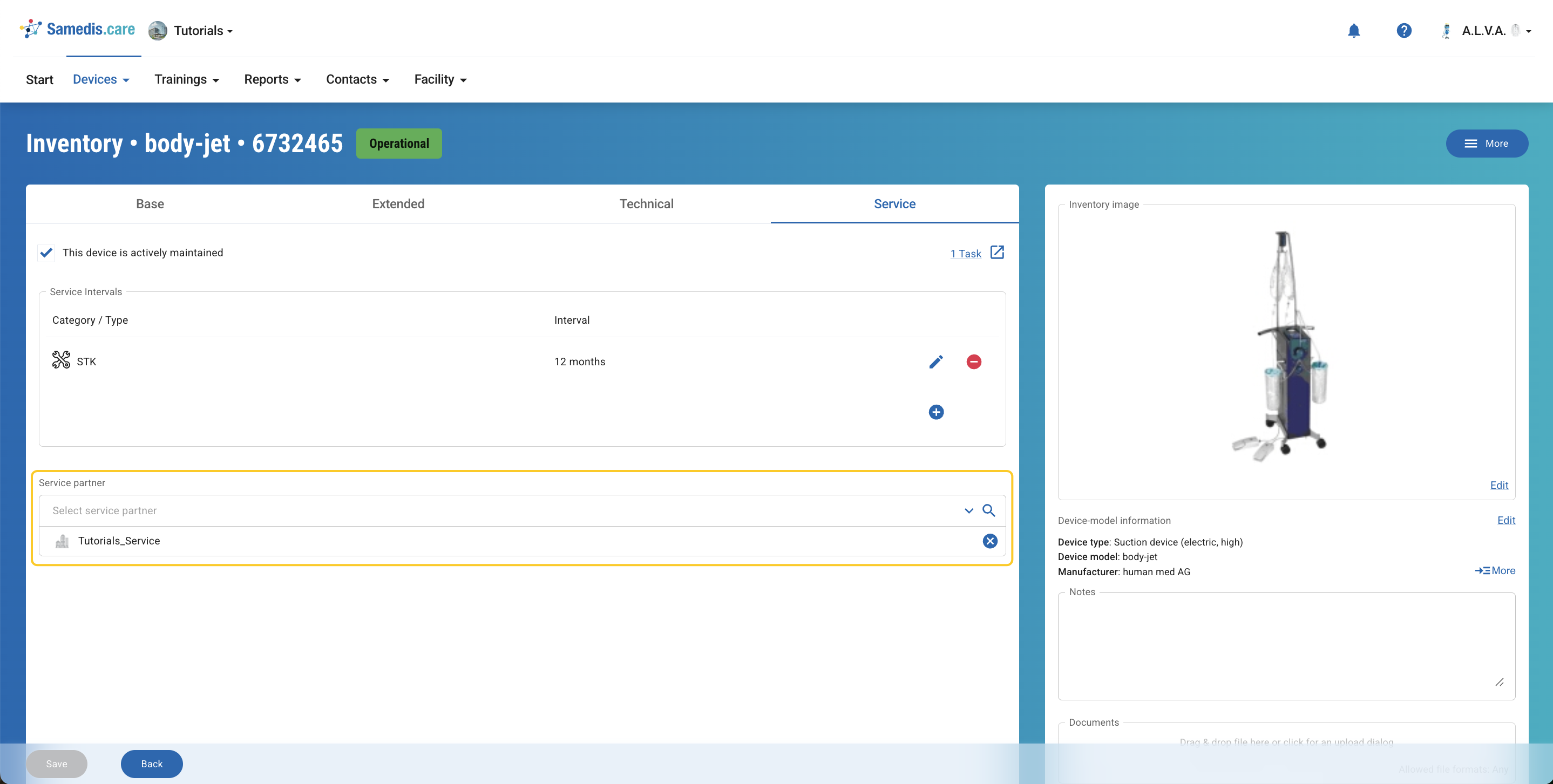
If you want to assign specific devices to individual service providers — for example, because multiple providers work within your facility and not all devices are managed centrally — open the respective device and select the appropriate service partner.
Note
The selected service partner can only view and manage actions for this device if you have explicitly assigned them here.