Properties
The Properties feature allows you to clearly manage multiple device locations within a single Samedis.care organization. This tutorial shows you how to activate and use this option effectively.
1. Facility data
Warning
Once the Properties feature has been activated and used, it cannot be disabled.
Make sure you truly want to use this functionality before proceeding.
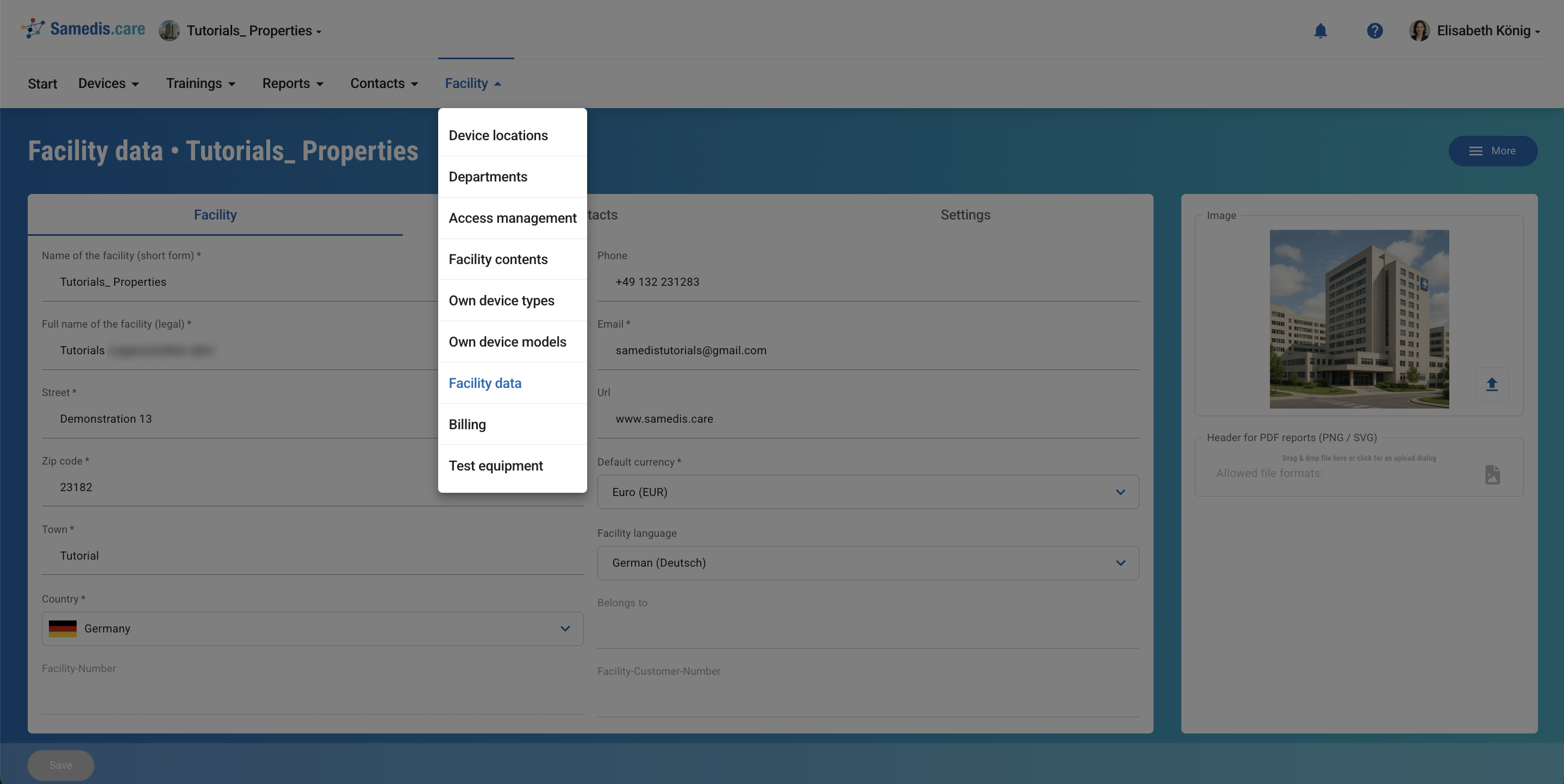
First, open your facility data.
2. Use extended location mode
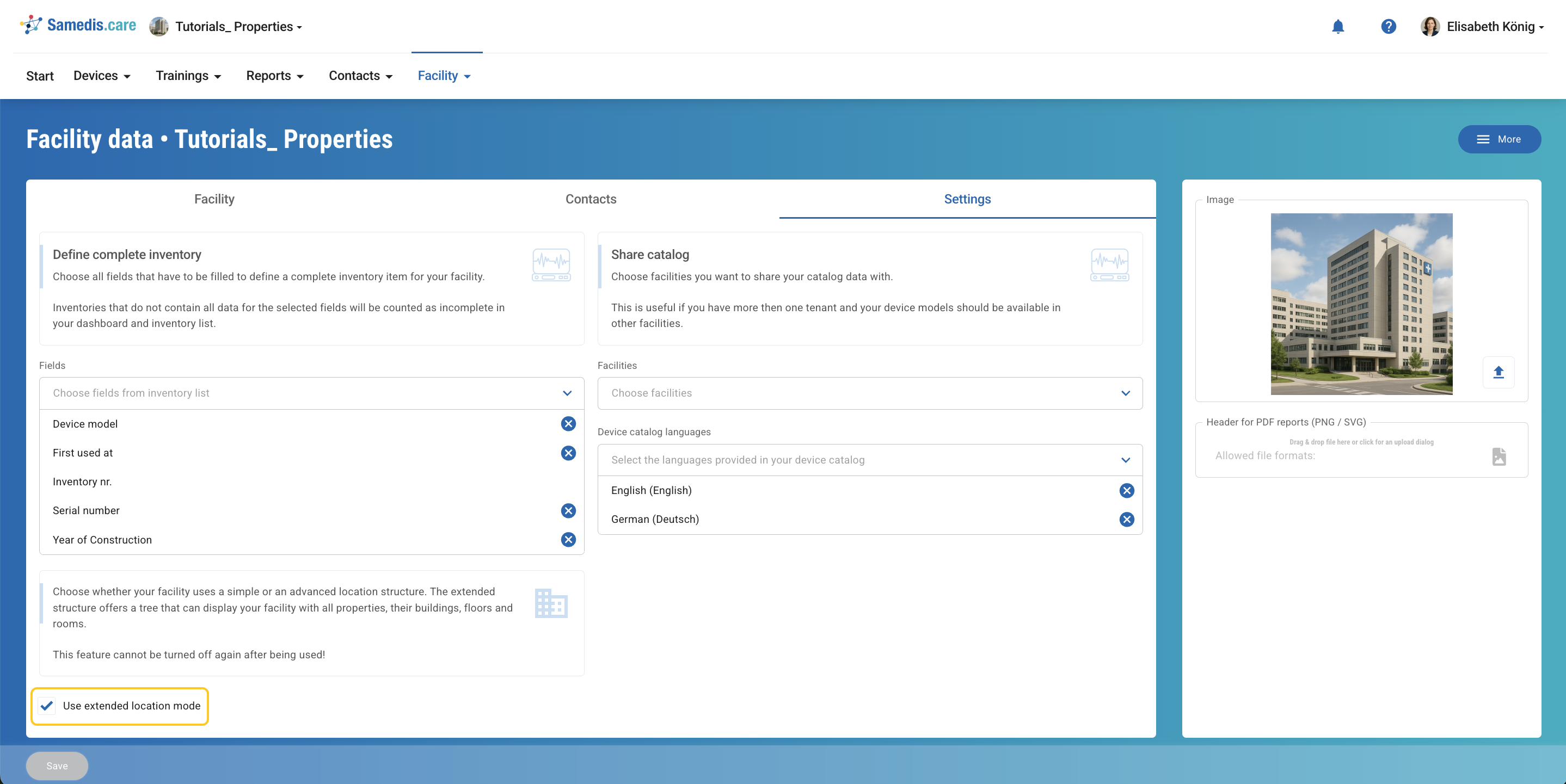
In the settings, enable the option Use extended location mode.
3. Create properties
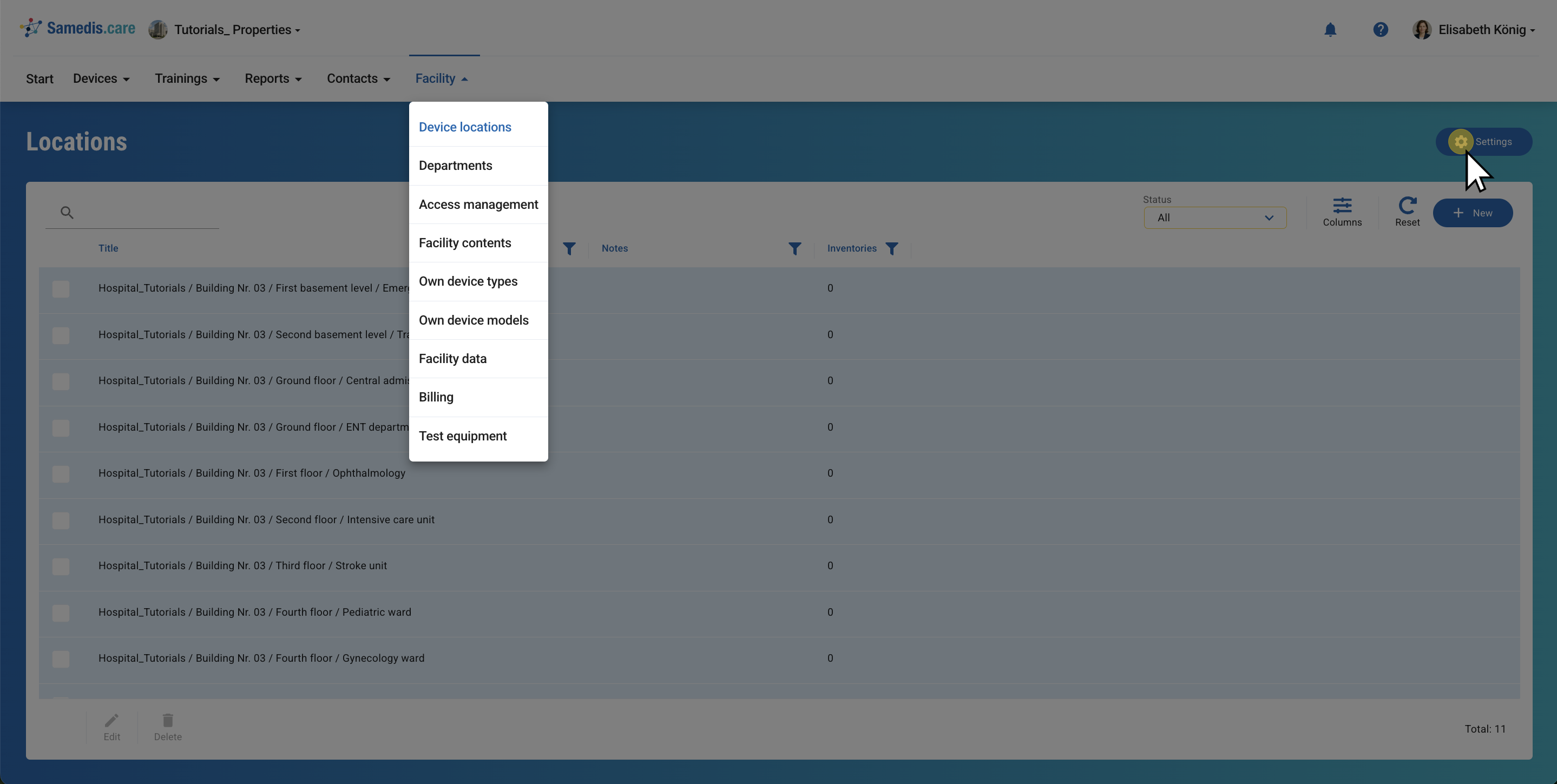
To create properties, go to your device locations and select the Settings option.
3.1. Properties
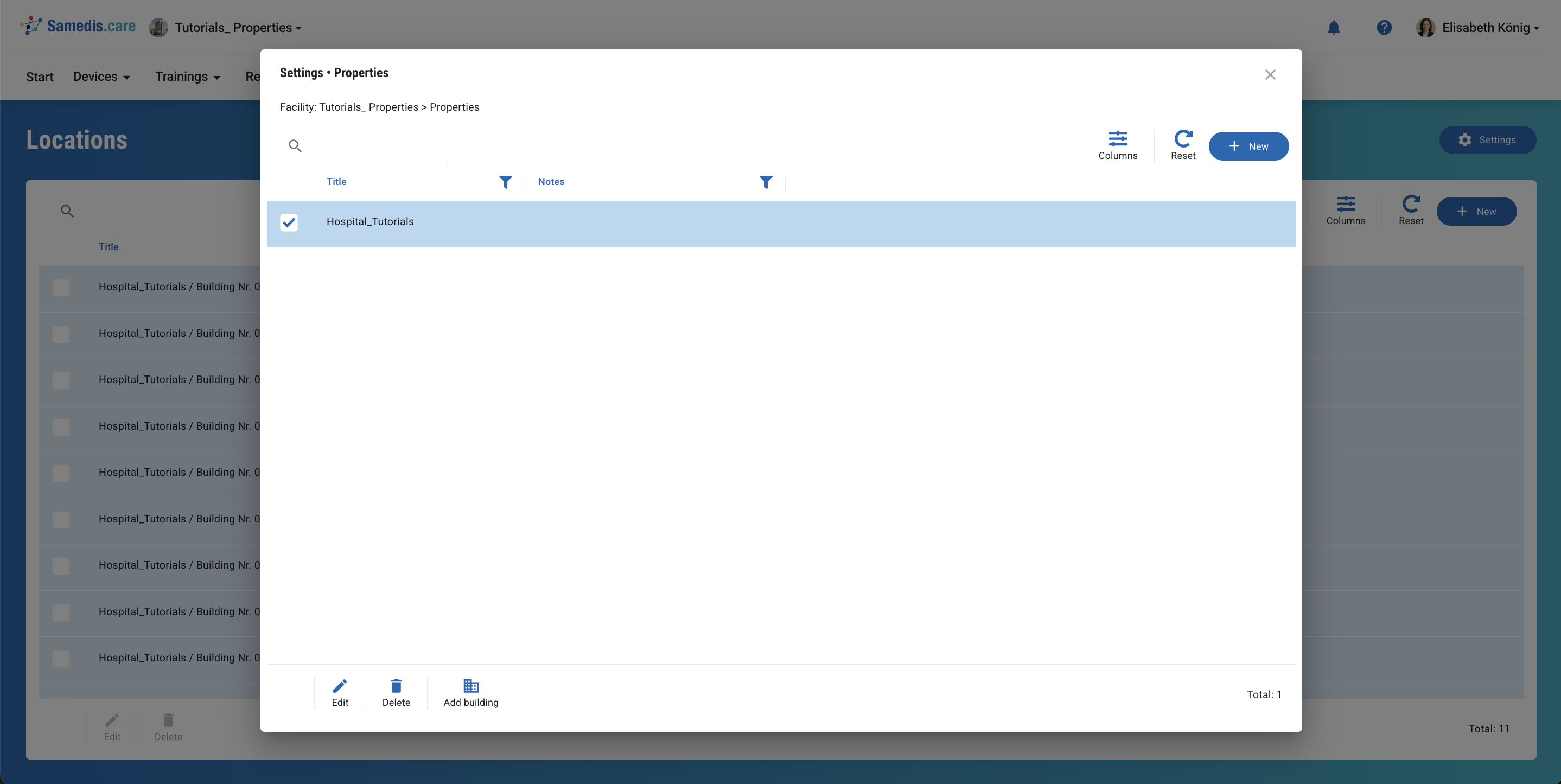
You will now see all properties that have been created so far.
To add a new one, click + New.
If you want to view the buildings assigned to a property, select the entry and click Add building.
Tip
You can also open the entry with a simple double click.
3.2. Buildings
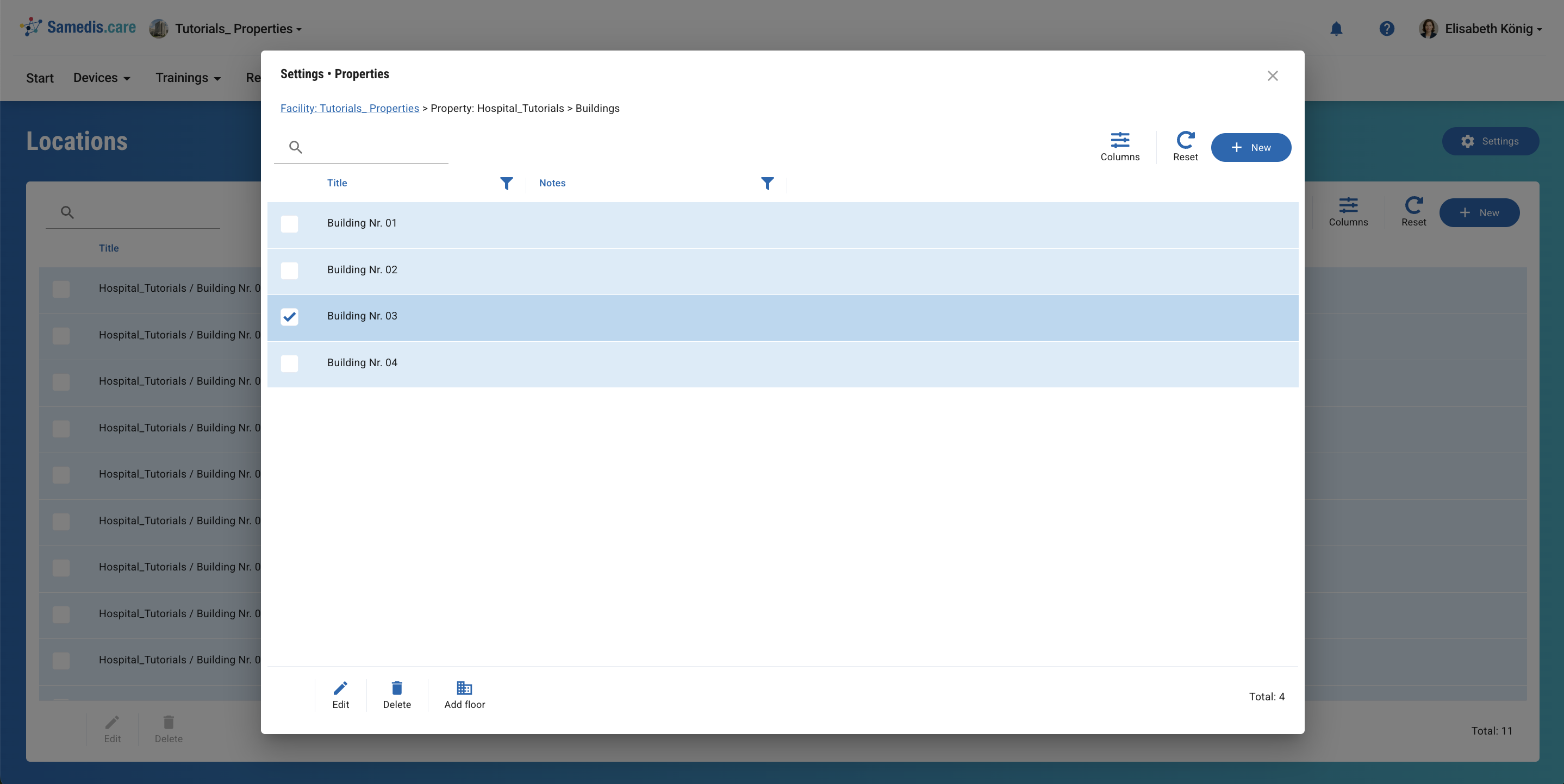
You will now see all buildings assigned to this property in the system.
To add a new building, click + New.
If you want to view the floors of a building, select it and click Add Floor.
3.3. Floors
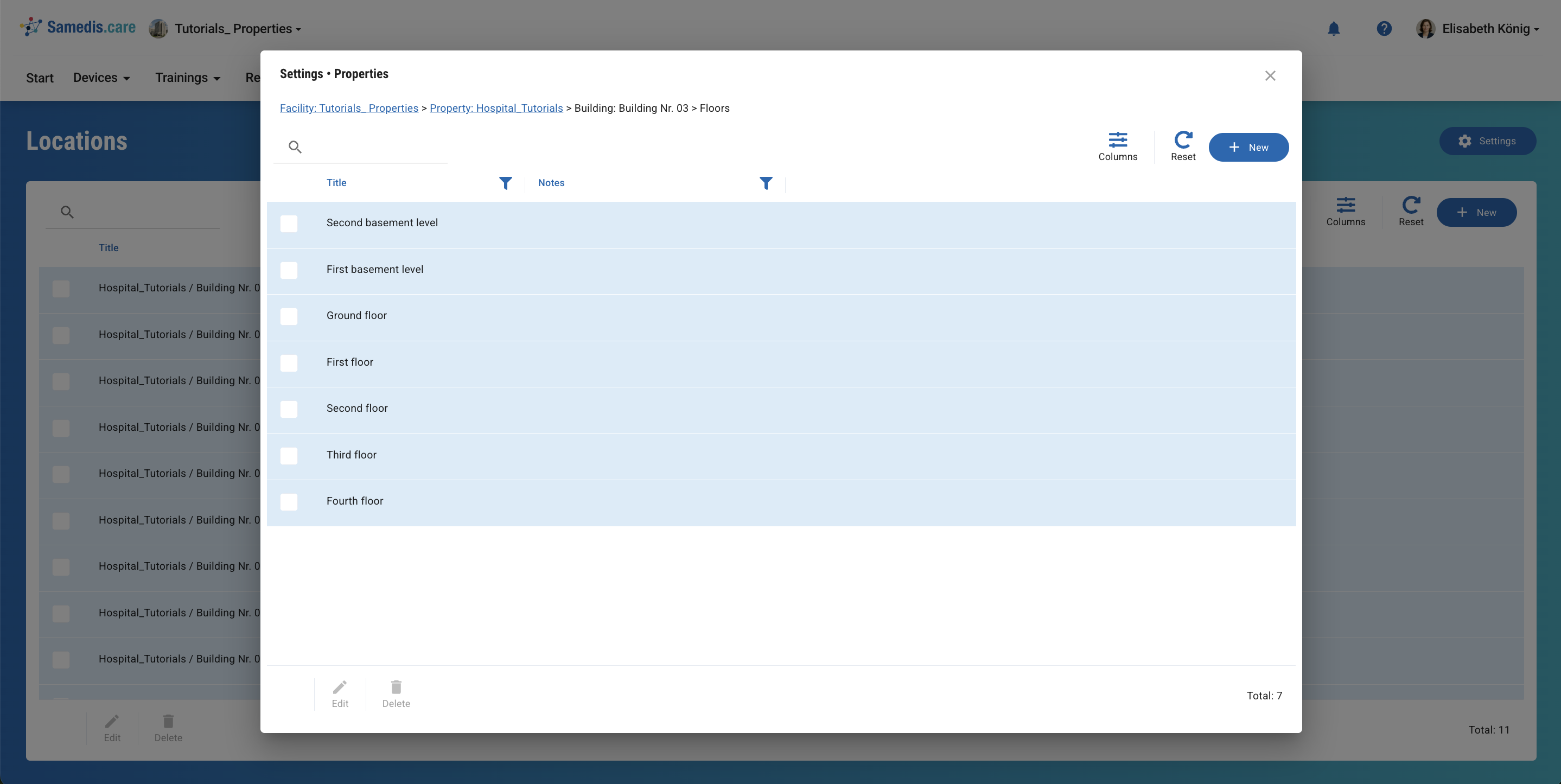
You will now see all floors that have already been added.
To add a new one, click + New.
4. Create device locations
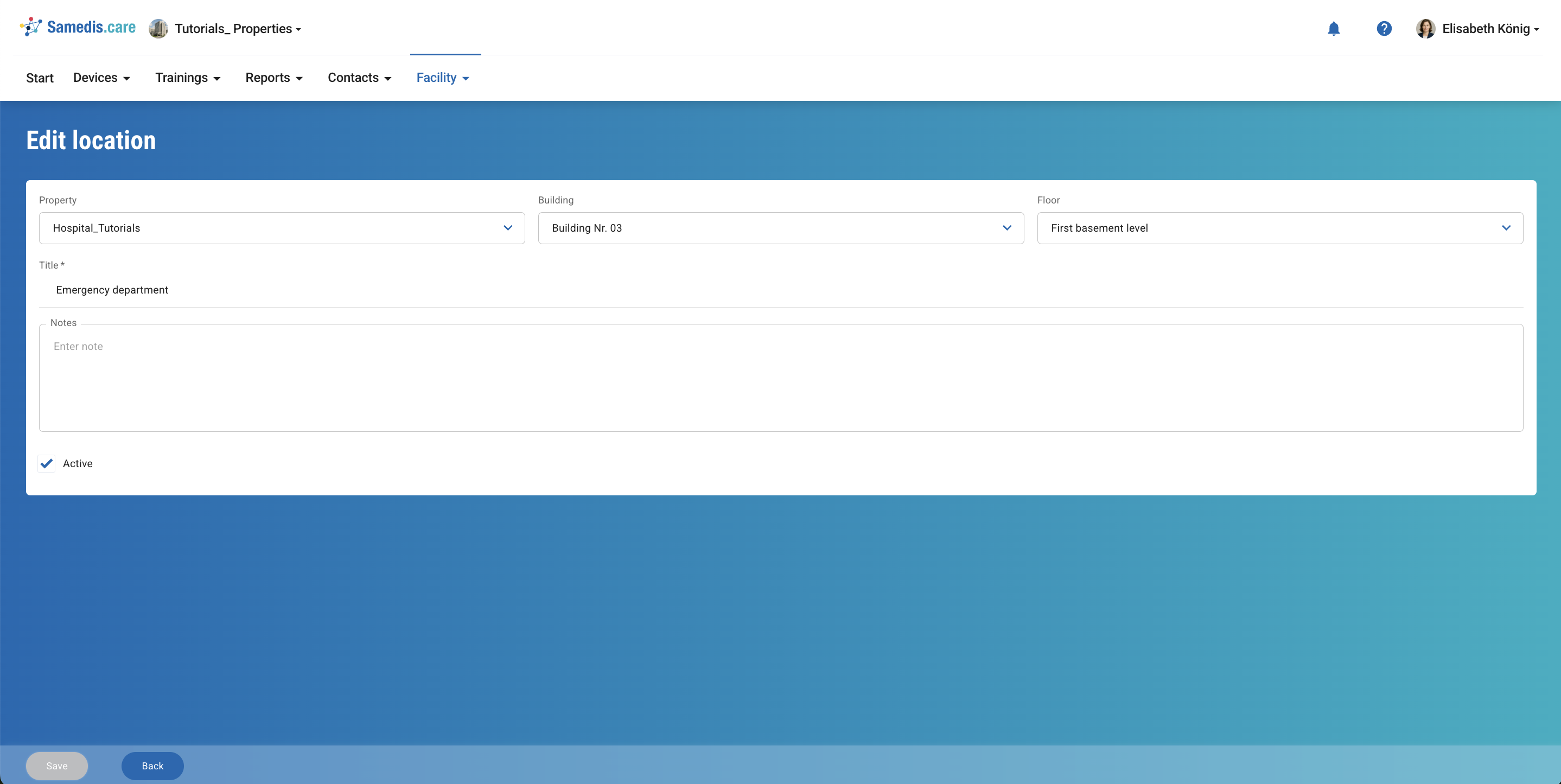
Creating device locations works the same way as described in the tutorial Manage device locations. Additionally, you now need to specify the associated property, building, and floor for each location.
5. Selecting device locations
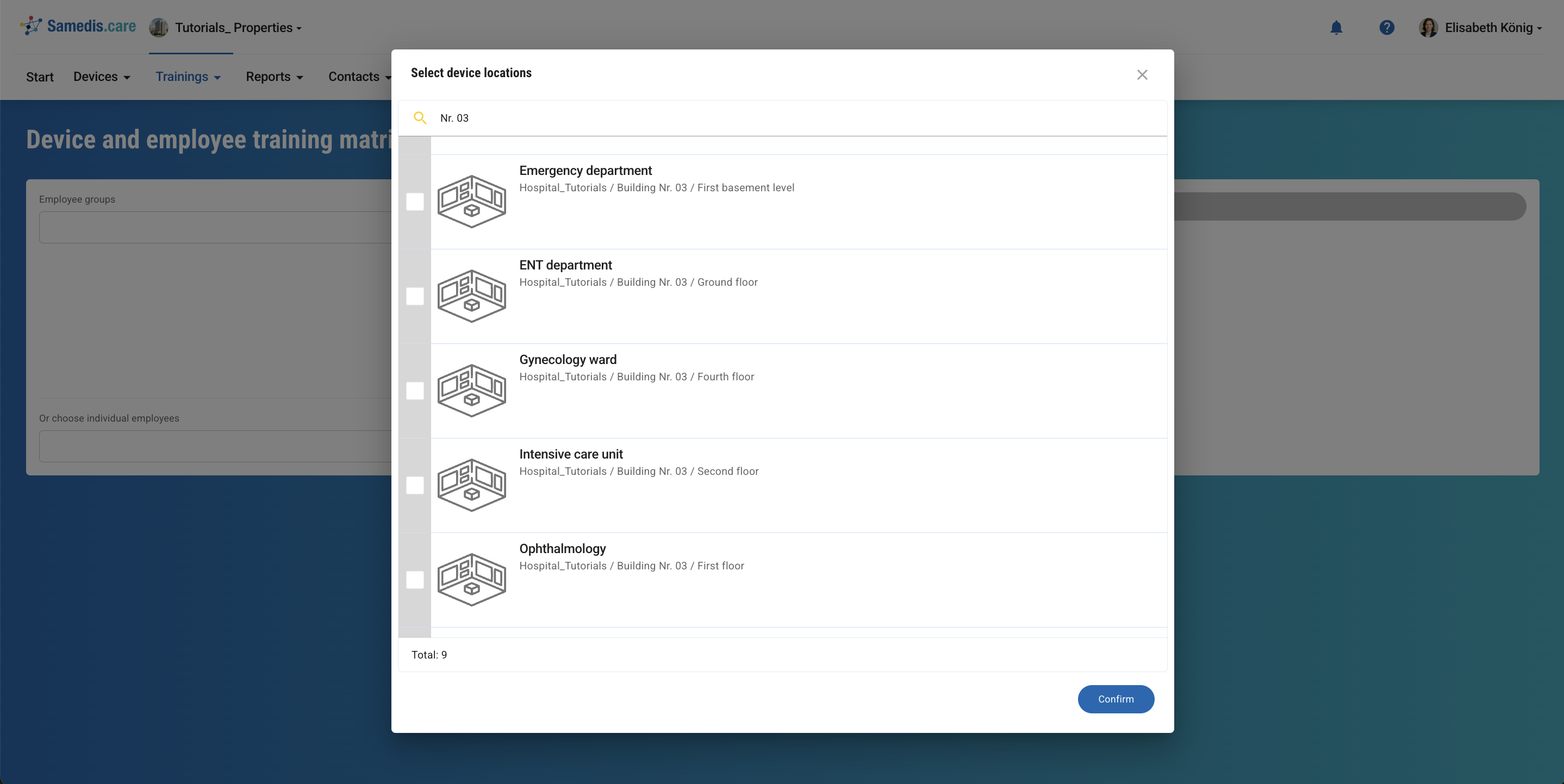
When you select device locations in, for example, the Device and employee training matrix, the associated property is displayed for each entry.
You can specifically search by individual buildings, floors, or properties to view exactly the information that’s relevant to you.