Setup request management
With Samedis.care, device users can easily record and submit their questions or issues via text, voice, image, or video message. These requests can be centrally received in Samedis.care, responded to directly, or forwarded to internal or external staff for further processing if needed.
In this tutorial, we’ll show you how to set up the request management system in your Samedis.care facility in just a few steps.
1. The Workflow
First, consider how the handling of requests should proceed in your facility.
Who reports requests regarding devices?
Should every employee be able to submit requests, or only selected individuals?
Who receives the requests?
Is request processing handled centrally?
Is there a dispatcher who initially reviews all incoming requests?
How are requests processed?
Are all requests handled centrally, or are certain requests also assigned to other individuals?
2. Permissions
For the request management to function in your facility, every individual involved needs a Samedis.care accountand access to your Samedis.care facility.
So they must be granted permissions within your facility.
You can invite individual device users who should only be able to submit requests directly via the employee list and grant them the appropriate permissions there.
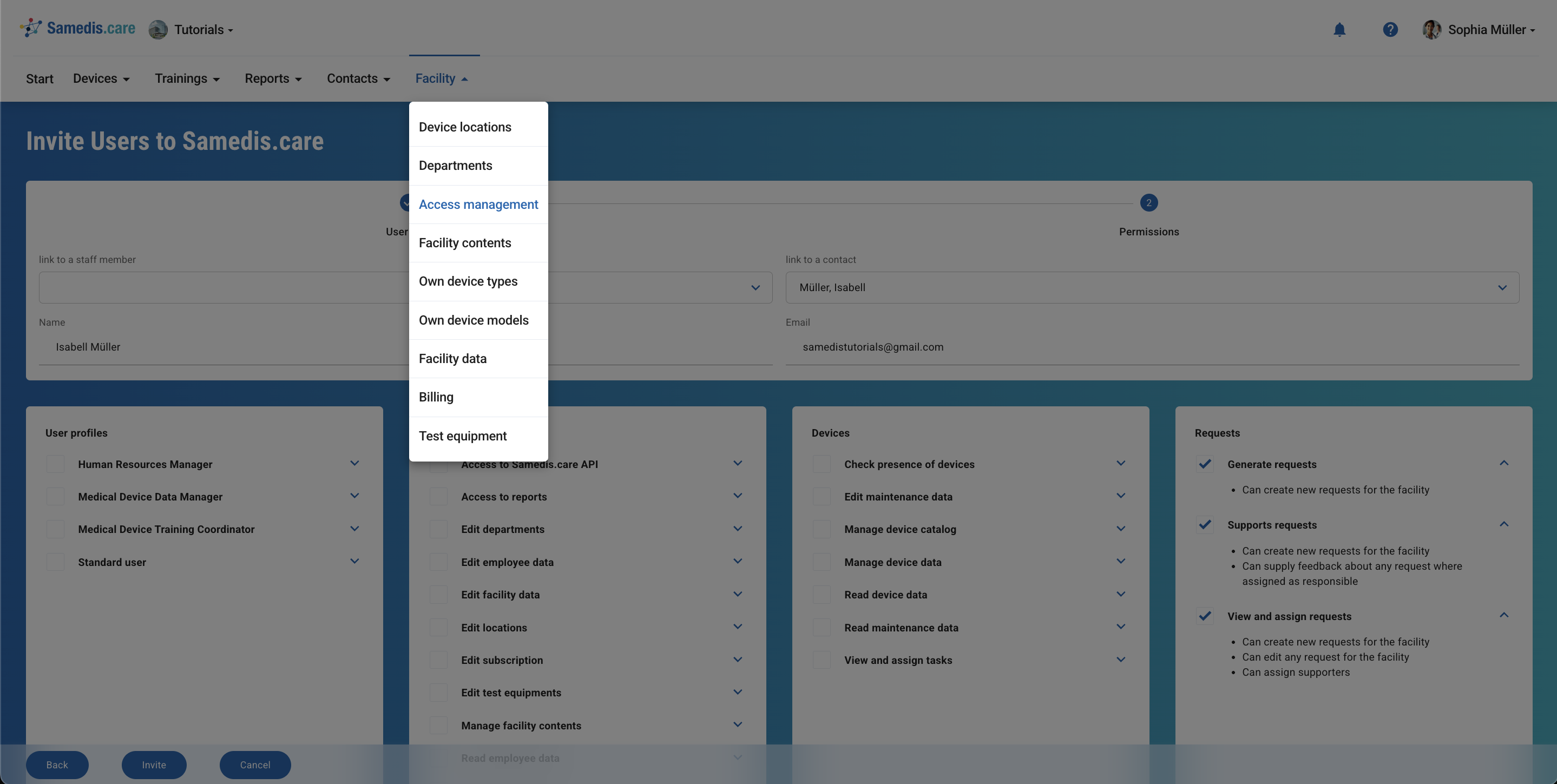
Internal or external individuals who receive, respond to, or process requests must be granted separate access rights in the Access management of your Samedis.care facility (see the tutorial Invite & set access rights for more information).
Note
Make sure to always select employees or contacts when sending invitations through the access management. This is the only way to ensure that requests can be assigned to them and that they receive the corresponding notifications.
3. Generating requests
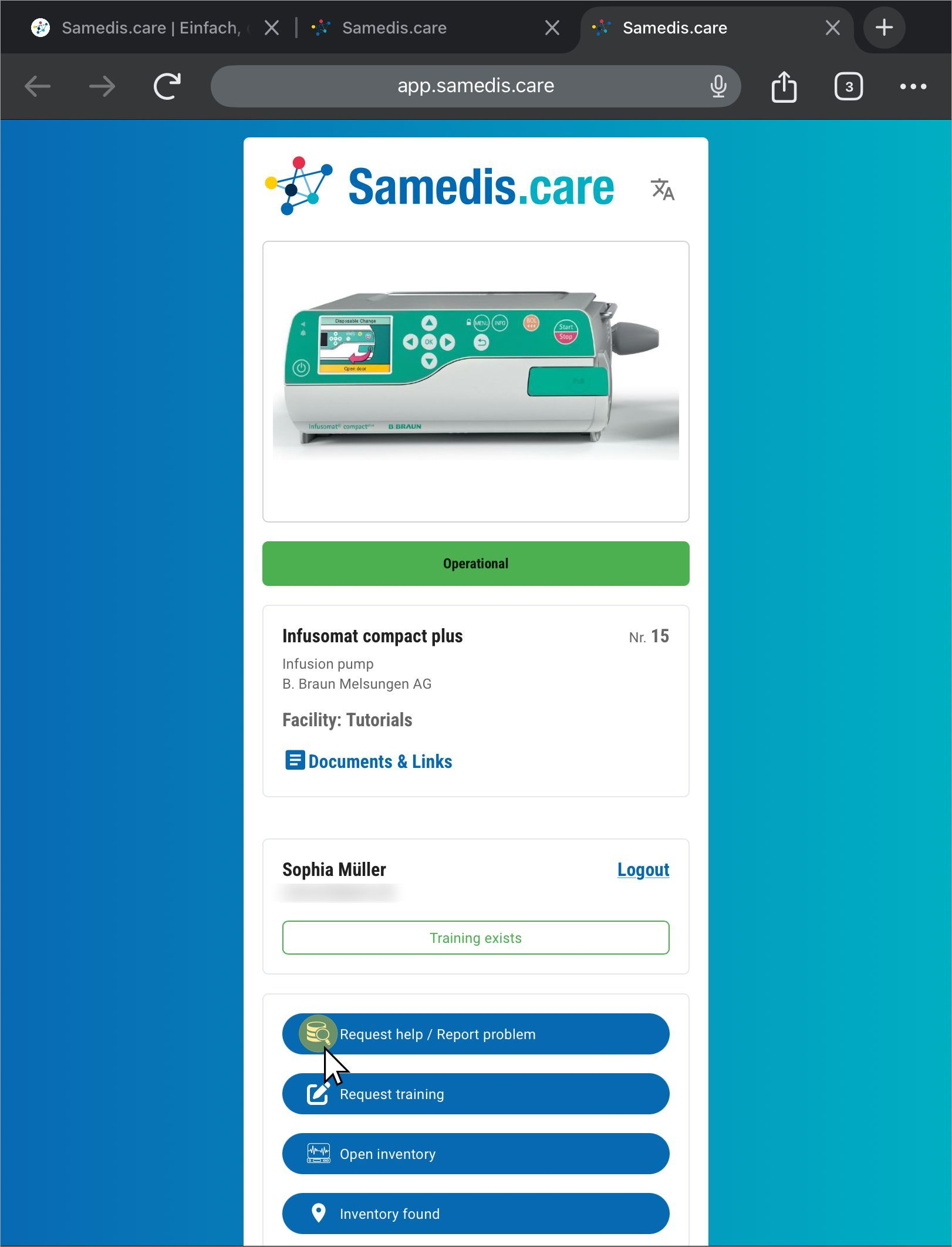
Individuals with the Create requests access right can submit a device request either by scanning a Samedis.careQR code or directly within the Samedis.care interface.
Tip
All submitted requests are available in the personal my.samedis.carearea of the person who created them.
They will also receive a notification there as soon as there is a response or any other update to their request.
4. Processing requests
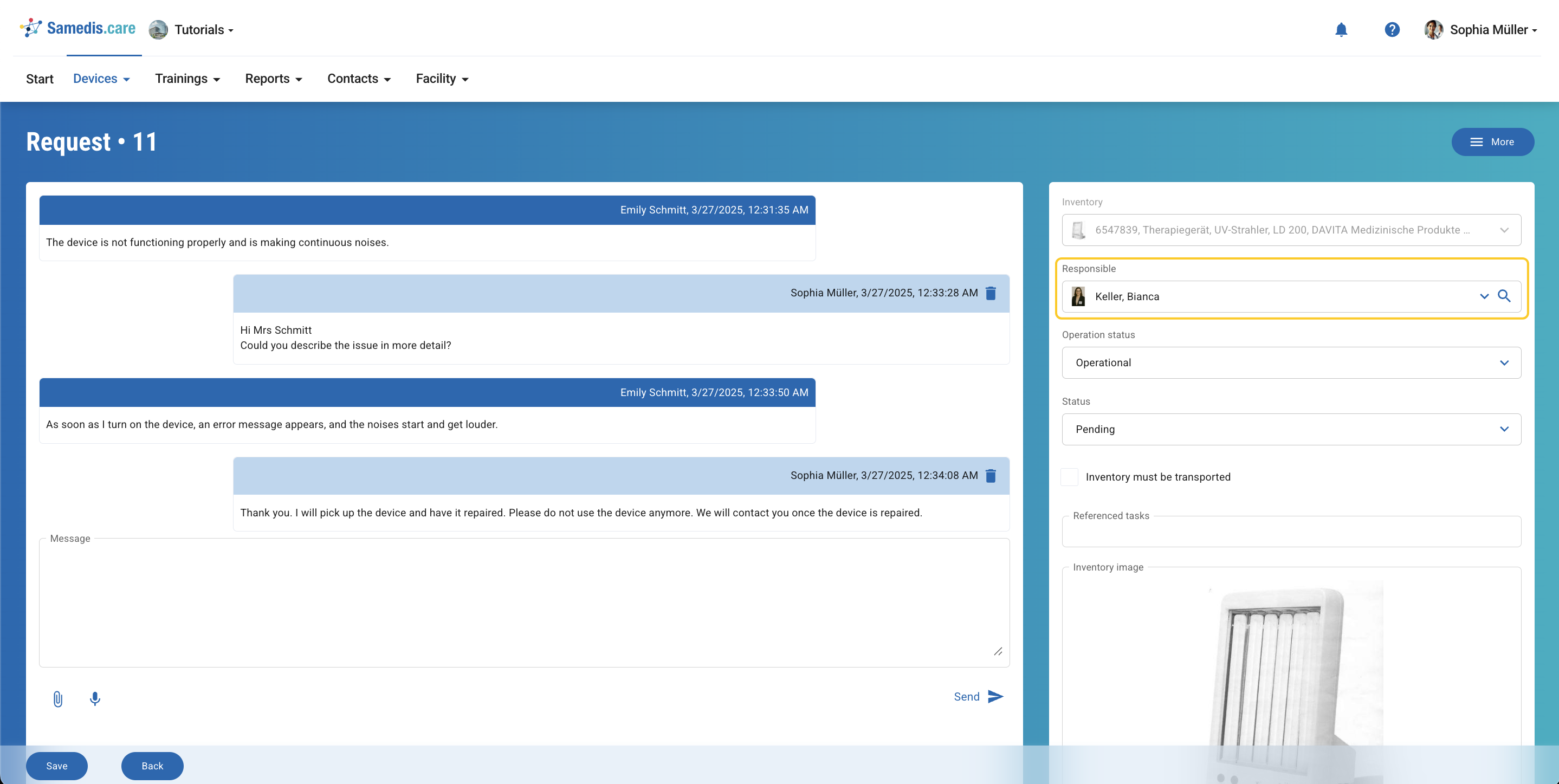
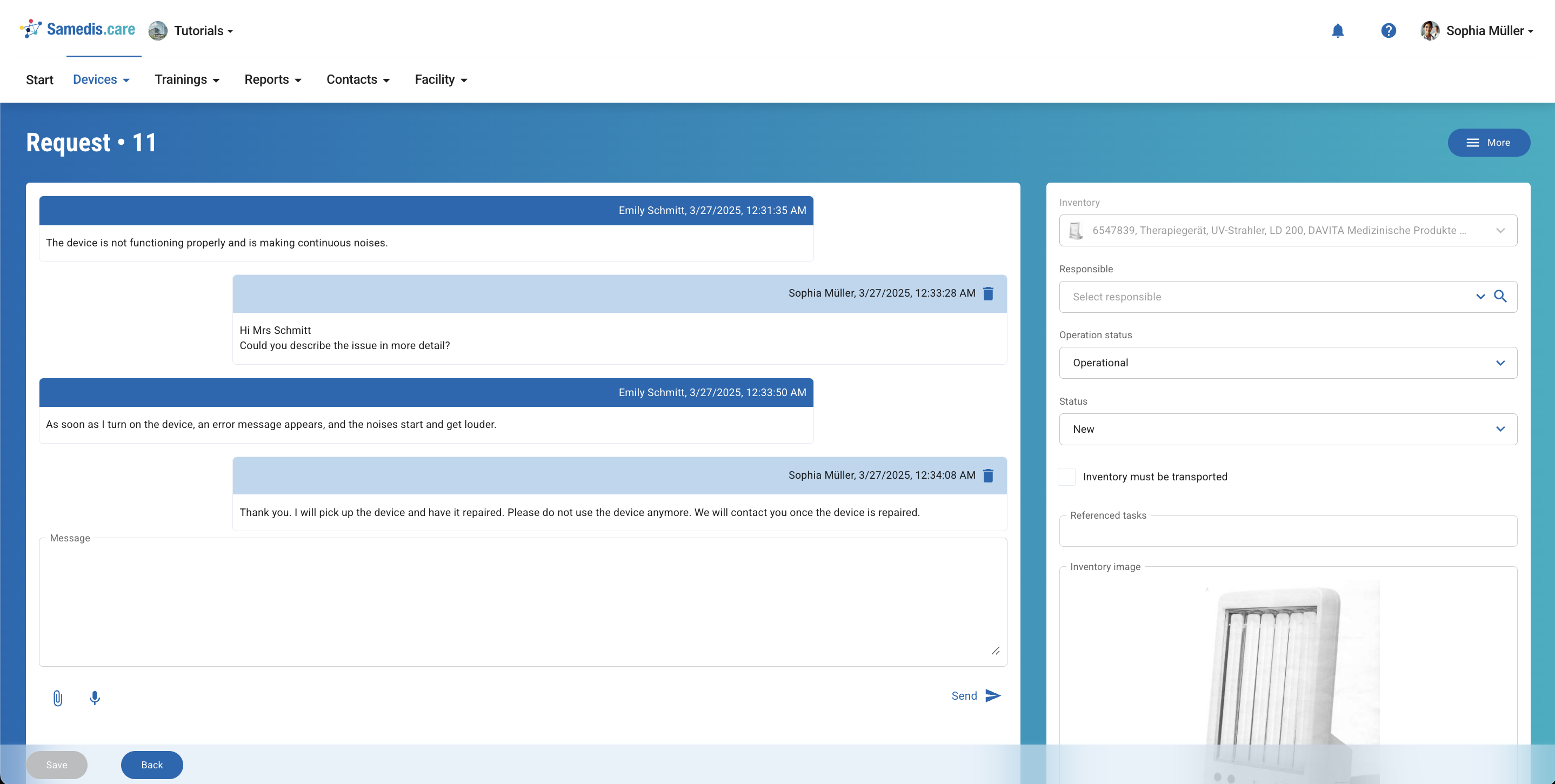
Users with the View and assign requests permission can access all incoming requests in the Requests section of Samedis.care and process them directly.
Alternatively, they can use the More option within a request to initiate a repair for the related device or decommission it.
Tip
All users with this access right receive notifications about new requests via the Samedis.care notification system 🔔 and by email.
5. Assigning requests
If a request cannot be answered directly or requires further support, users with the View and assign requests access right can assign any incoming request to another internal person (e.g., an in-house technician) or an external person (e.g., a technician from a service provider or manufacturer).
For a person to be selected, they must meet certain conditions:
- They need a Samedis.care account.
- They must be listed either as an employee or as a contact in the facility.
- They must be selected from the employee or contact list under Access management and authorized with the permission Supports requests.
Tip
If a service provider is assigned to the selected device, a contact person from the provider’s public contact list will automatically be suggested when choosing the responsible person.