Text templates
In this tutorial, we look at how to create your own text templates in Samedis.care and use them for quote requests, repair orders and in the journal. This means you no longer need to copy text from Word.
1. Text templates
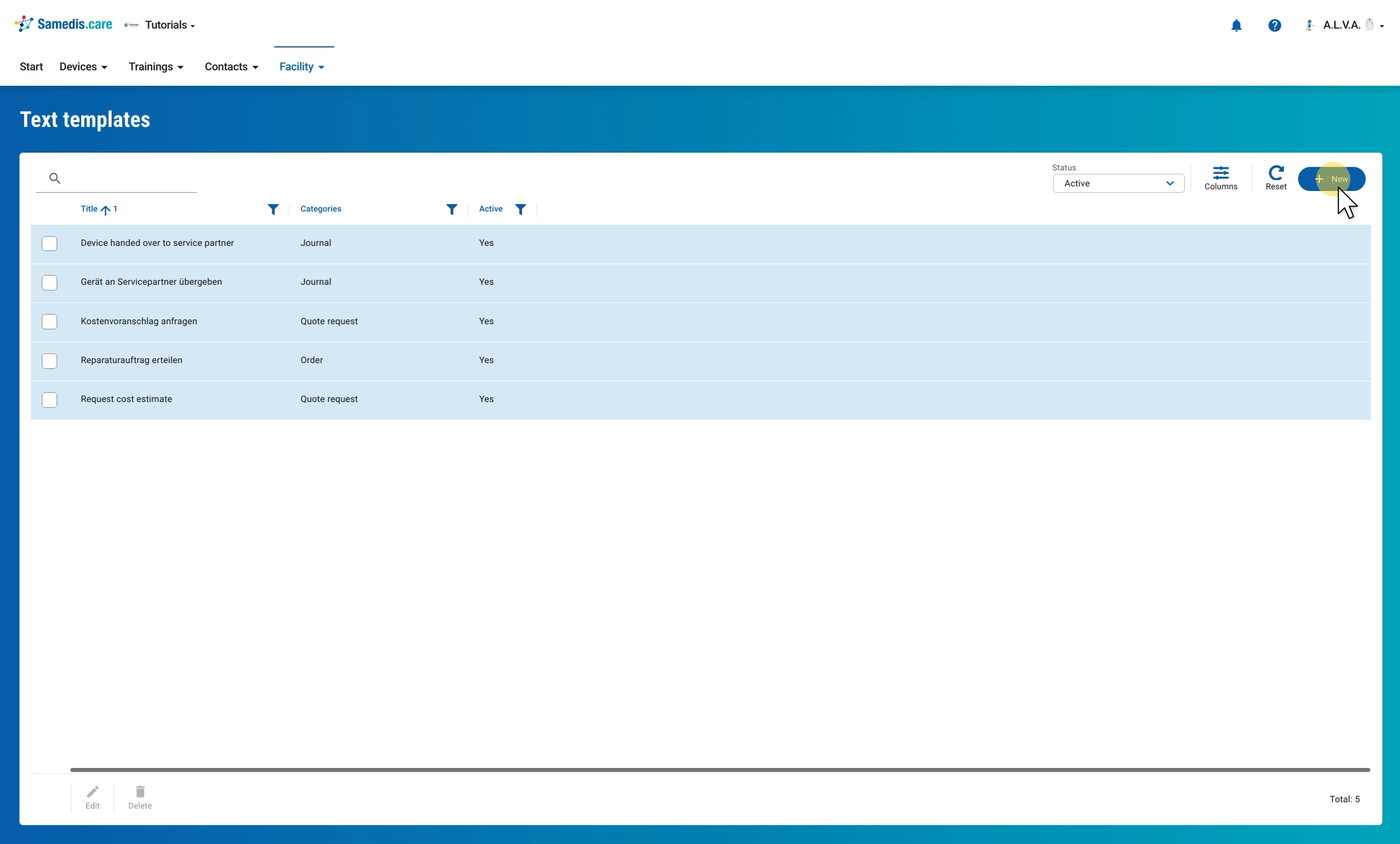
Under Facility, you will find your facility’s Text templates, each with its categories. To add a new template, click + New.
2. Add text template
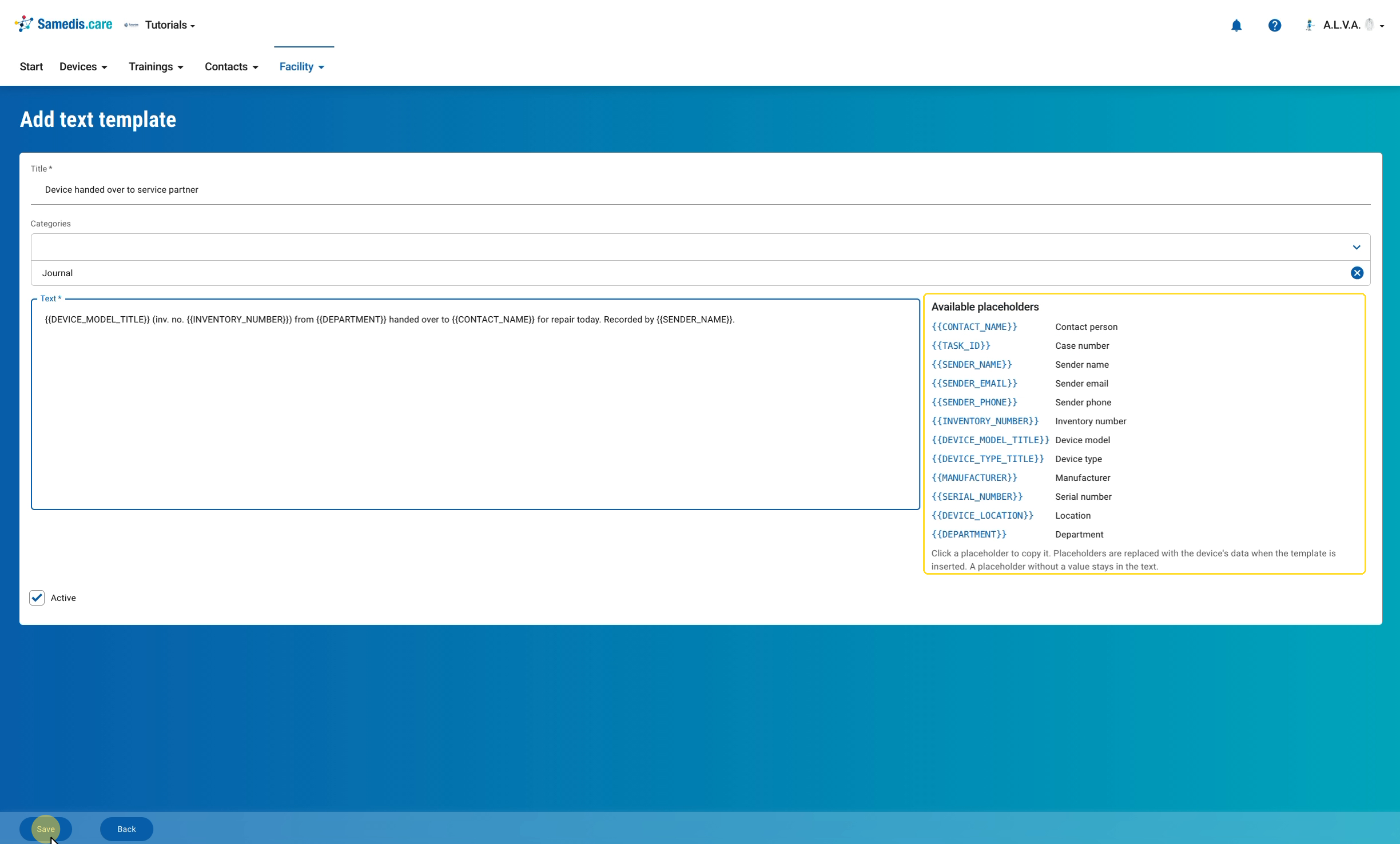
Give the template a Title and use Categories to choose where it should be available: Quote request, Order or Journal, or several if needed. Under Text, write the complete text including salutation and closing. On the right you will see the Available placeholders, for example for contact person, case number, inventory number or department. Clicking a placeholder copies it so you can paste it straight into the text. New templates are Active automatically. Store the template with Save.
Tip
The placeholders are replaced with the device and task data when the template is inserted. For example, {{TASK_ID}} is later replaced by the case number.
3. Request a quote
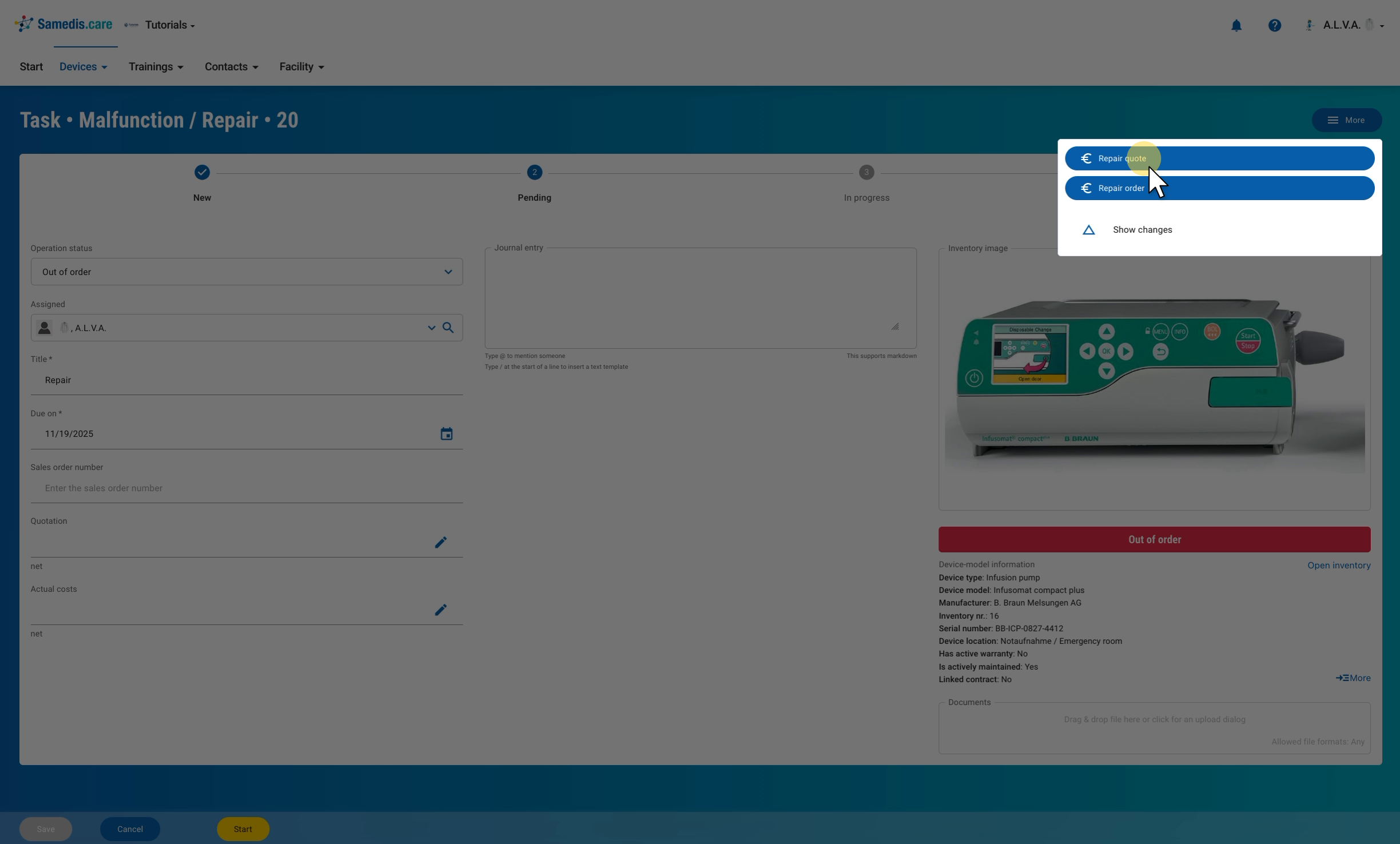
You use templates in the Quote request and Order categories in a task of the type Malfunction / Repair. Open the More menu at the top right and select Repair quote.
Tip
Use Repair order in the same menu to place the order. The Place order window works exactly as described in the next step and offers you the templates in the Order category.
4. Select text template
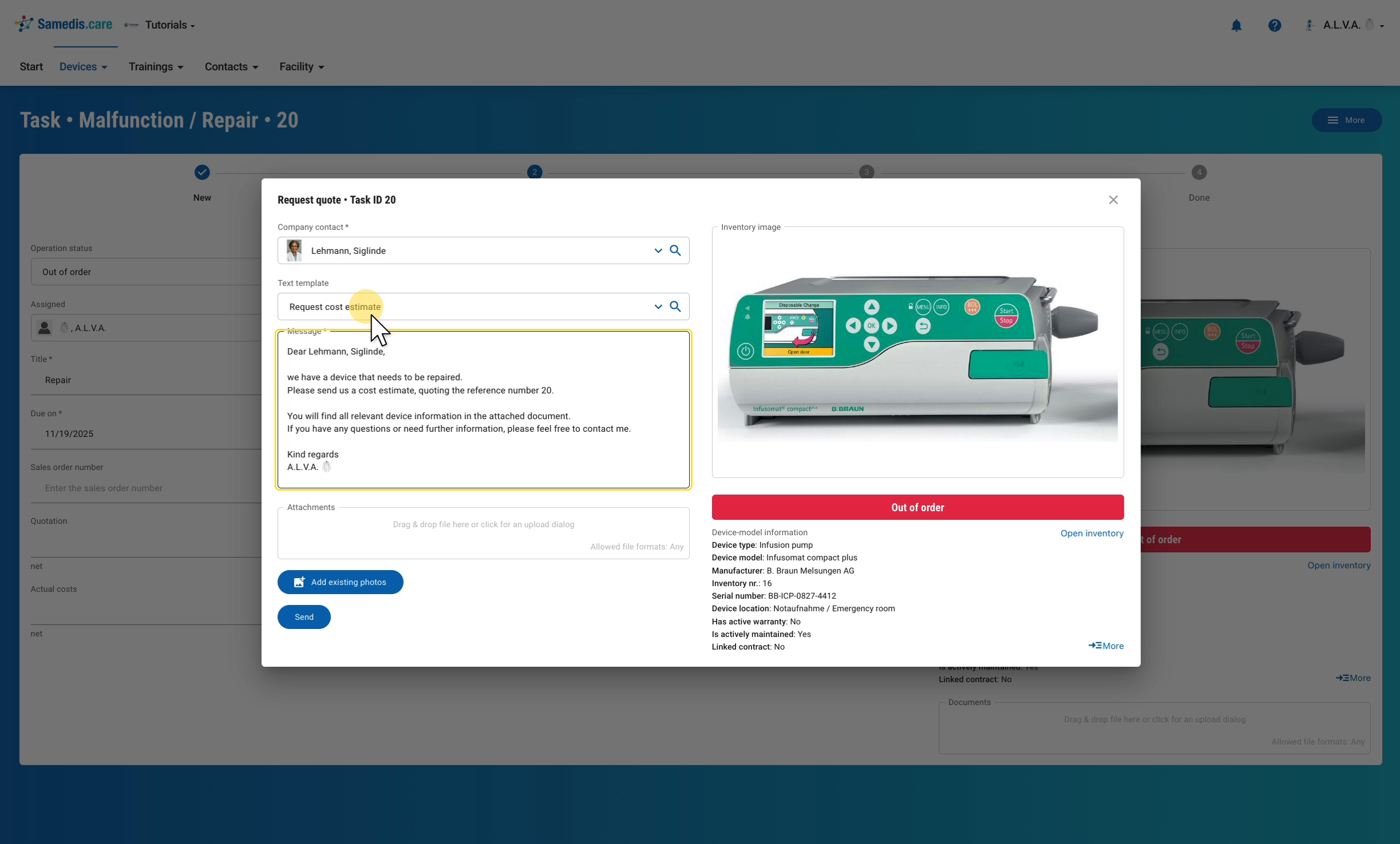
In the Request quote window, look up the contact person at the service provider under Company contact. Then select your template under Text template. Samedis.care fills in the Message immediately and replaces the placeholders, for example with the contact person’s name, the case number and your name. If needed, adjust the text, add files under Attachments or images via Add existing photos, and send the request with Send.
Tip
Only active templates of the matching category are offered here, so for a quote request only the templates in the Quote request category.
5. Use a template in the journal
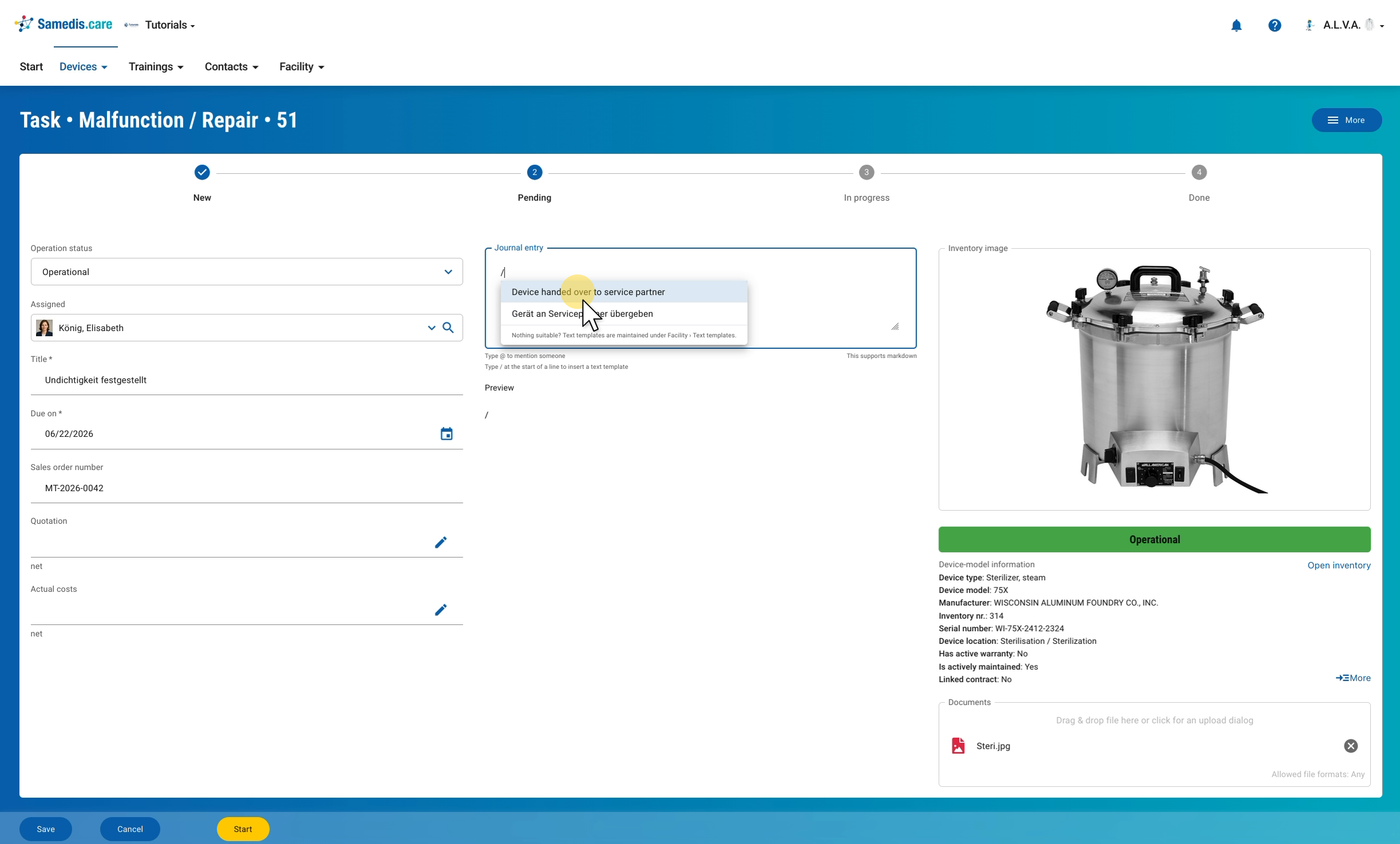
You can also access your templates in the Journal entry of a task. Type a / at the start of a line, and the list of your templates in the Journal category opens. Click a template to insert it; the placeholders are already filled in.
Warning
A placeholder without a value stays in the text. If, for example, no contact person has been stored in the task yet, the text literally says {{CONTACT_NAME}}. So check the text before saving and add missing details manually.