Edit access rights
In Samedis.care you can quickly and easily adjust your team’s access rights at any time - for example, if roles or responsibilities change.
1. Access management
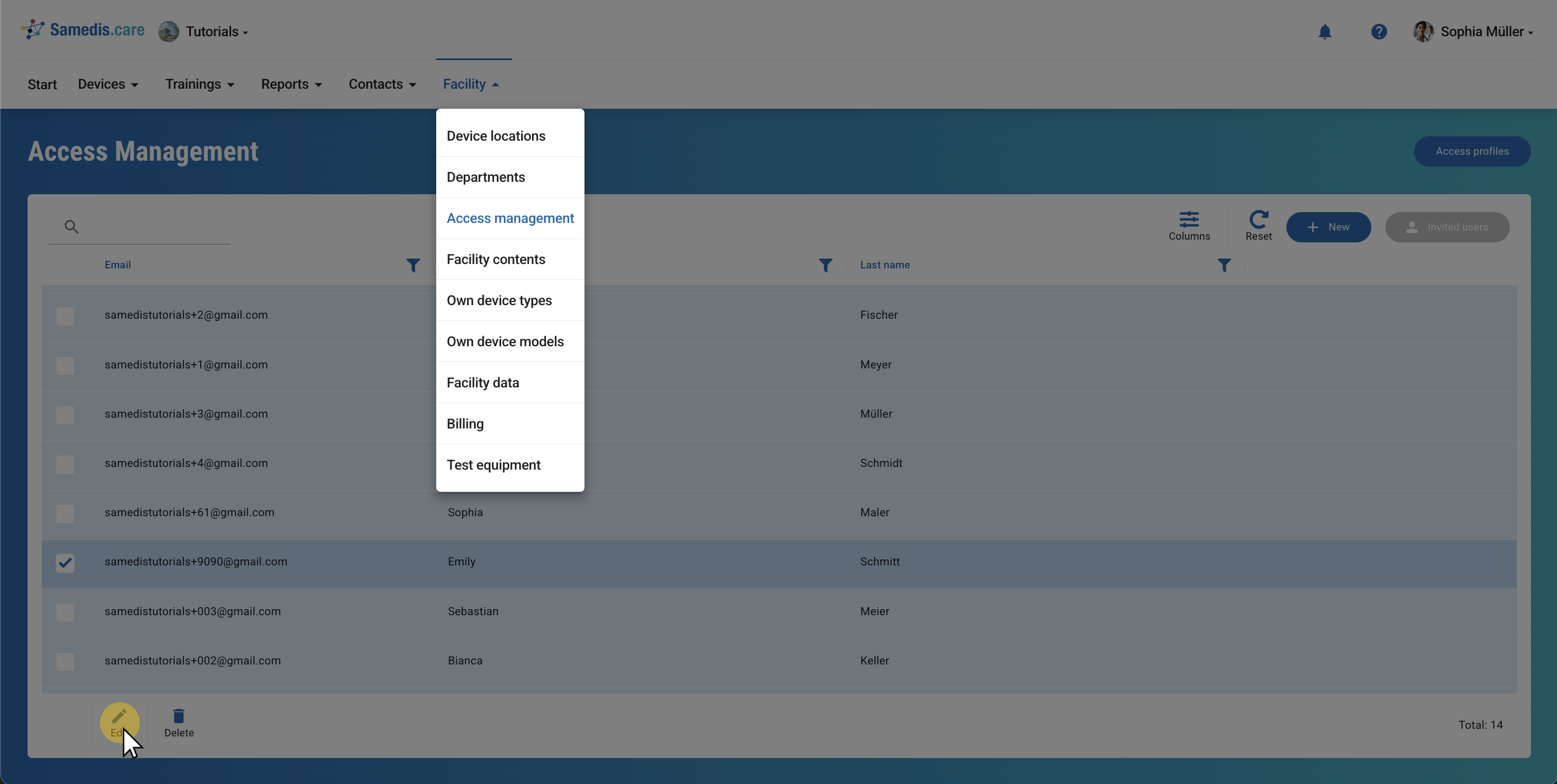
In the Access managementsection, you define who has access to your facility and what permissions they receive.
Select the person whose access rights you want to edit and click Edit.
Tip
In the overview, you can see all people who currently have access to your facility.
Someone should no longer have access? Select the person and click Delete to remove all their permissions.
2. Select person
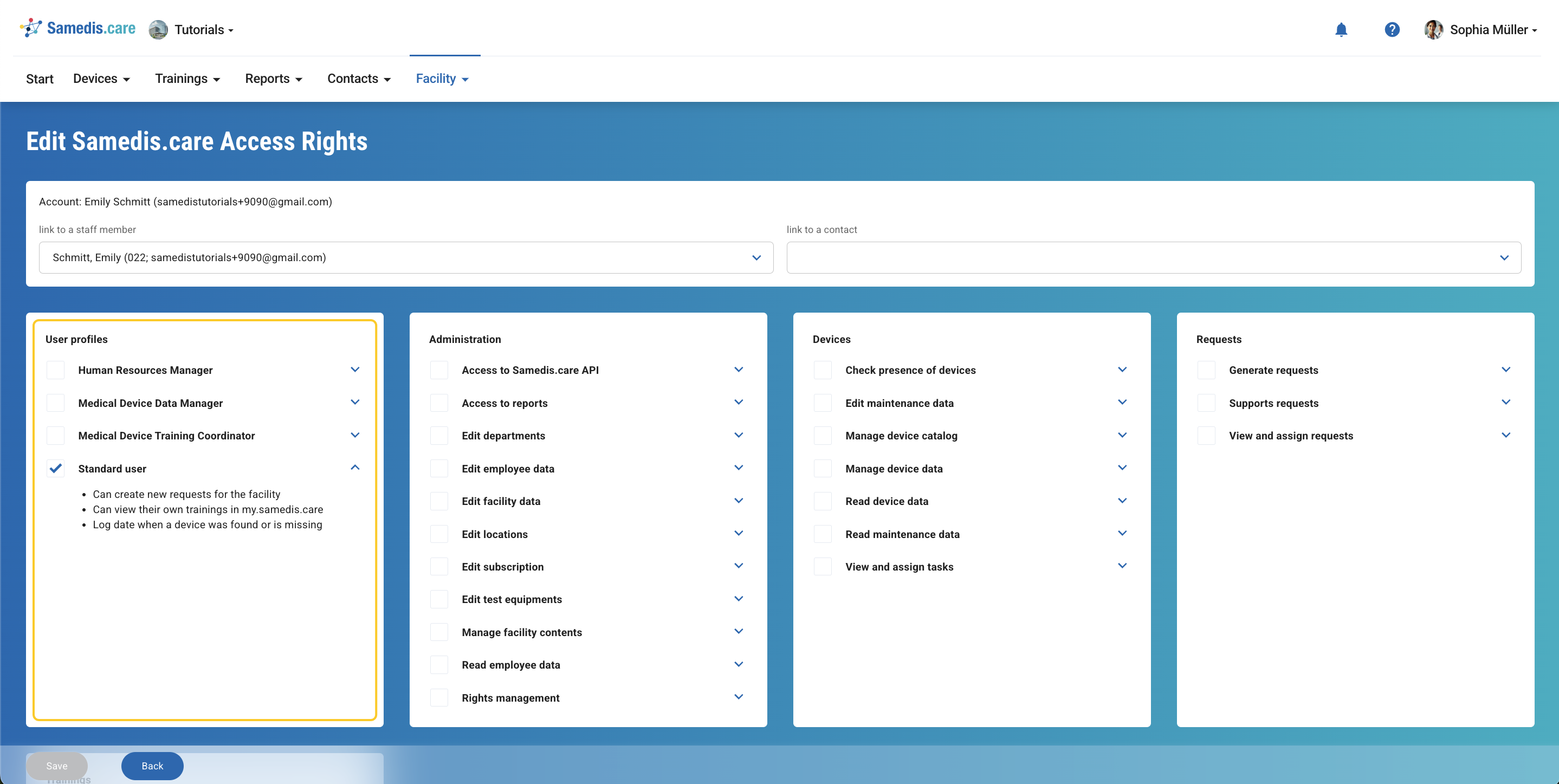
Then choose the suitable user profile.
Tip
You can expand all access rights to see what each label means.
If you’ve assigned an access right by mistake, simply remove the checkmark to take it back.
3. Edit access rights
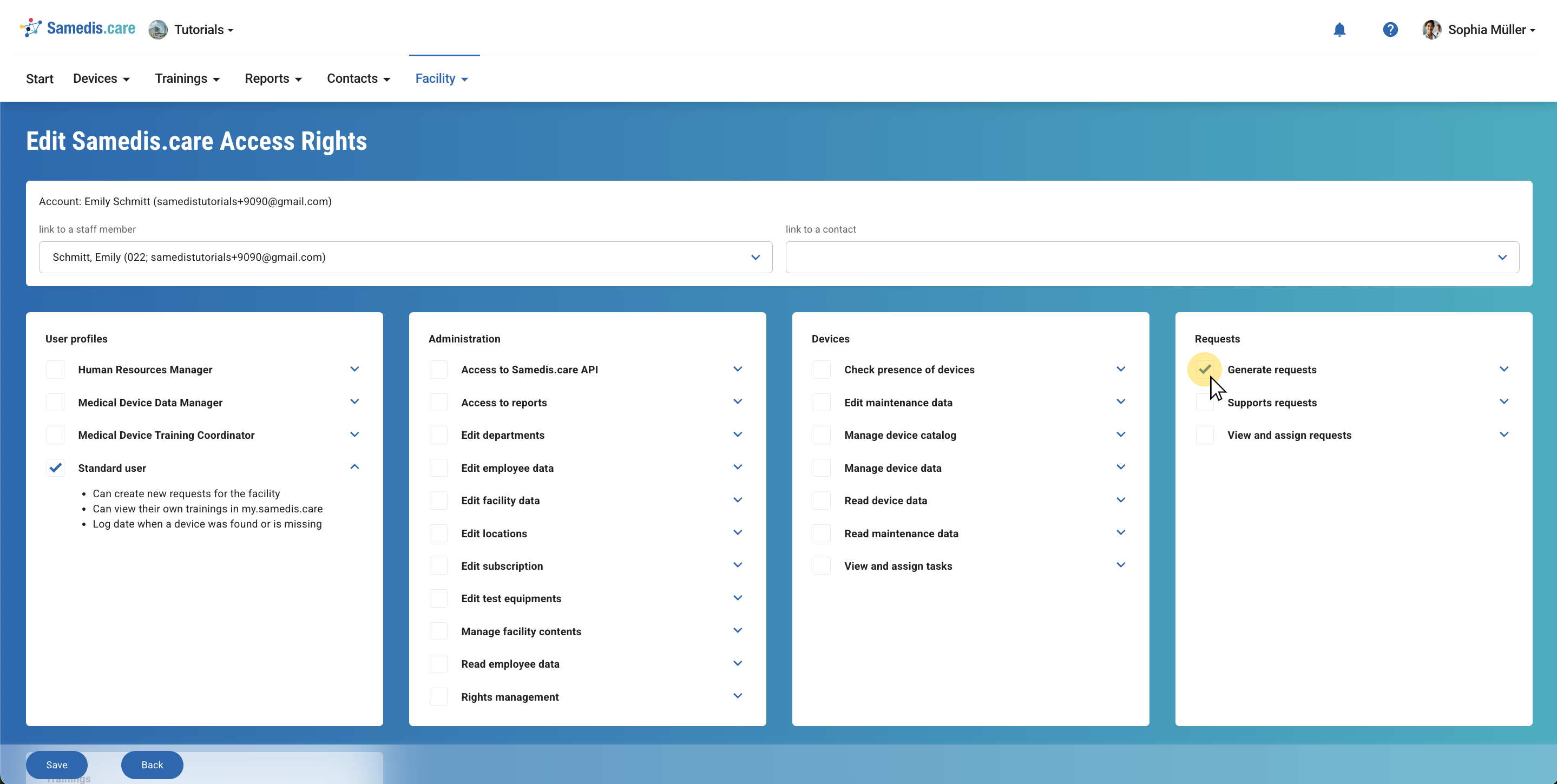
The person needs more access rights than the selected user profile provides?
Then simply select the additional rights you want to grant and click Save to apply your changes.
Tip
Only add individual access rights if you want to assign them in this specific case.
If the right should apply to everyone using the profile, edit the user profile instead. The change will then automatically apply to all associated users.