Invite & set access rights
Invite internal or external people to work in your Samedis.care facility and authorize them depending on the task or application area.
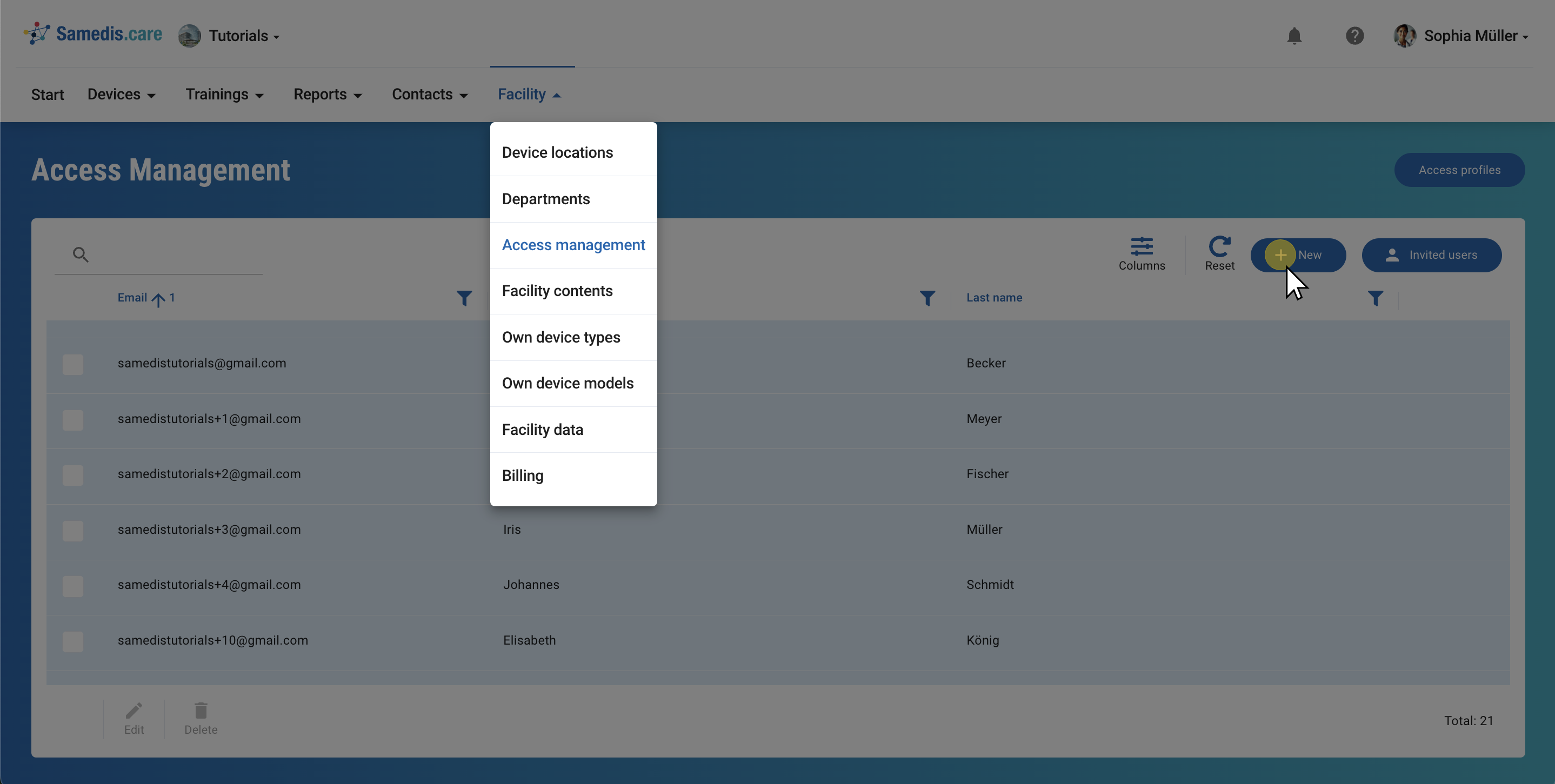
1. Access management
In order for people to work in your Samedis.care facility, you must actively invite them to participate.
To do this, click on + New.
Tip
The “Invited users” feature lists people you have already invited, but who have not yet accepted your invitation.
2. Select person
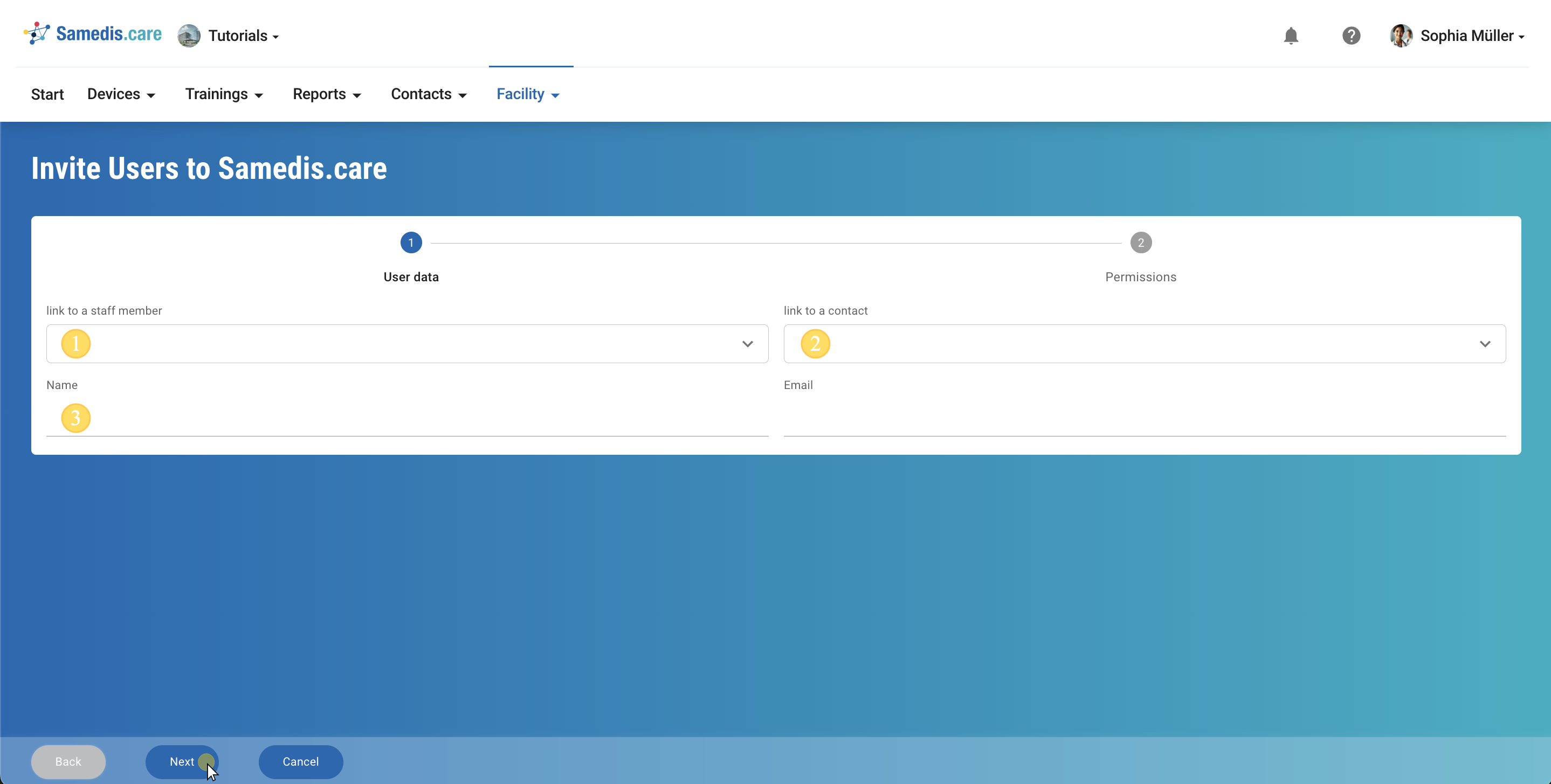
Select the person you want to authorize:
1 Staff member
You can select the person from the list of employees already registered in your institution.
2 Contact
You can select the person from the list of contacts already defined in your institution.
3 Free input
If the person is neither an staff member nor a contact, you can enter the name and e-mail address of the person manually.
Note
Please ensure the spelling is correct so that the invitation e-mail can be delivered successfully.
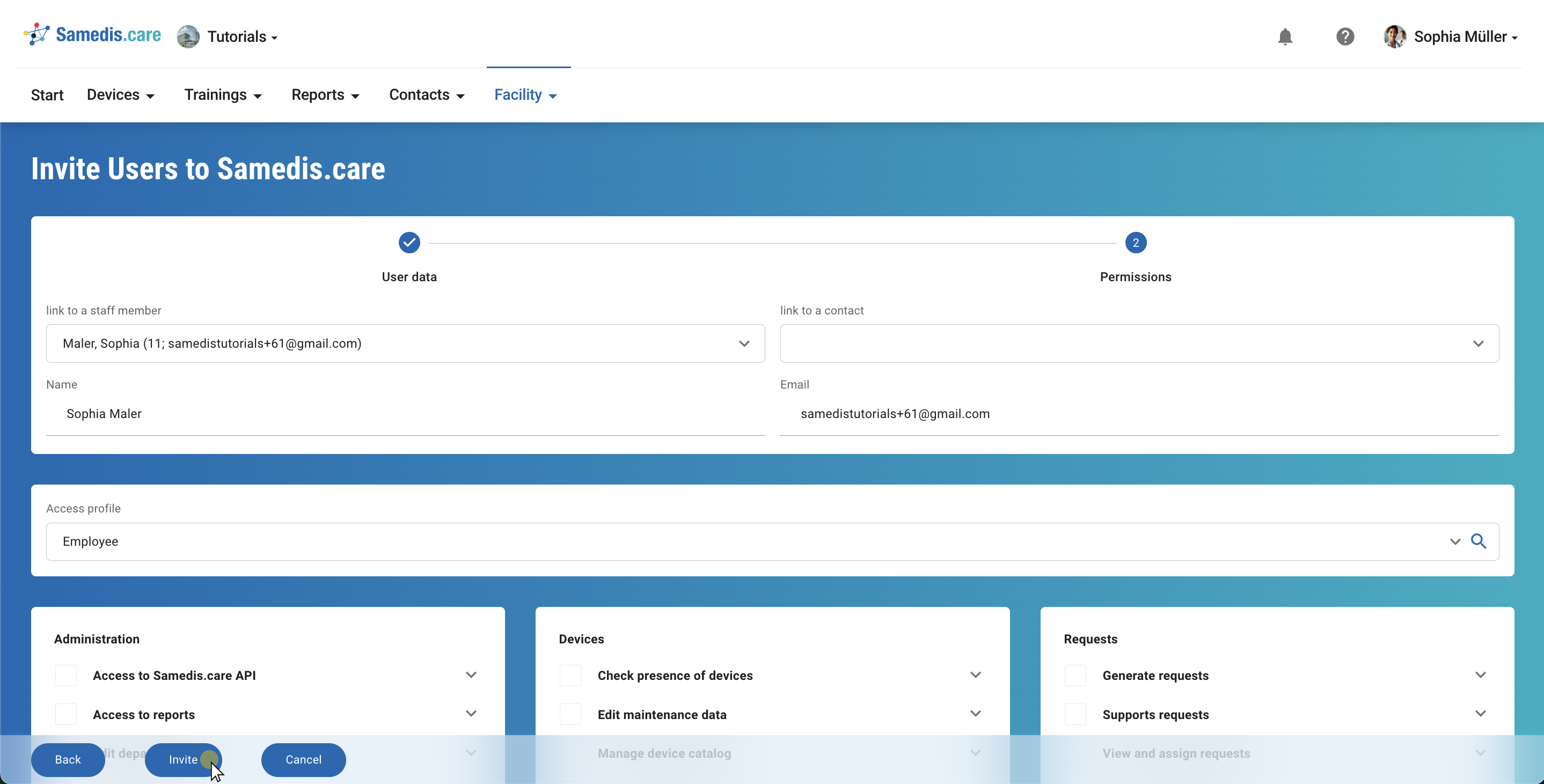
3. Select rights
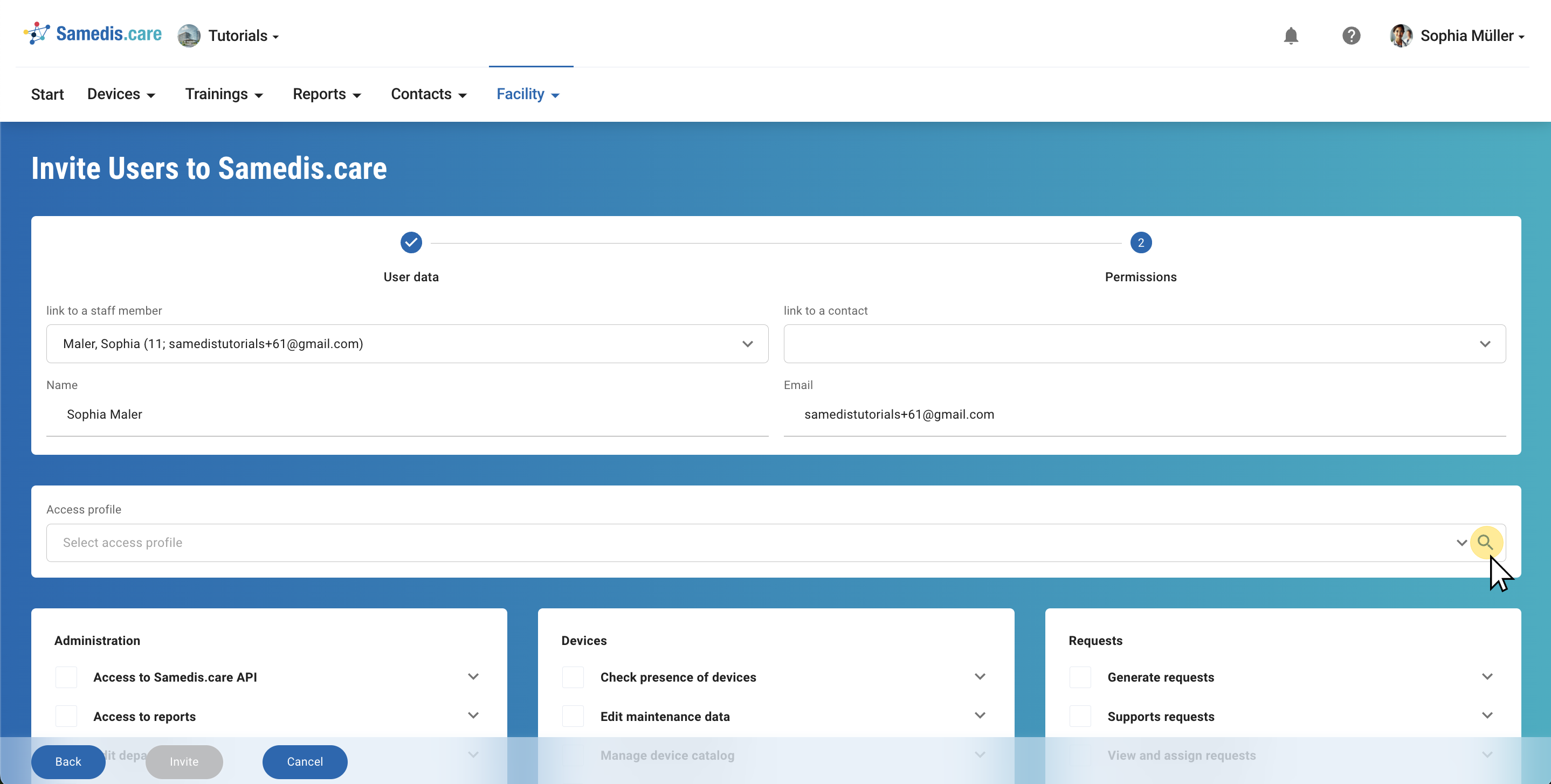
Select an Access profile that you have created for your Samedis.care facility or define individually which authorizations the person should receive.
Tip
Open the description of each right to obtain further information.
4. Invite
Click Invite.
Note
For security reasons, the invitation link sent has a limited validity period. If the person does not accept the invitation within this period, a new invitation will need to be sent.
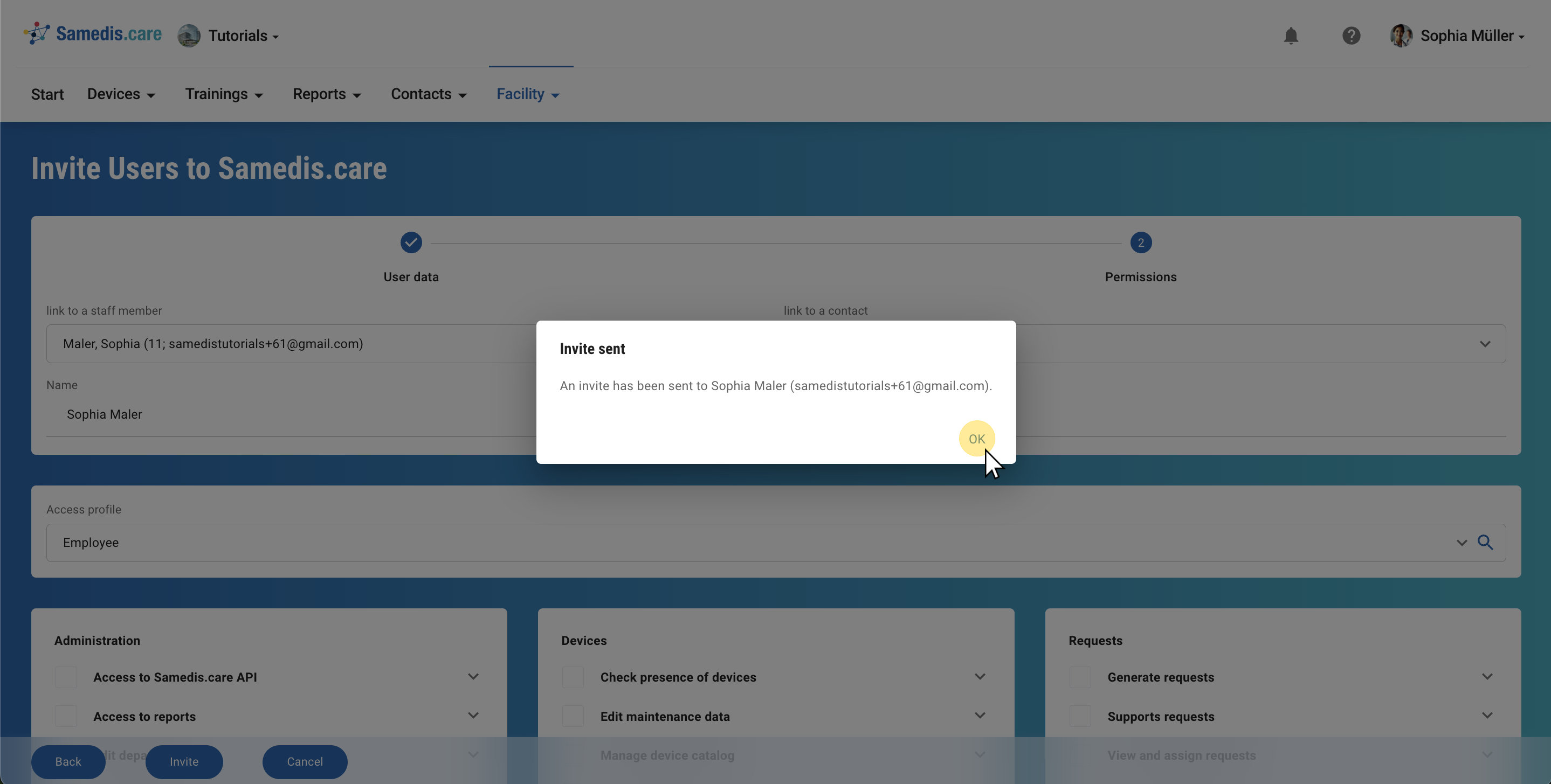
5. Invite sent
An email with an invitation link has been sent to the invited person.