Merge employee records
In this tutorial, we’ll show you how to quickly and easily merge two employee records without losing any stored training data.
1. Employee listed twice?
Has an employee been listed twice in your facility? In Samedis.care, you can easily merge duplicate entries.
No need to worry about any stored data. All saved training records will be automatically transferred to the merged profile.
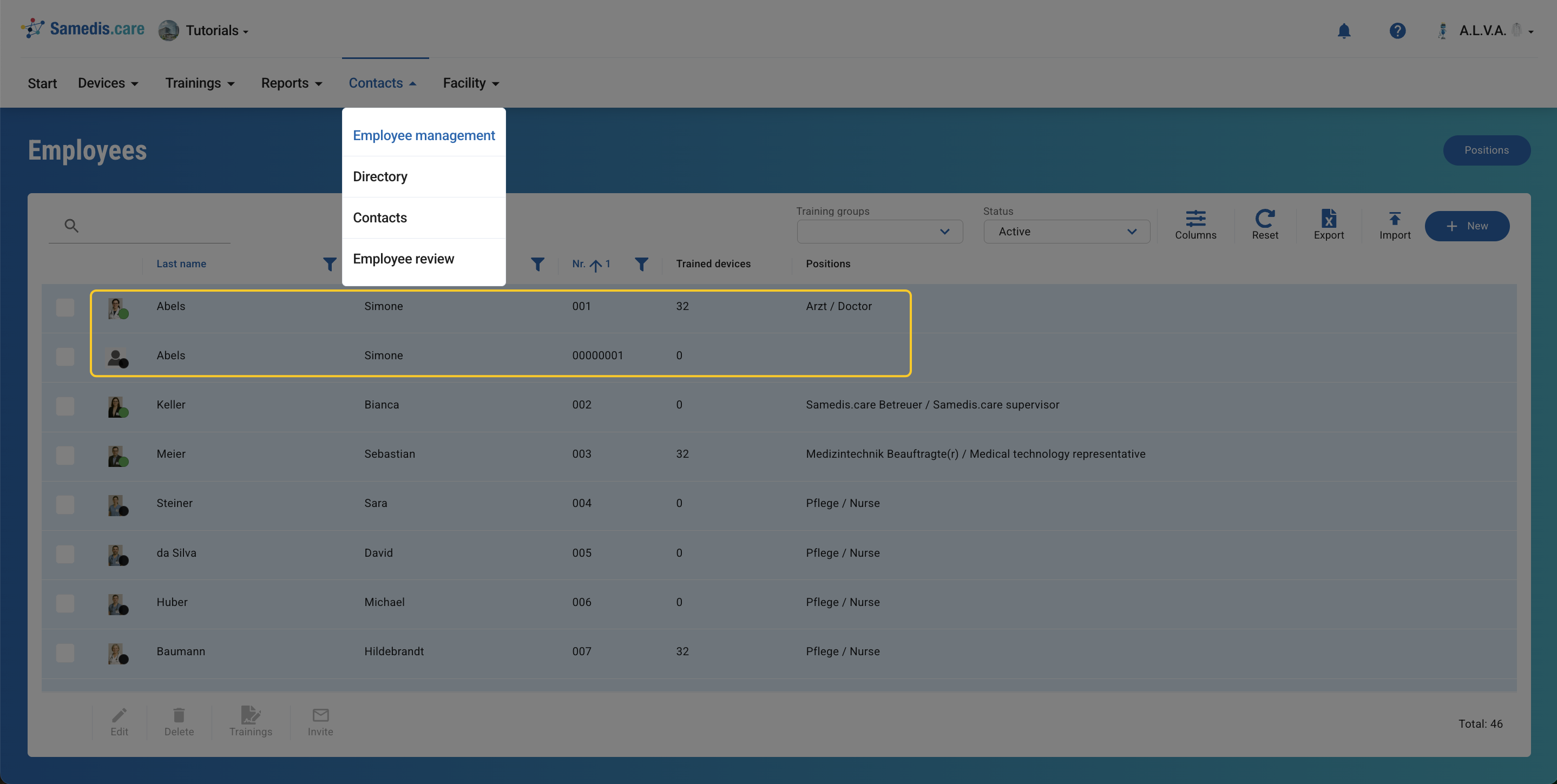
2. Edit entry
Open the employee entry you want to merge and then remove.
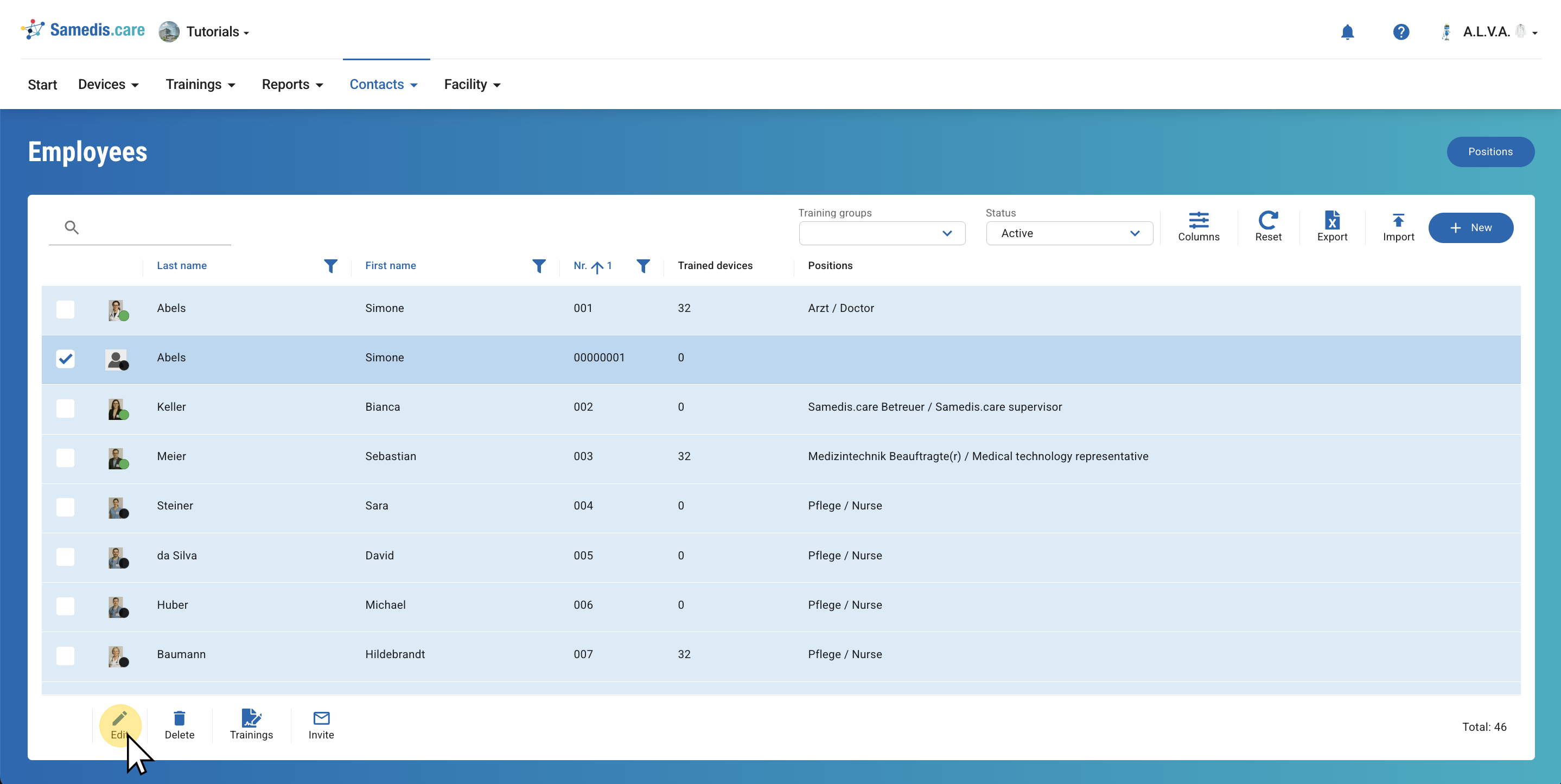
3. Merge
Now click on MergeunderMore.
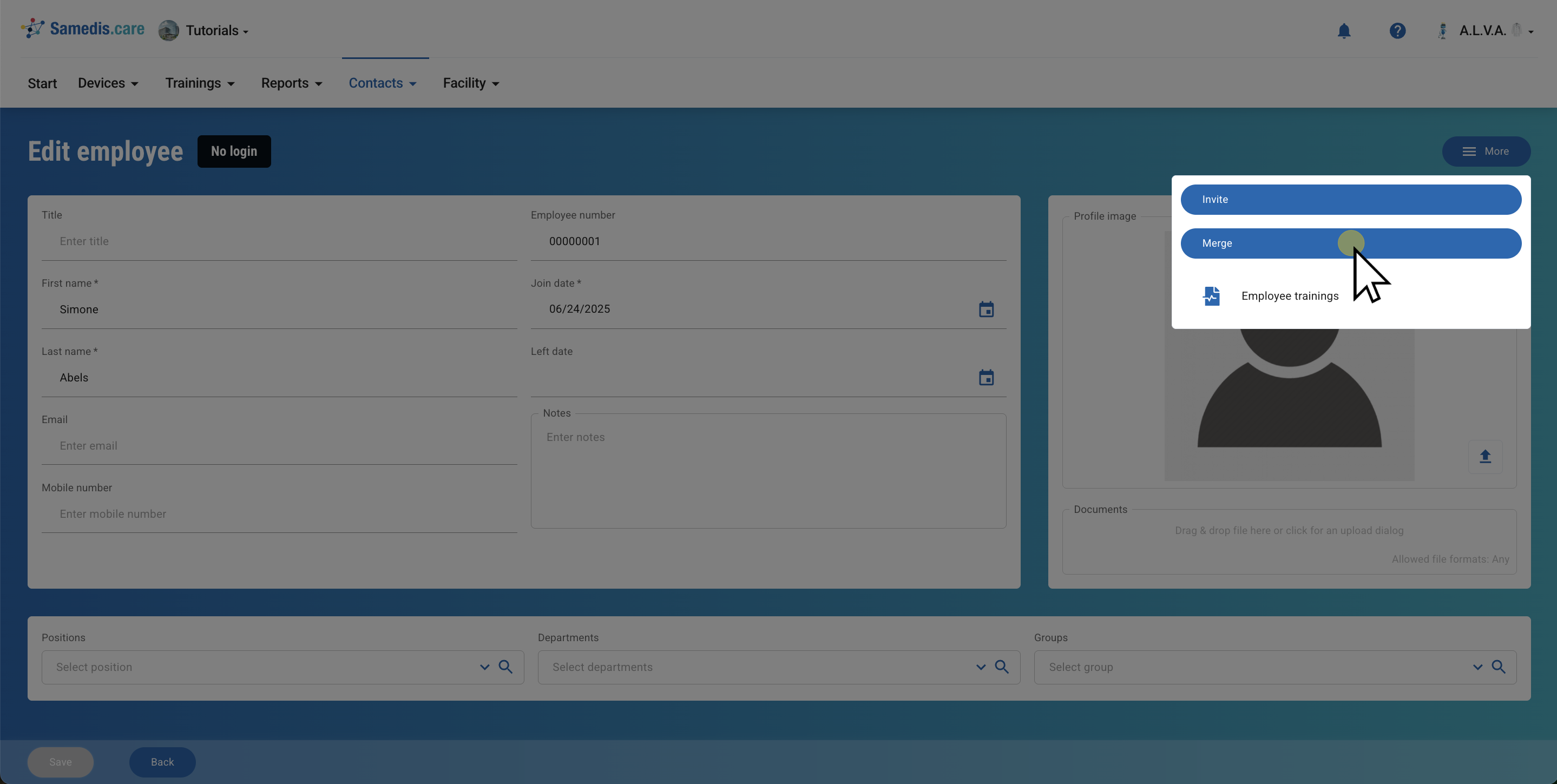
4. Select employee records
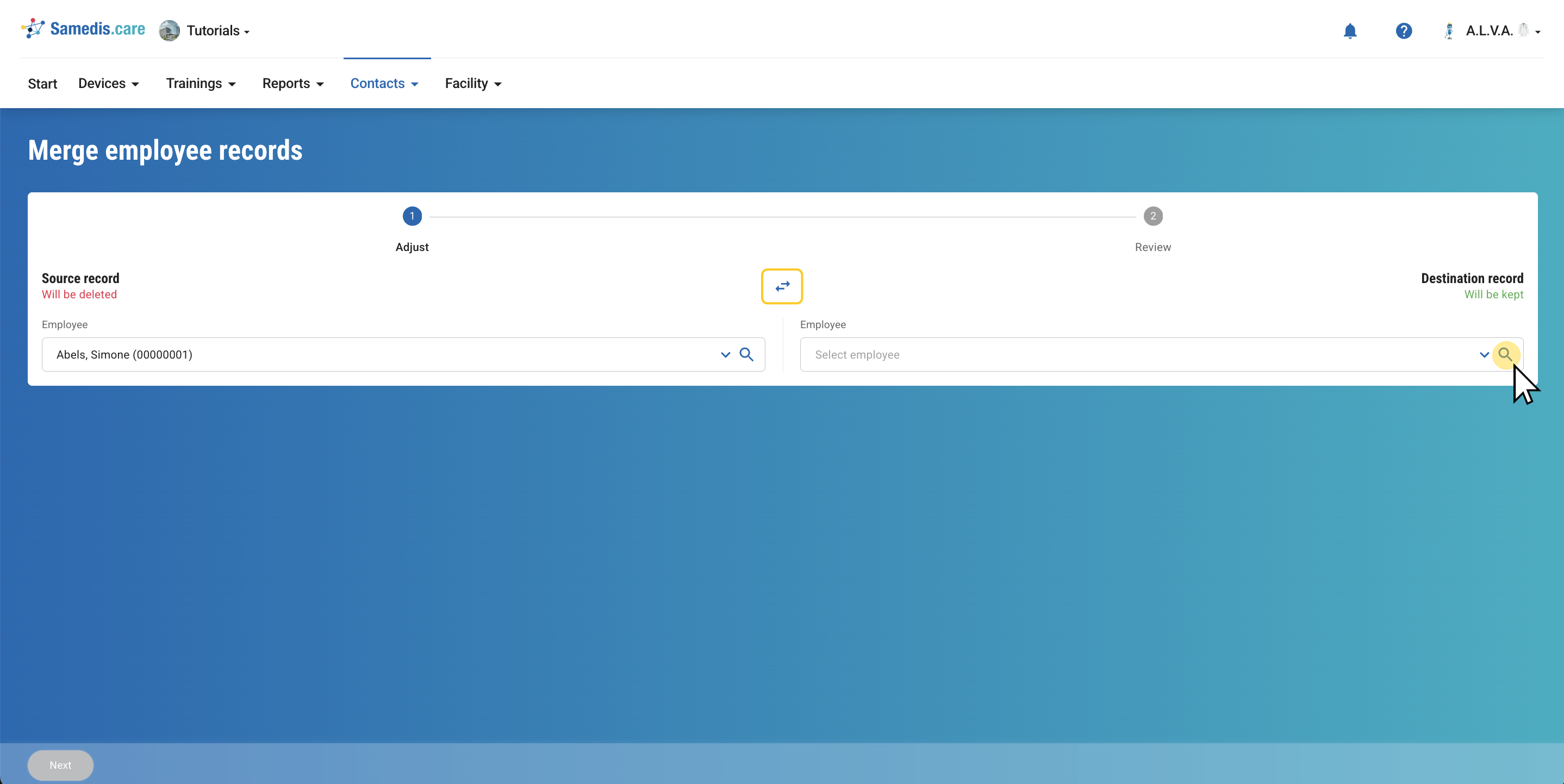
Your currently opened entry is set as the source record. This entry will be deleted after the merge.
Now select the destination record – the employee entry that belongs to the same person and that you want to keep.
If you change your mind and prefer to keep the current entry instead, you can switch the two records at any time using the arrow icon.
Once you’ve selected both entries correctly, click Next.
Tip
The profile picture is not transferred during the merge. Only the image from the target record will be retained.
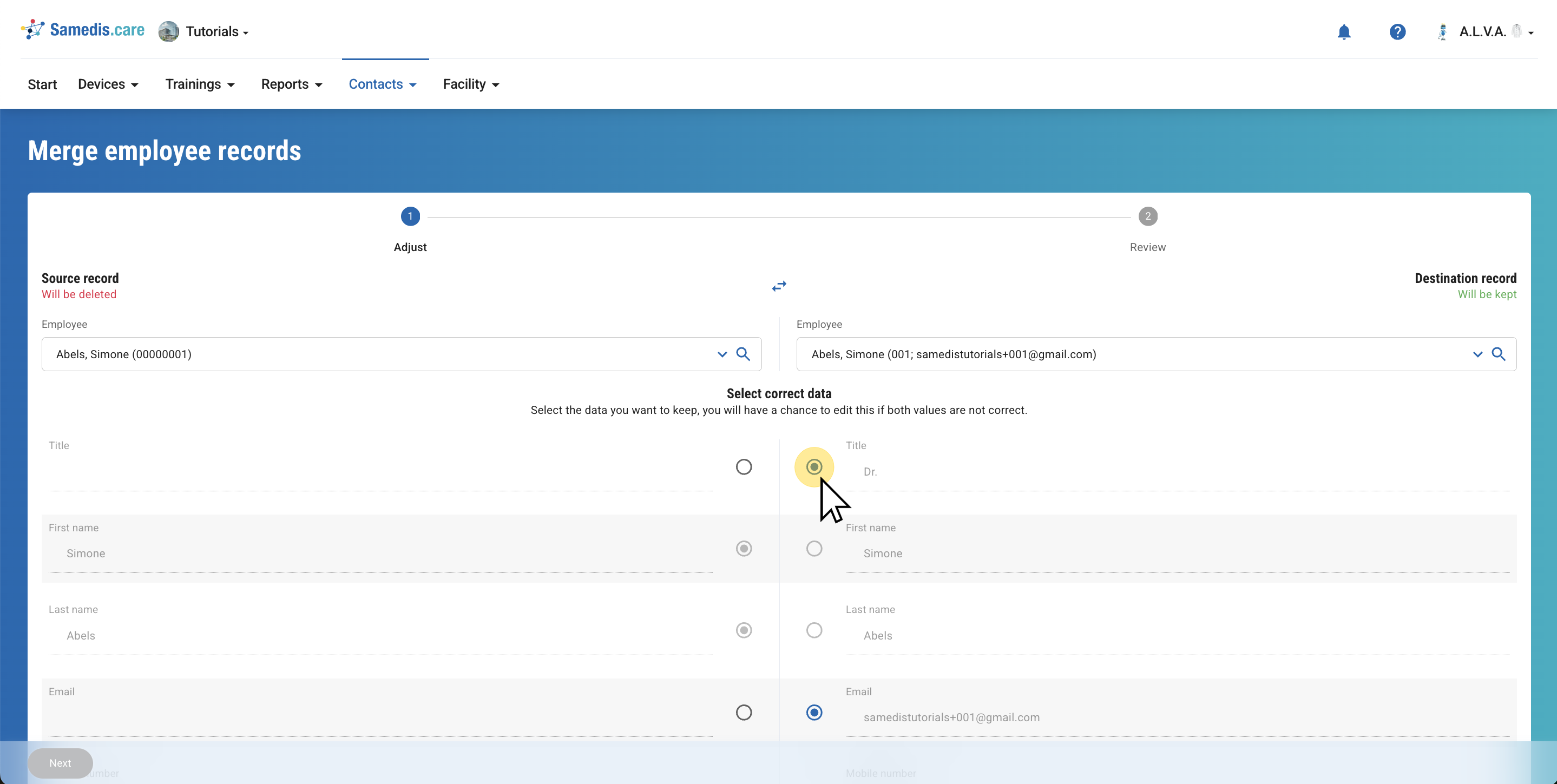
5. Select correct data
For each field, decide which of the available data should be retained.
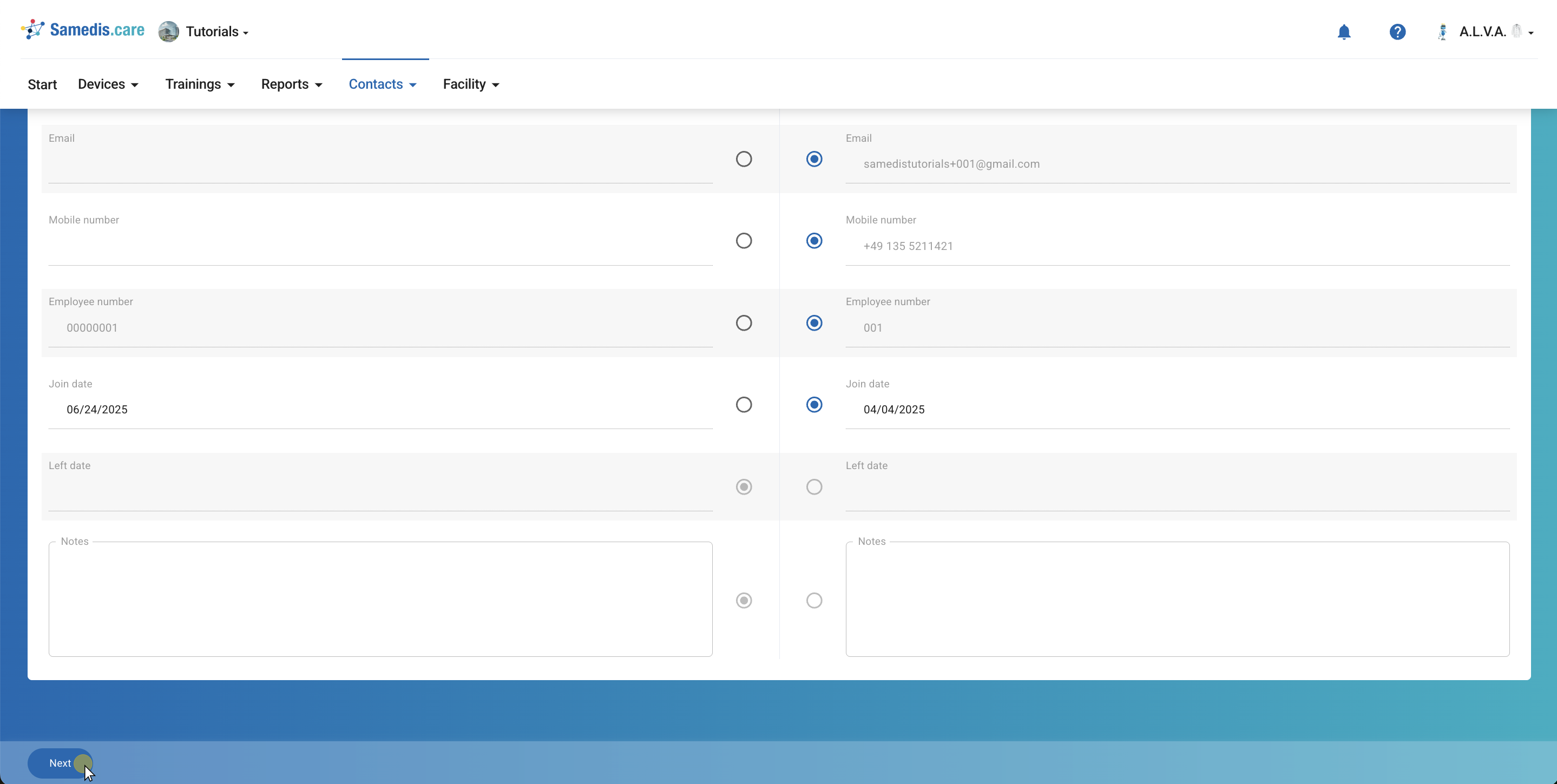
6. Next
Once you’ve selected the data you want to keep for each field, click Next.
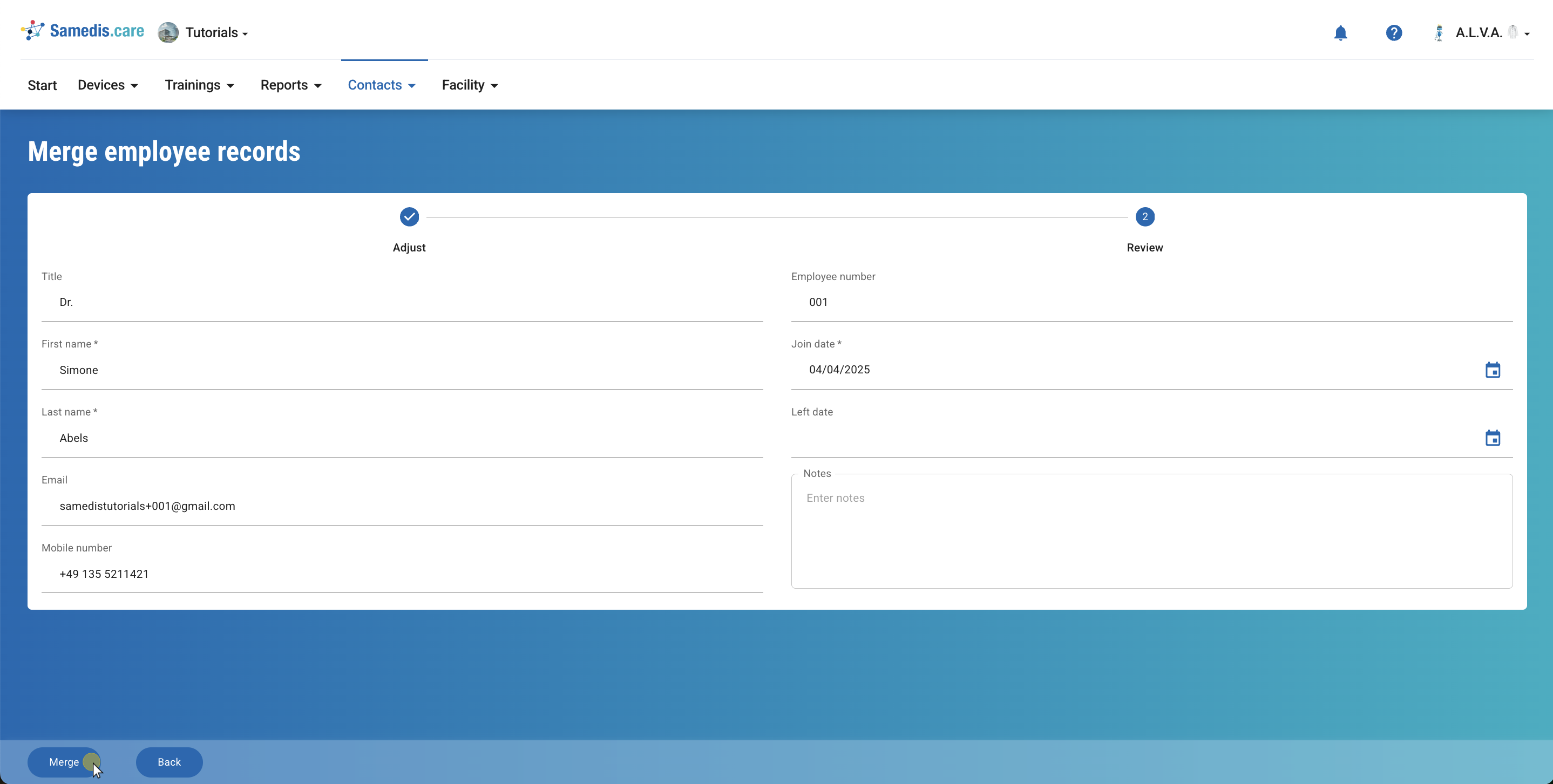
7. Adjust & Review
Review all entries and correct any incorrect or incomplete information if needed.
Then click on Merge.
Tip
All group memberships and training records will be fully assigned to the destination record.
Note
This step is final. Please ensure that both entries belong to the same person before continuing.