Import employee list
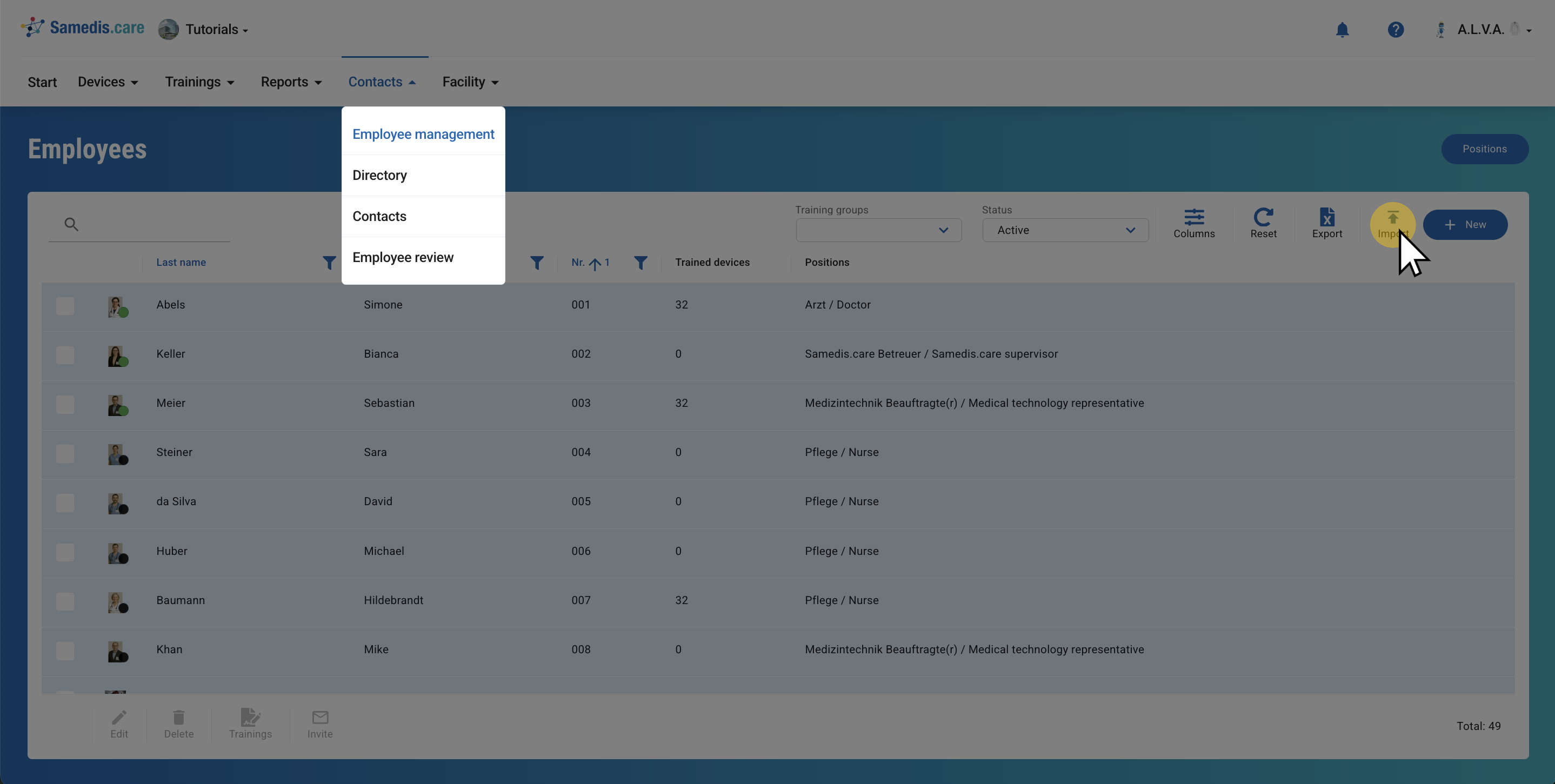
Use the import function to add multiple employees to Samedis.care at once and update existing entries if needed.
1. Import employee data
Use the import function to upload your employee data.
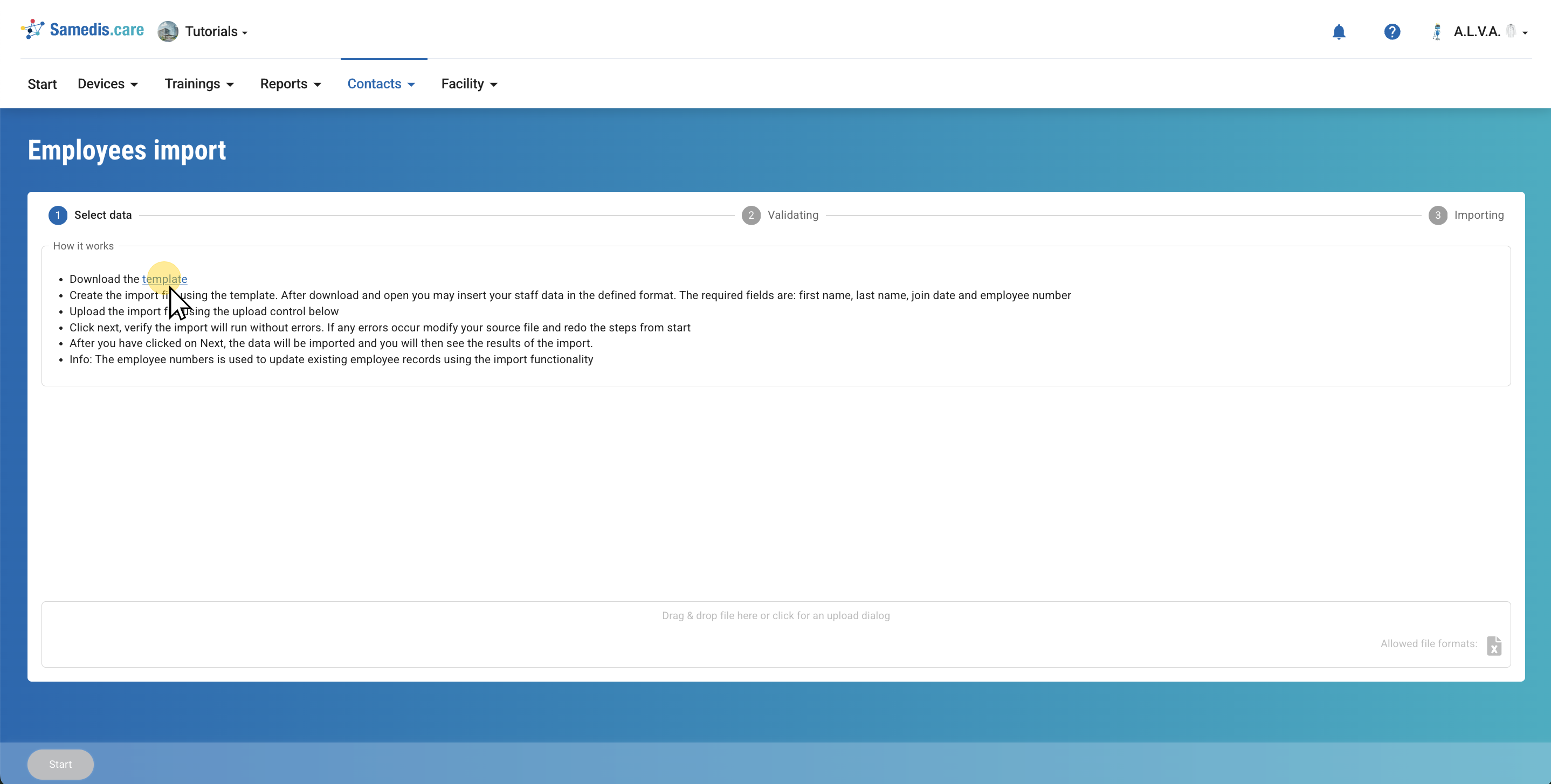
2. Download import template
Download the import template and enter your employee data.
Note
Please make sure that the fields FirstName, LastName, Joinedat and EmployeeNo. are filled in so that the entry can be saved successfully.
Note that the employee number is used as a key to make changes to existing entries.
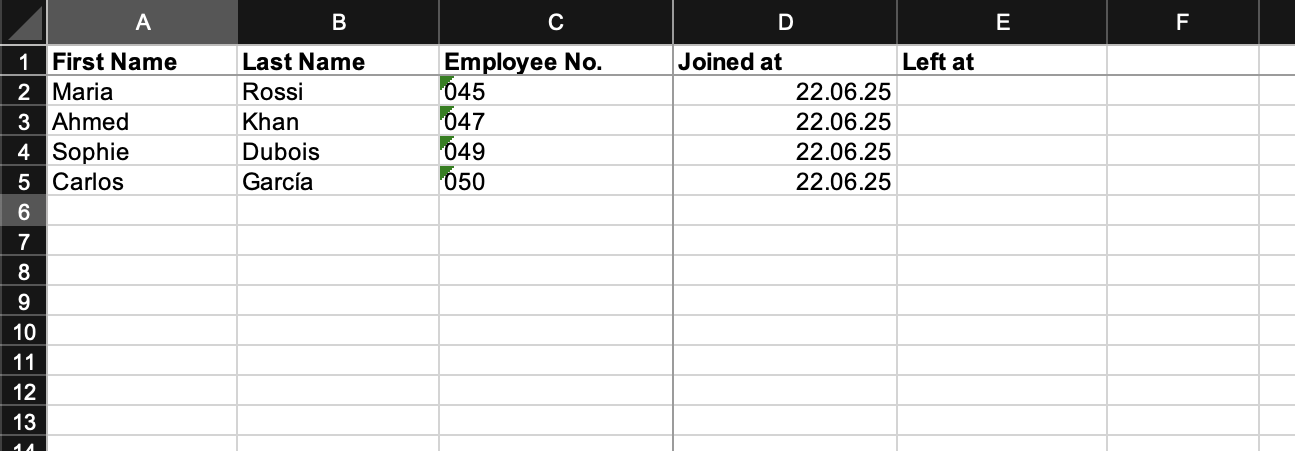
3. Sample file
Here you can see an example of your import file.
Note
Make sure that the entry (Joined at) and exit (Left at) dates are in the correct format.
Also note that details such as the employee number must be entered consistently - for example, “001” and “1” are treated as different values and will be saved accordingly.
If your Excel file is not correctly formatted, it may cause errors during import.
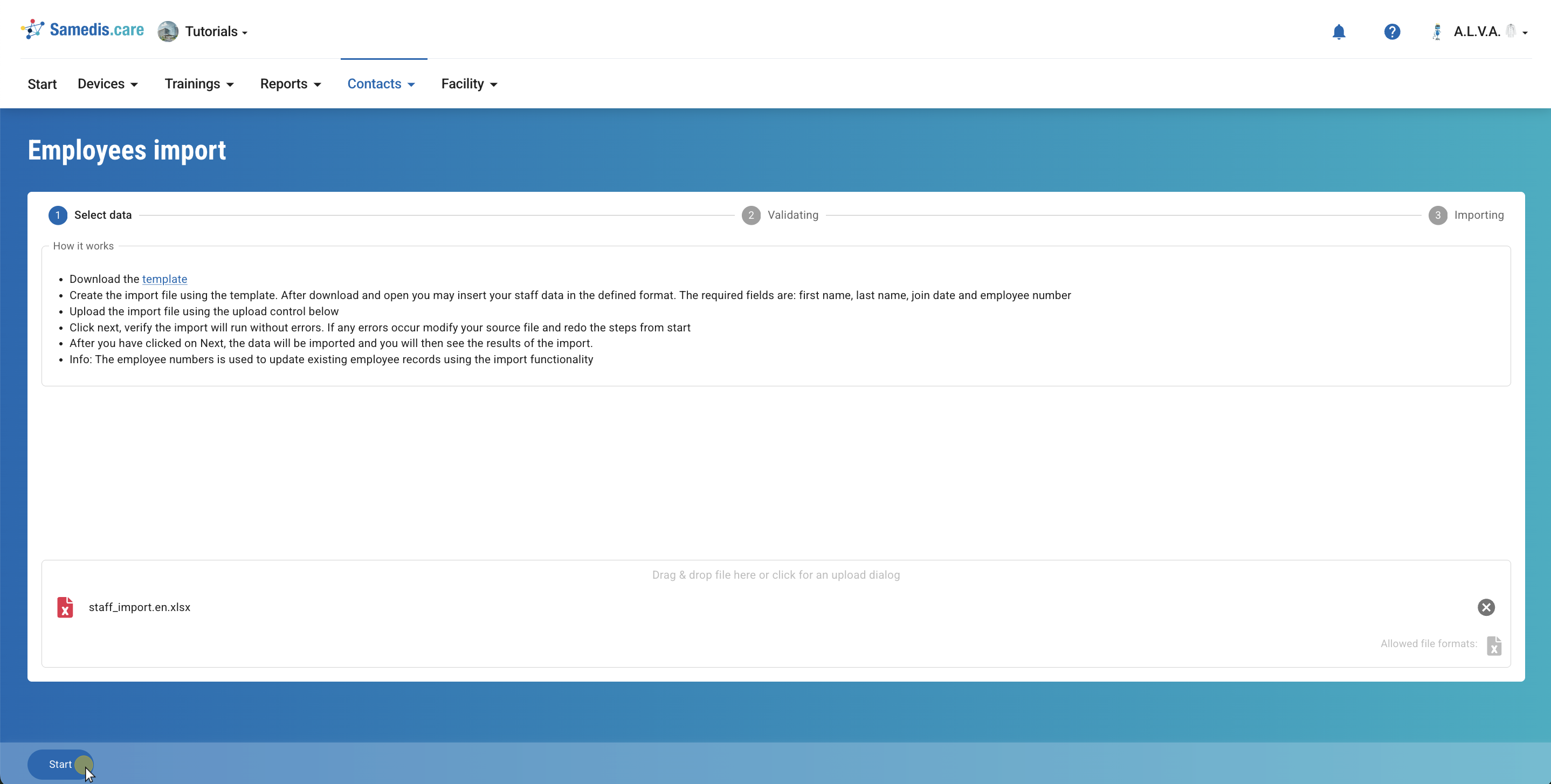
4. Upload file
Now upload the file you just filled in by dragging it into the appropriate field or by clicking the field to select it.
Click Start.
5. Validation & Verification
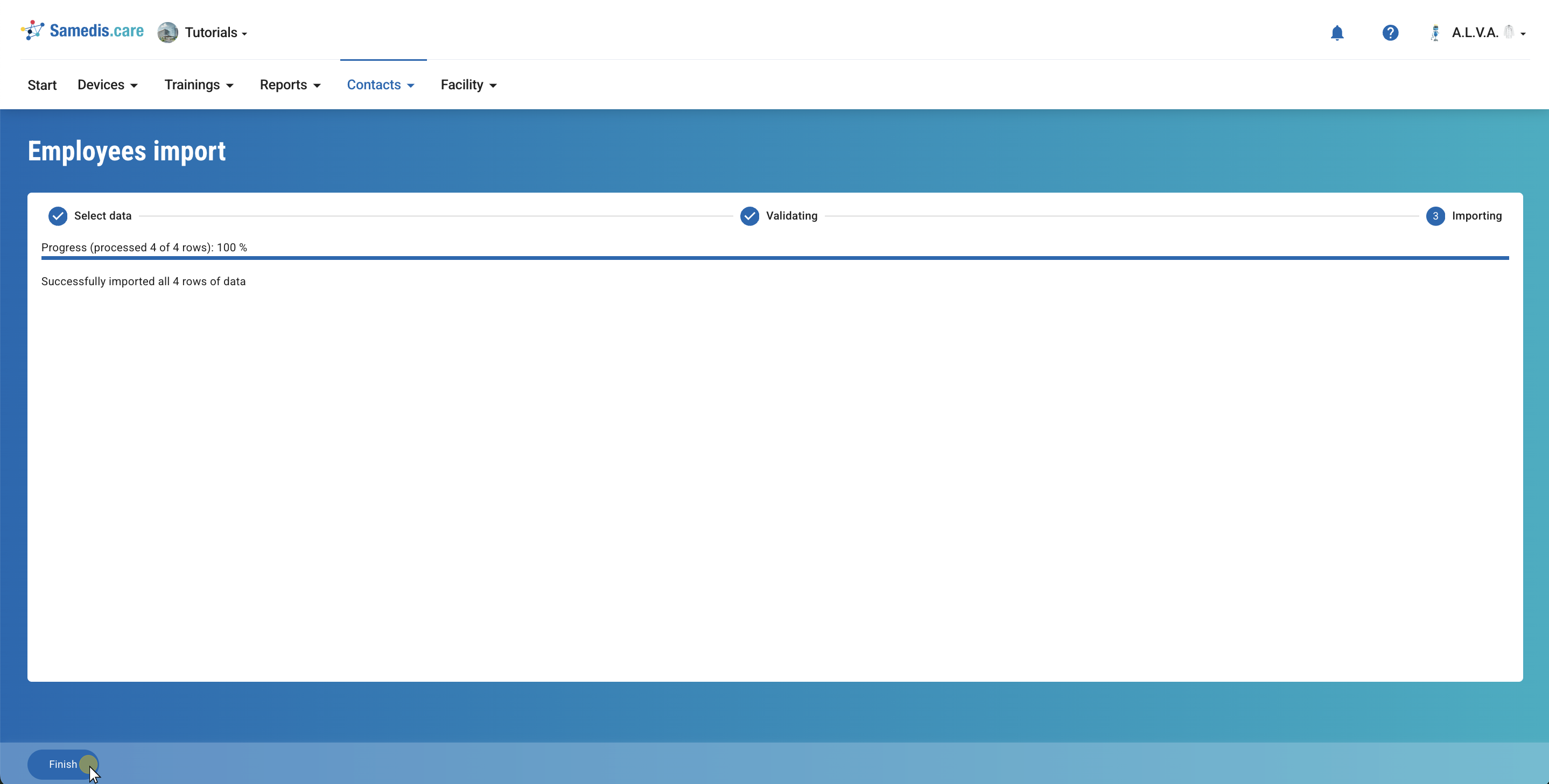
Samedis.care is now checking your data. Afterwards, you’ll see an overview of the current import status and any possible error messages.
By clicking Finish, all valid data will be saved.
Tip
Import errors or warnings will be shown here after the import is complete. Review the messages and adjust the file if needed.