Set training invalid
Completed trainings can neither be edited nor deleted in Samedis.care. If something was still recorded incorrectly in a training, for example the wrong device, the wrong person or the wrong date, you set it to invalid and give a reason. In this tutorial, we’ll take a look at how this works.
1. Open the training
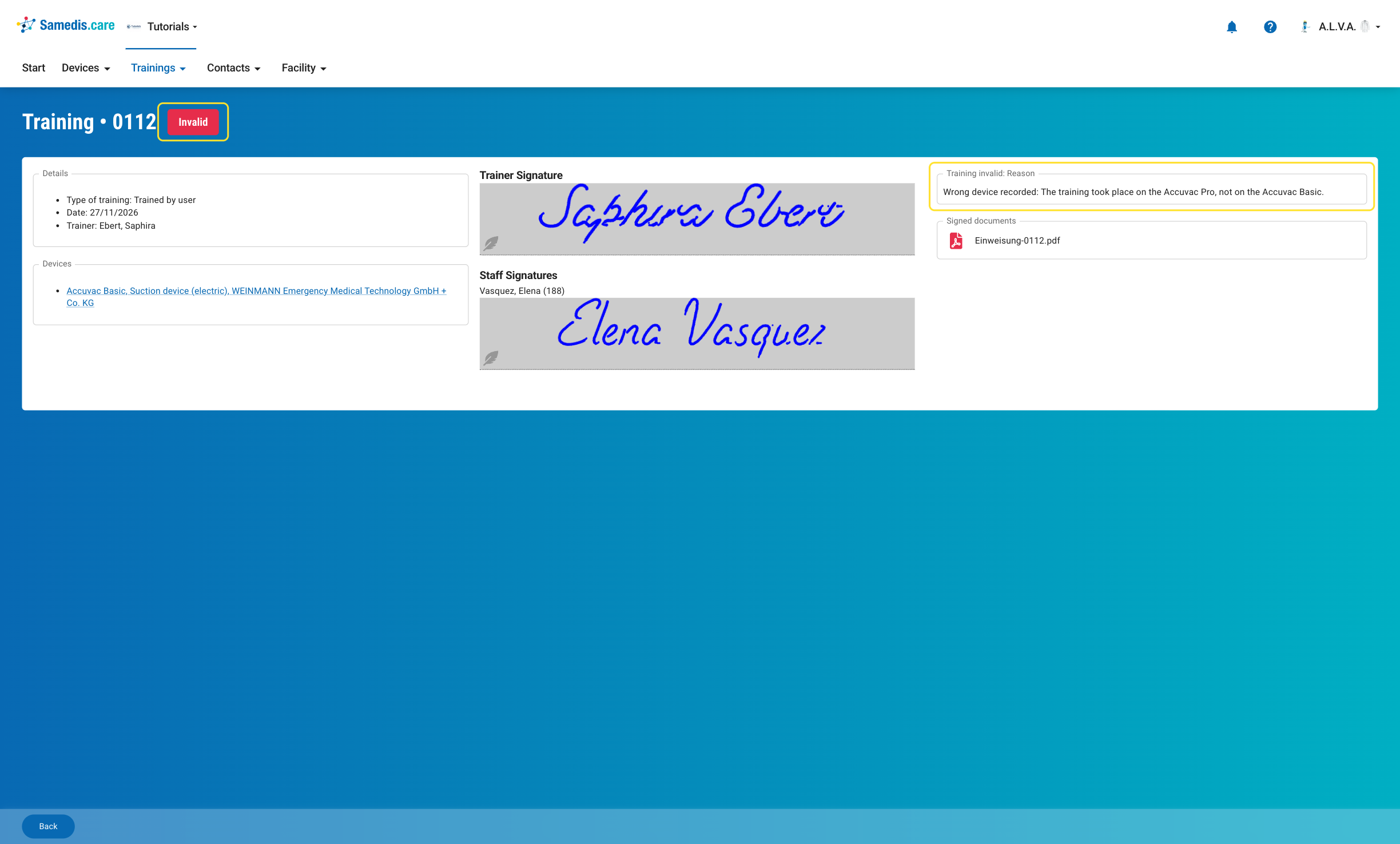
Under Trainings, you’ll find all trainings of your facility in Tasks. Open the incorrect training by double-clicking its row. You can use the Status filter to narrow the list down, for example to completed trainings.
Tip
To set trainings invalid, you need the right Declare trainings invalid. It is already included in the user profile Medical Device Training Coordinator.
2. Set invalid
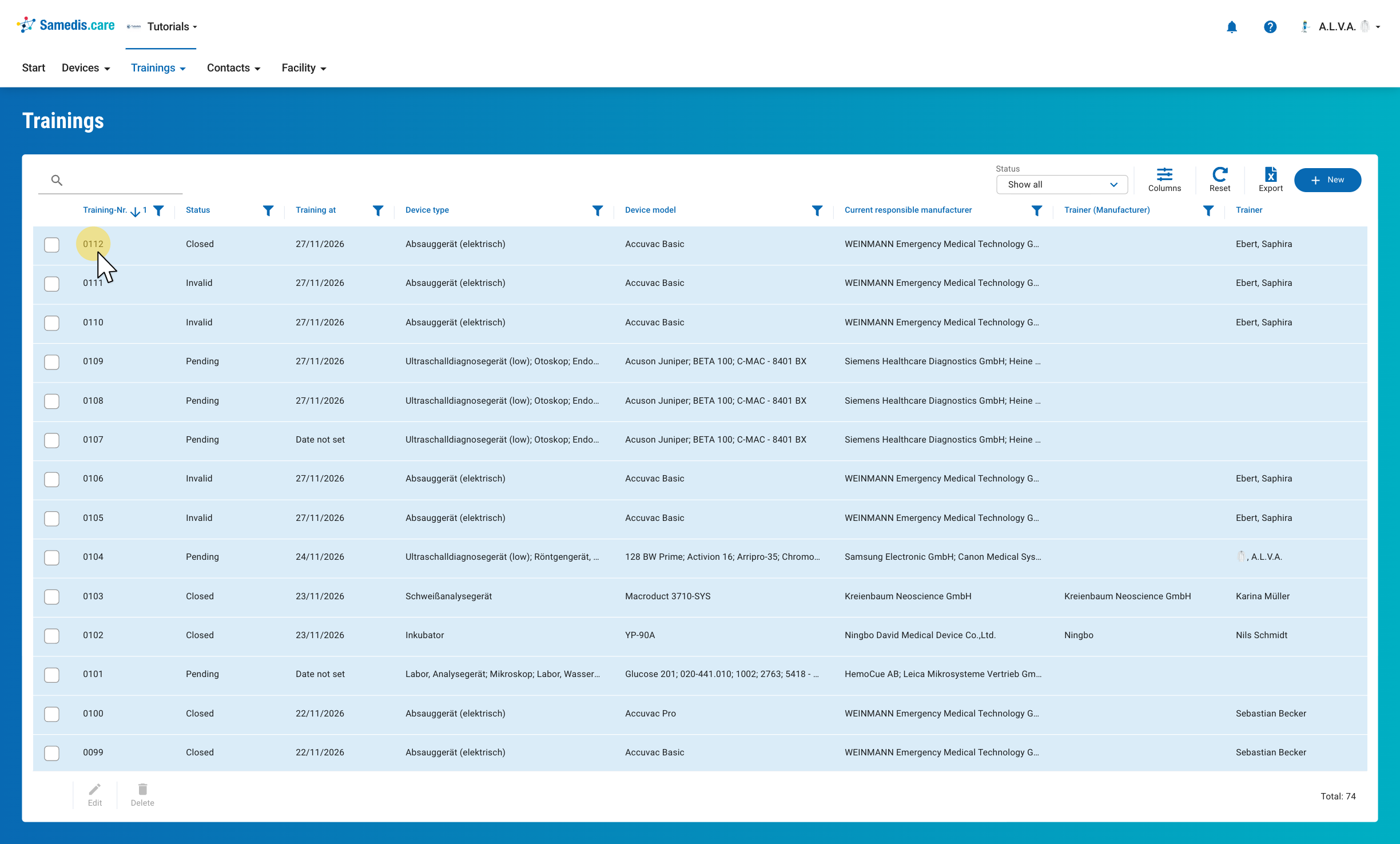
At the top of the opened training, you see the status Completed, next to it the details, the signatures and, under Signed documents, the proof of training as a PDF. Check once more that you have the right training in front of you, then click Set invalid at the bottom left.
3. Enter a reason
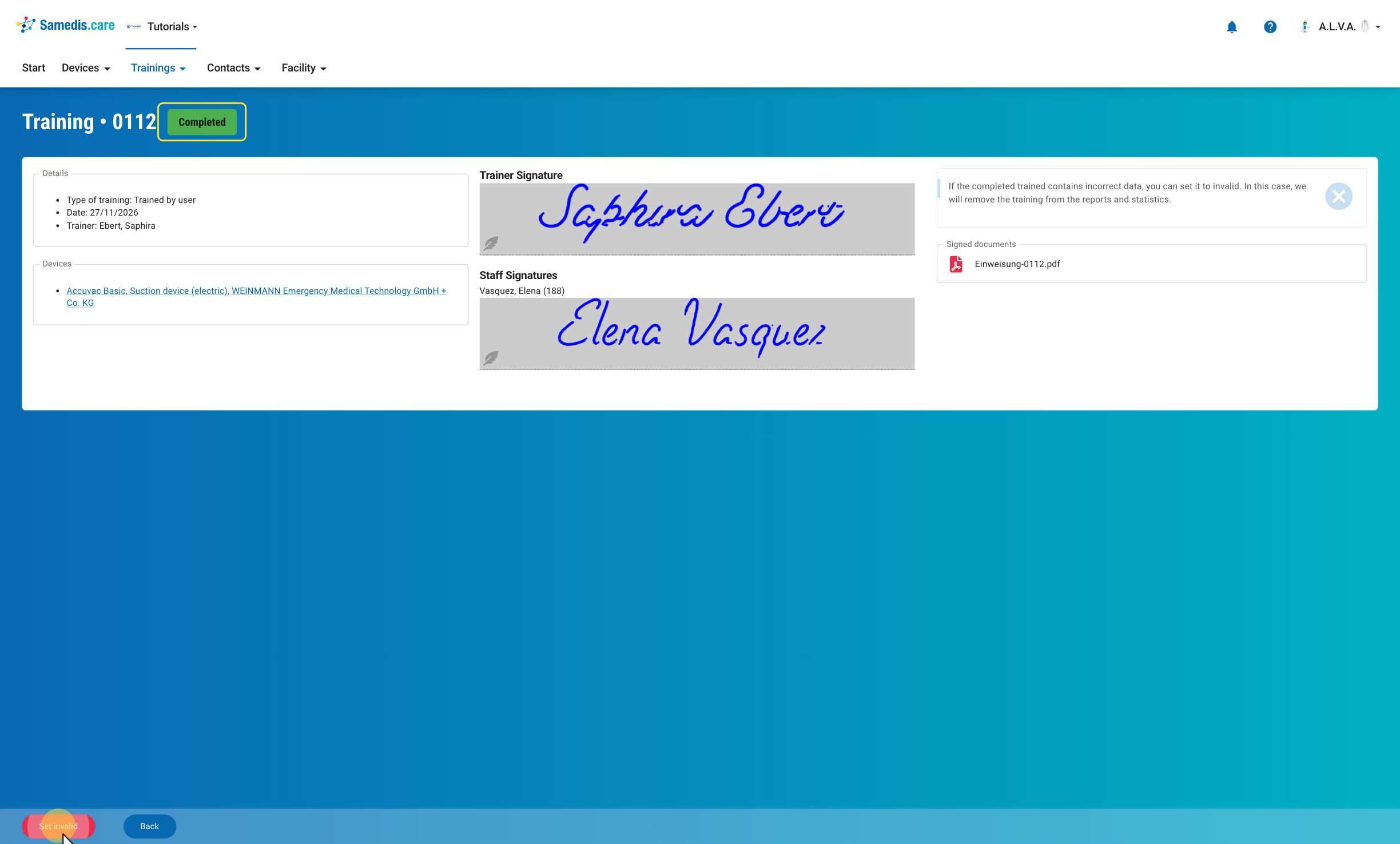
In the Declare training as invalid window, enter under Training invalid: Reason why the training is incorrect. Write the reason so that others can understand it later as well, for example which device or which person was recorded incorrectly. Click Save to set the training to invalid.
Warning
Setting a training invalid cannot be undone. The training is removed from the reports and statistics and no longer counts as proof. If the training itself really took place and only the details were wrong, document it again afterwards.
4. Invalid training
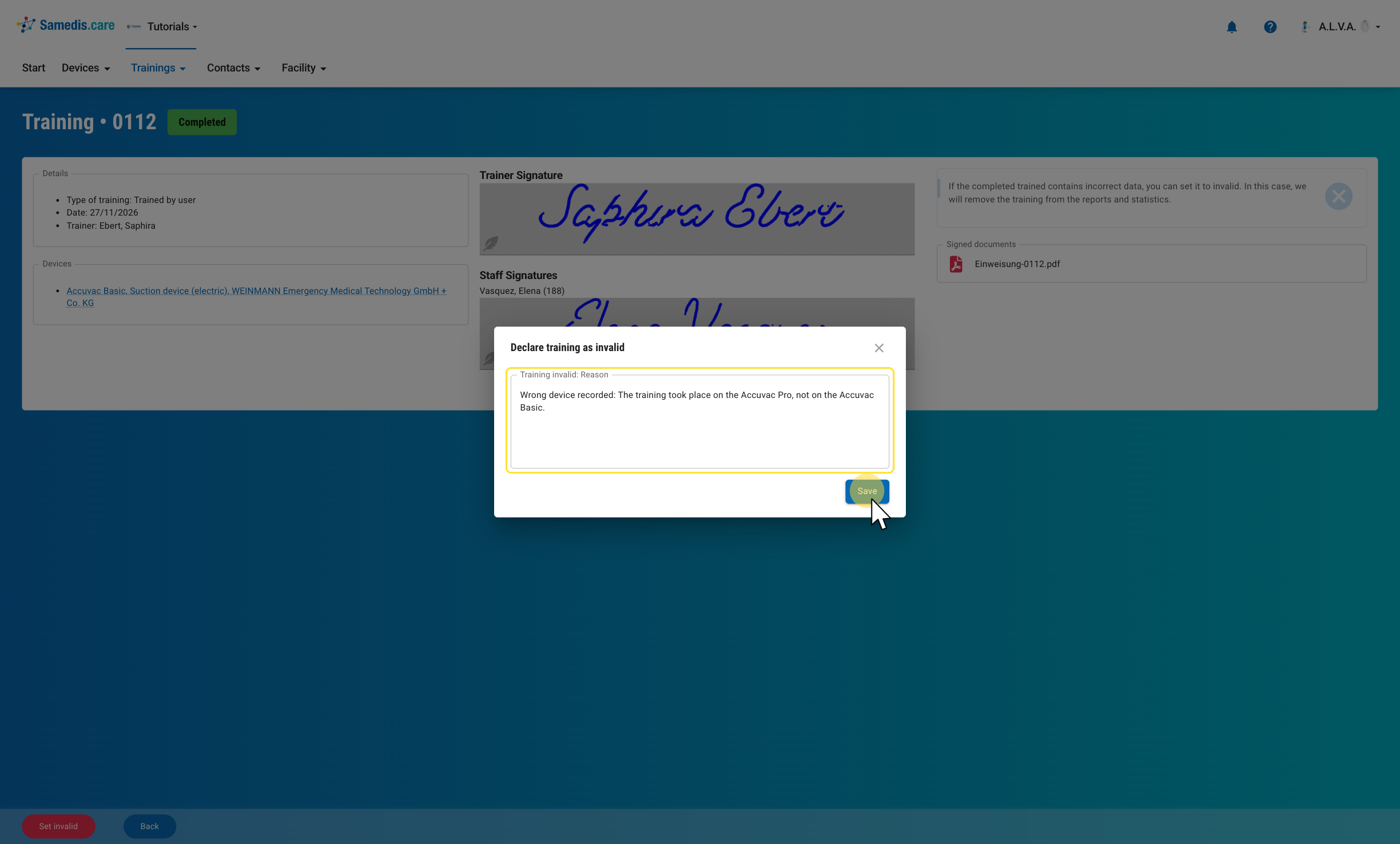
The training now has the status Invalid, and your reason is shown on the right in the Training invalid: Reason field. The training remains visible in the list with all its details and the PDF, so it is always clear what happened. The tutorial Document training shows you how to document a training again.