Digital signature
In this tutorial, we look at how signatures are given digitally for a training in Samedis.care and why this signature is sufficient as proof.
1. Signatures in the training
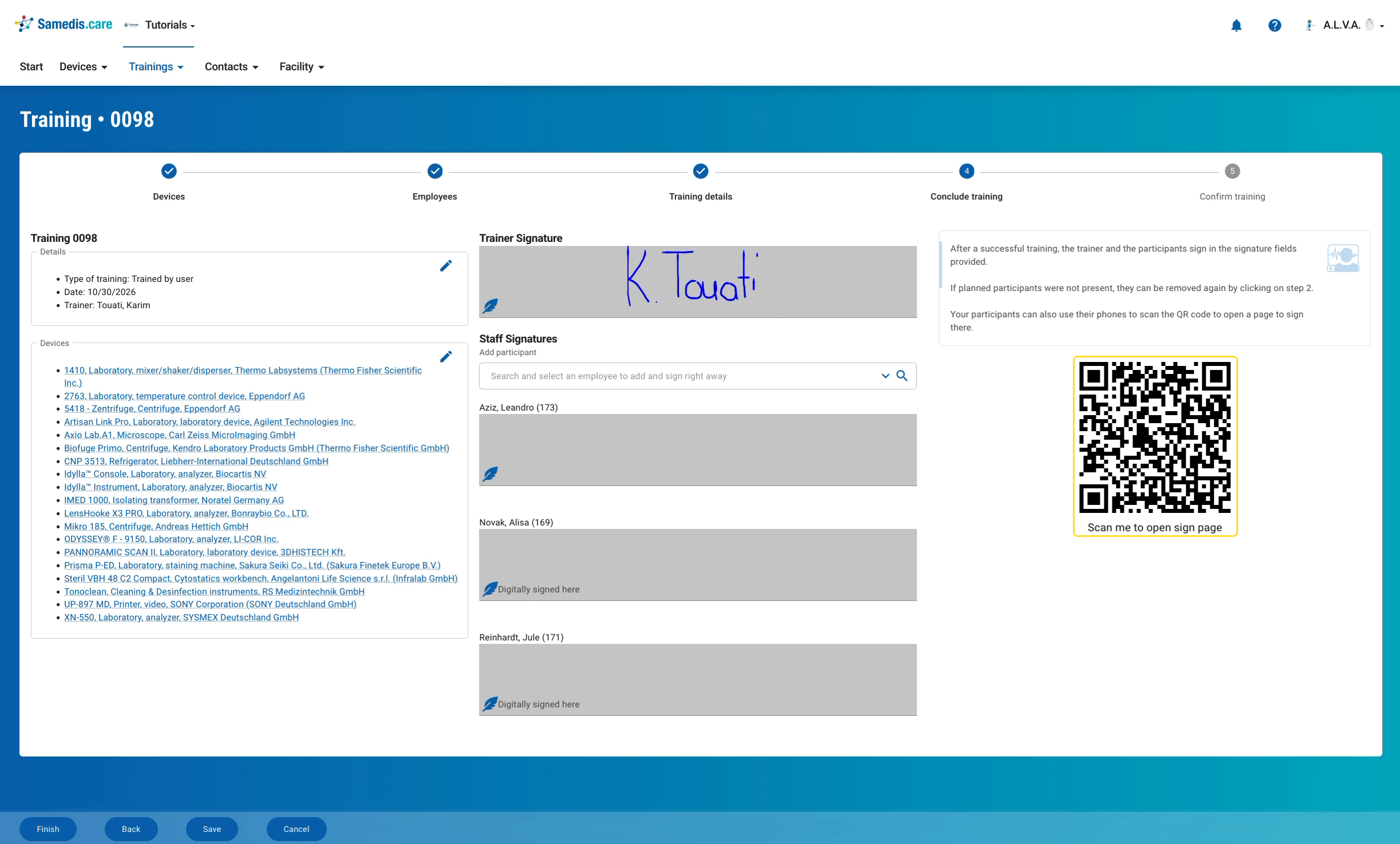
In the Conclude training step, the trainer signs under Trainer Signature and all participants sign under Staff Signatures. This works with a finger, a stylus or the mouse directly on the screen. The tutorial Document training shows you how to create a training up to this step.
This digital signature is sufficient as proof. Section 4(3) of the German Medical Device Operator Ordinance (MPBetreibV) requires training on active non-implantable medical devices to be documented “in a suitable form”. It does not prescribe a signature or any particular form for this, neither the written form under Section 126 of the German Civil Code (BGB) nor a qualified electronic signature. The point is to prove that the training took place, not to make a legally binding declaration of intent. That the documentation may be kept electronically is confirmed, for example, by the Arnsberg regional government (Bezirksregierung Arnsberg) in its FAQ on the MPBetreibV: it can be done “in Papierform oder per EDV” (on paper or electronically).
Tip
The term “qualified” comes from the eIDAS Regulation, which governs electronic signatures in general in three levels: simple, advanced and qualified. The MPBetreibV does not require any specific level for documenting training. A signature drawn in Samedis.care generally counts as a simple electronic signature. To date, we are not aware of any case in which a digital signature on a training record in Samedis.care was objected to during an inspection.
2. Sign on your own smartphone
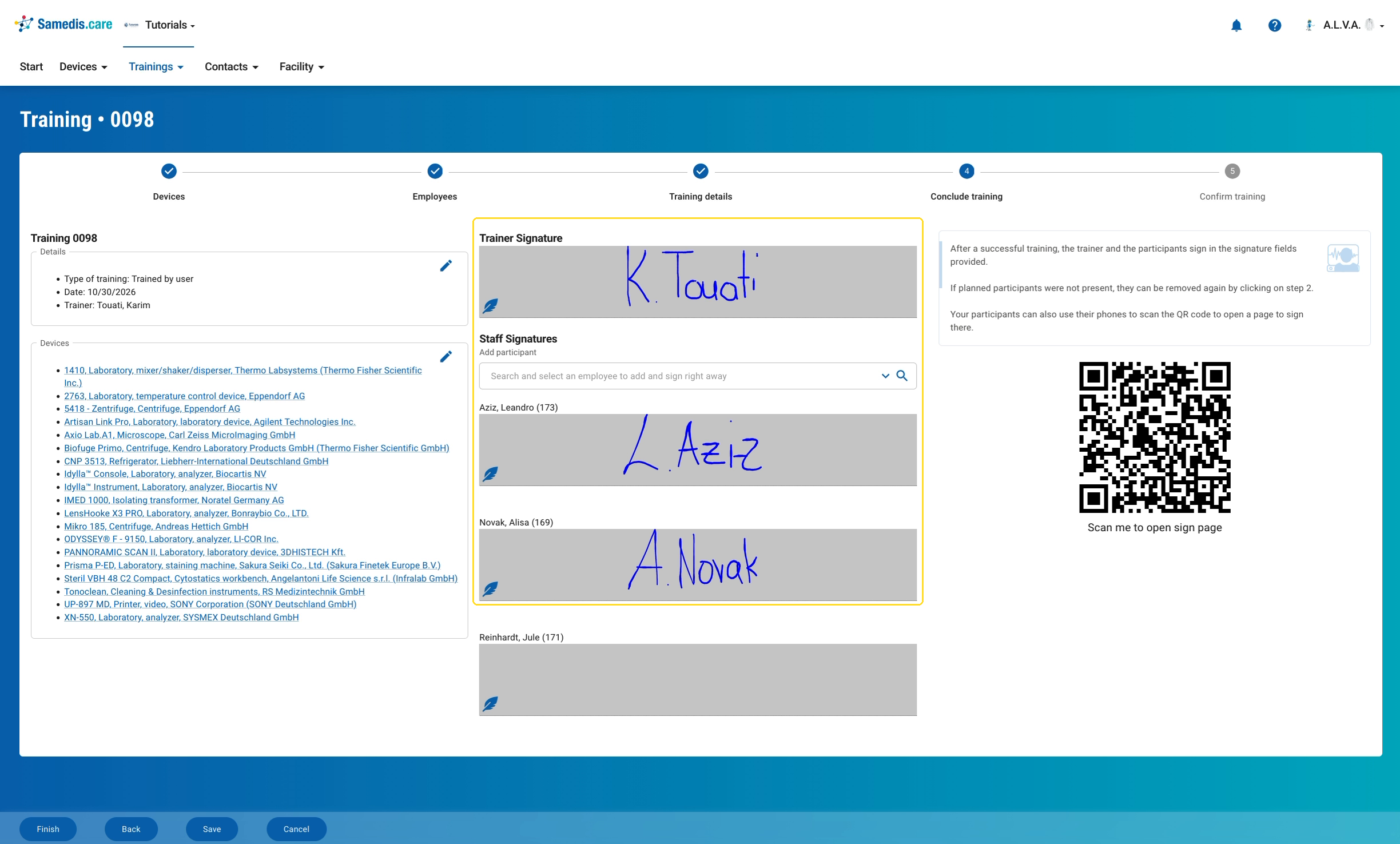
Participants can also sign on their own smartphone. To do this, they scan the QR code to the right of the signature fields. On the sign page that opens, each person selects their name, draws their signature in the field below and sends it. The signature then appears in the matching field of the training.
Tip
If someone isn’t in the list, the trainer adds them via the Add participant field in the training.