Create training group
In this tutorial, we’ll take a look at how you can create training groups to organize your training sessions clearly and manage them more efficiently.
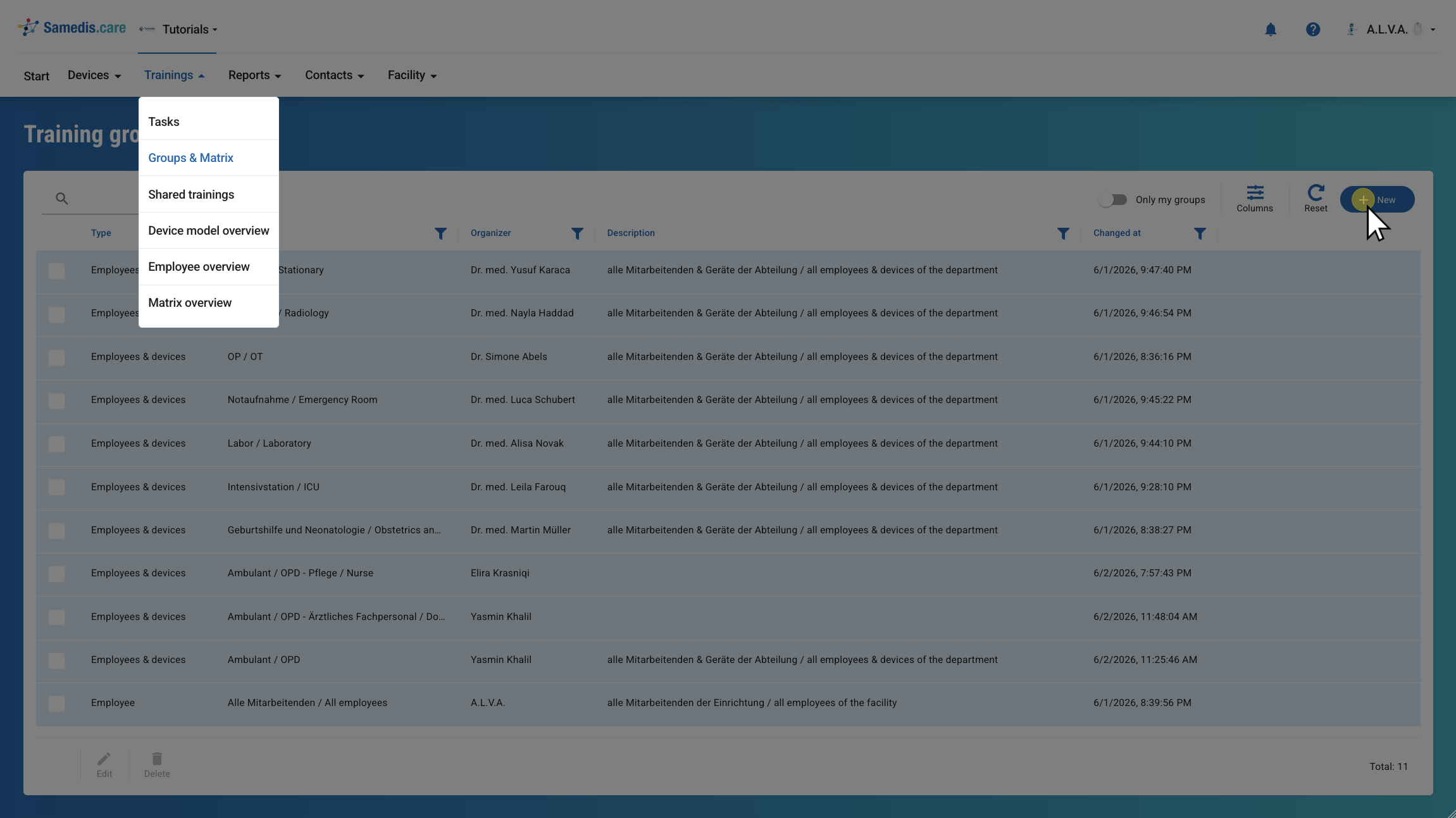
1. + New
Click on + New to create a new training group.
2. Type & Name
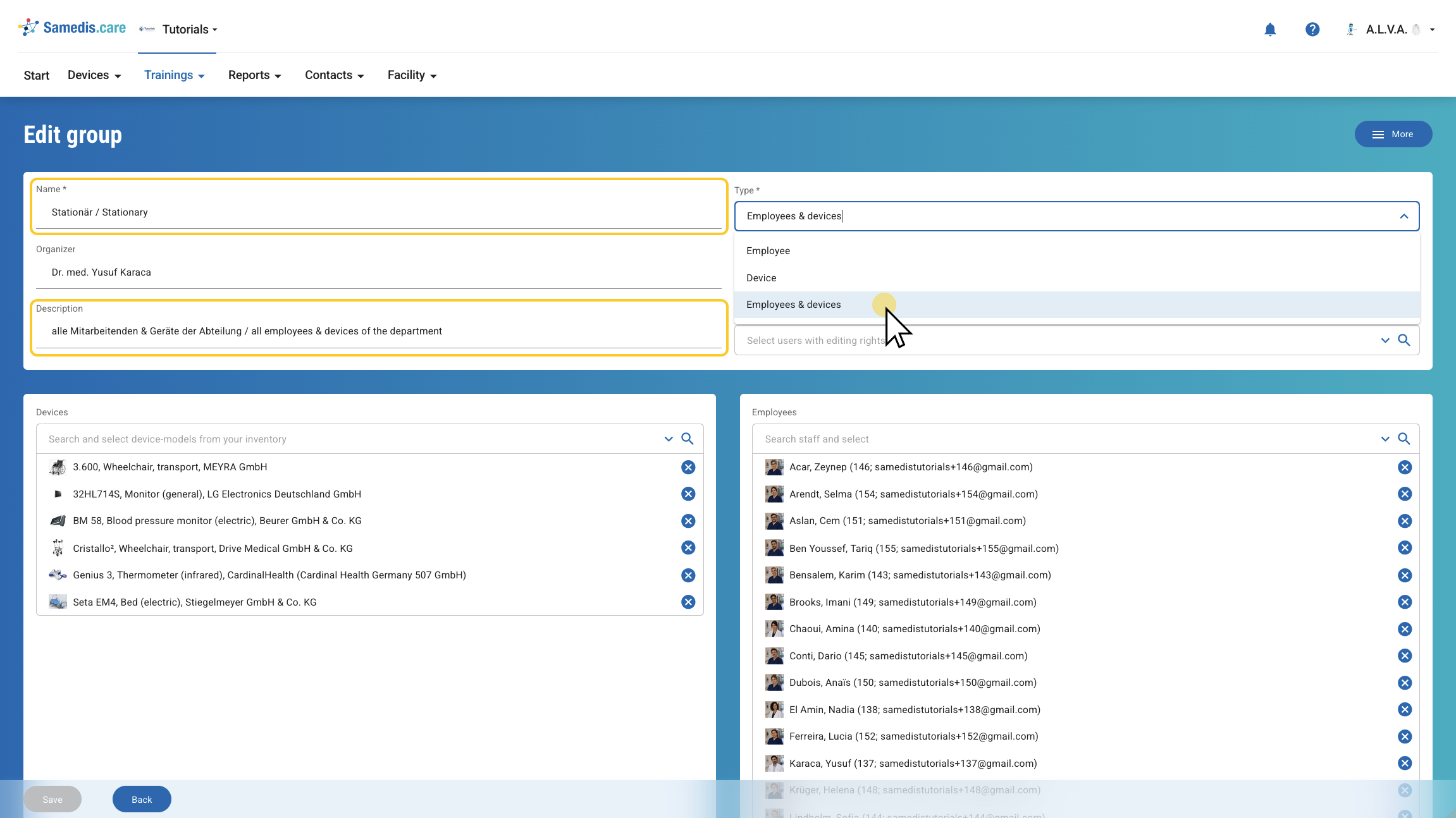
First select what Type of group it is:
- Employee: The group only contains people
- Device: The group only contains devices
- Employees & devices: The group contains both people and devices
Then give the group a Name and add a short Description.
3. Group responsibility
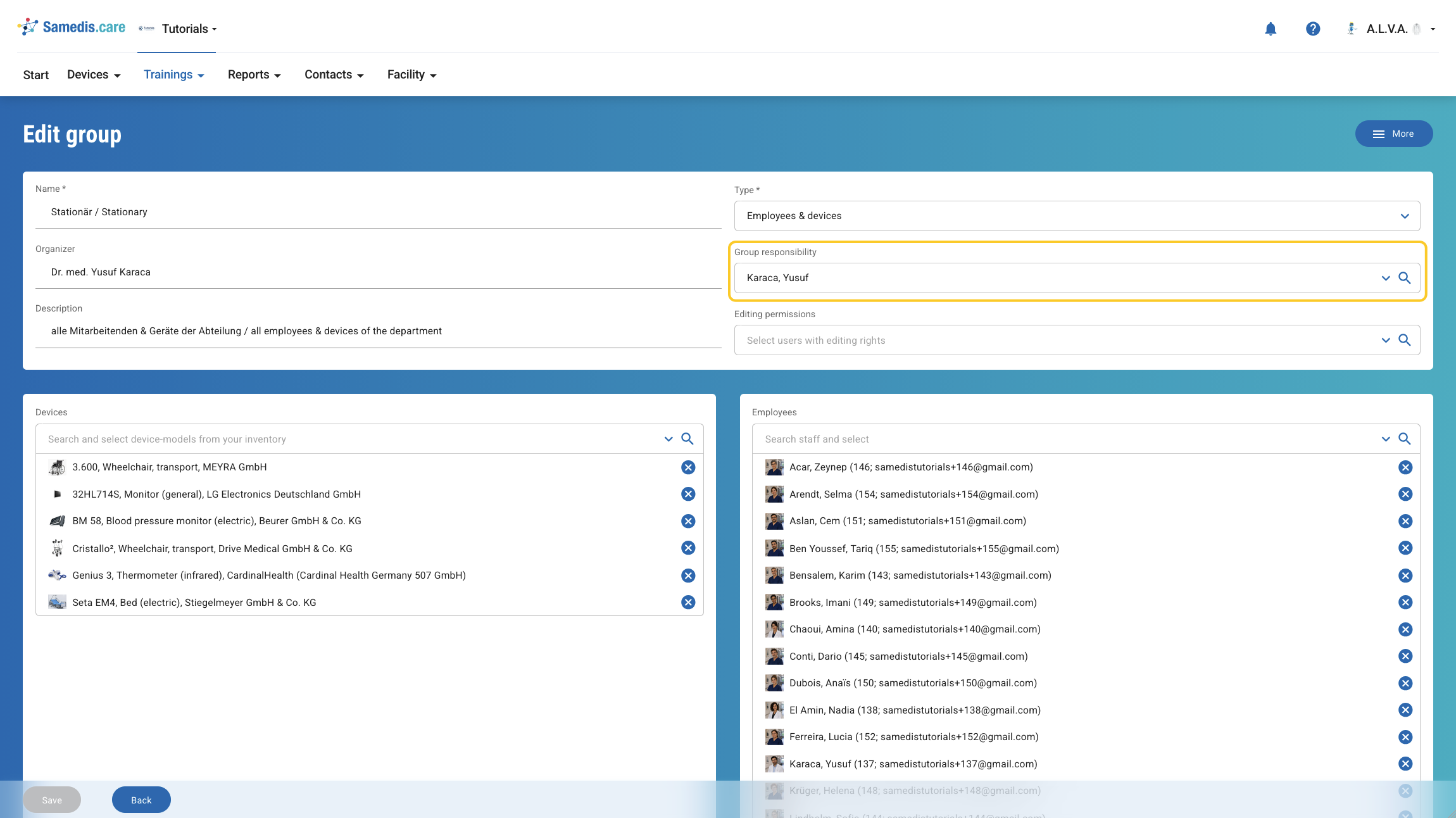
Under Group responsibility, select the person from your facility who will review and approve the content of the training. If someone else is responsible for organizing the training, you can specify that person under Organizer.
Warning
Under Group responsibility you can only select people who have access to your facility in Samedis.care.
4. Employees & Devices
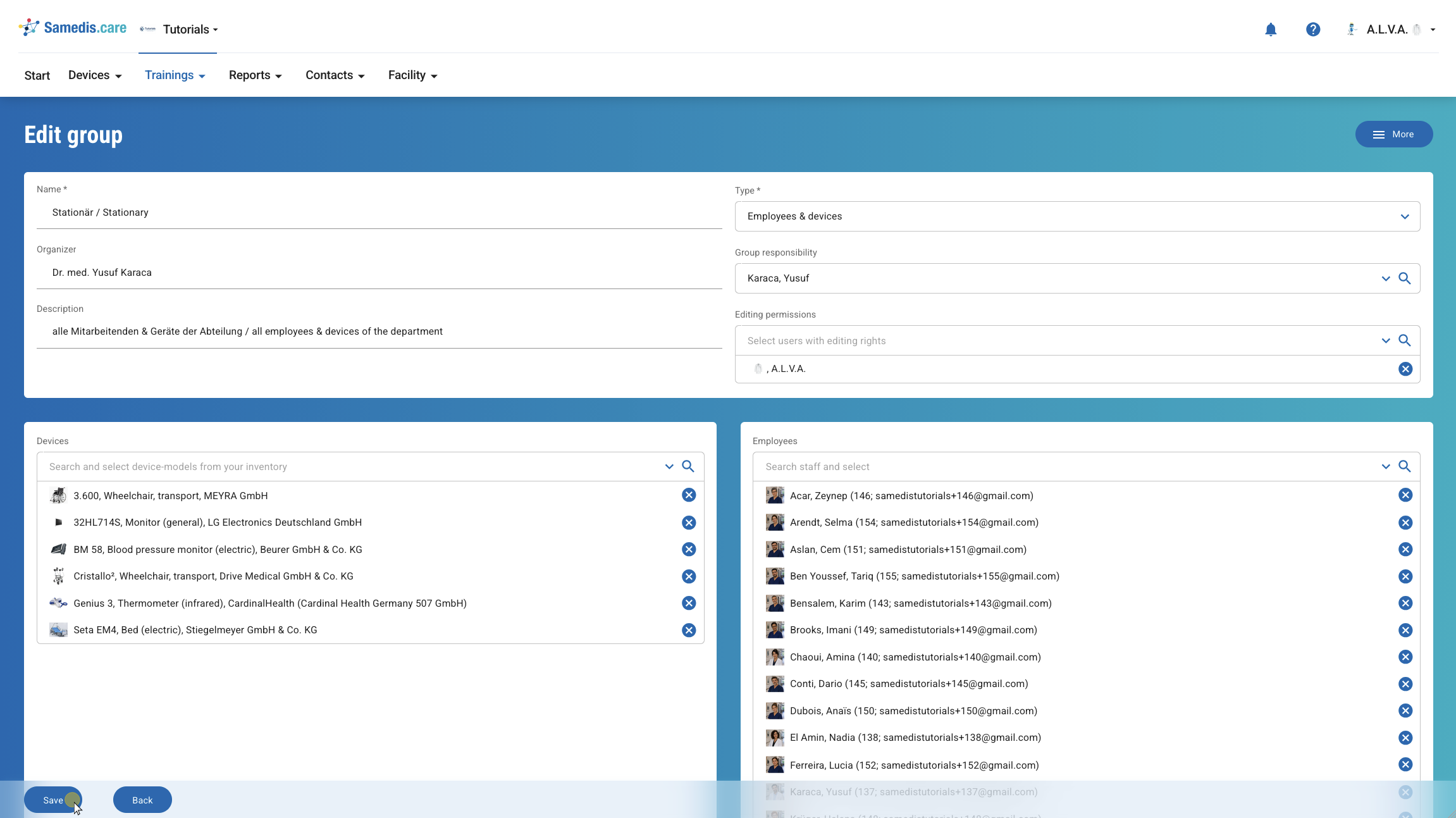
Add the desired employees and devices to your group. Under Editing permissions, you can give a person permission to edit your training group.
Then click Save.
Warning
People with edit permissions can make changes to the entire training group. Therefore, only select people you trust with this permission.
Tip
Selected employees who have left the facility according to the employee data are crossed out in the group. This allows you to easily identify them and remove them from the group if necessary.