Evaluate trainings
Samedis.care offers various ways for evaluating trainings. With the help of overviews and the Matrix, you can quickly see who already has a training and where there are still gaps.
1. Device model trainings
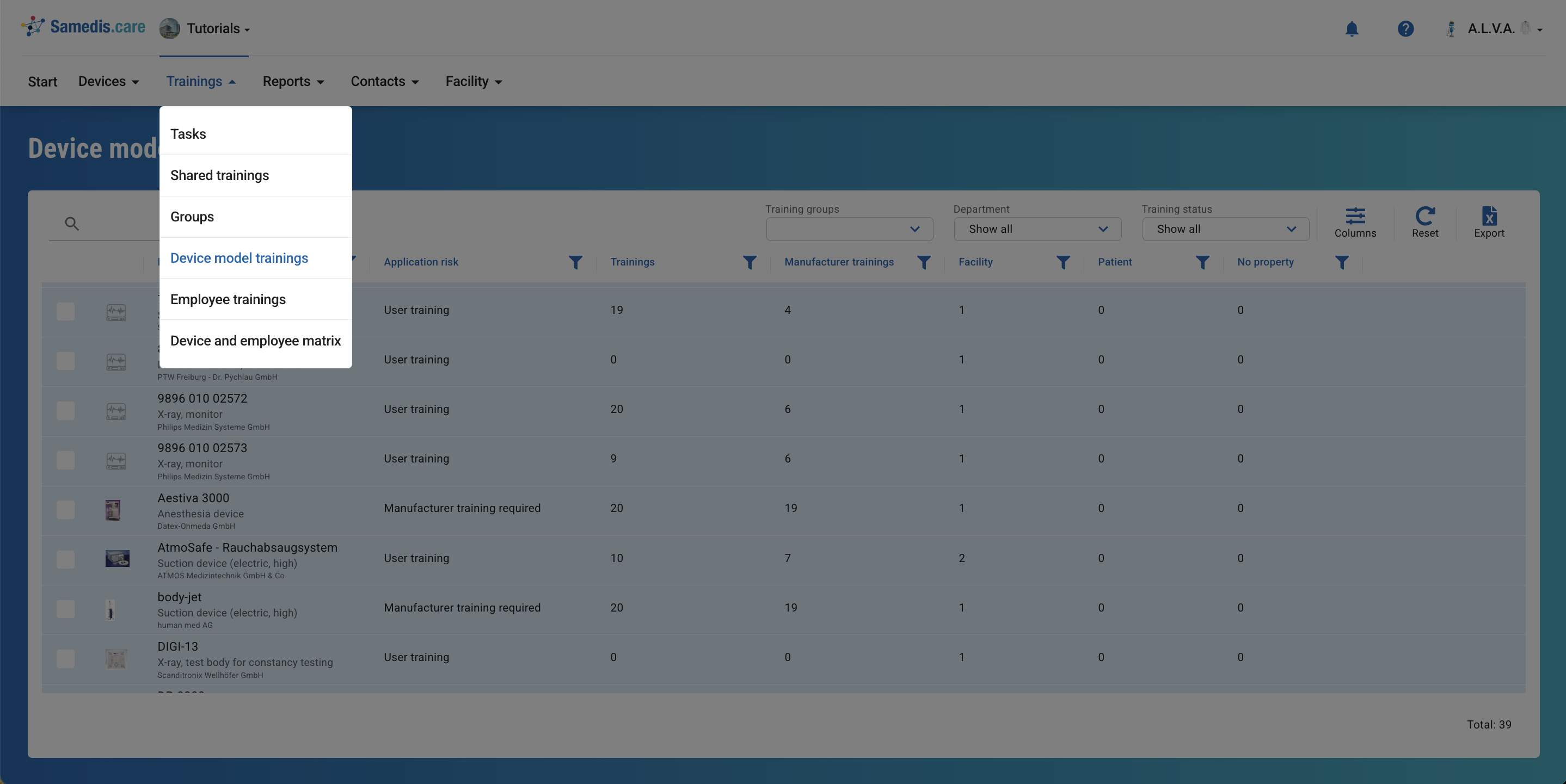
With Device model trainings you get a quick overview of how many and what types of trainings are assigned to each device model in your facility. You’ll also see how many devices exist per model and which ones are considered particularly critical.
Tip
Filter by Training groups, Department or Training status to display only the device types relevant to your area.
2. Employee trainings
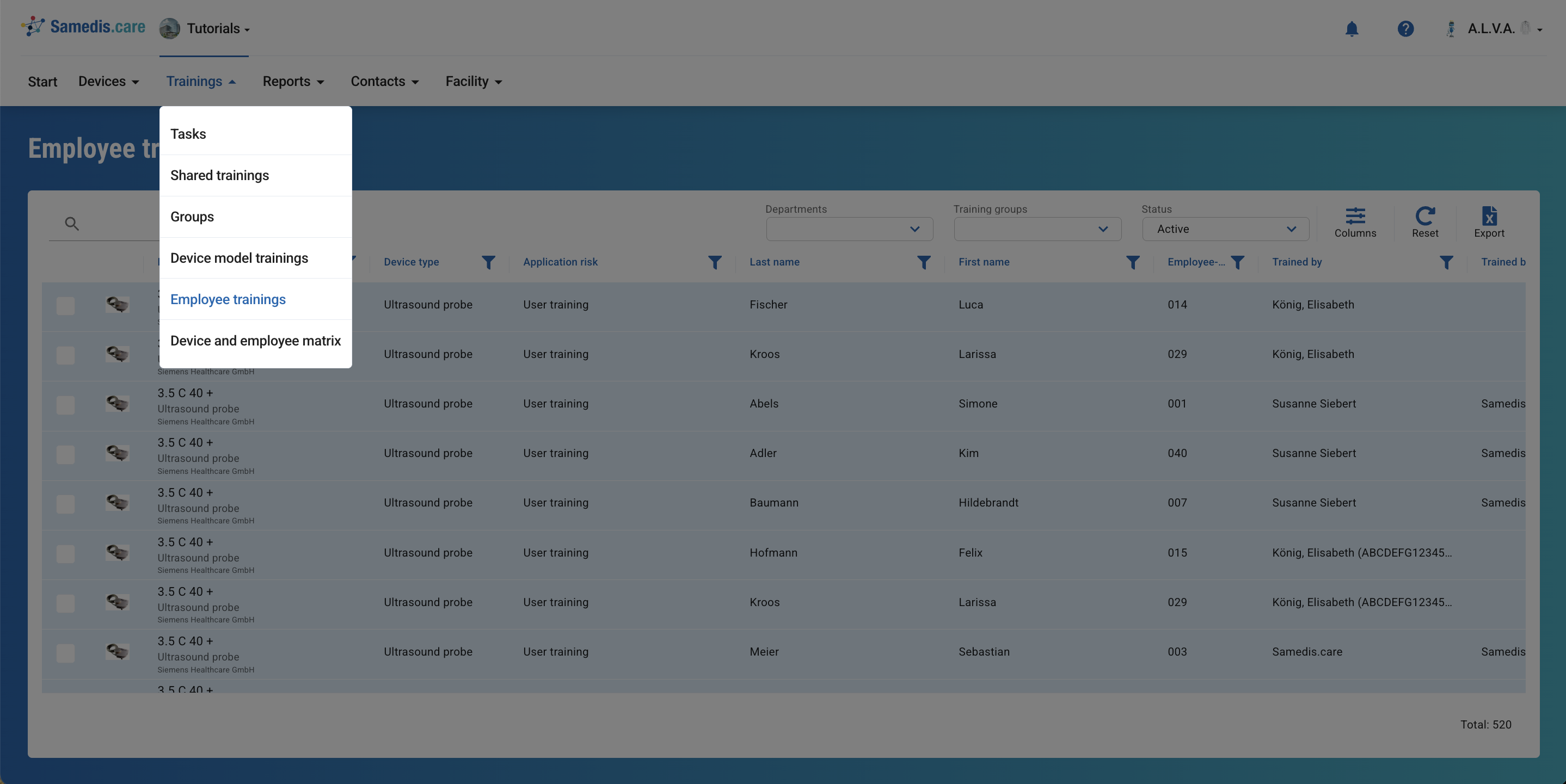
UseEmployee trainings to quickly see who has completed which training.
Tip
Use the filter option to sort the view by Training groups and display only device types from a specific area.
3. Device and employee training matrix
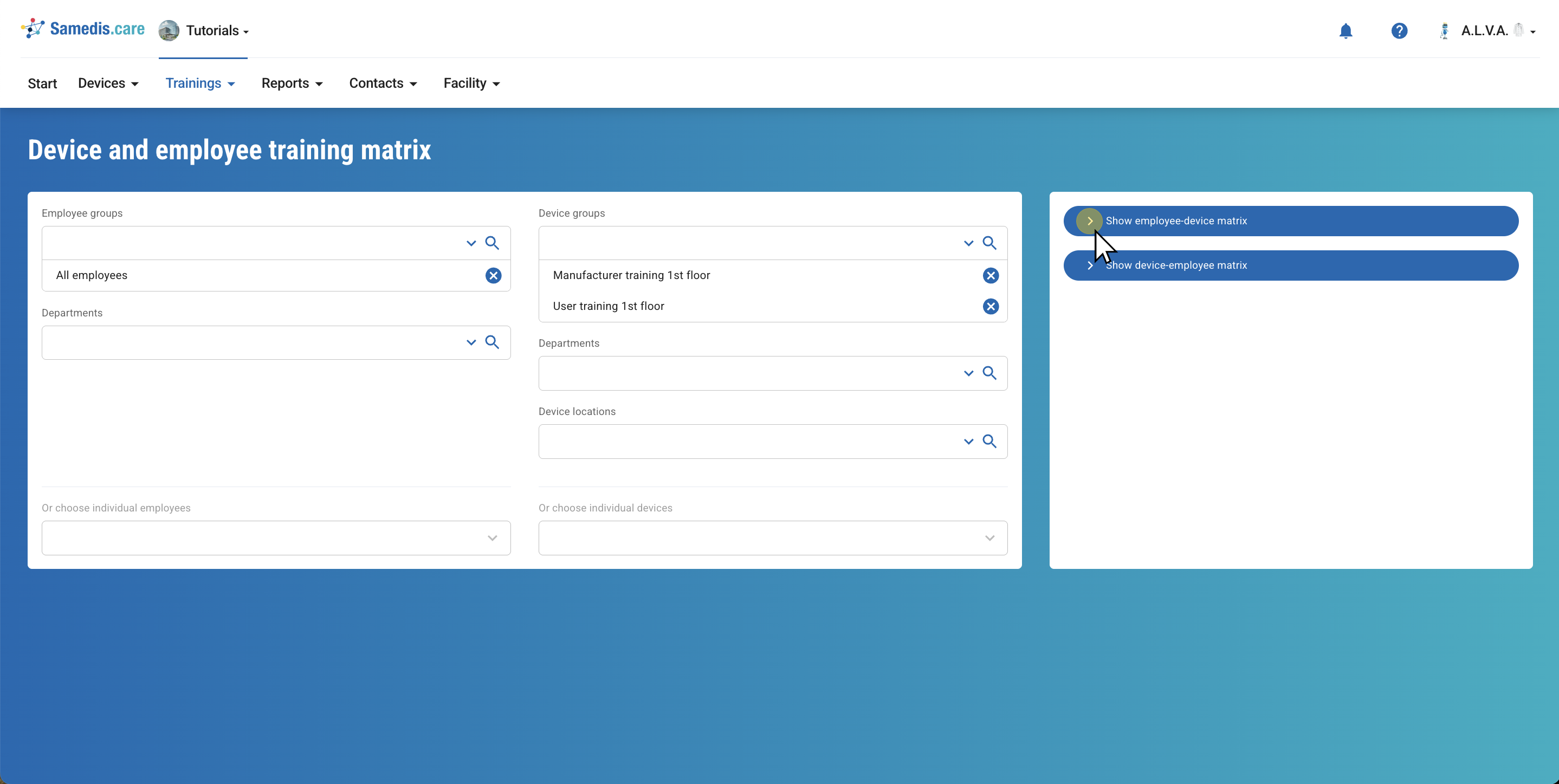
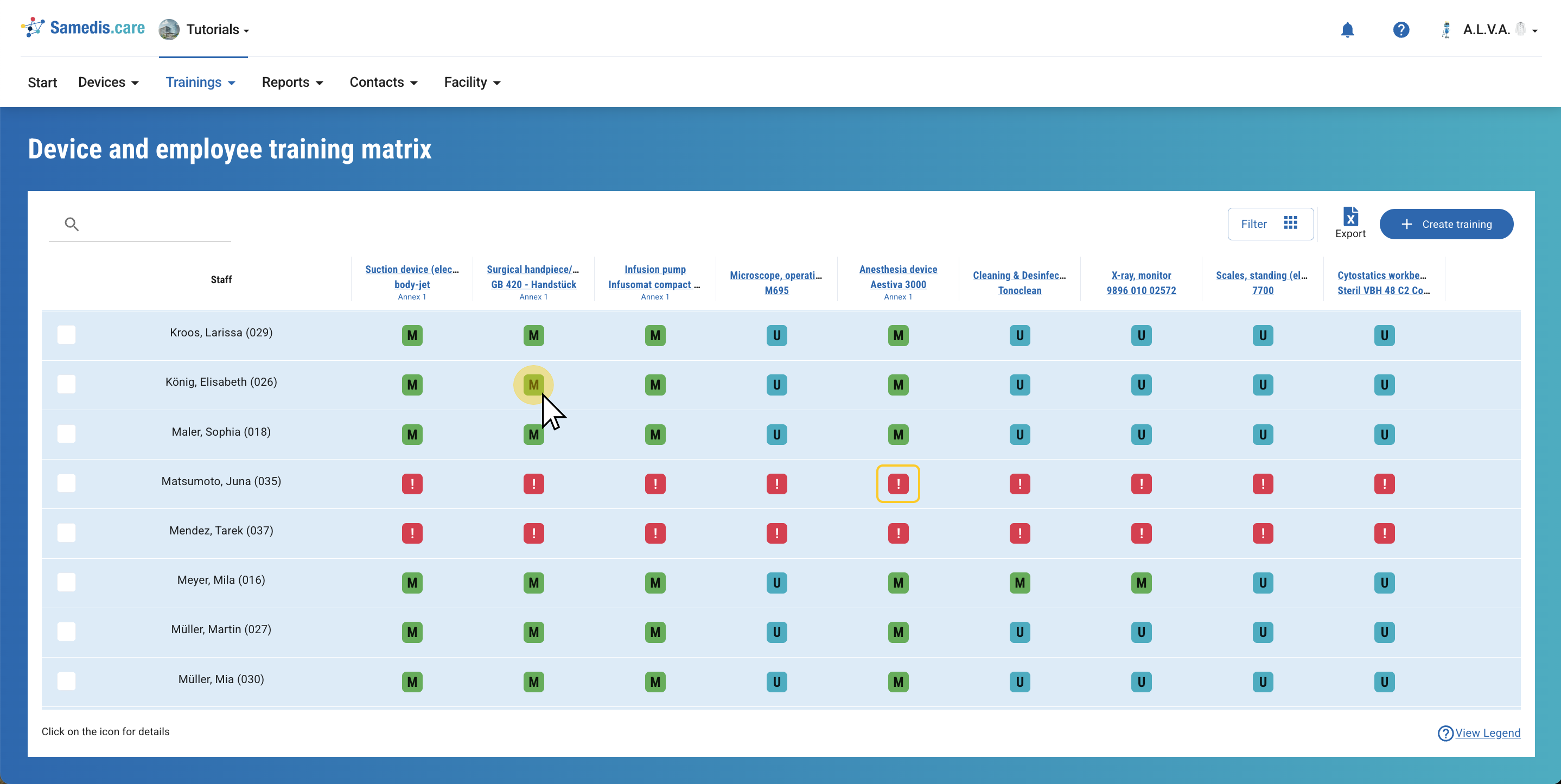
The Device and employee training matrix helps you to quickly identify which people have already been trained on which devices - and where there are still training gaps.
First select the required employees.
You can either select entire employee groups or departments or individual persons.
Then select the relevant devices - either by device groups, departments, device locations or individually.
Then click on Show matrix.
Tip
If you select the employee-device matrix, employees are shown in rows and devices in columns.
If you choose the device-employee matrix, it’s the other way around: devices are in the rows and employees in the columns.
3.1. Show Matrix
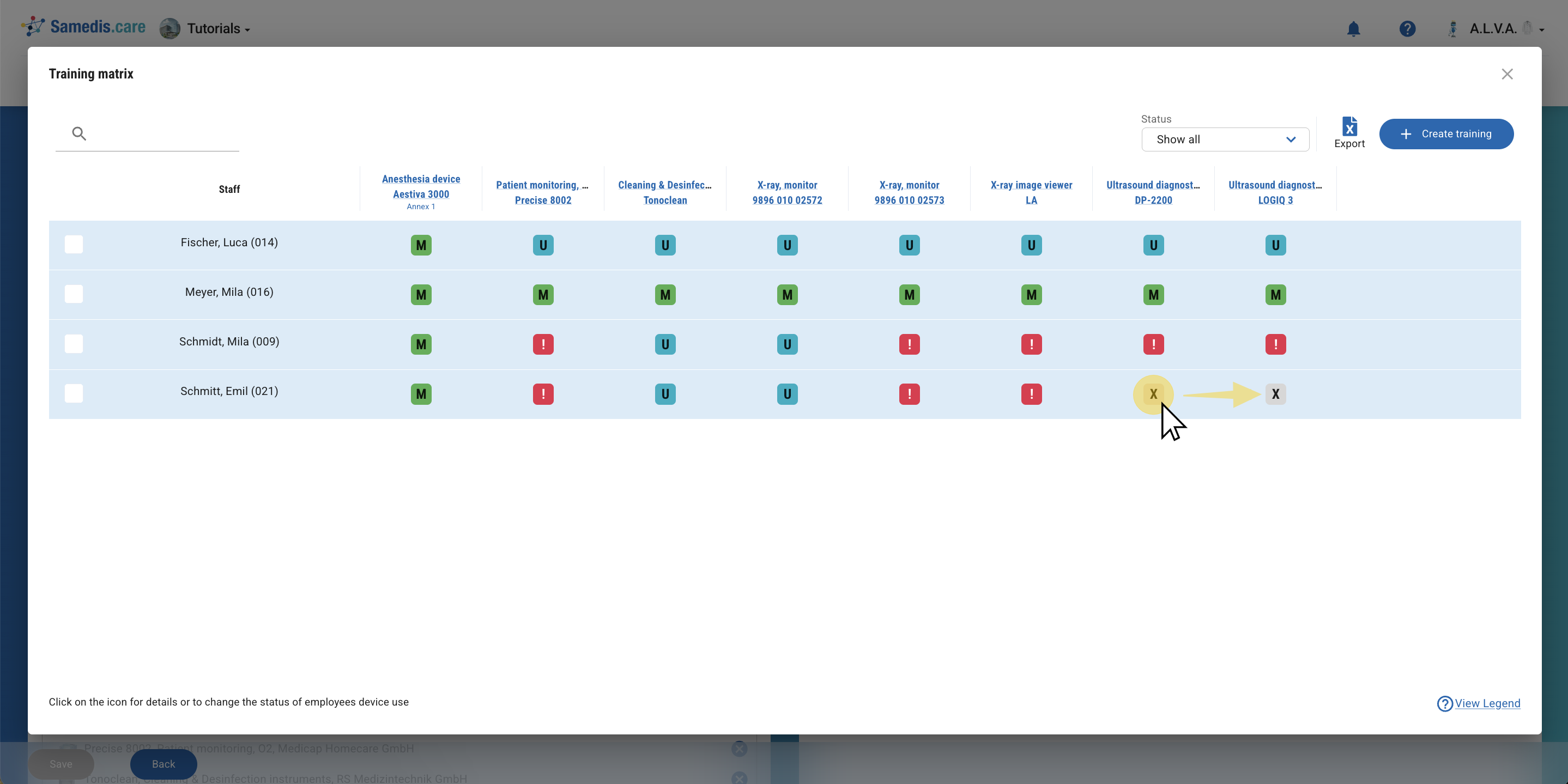
The matrix shows you which of the previously selected persons already have user (U) or manufacturer (M) training for the selected devices. Click on the corresponding symbol to view more details about the specific training.
If no training has been documented yet, a ❗ is displayed in the corresponding position.
If you discover a training gap, select the relevant persons and document a new training directly by clicking + Create Training. For more information, refer to the Document Training tutorial.
Tip
Through the Filter option you can always go back to the selection of employees and devices.
3.2. Matrix within a group
You can also view a matrix for your training groups directly. To do this, click on **View:**under More in the view of your group to open the corresponding training matrix.
If a training is missing for a person, but the device is not being used by that person, simply click the ❗. This will place an X for Not used in the matrix. If the device is used, you can undo the action by clicking the X again.
Tip
The group must include both devices and employees.