Document training
In this tutorial, we’ll take a look at how you can easily document device training in Samedis.care in a digital and legally compliant way.
1. Training tasks
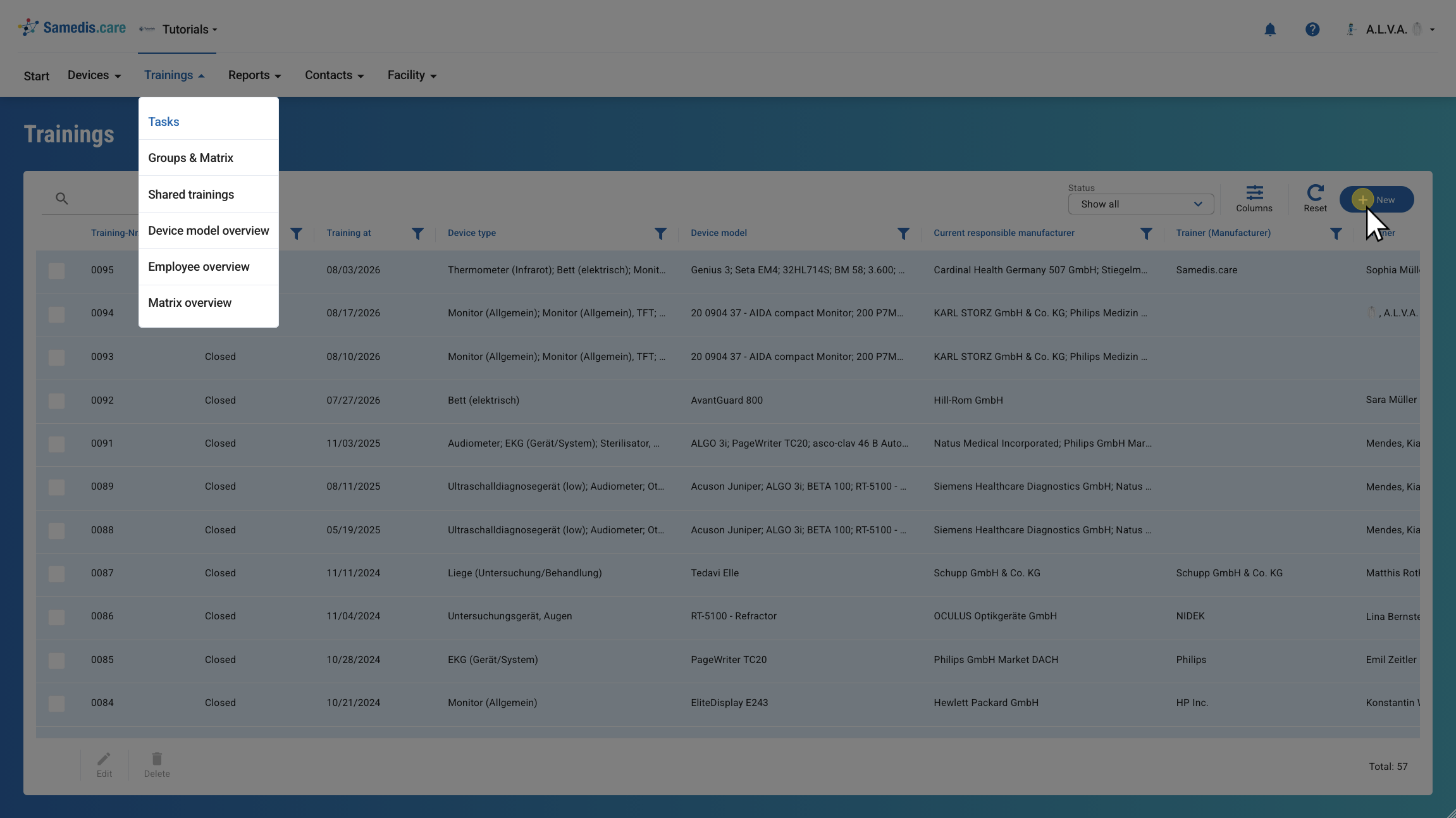
To document a new training, click on + New.
2. Select devices
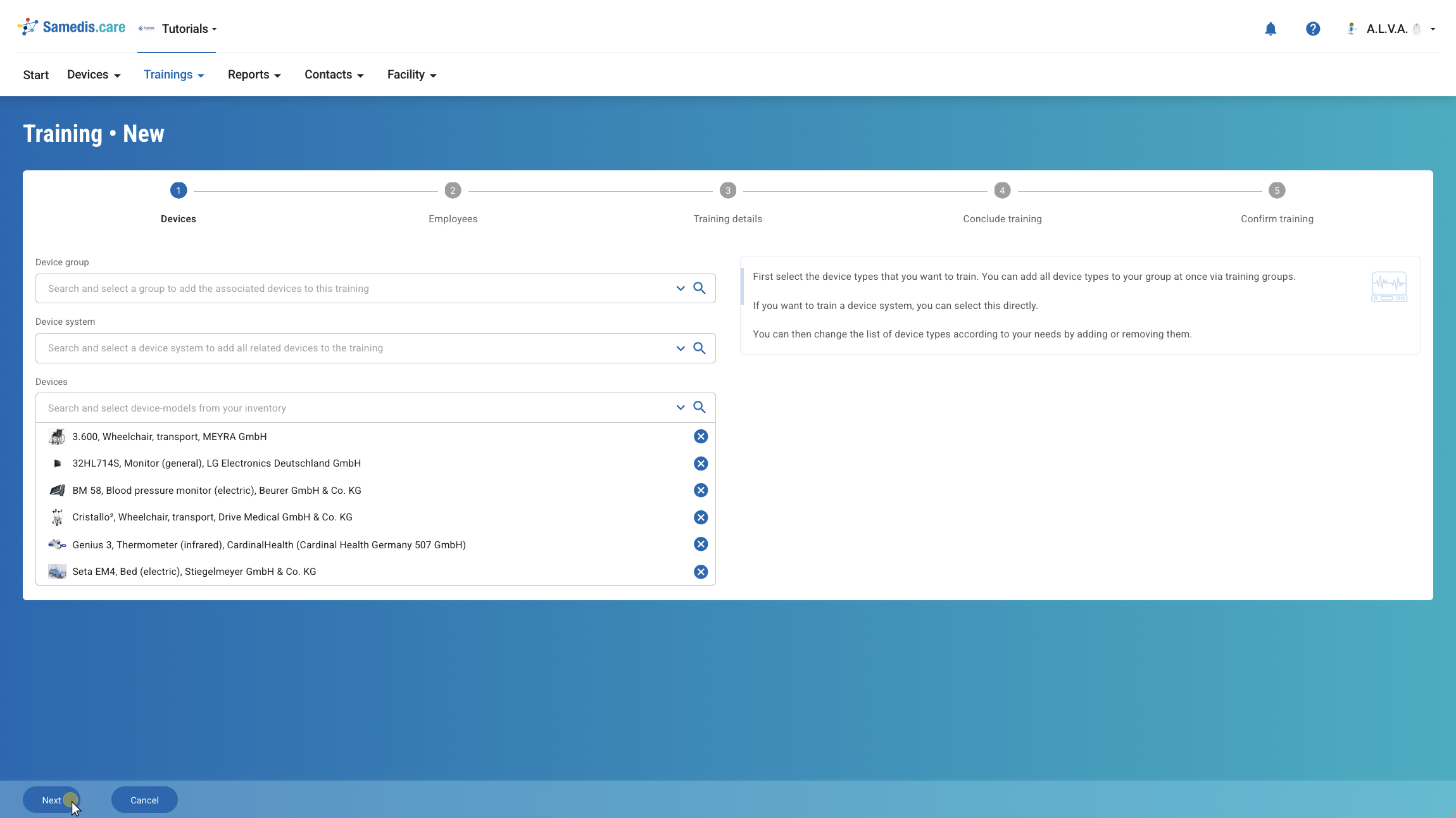
Select all devices to be covered by the training. You can either select an entire device group or device system, or choose individual devices.
Then click Next.
Tip
You can customize your list of devices as needed by adding or removing some of them.
3. Select employees
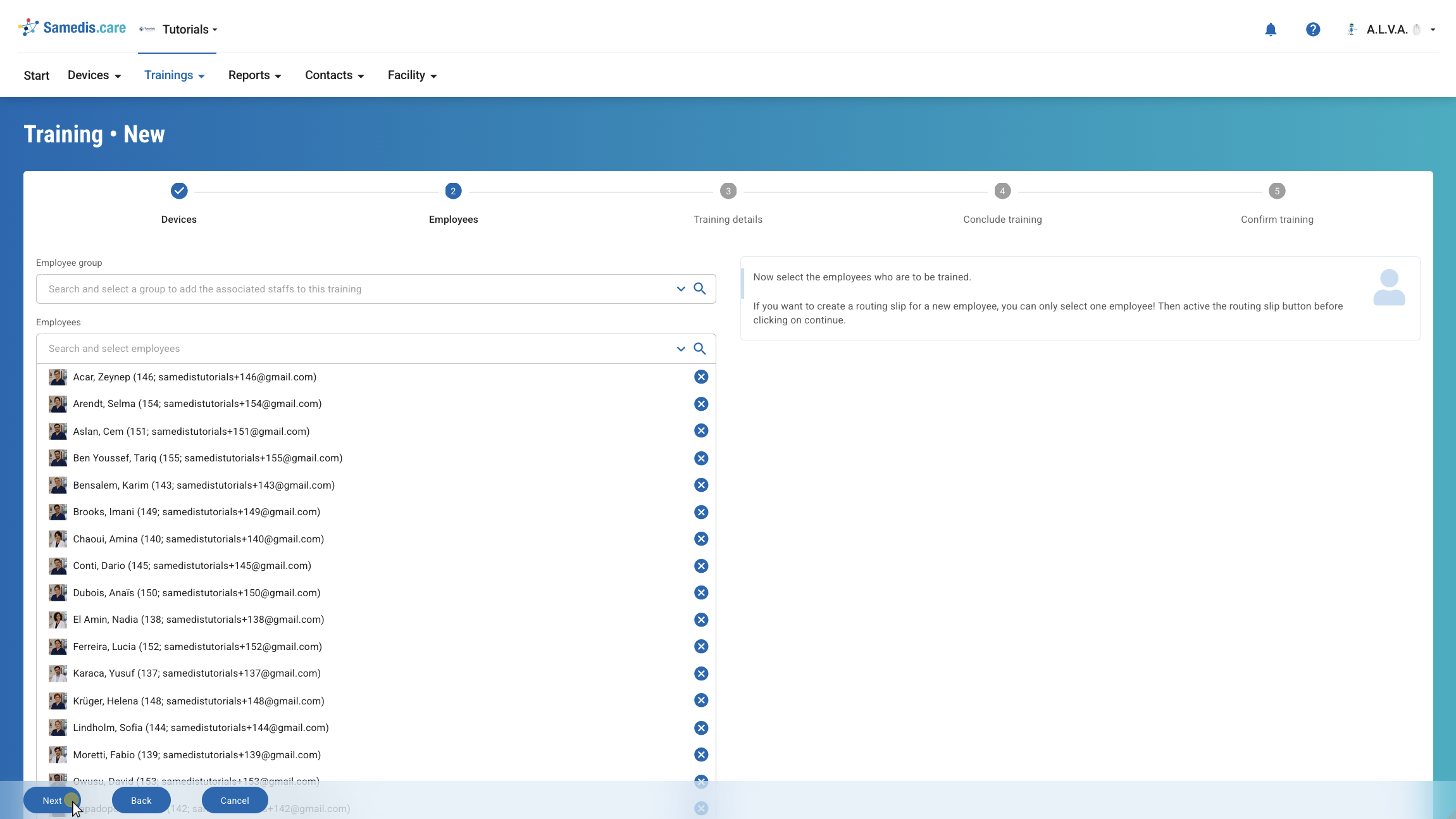
Next, select all employees who are to be trained. You can either search for and select all employees in a group or individual persons.
Then click Next.
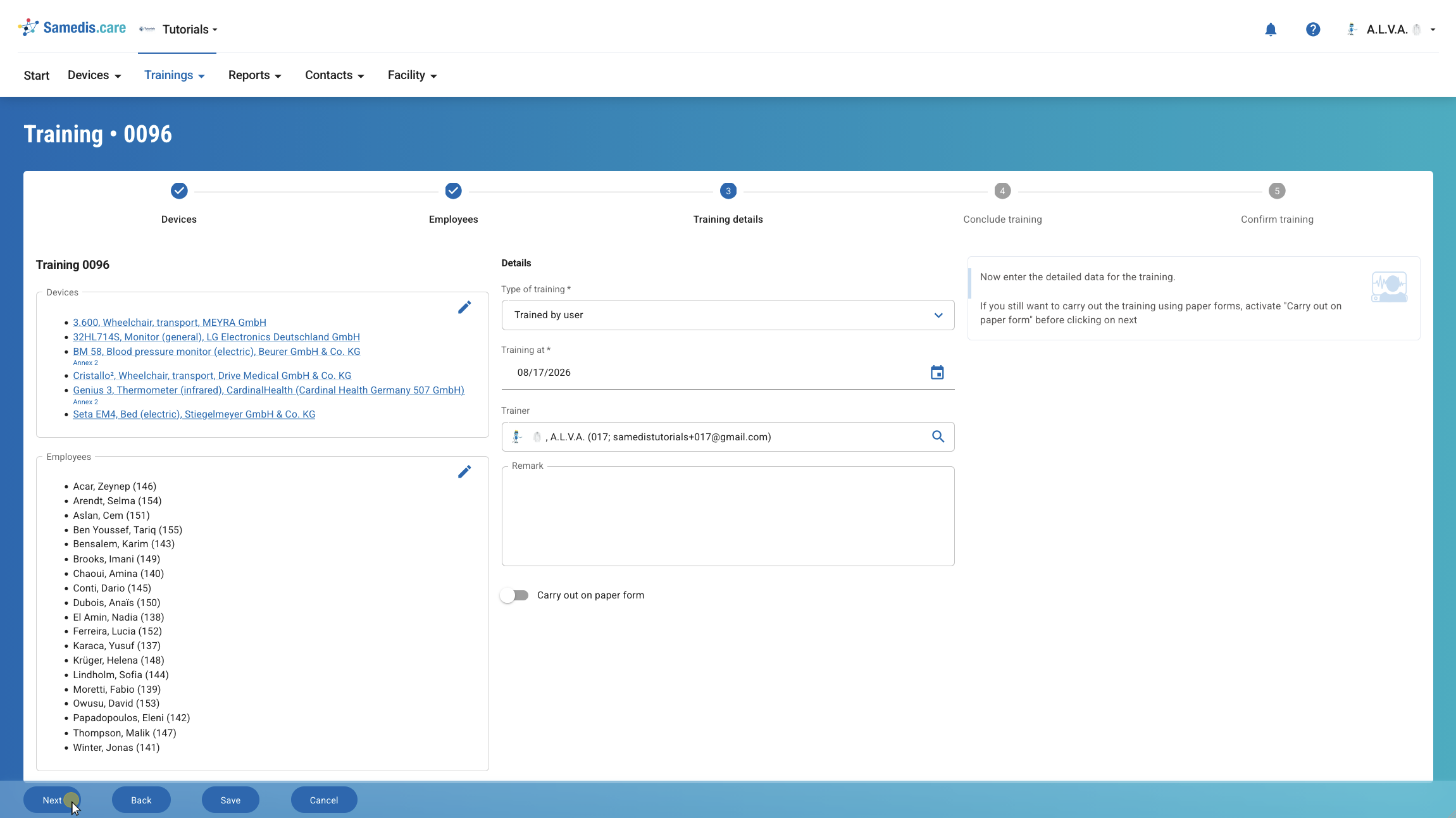
4. Training details
Enter all training details and review the previously selected devices and employees. If any of the details are incorrect, you can change them at any time by clicking Back or the ✏️-icon.
In the case of a manufacturer training, you can simply enter the instructor using free text. Additionally, enter the company from which the instructor comes under Trainer (Manufacturer).
To schedule instructions for the future, click Save after filling out all the fields. You can always come back and complete them later.
Tip
Use the filter option to display only those employees who have already been trained on the relevant devices when selecting the Trainer.
Warning
If the training is provided in paper form, the printed and signed document must then be scanned or photographed and stored in Samedis.care.
5. Sign digitally
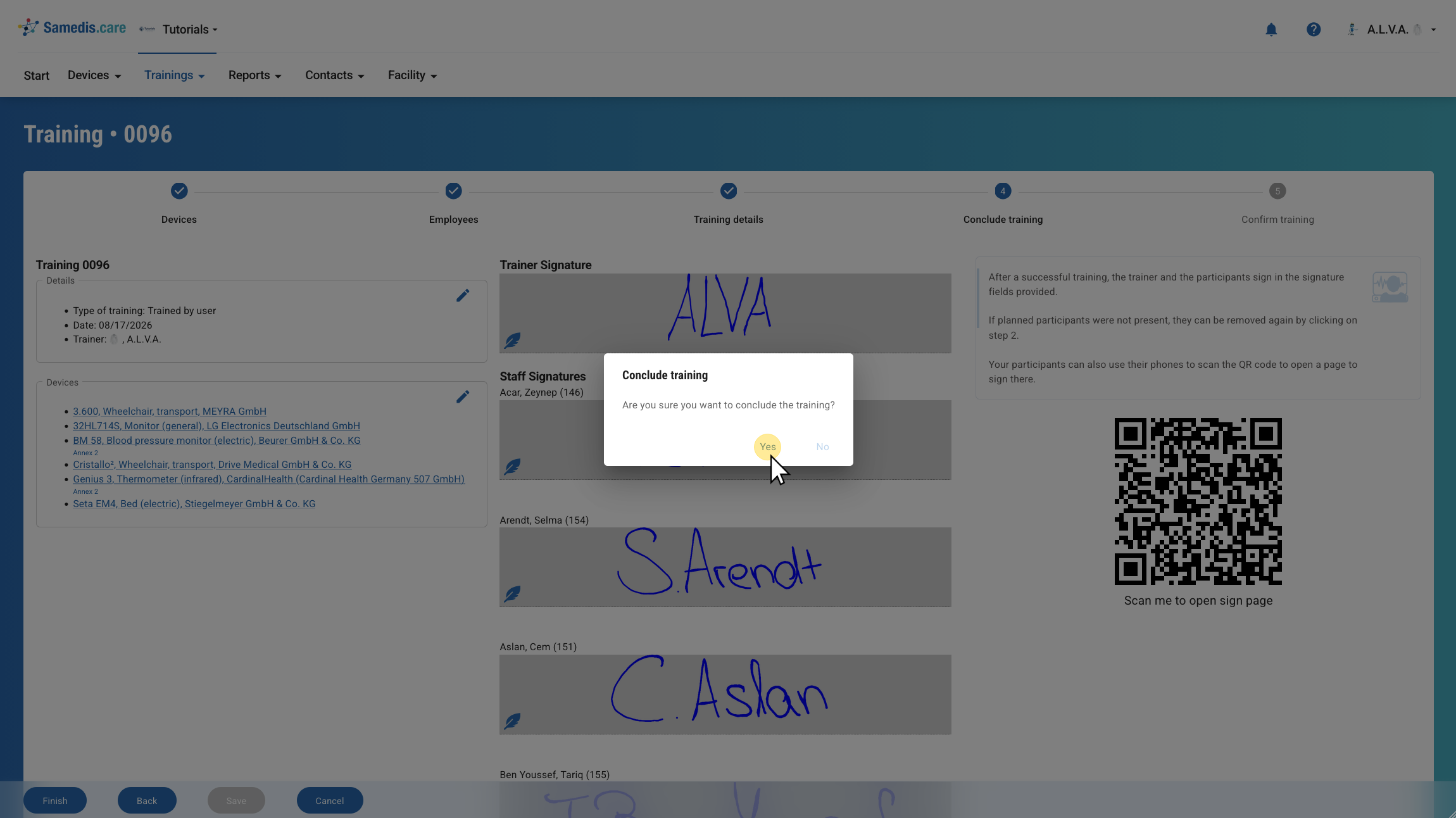
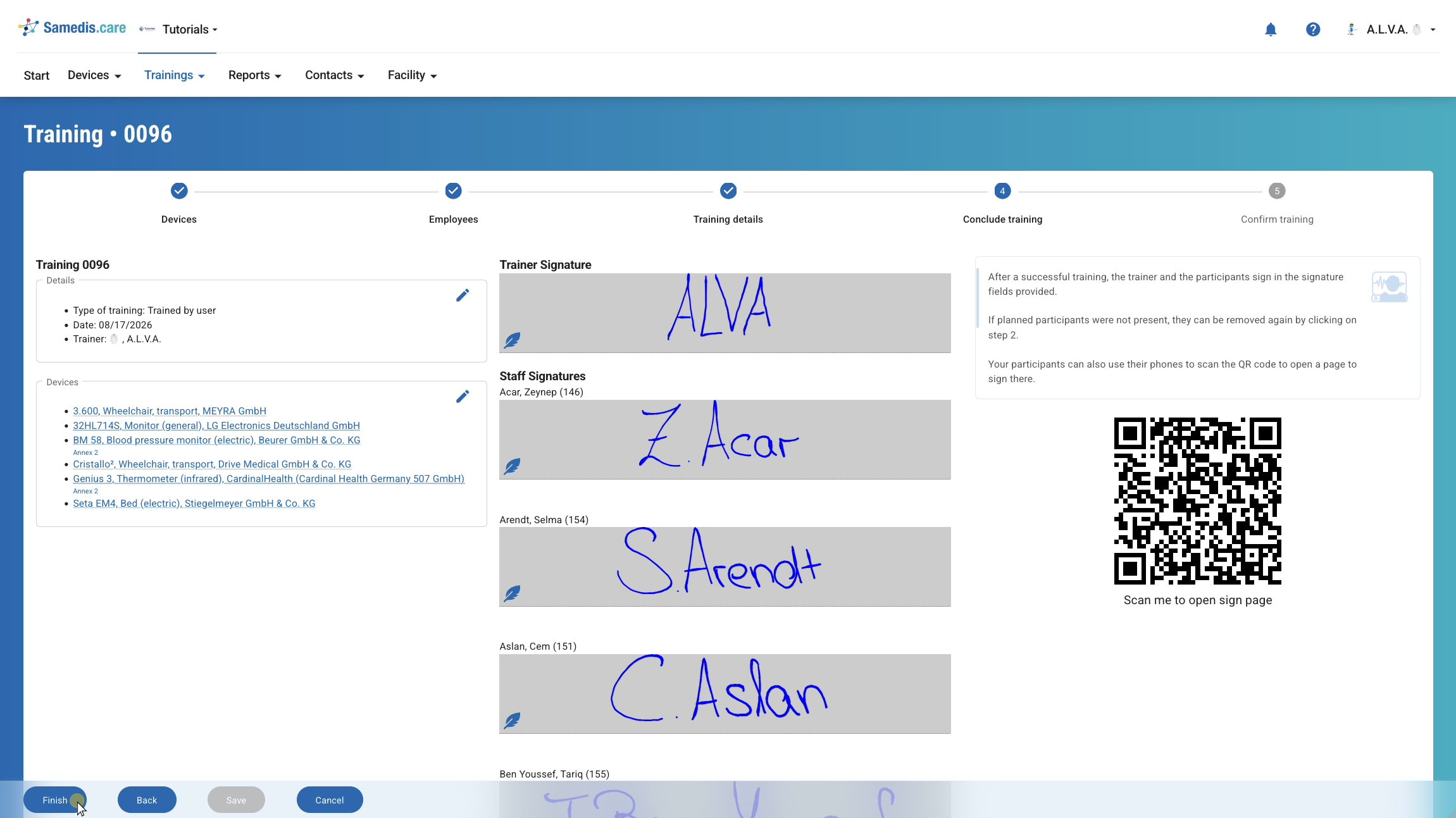
Now let the trainer and all employees sign digitally. To do this, click on the corresponding signature fields or use the QR code to open the sign page.
When all have signed, click Finish.
Warning
Employees who do not provide a signature are automatically removed from the training. The training will therefore not be documented for these individuals.
6. Confirm
Confirm the window with Yes to complete the training.
Tip
Samedis.care automatically generates a PDF file containing all relevant information about the training. You can use this document as proof of training at any time.
Warning
Once the training has been completed, you can no longer edit it. Therefore, check in advance if all entries are correct.