Document training
Samedis.care allows you to document trainings digitally and in a legally compliant way.
1. Training tasks
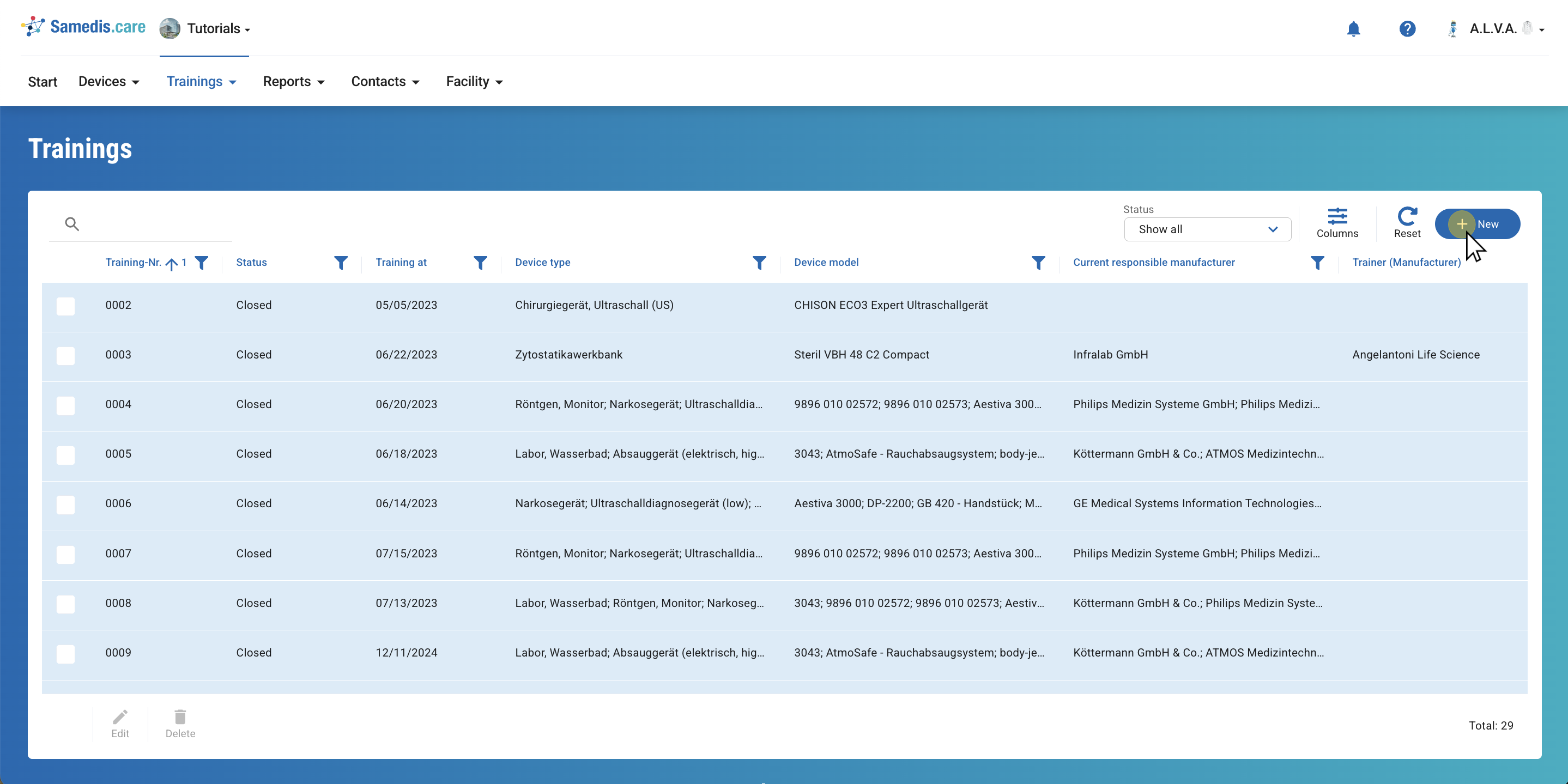
To document a new training, click on + New.
2. Select devices
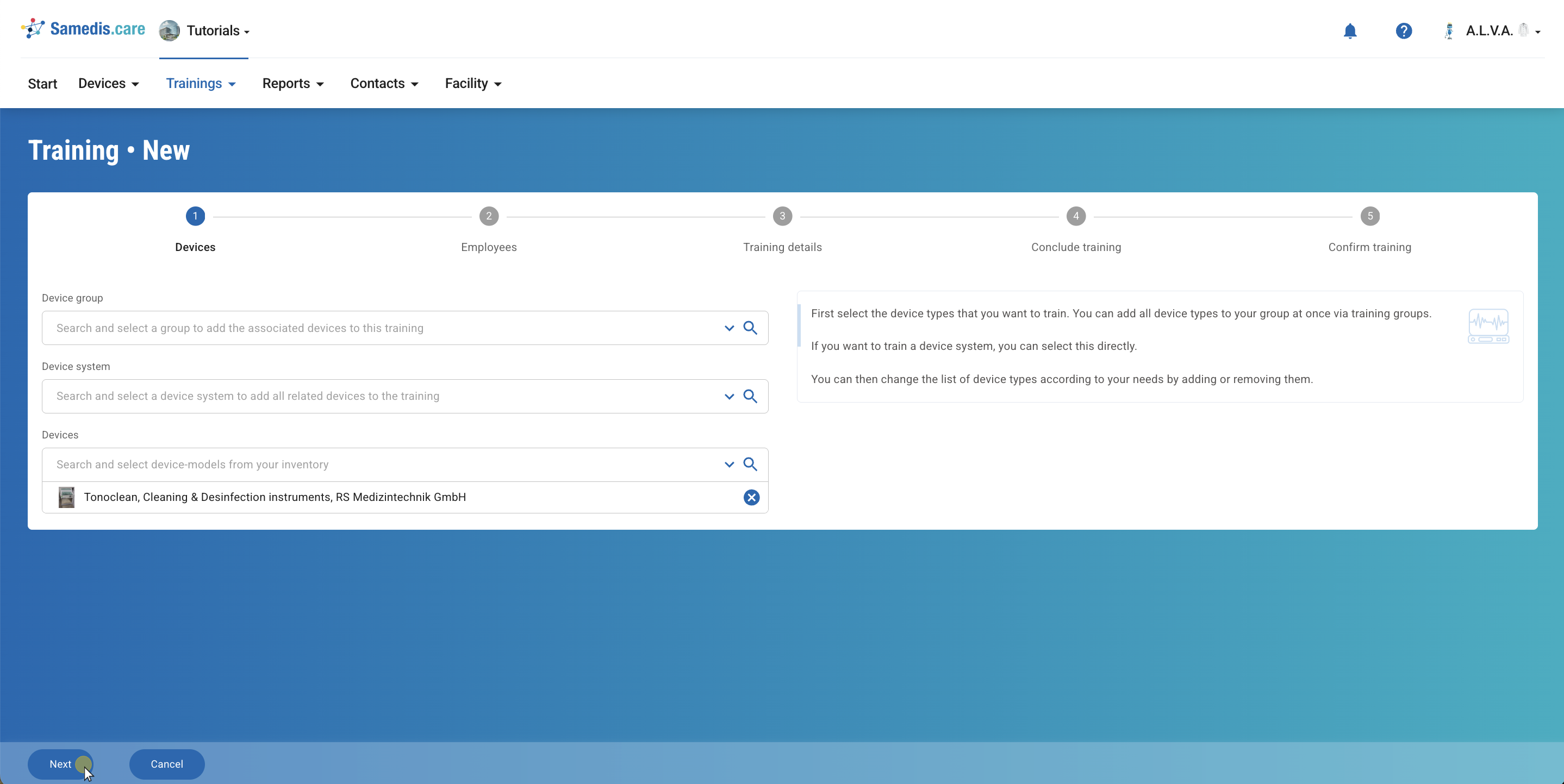
Select all devices that will be part of the training.
You can select either groups, device systems or individual devices.
Then click Next.
Tip
You can customize your list of devices as needed by adding or removing some of them.
3. Select employees
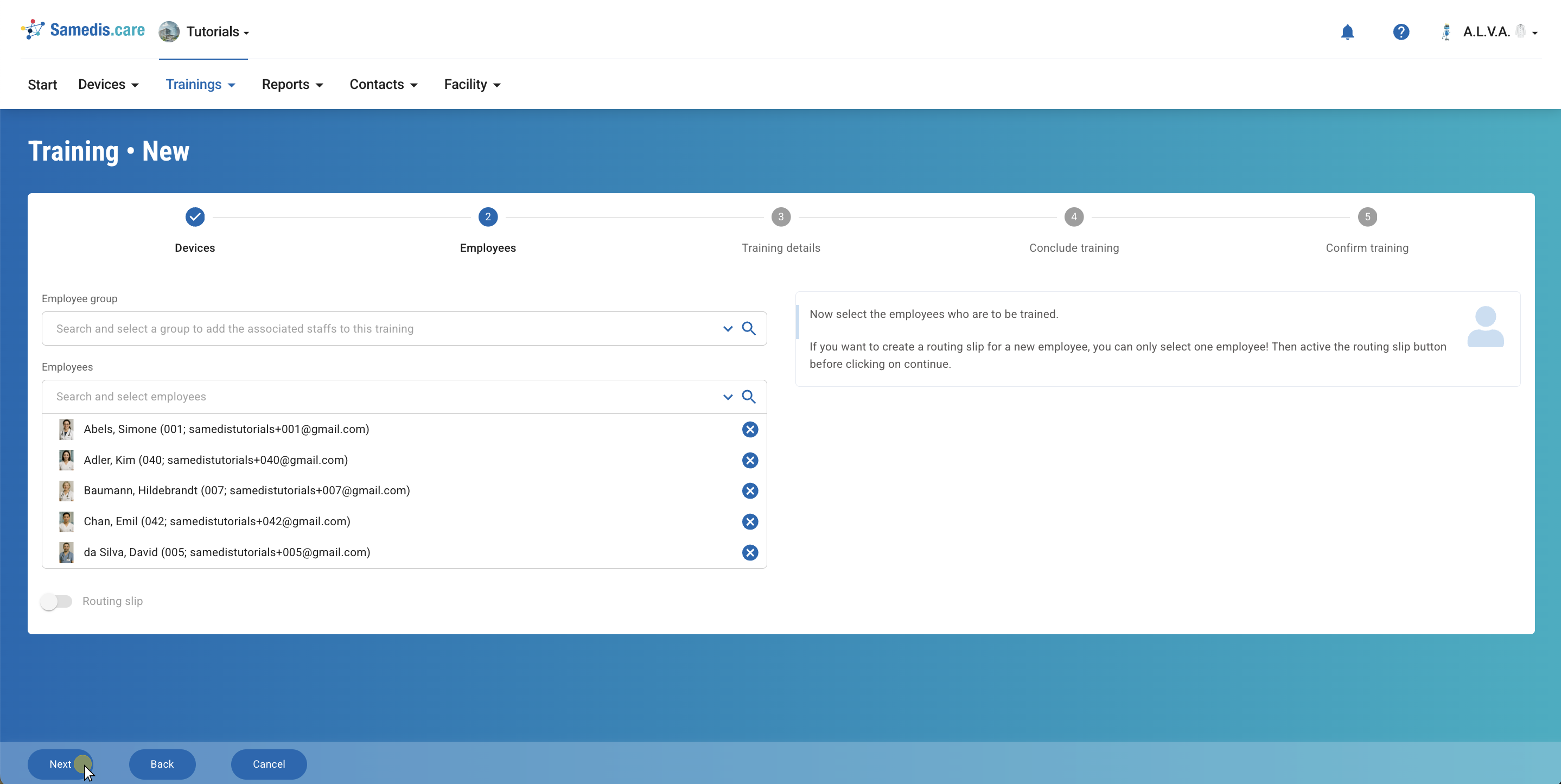
Next, select all employees who are to be trained.
You can either search for and select all employees in a group or individual persons.
Then click on Next.
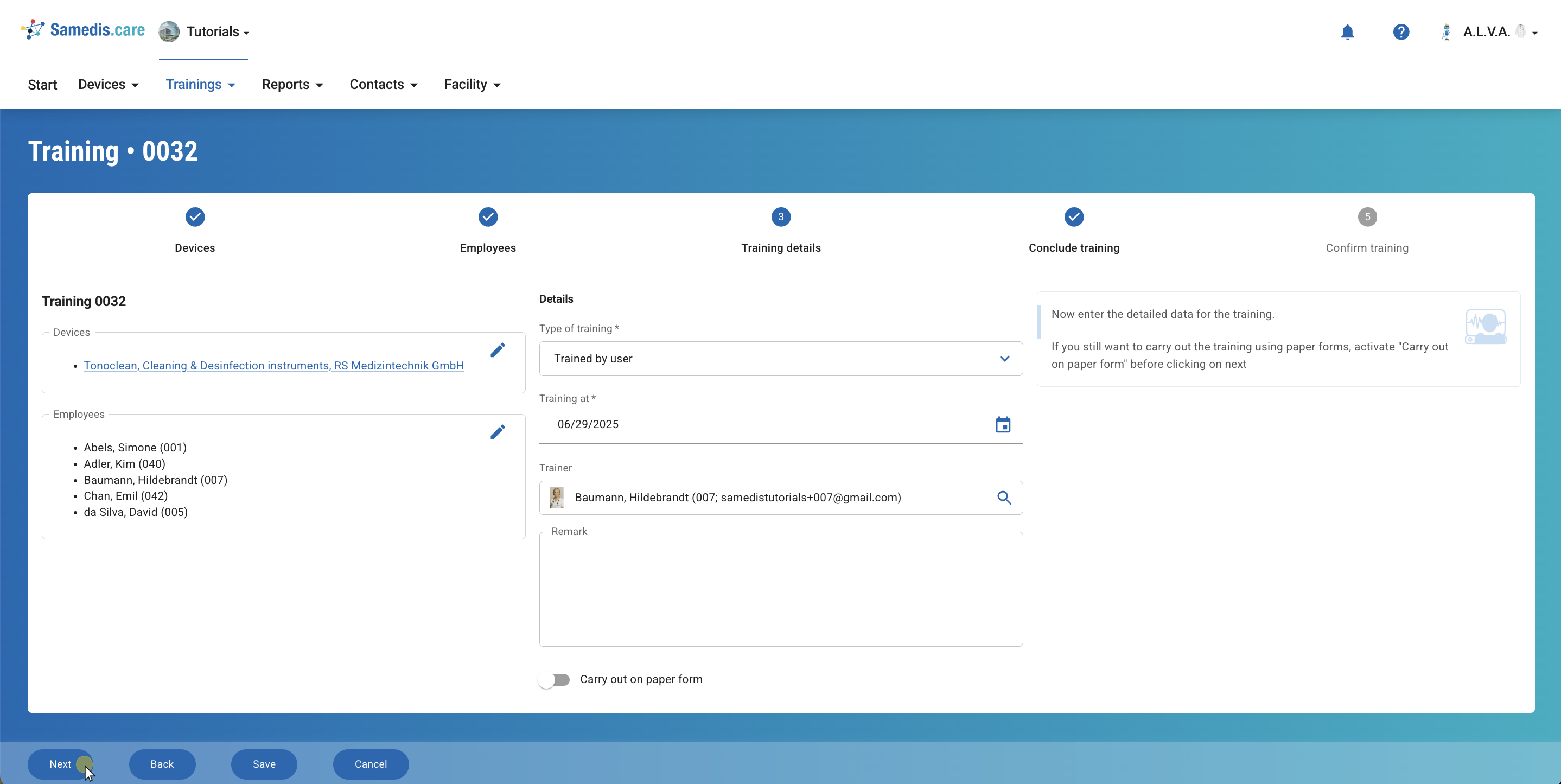
4. Training details
Enter all training details and review the previously selected devices and employees. If any of the details are incorrect, you can change them at any time by clicking Back or the ✏️-icon.
To schedule instructions for the future, click Save after filling out all the fields. You can always come back and complete them later.
In the case of a manufacturer training, you can simply enter the instructor using free text. Additionally, enter the company from which the instructor comes under Trainer (Manufacturer).
Tip
Use the filter option to display only those employees who have already been trained on the relevant devices when selecting the Trainer.
Note
If the training is provided in paper form, the printed and signed document must then be scanned or photographed and stored in Samedis.care.
5. Sign digitally
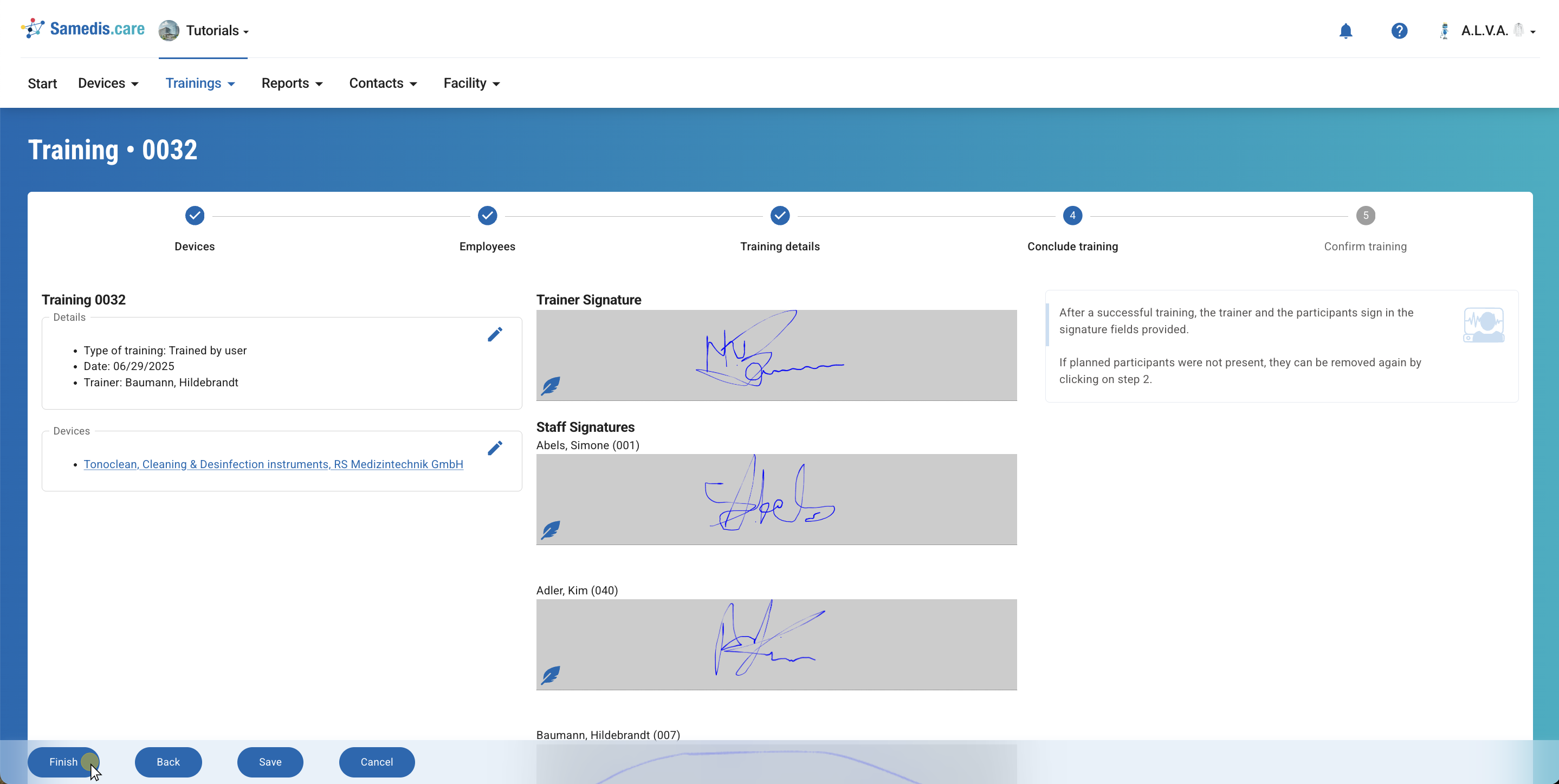
Now let the trainer and all employees sign digitally. To do this, click on the corresponding signature fields.
When all have signed, click Finish.
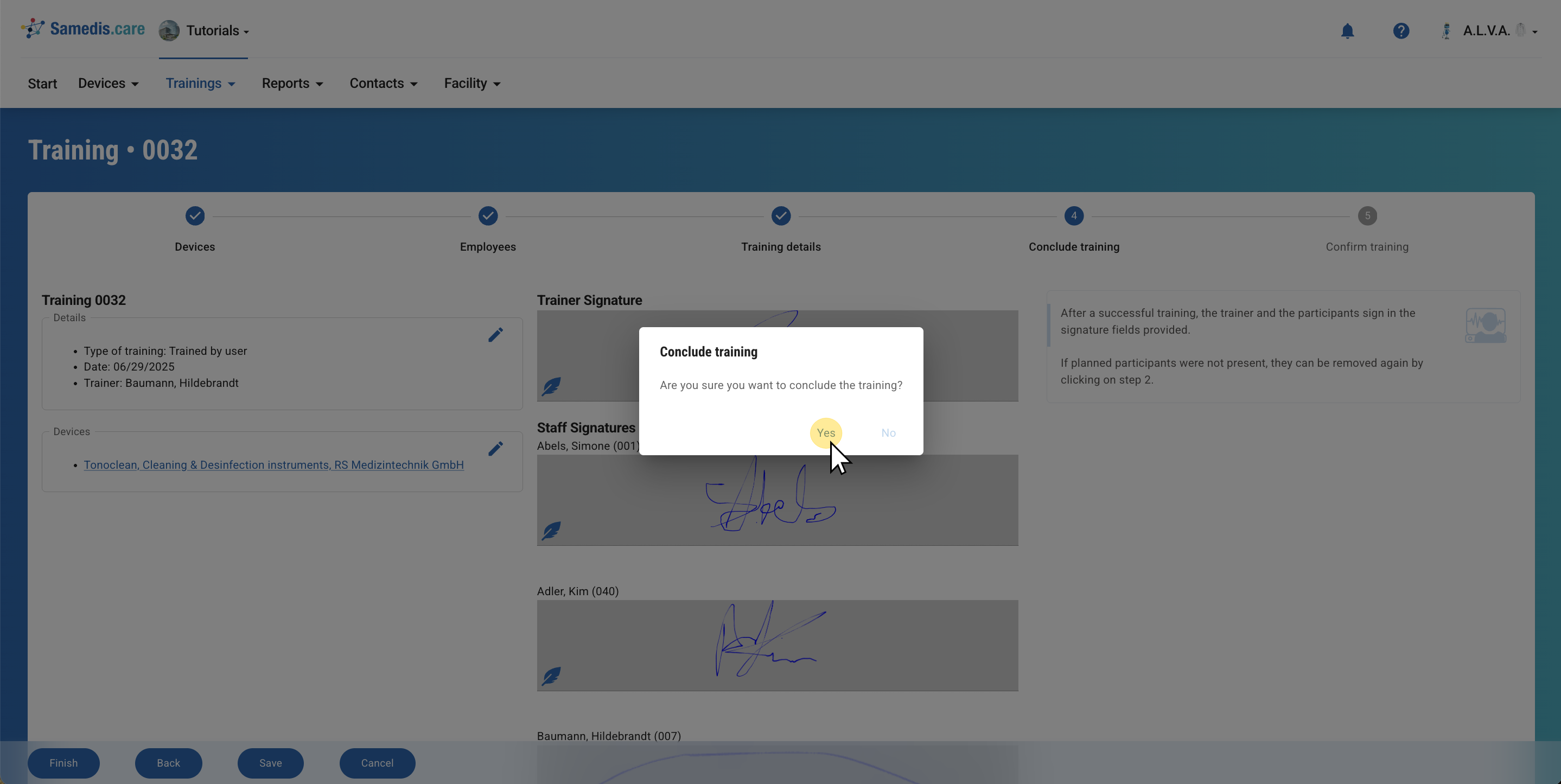
6. Confirm
Confirm the window with Yes to complete the training.
Tip
Samedis.care automatically generates a PDF file containing all relevant information about the training. You can use this document as proof of training at any time.
Note
Once the training has been completed, you can no longer edit it. Therefore, check in advance if all entries are correct.