Add service partner & open contact persons
On a device, you can store which company maintains or repairs it. This way, you can see directly on the device who to contact. In this tutorial, we’ll take a look at how to add a service partner to a device and open its contact persons.
1. Select a service partner
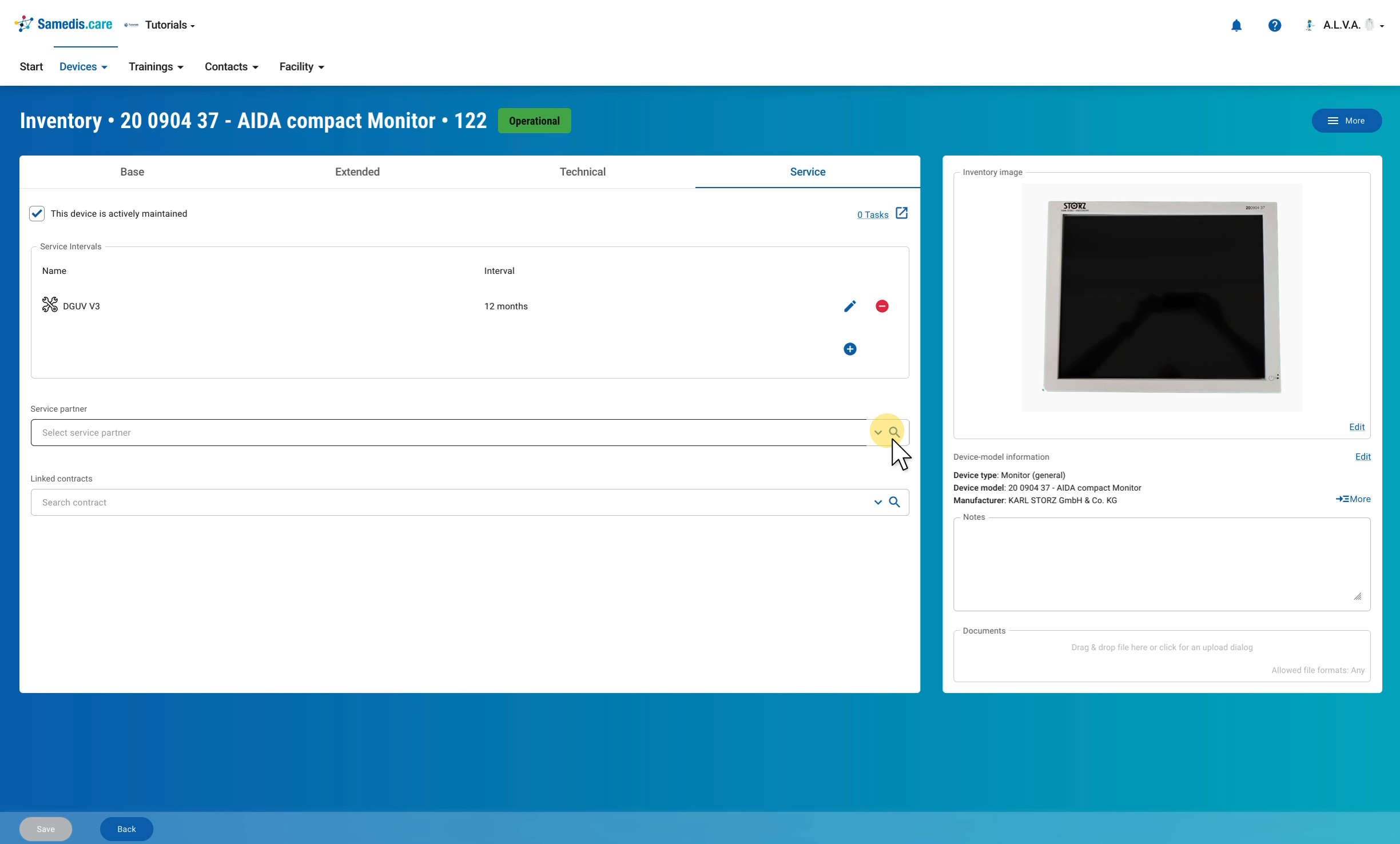
Open the device and switch to the Service tab. In the Service partner field, click the magnifying glass.
2. Select the company
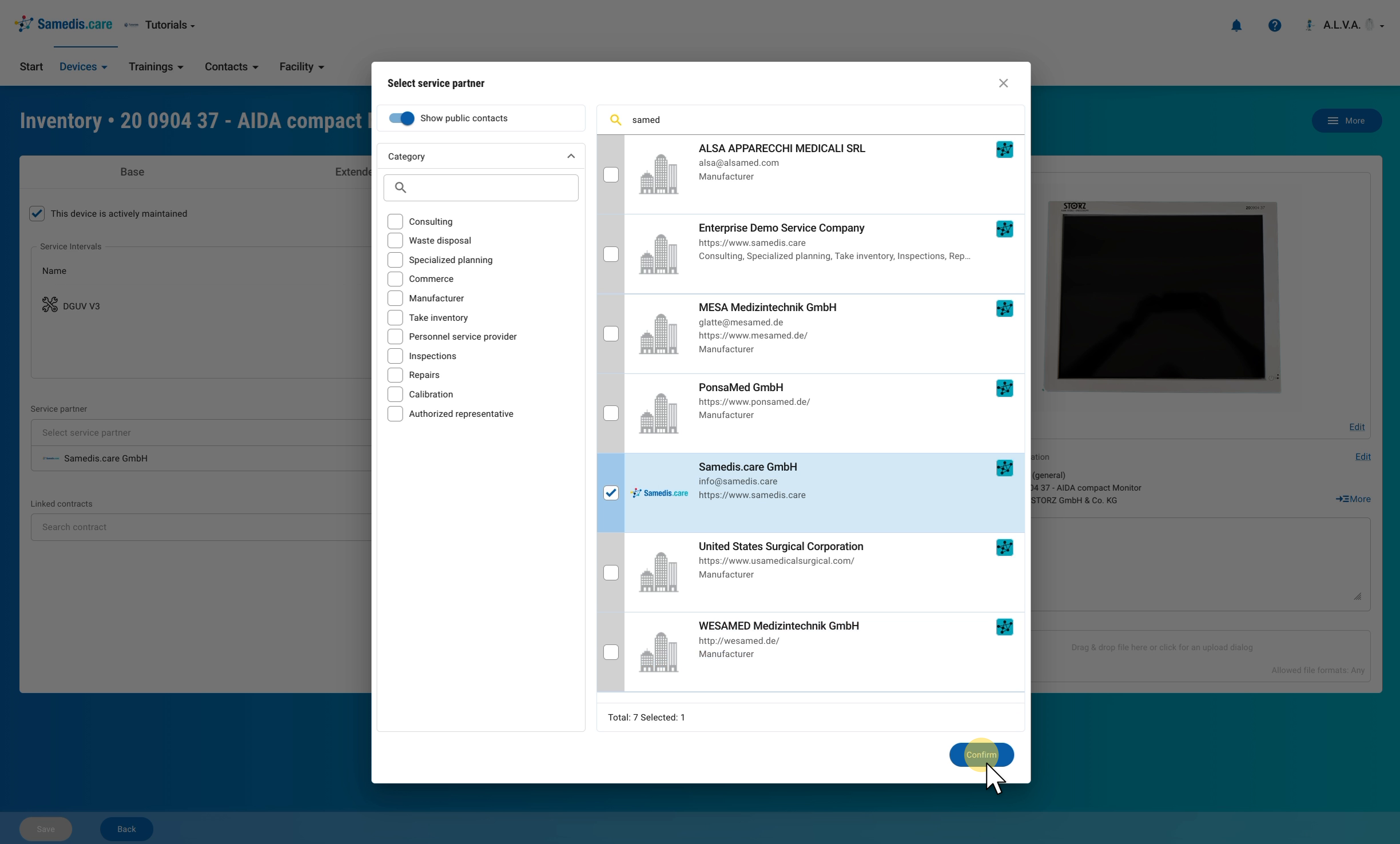
In the Select service partner window, search for the company and tick the box in front of it. With the Show public contacts switch, you can also find manufacturers from the public contact directory, and on the left you can filter the list by Category, for example Repairs or Inspections. Then click Confirm and Save at the bottom.
Tip
You can also select several service partners, for example one for repairs and one for inspections. The tutorial Create external contacts shows how to add your own companies and contact persons.
3. Open the service partner
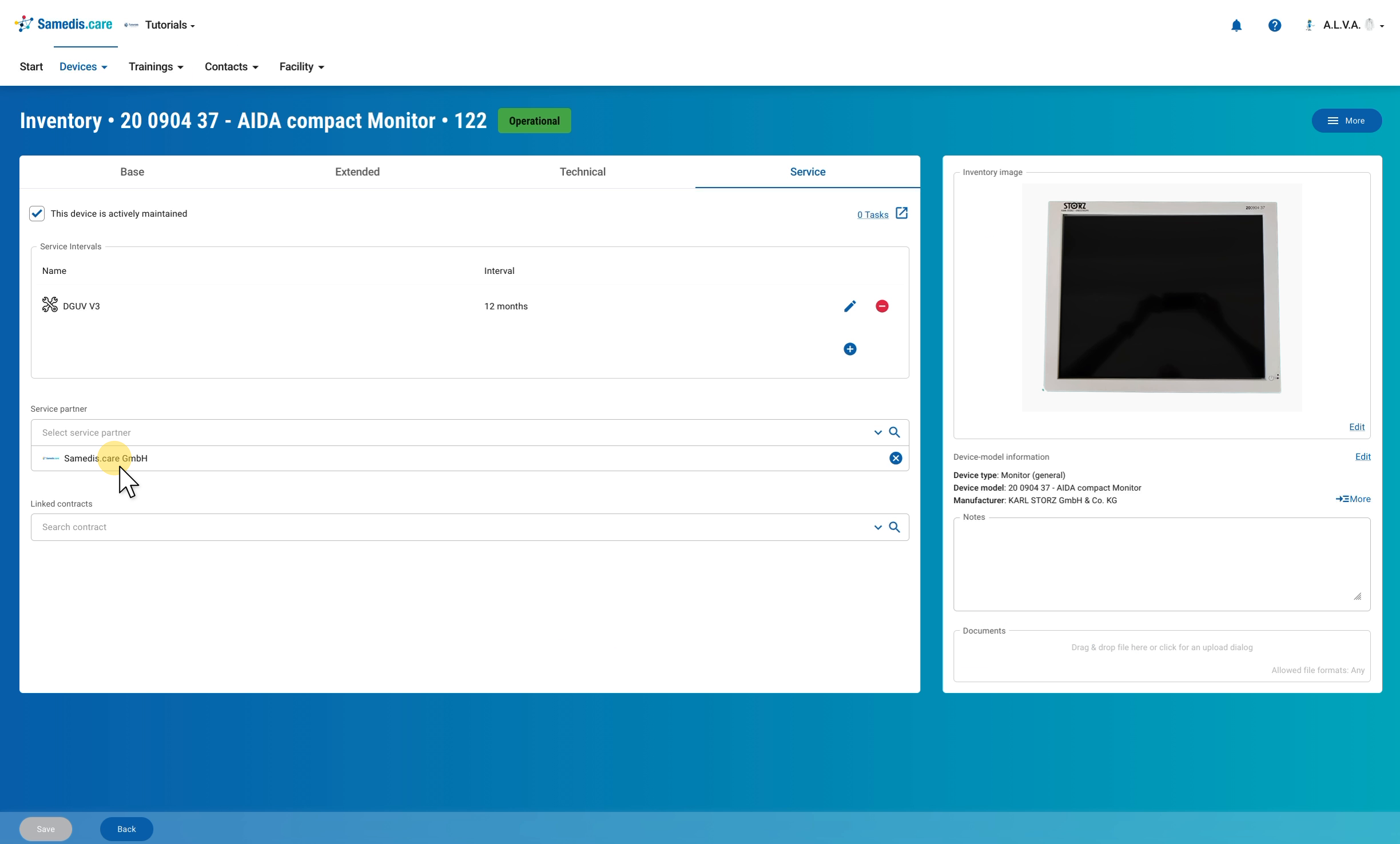
The service partner now appears in the Service partner field. Click the company name to open its contact details.
4. Open the contact persons
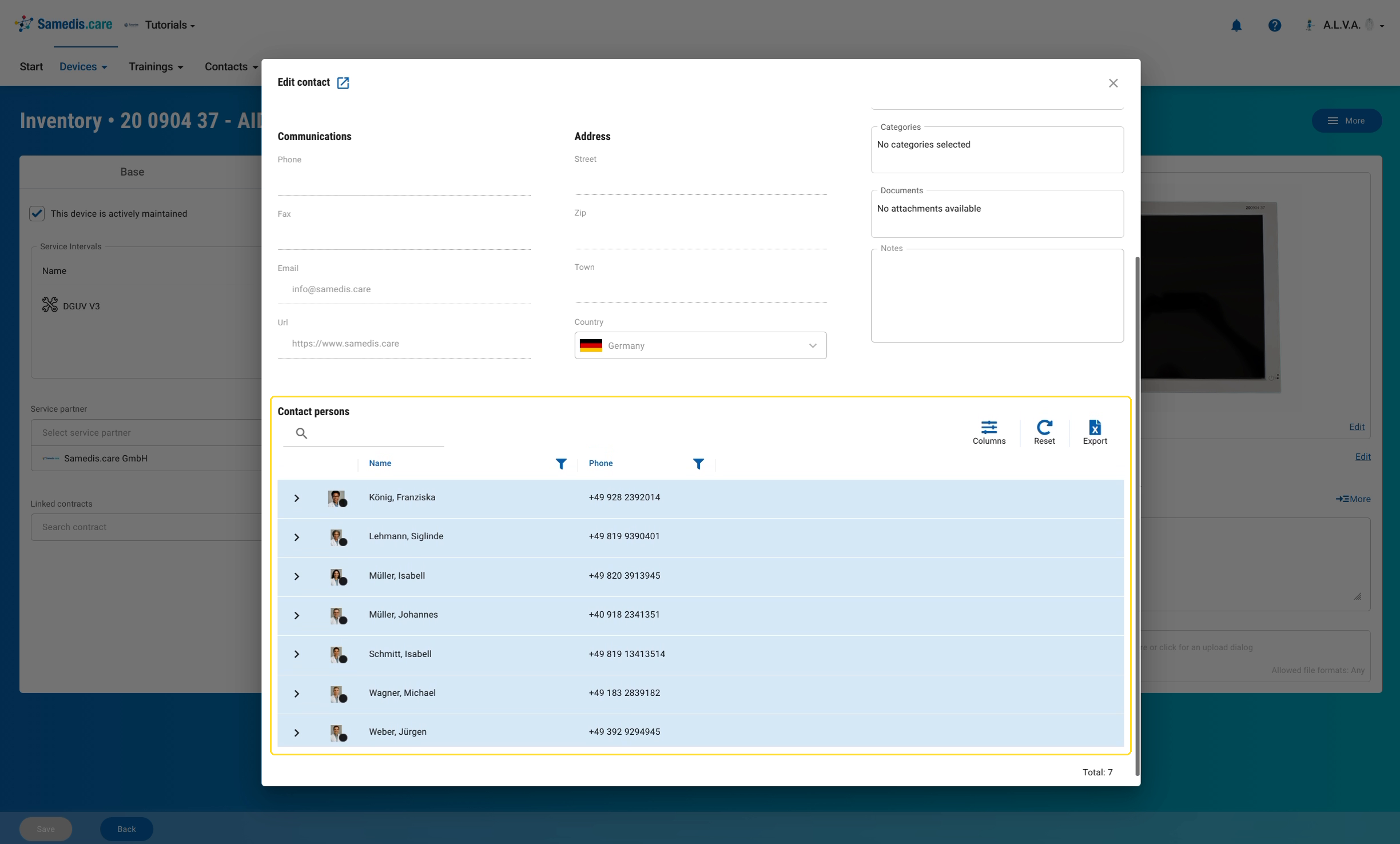
The Edit contact window shows the company’s contact details and, below them under Contact persons, all associated people with their phone numbers. Click a person to open their contact details. This way, you don’t have to search for the company under Contacts first.