Report changes to public device models
If something is missing from a public device model or an entry is incorrect, you can report a change directly from Samedis.care, for example missing instructions for use or an incorrect manufacturer. In this tutorial, we’ll take a look at how to submit a change report and follow its progress.
1. Report a change
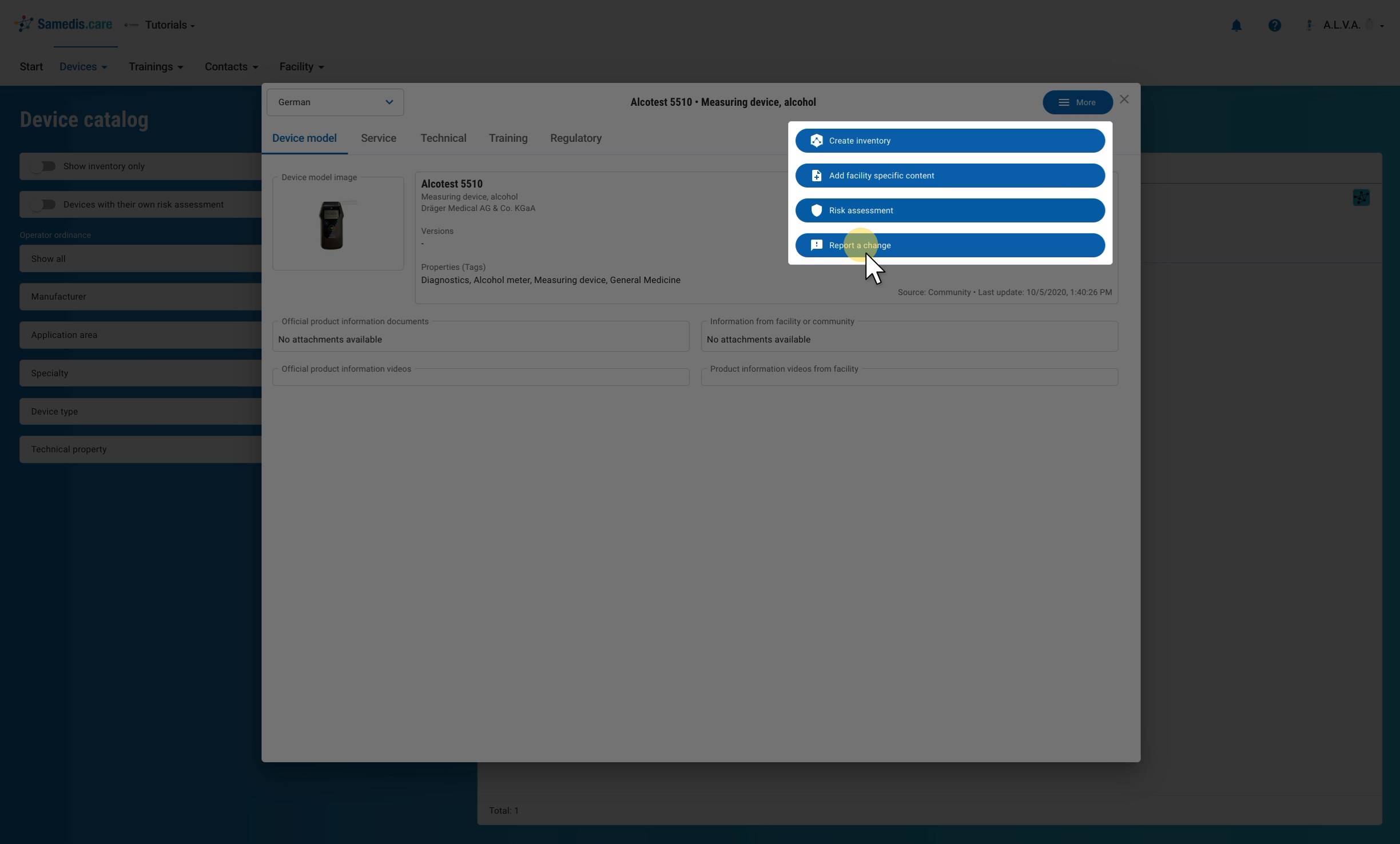
Under Devices › Device catalog, open the device model in question and click Report a change under More at the top right.
2. Describe the change
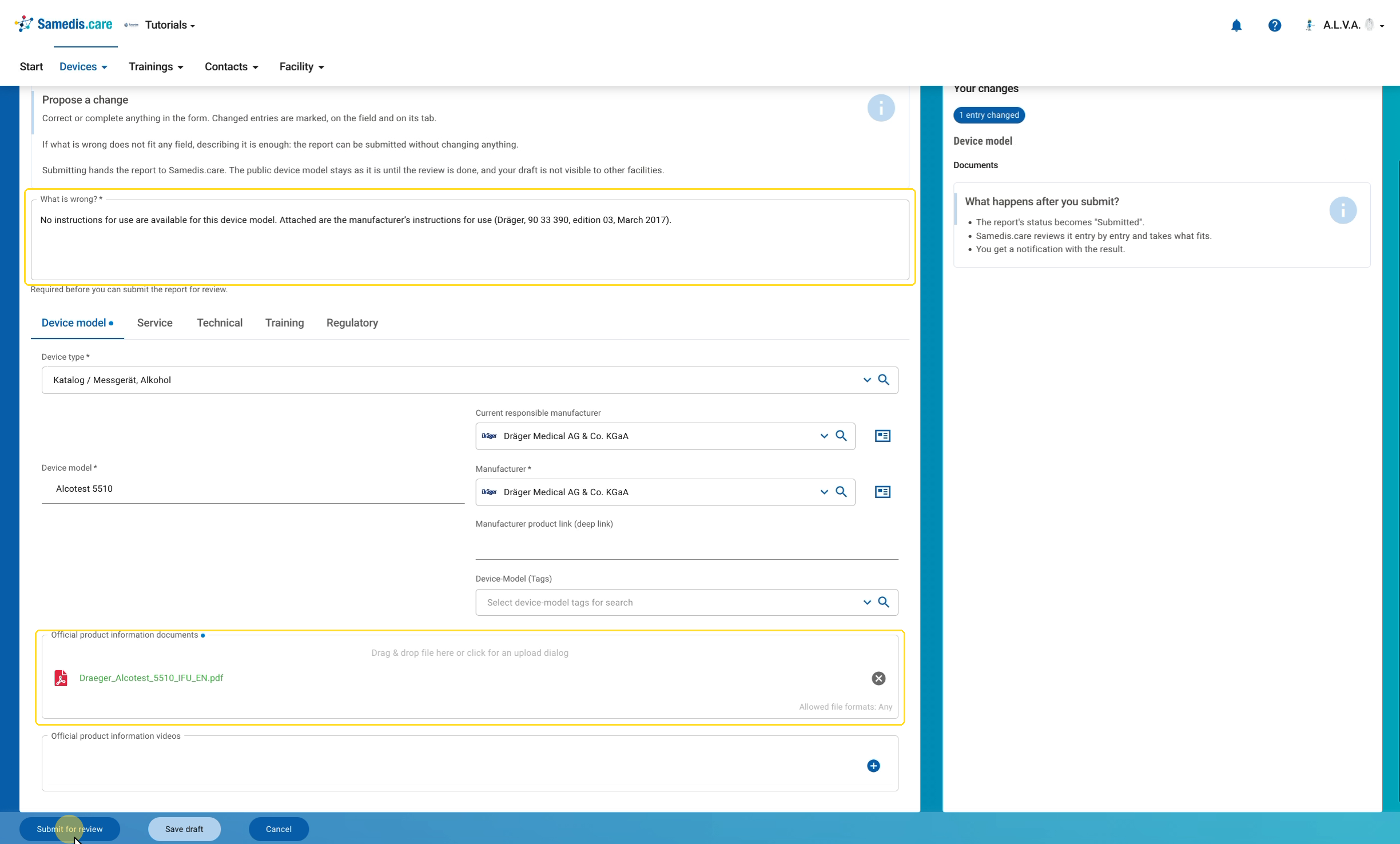
The form of the device model opens with all existing entries, divided into the tabs Device model, Service, Technical, Training and Regulatory. In the required field What is wrong?, describe what is incorrect or missing and where the correct information comes from. Then correct or complete the relevant entries in the form. For example, you upload missing instructions for use under Official product information documents.
Changed entries are marked on the field and on the tab, and you can see an overview on the right under Your changes. Finally, click Submit for review.
Tip
If the problem doesn’t fit into any field, the description is enough: you can also submit the report without changing anything in the form. The public device model stays unchanged until the review is complete.
3. My change reports
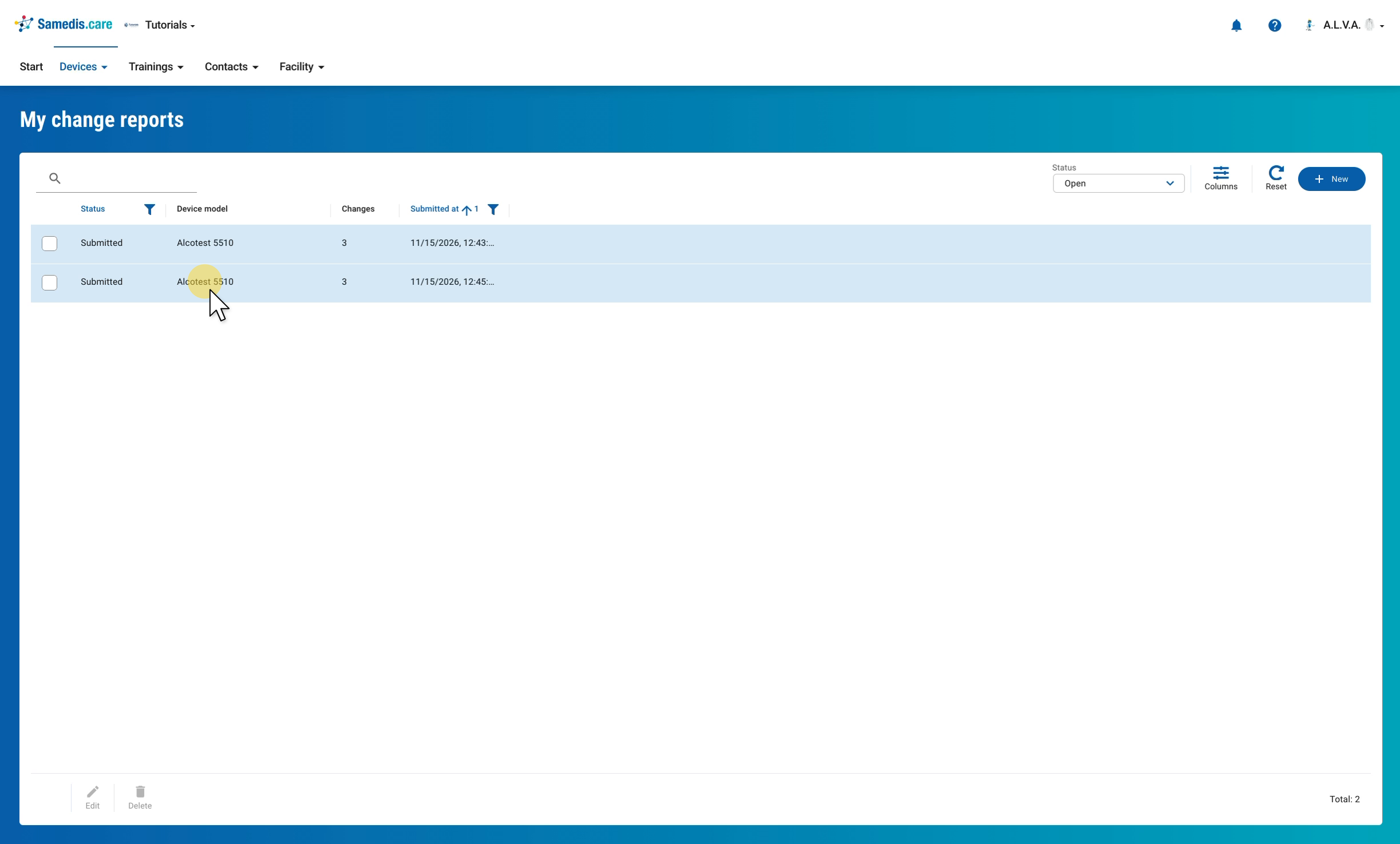
You can find the reports you have submitted under Devices › My change reports. The list shows the status, the device model, the number of changes and when you submitted the report. Click a report to open it.
4. Follow the progress
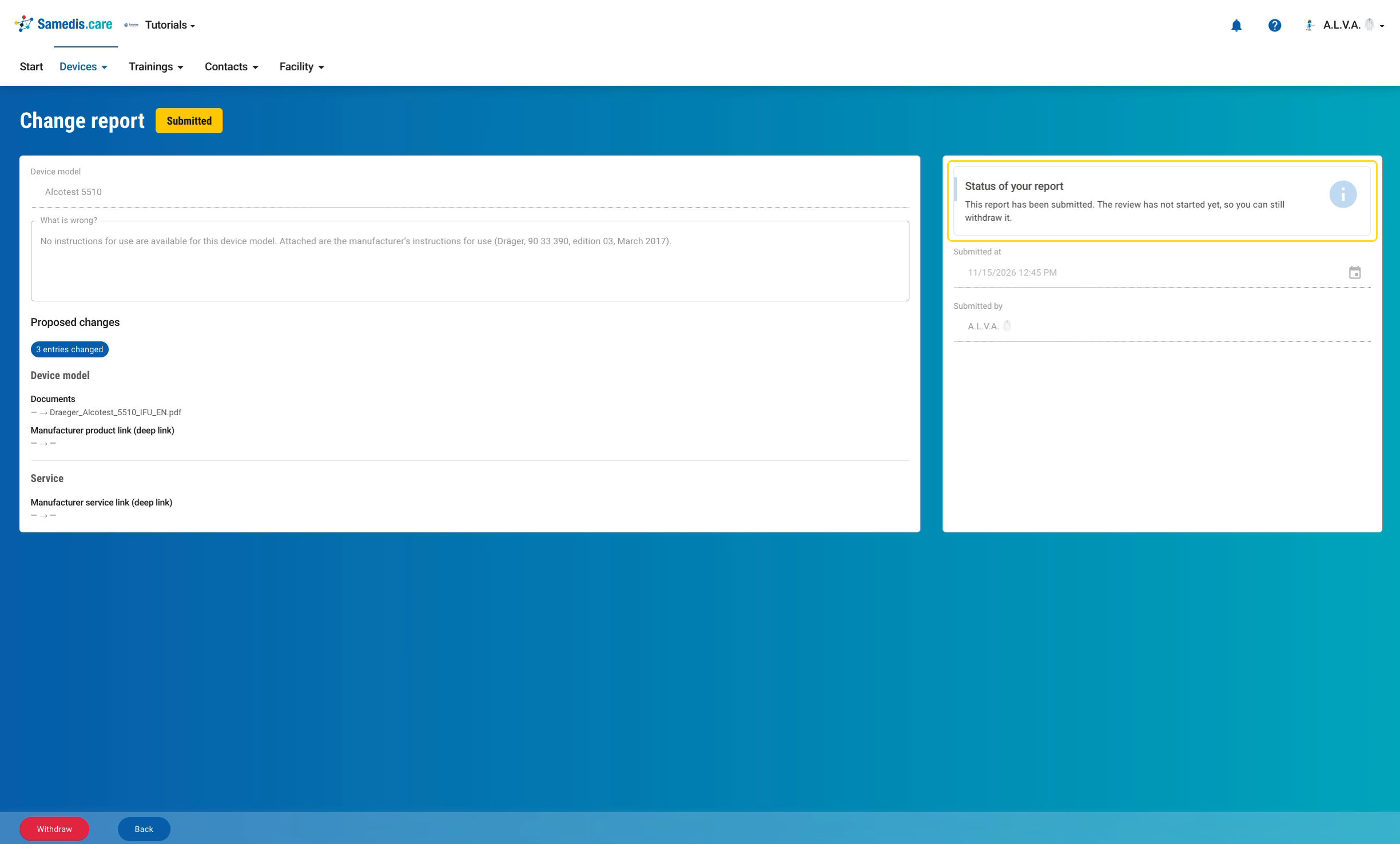
In the report, you can see its status, your description and the proposed changes. After you submit it, the report has the status Submitted. Samedis.care reviews it entry by entry and takes over what fits. As soon as the review is complete, you’ll get a notification with the result, for example that your report has been fully accepted. You can open the report via the link in the notification. To see completed reports in the list, change the Status filter at the top, for example to All. An accepted report then has the status Accepted.
Tip
As long as the review hasn’t started, you can take the report back with Withdraw.