Create & manage contacts
You can use the Contacts function to manage companies and the corresponding contact persons for your devices.
1. Contact overview
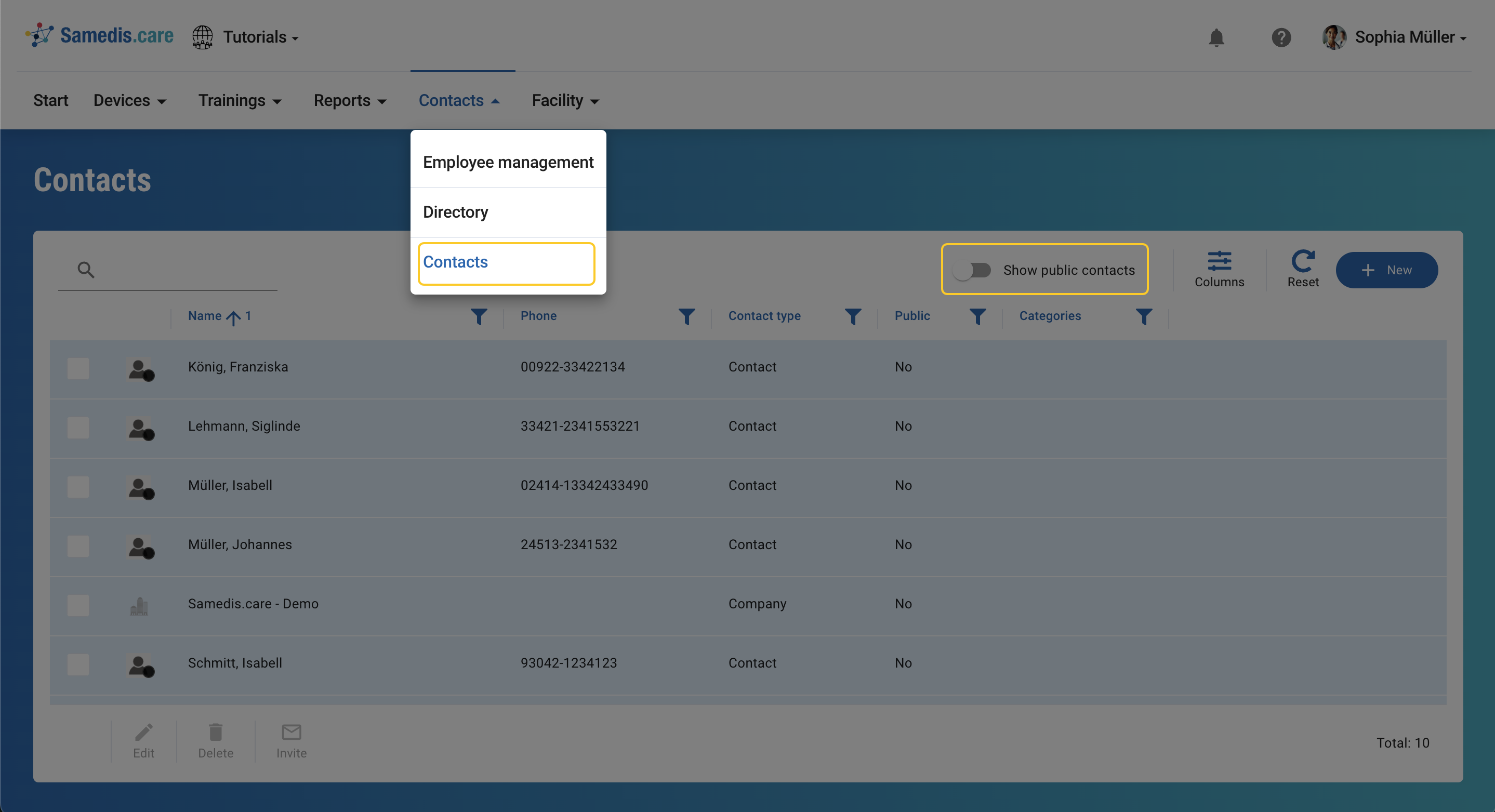
As soon as you choose this function, your personal contact list will appear. If you activate the Show public contactsoption, the contacts from our global catalog will also be displayed in addition to your own entries.
2. Create contact
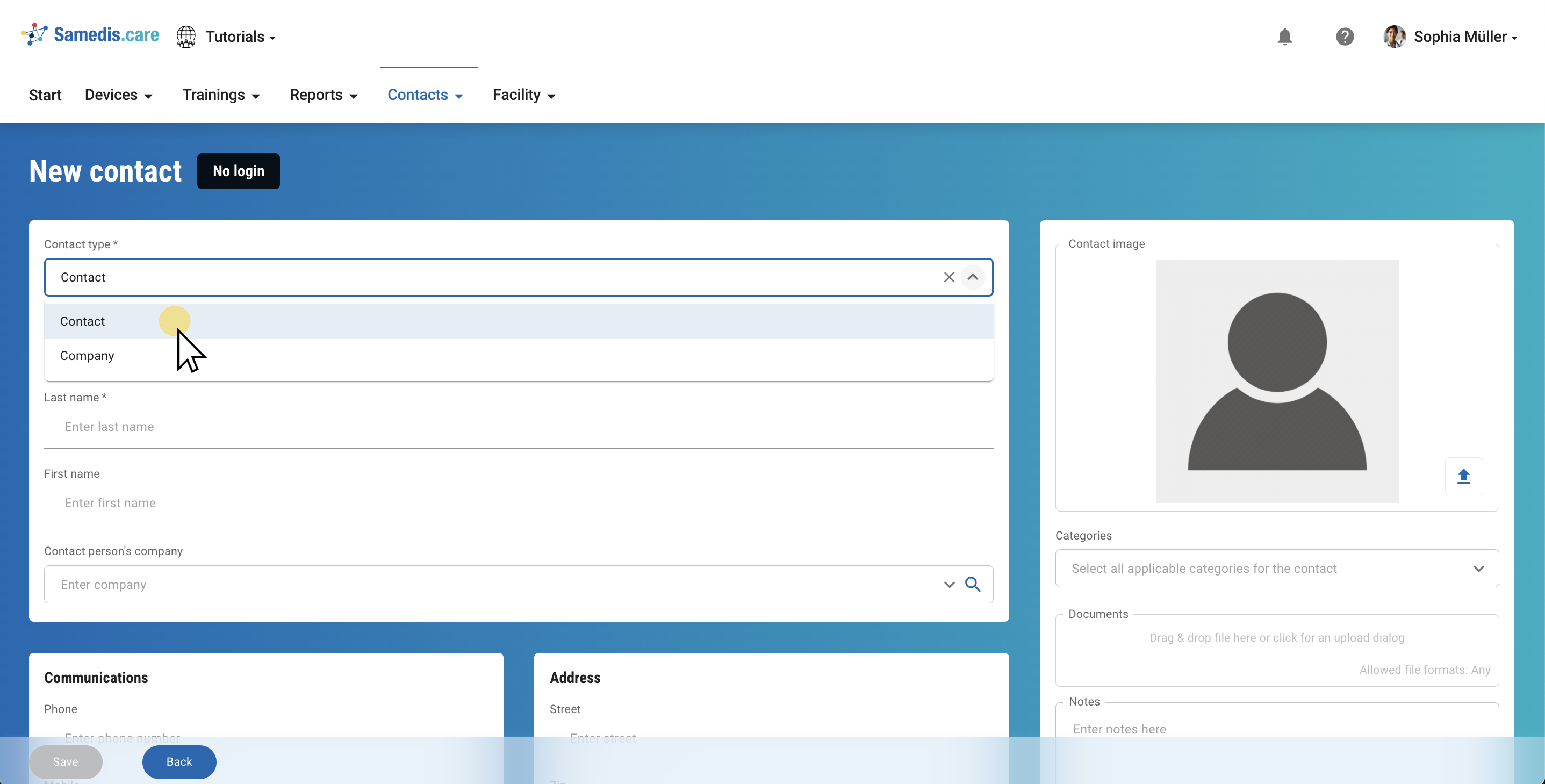
To add a new contact, click on + New.
Then select whether it is a person (contact) or a company.
Now enter all relevant information and optionally select the appropriate contact categories.
3. Invite contact
You have the option of inviting contacts to work within your Samedis.care facility. In this way, you can assign tasks or requests directly to them so that they can react immediately or provide support.
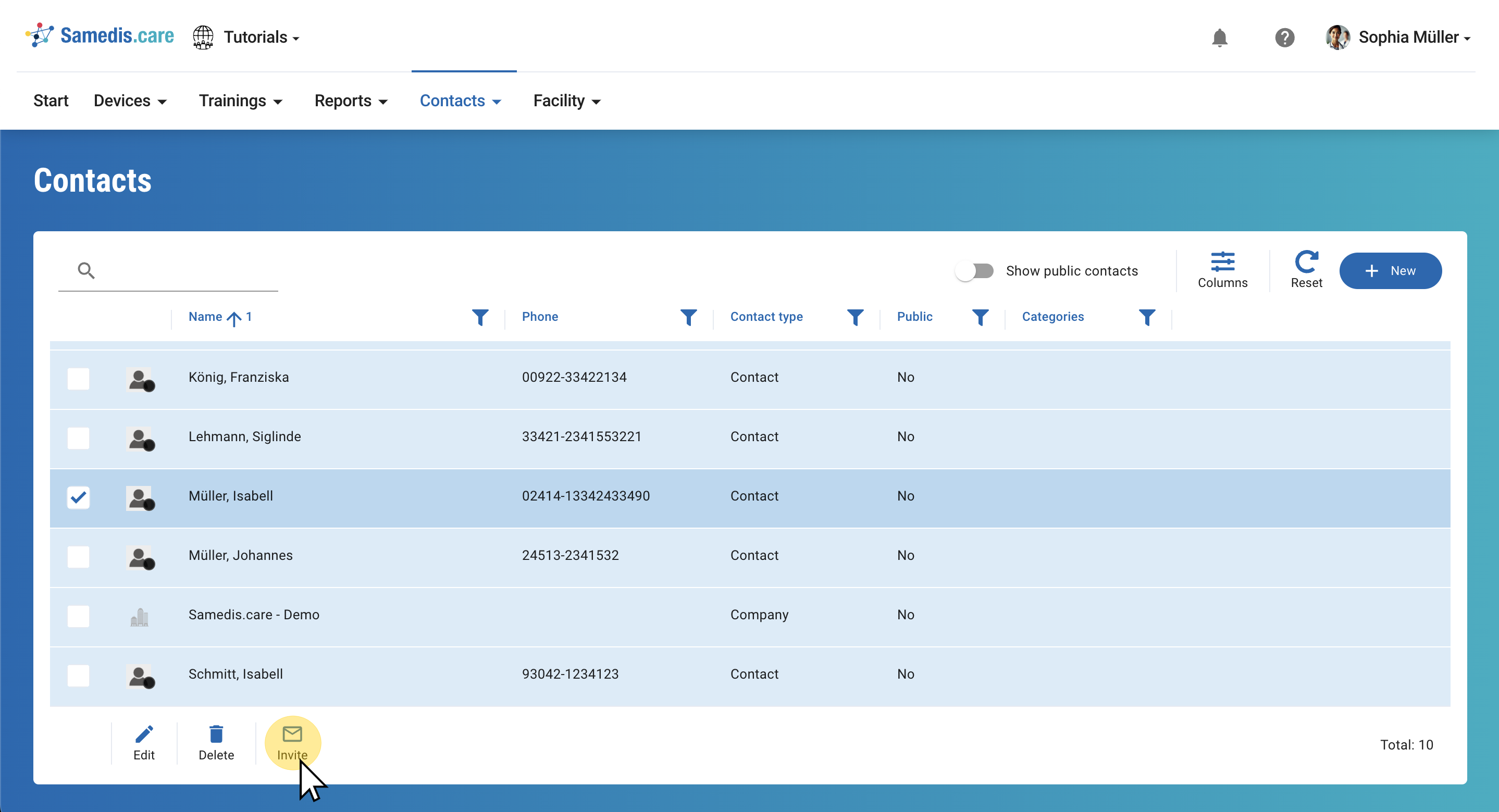
To do so, select the designated contact person and click on Invite.
Note
A contact can only be invited if an associated email address is provided.
Tip
You can also select multiple contacts and invite them simultaneously.
4. Assign contact
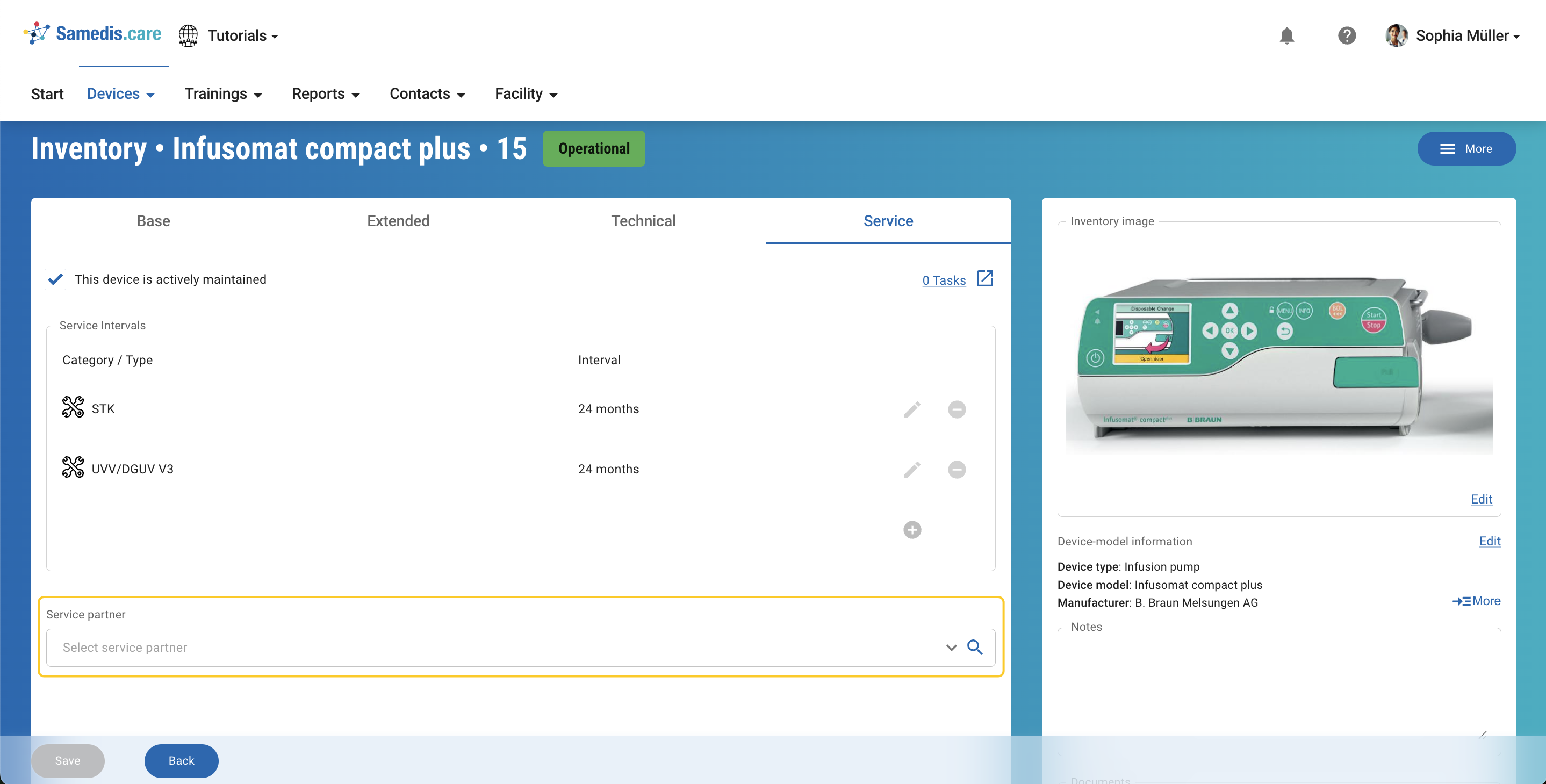
You can add the relevant contacts under the Service menu item in the detailed view of your devices.