Manage & assign requests
In this tutorial, we’ll take a look at how to take on, respond to, and assign requests in Samedis.care.
1. Receive requests
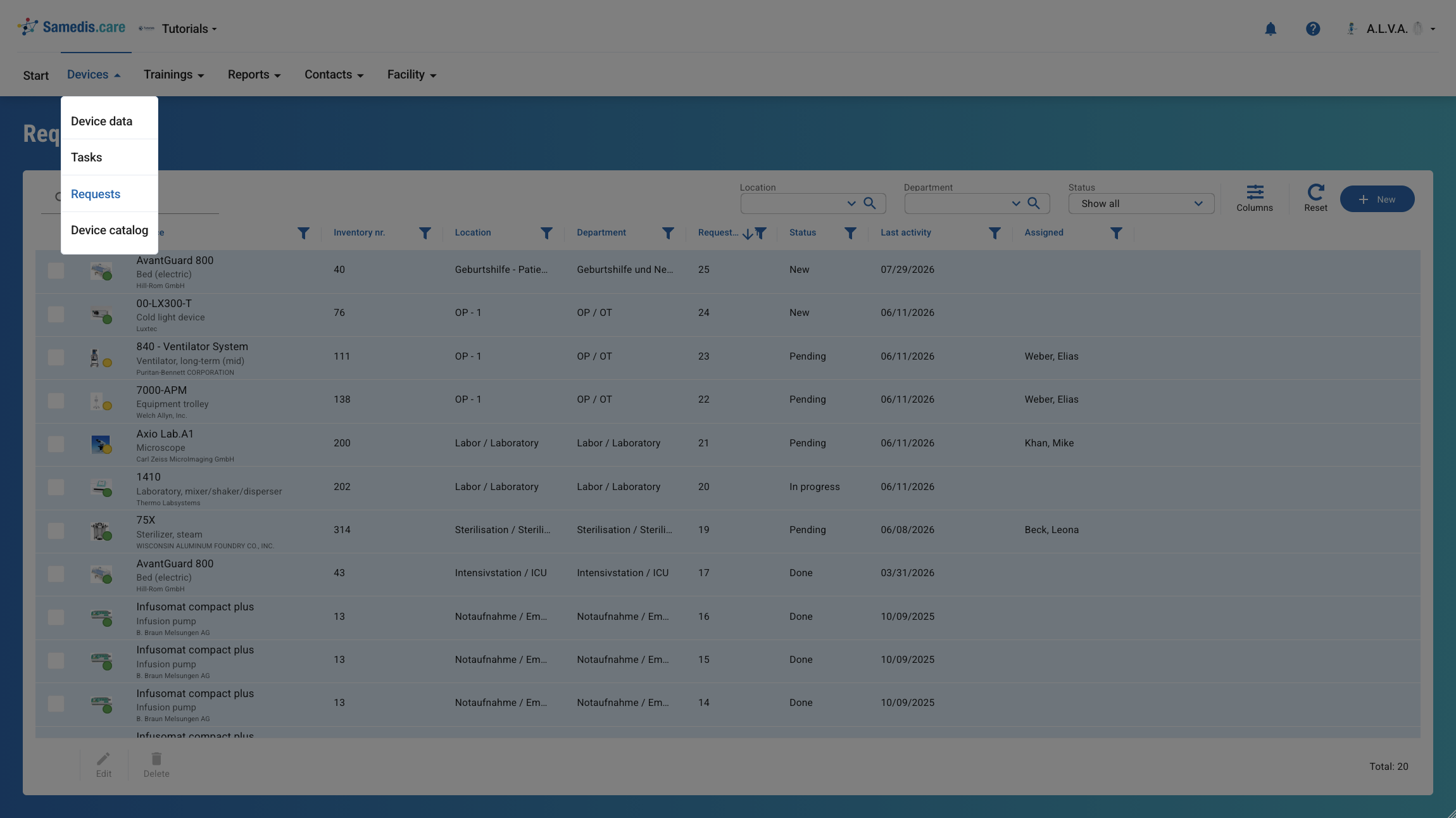
When you receive a request through Samedis.care, it will appear in the Requests section.
Open a request to respond to it directly or assign it to someone else.
Tip
In addition, you will receive a notification 🔔.
2. Respond to requests
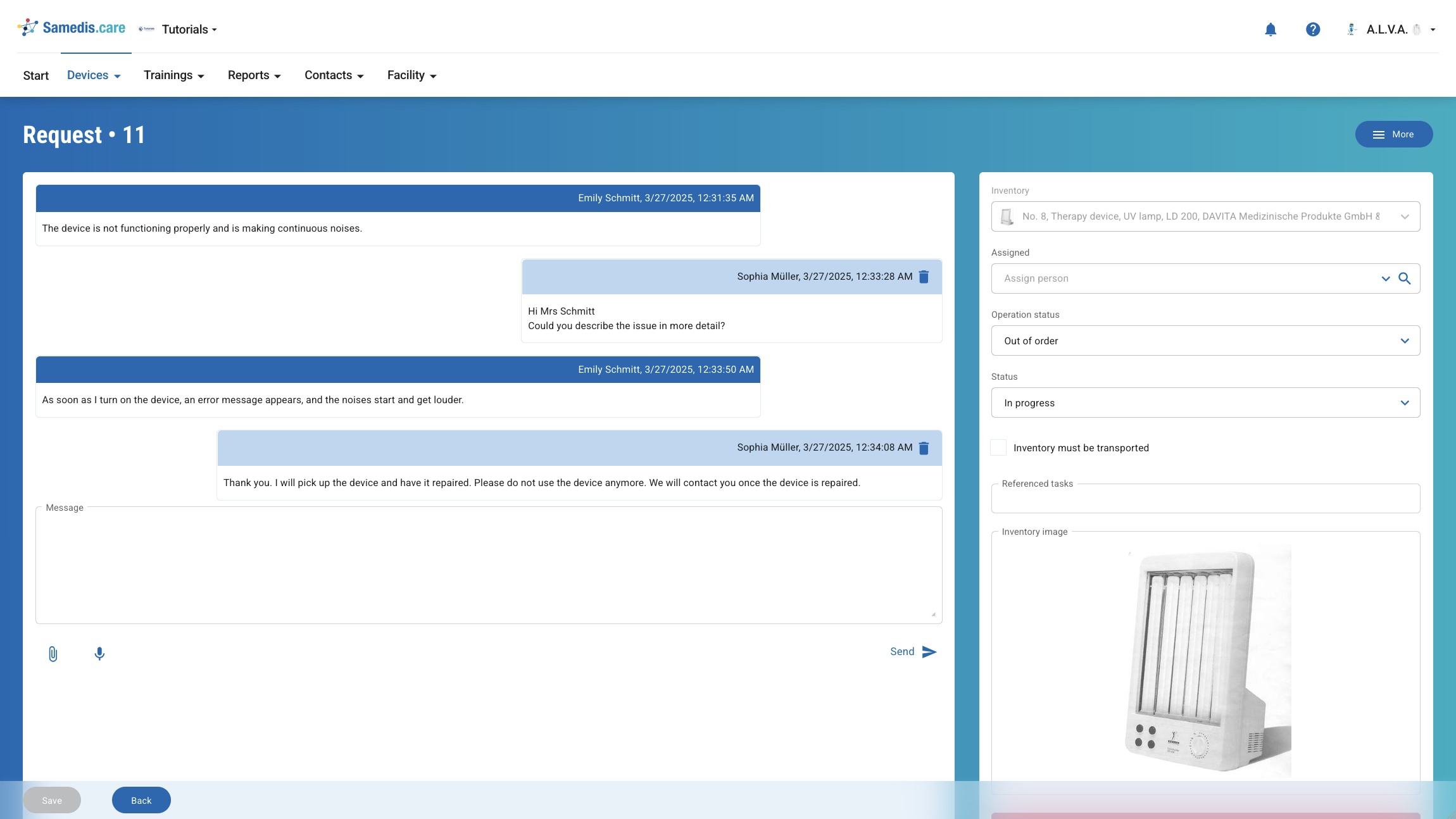
You can now respond to requests, provide the required documents, and take and document any necessary tasks. You can also update the Status of the request or the device’s Operating status, and mark the inventory for transport.
2.1. Document repair task
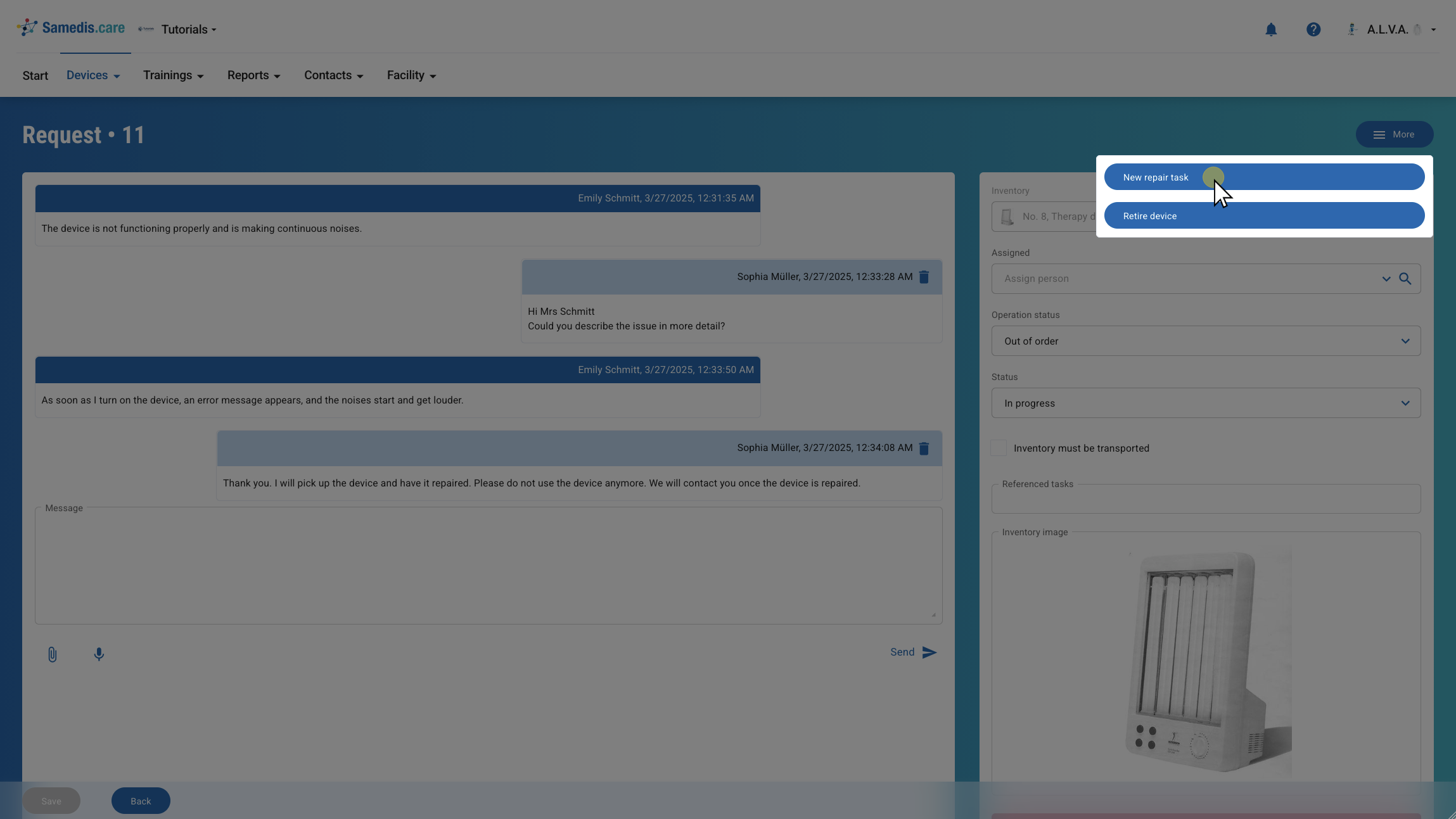
To create a task directly from the request, first click More. You can then choose between New repair task and Retire device.
Tip
For more information on creating a task, see the tutorial Add new task.
3. Assign requests
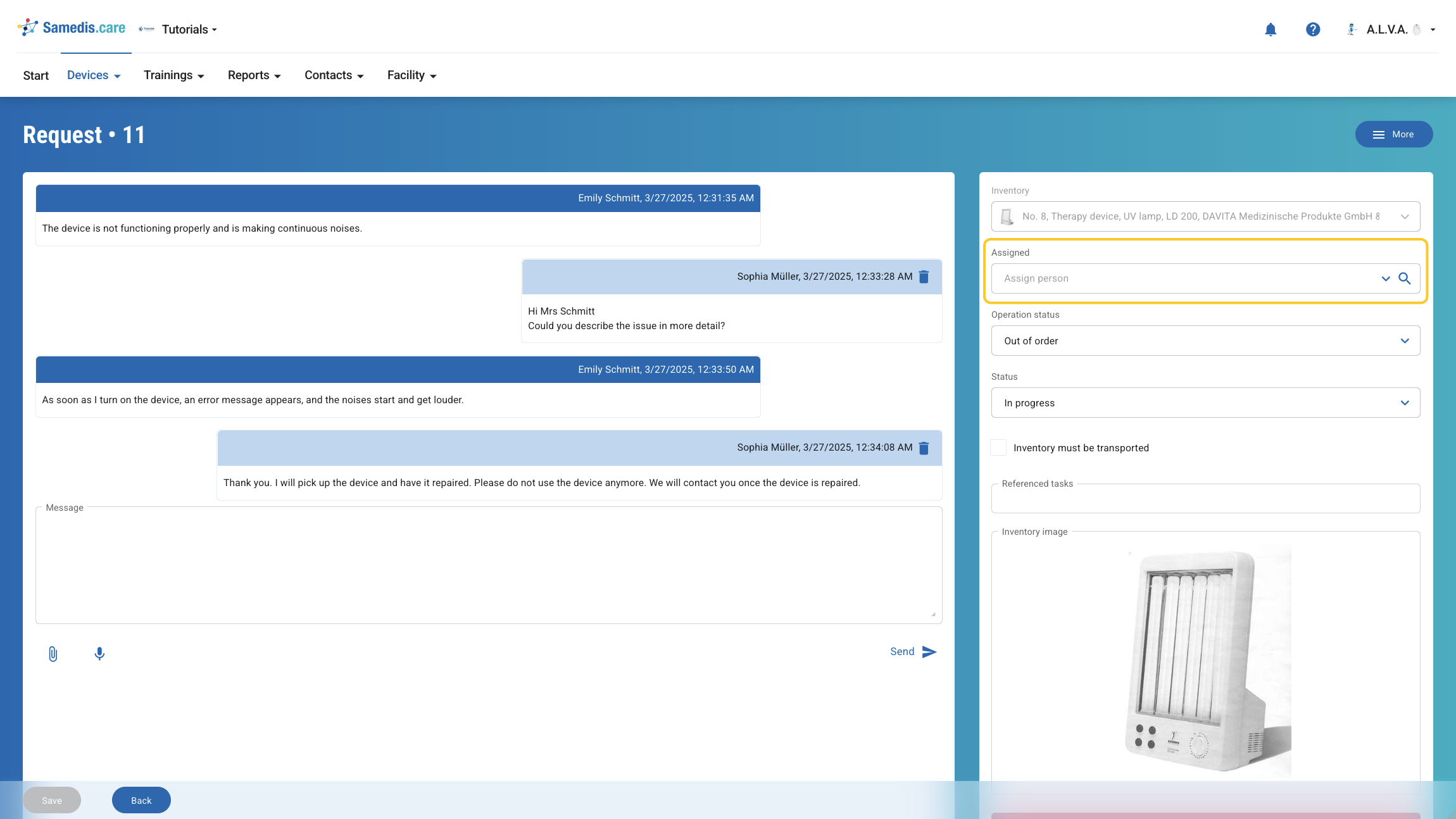
If you’re unable to respond to a request yourself or need assistance, you can simply assign it to another person using the Assigned field.
Tip
You can only select people who have access to your facility and the required access rights.