Manage & assign requests
In this tutorial, we will show you how to easily take over, respond to and assign requests on Samedis.care.
1. Receive requests
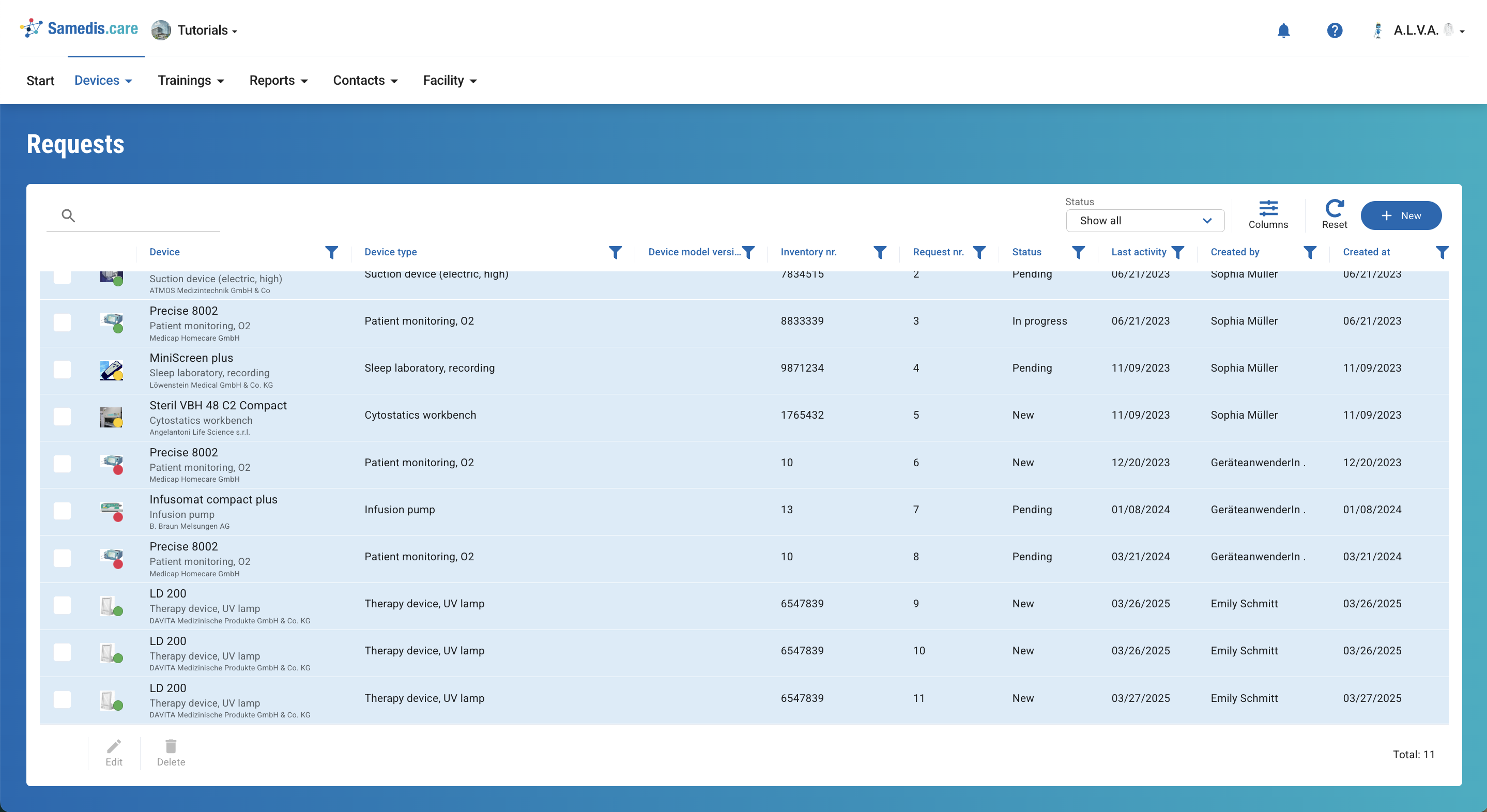
When you receive a request through Samedis.care, it will appear in the Requests view.
Open it to reply directly or assign it to someone else.
Tip
In addition, you will receive a notification through the bell icon 🔔.
2. Respond to requests
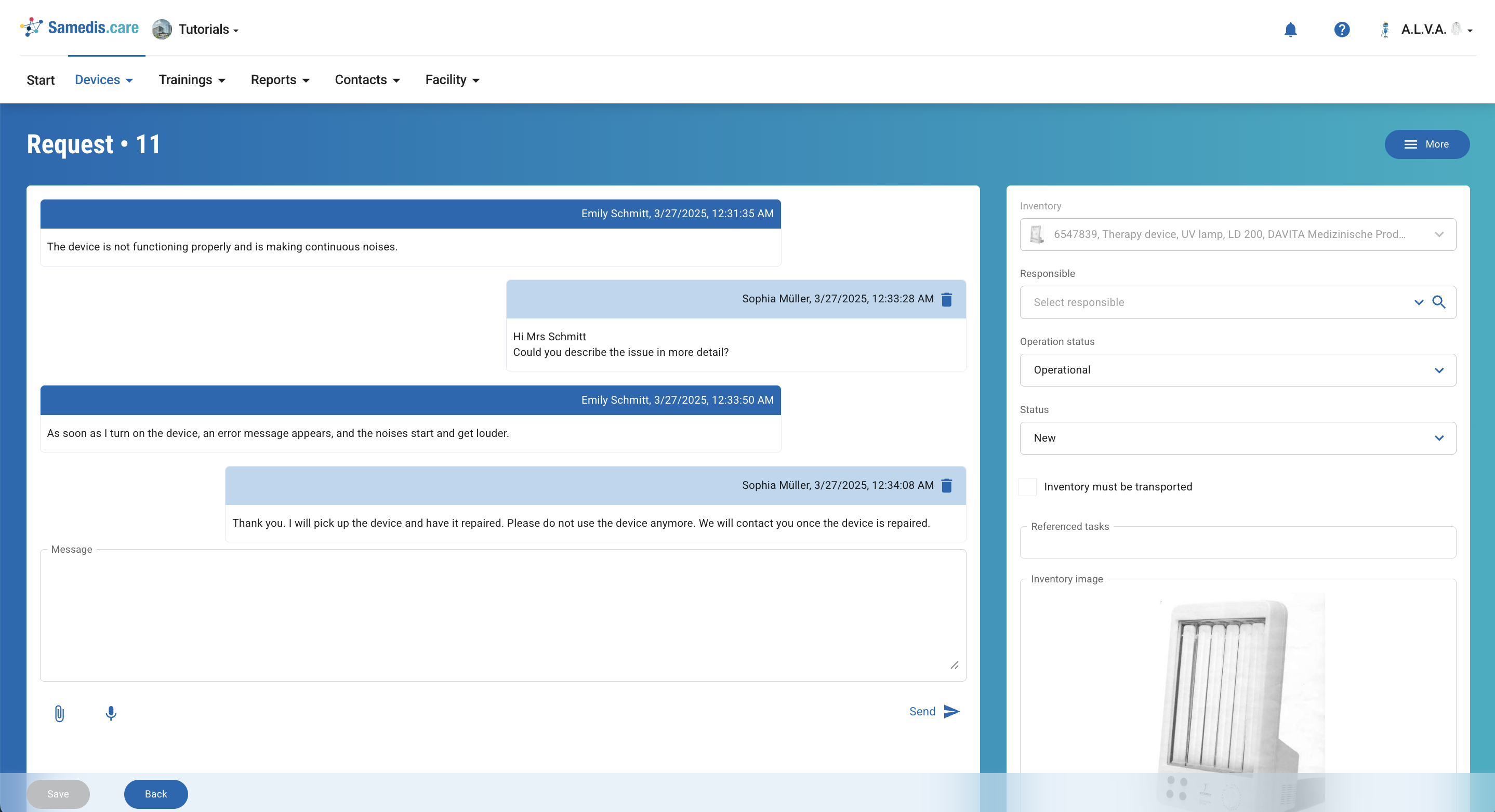
Answer requests, send necessary documents or take and document tasks as needed.
Additionally, adjust the Status of the request or the Operation status of the device and perform other relevant actions.
3. Assign requests
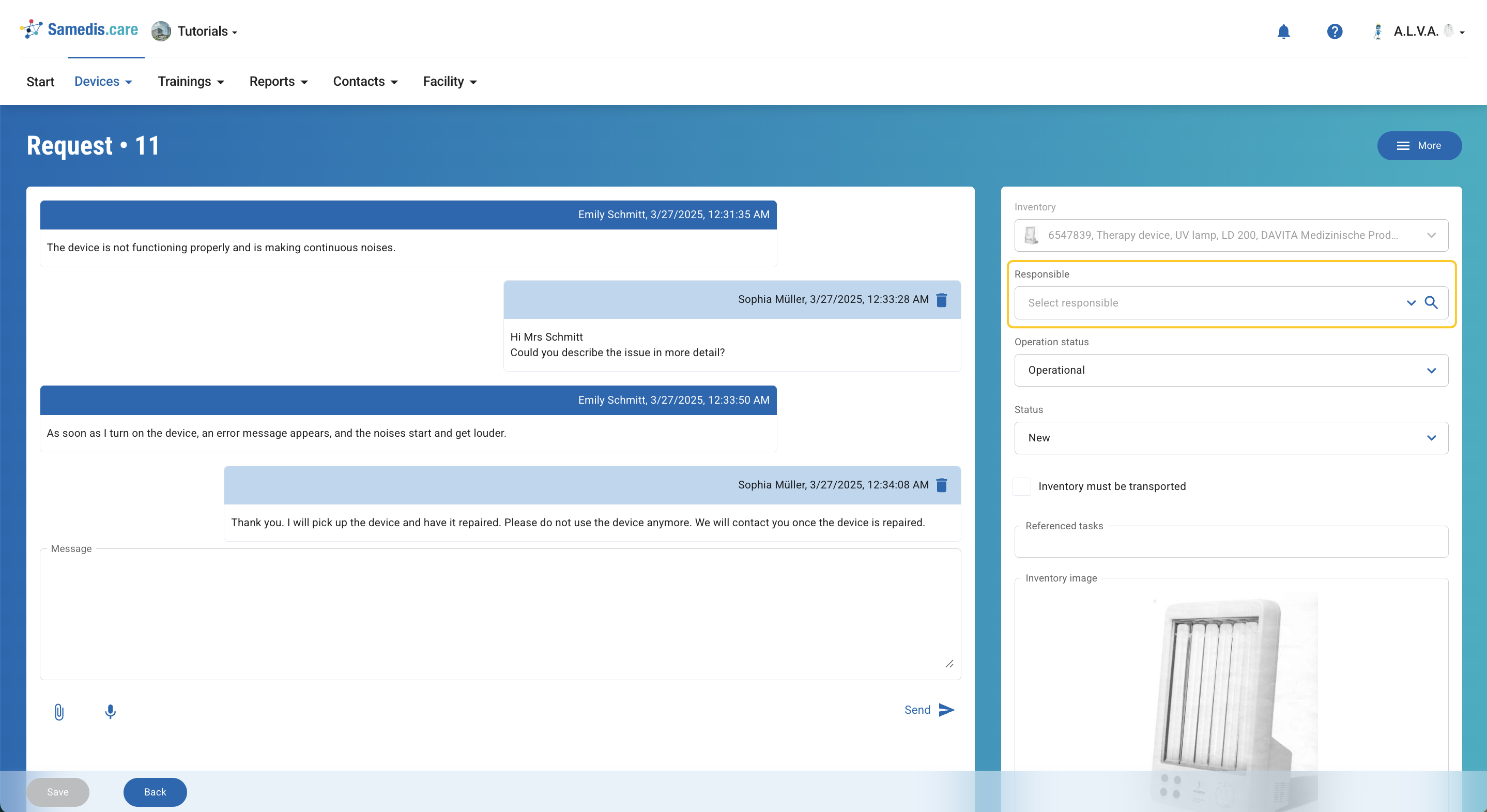
If you’re unable to respond to a request directly or require assistance, you can easily assign it to someone else for processing.
Tip
You can only select individuals who have access to your facility.
4. Document repair task
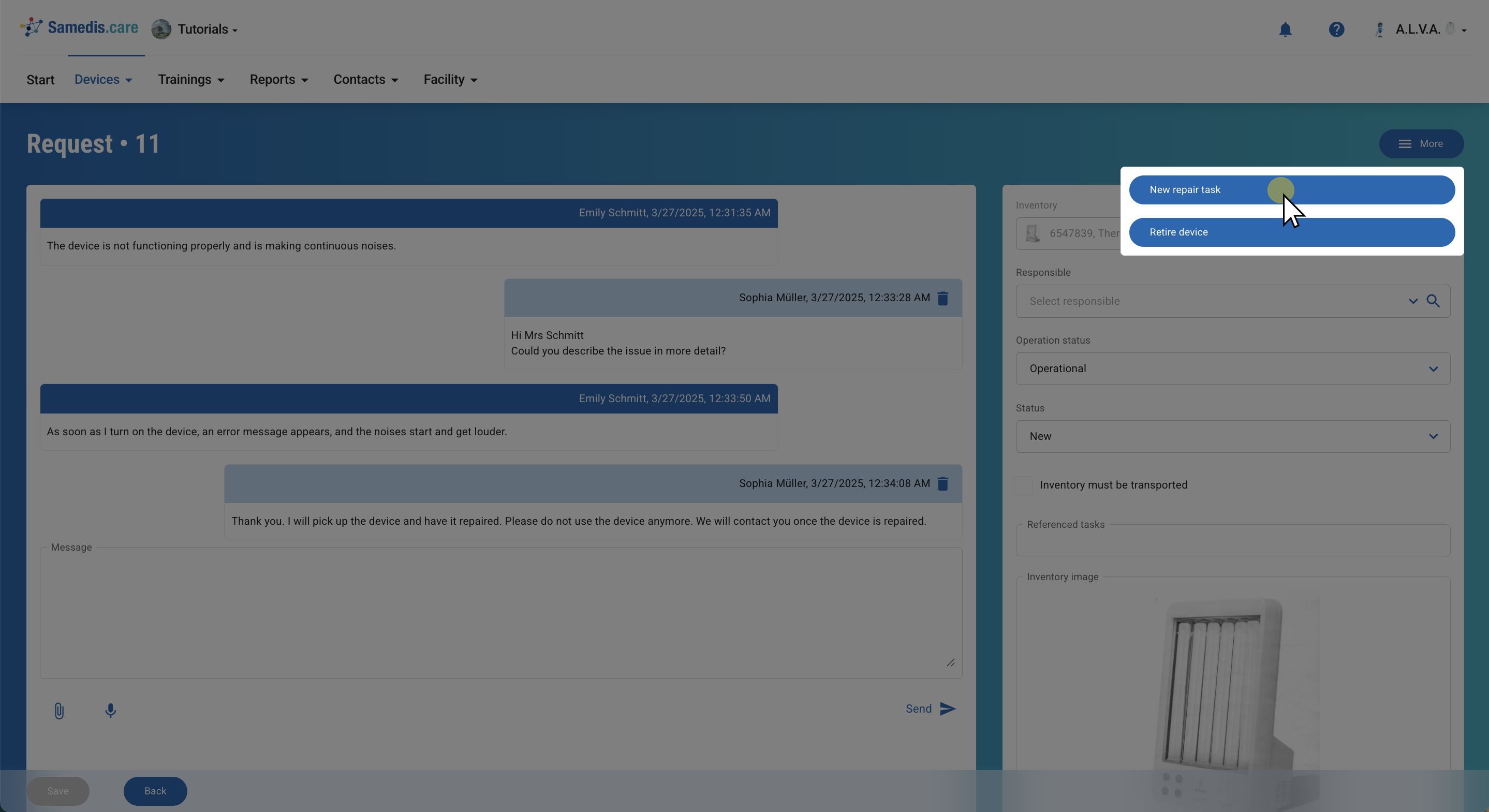
The request requires a repair of the device?
You can create and document a new repair taskdirectly from the request.
Tip
You can assign this action directly to another person.