Create requests
In this tutorial, we will show you how to create requests or report problems with a device in Samedis.care.
1. Create requests using the QR code
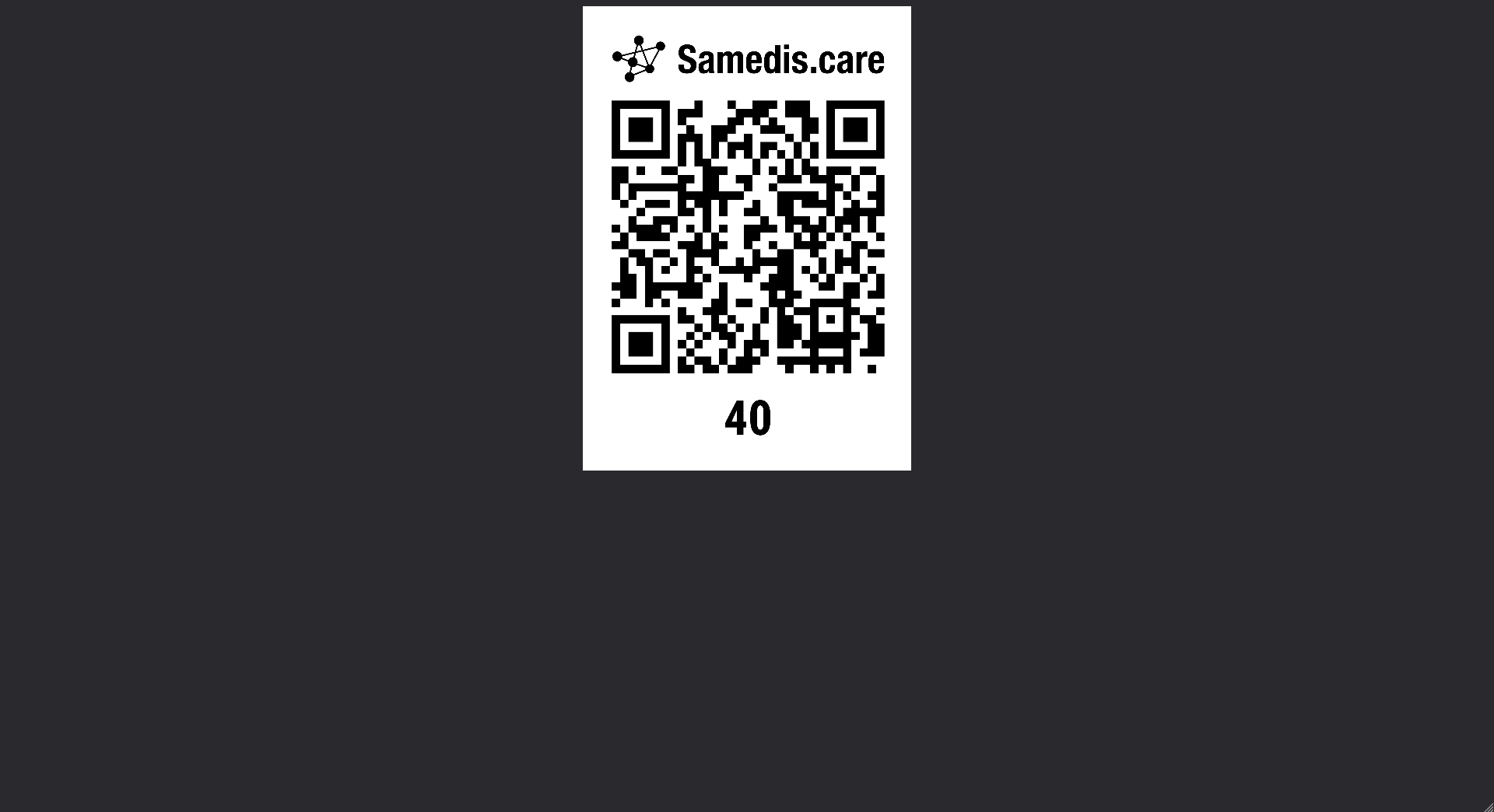
In Samedis.care, there are several ways to create a request for a device. Let’s first take a look at how to create a request if there is a QR code on your device.
1.1. Scan QR code
To create a request, first scan the QR code on your device.
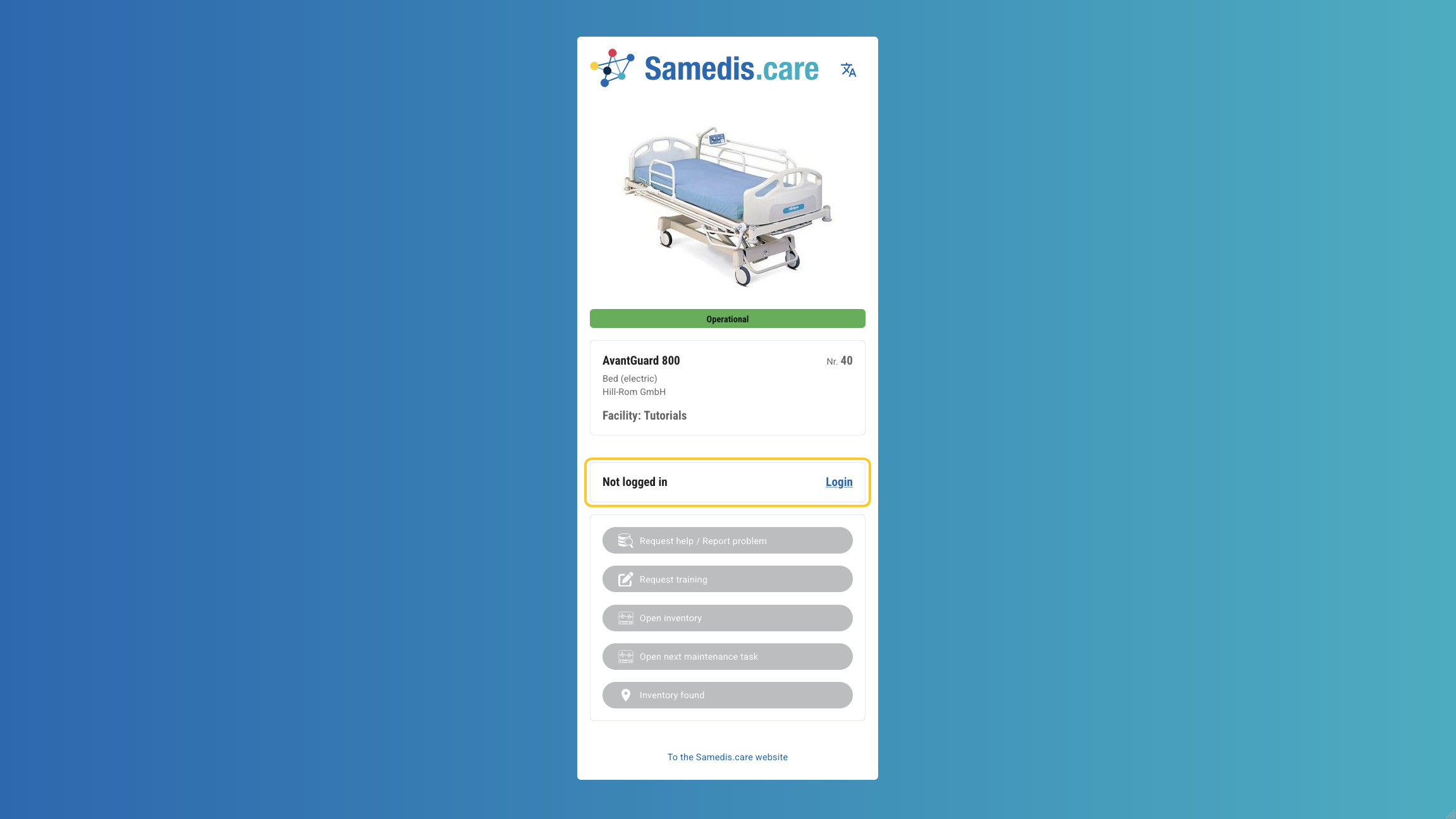
1.2. Request help / Report problem
Now click on Request help / Report problem.
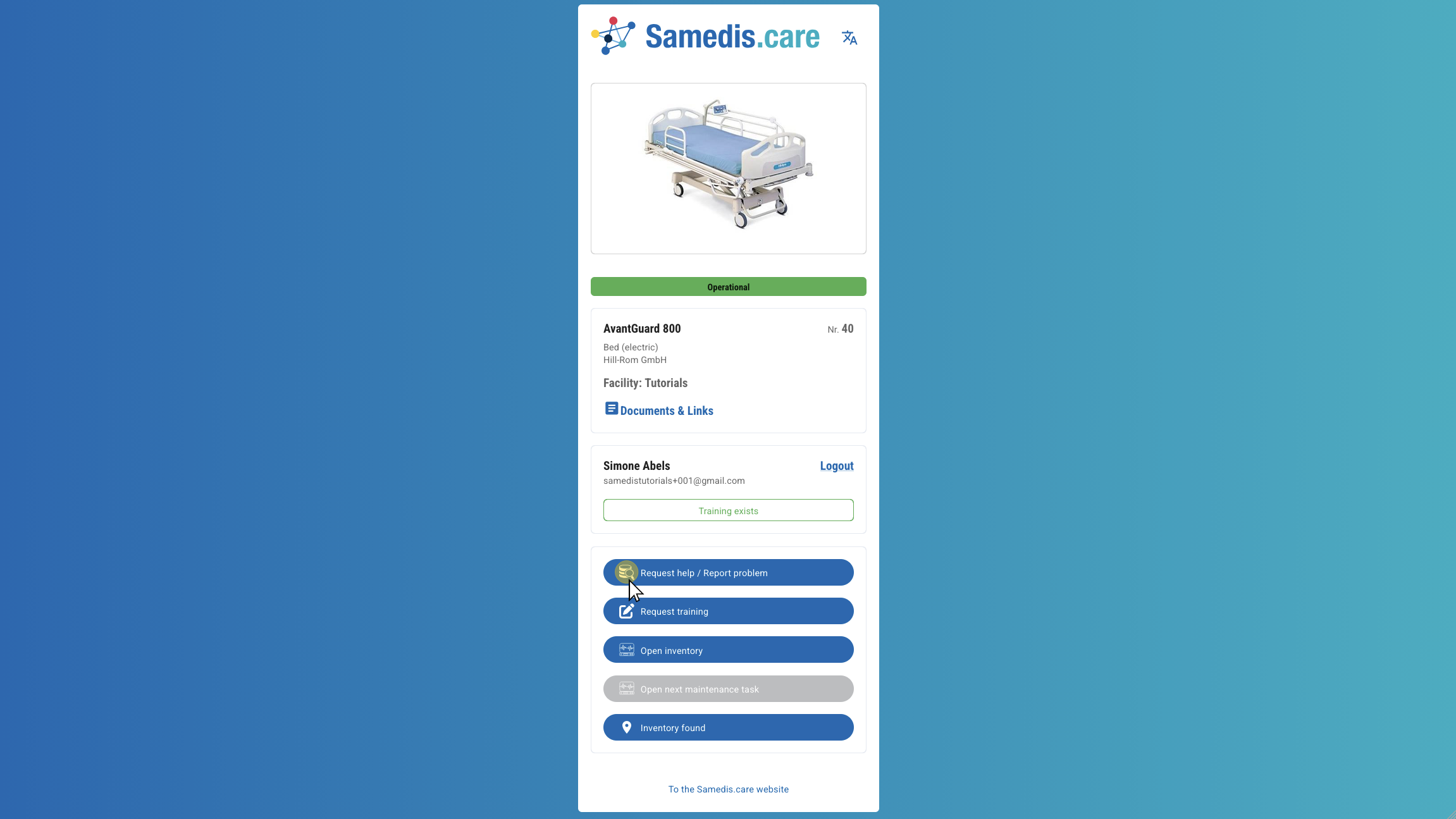
1.2.1. No access right?
If the fields are shown in grey, you are either not logged in yet or you do not have the access right to create requests.
In this case, please sign up via Login or contact the person in charge of Samedis.care at your facility so that the access right can be granted to you.
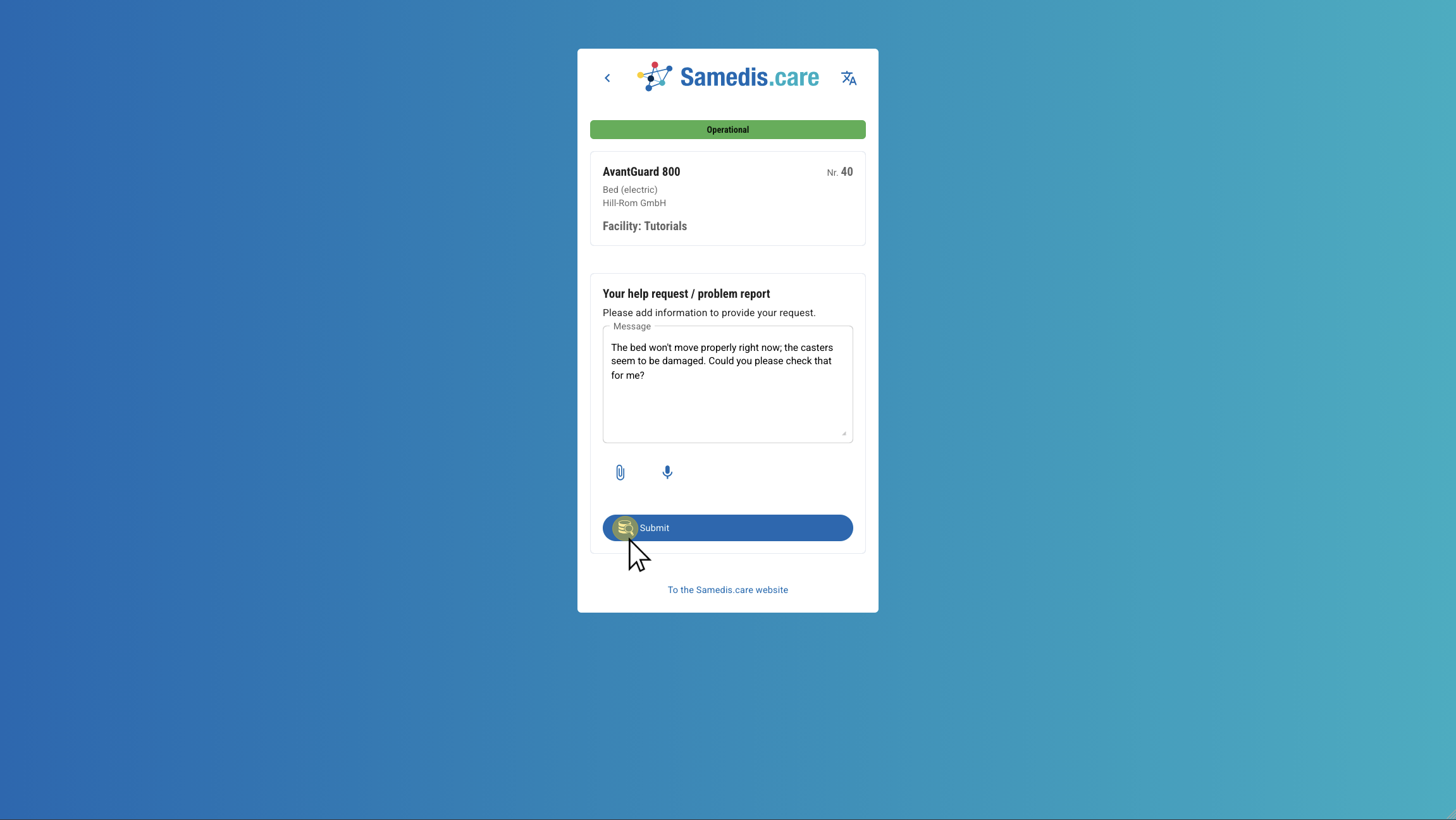
1.3. Help request / problem report
Submit your request now. If needed, you can also attach images, documents, or a voice message.
Then click Submit.
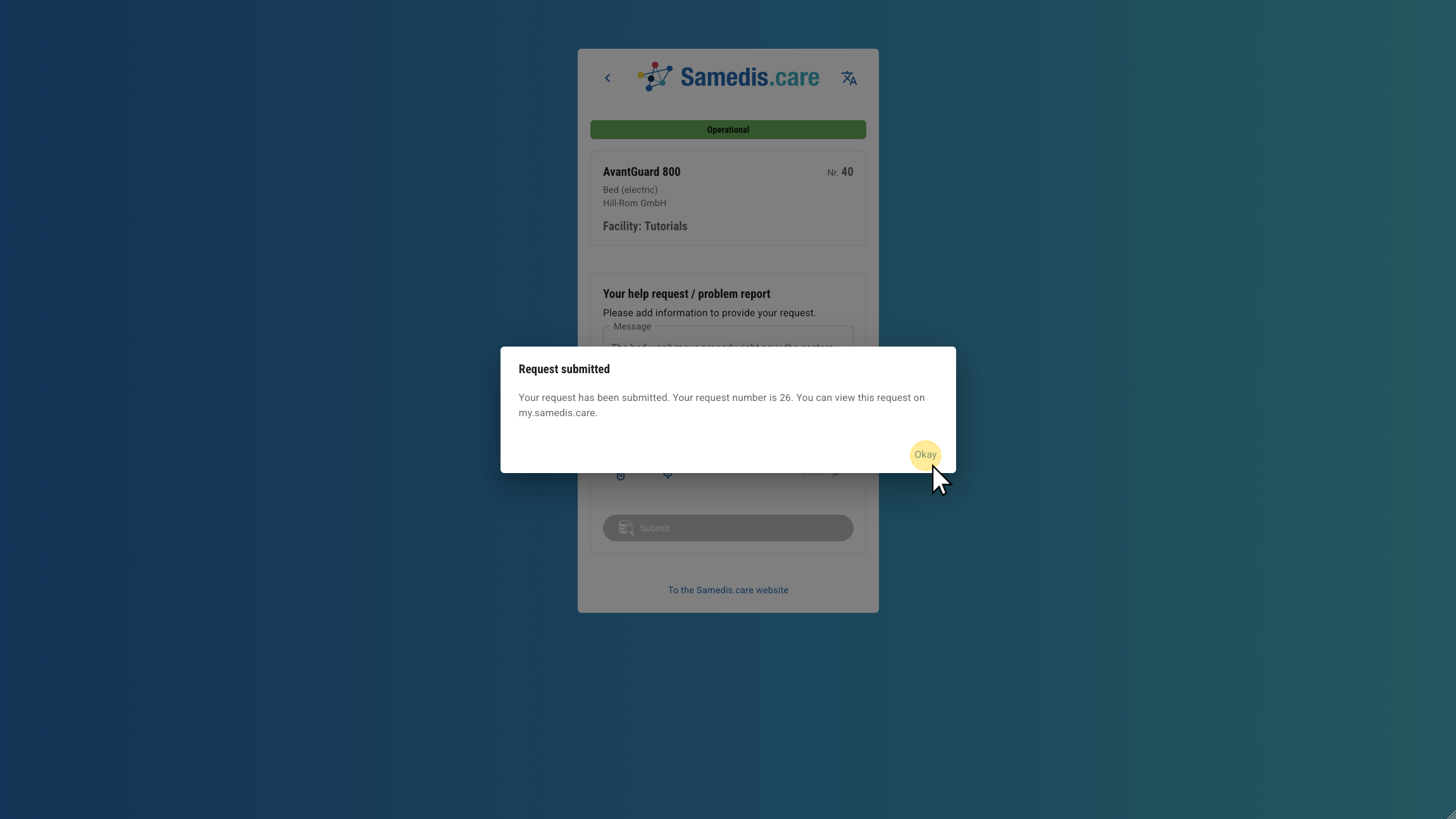
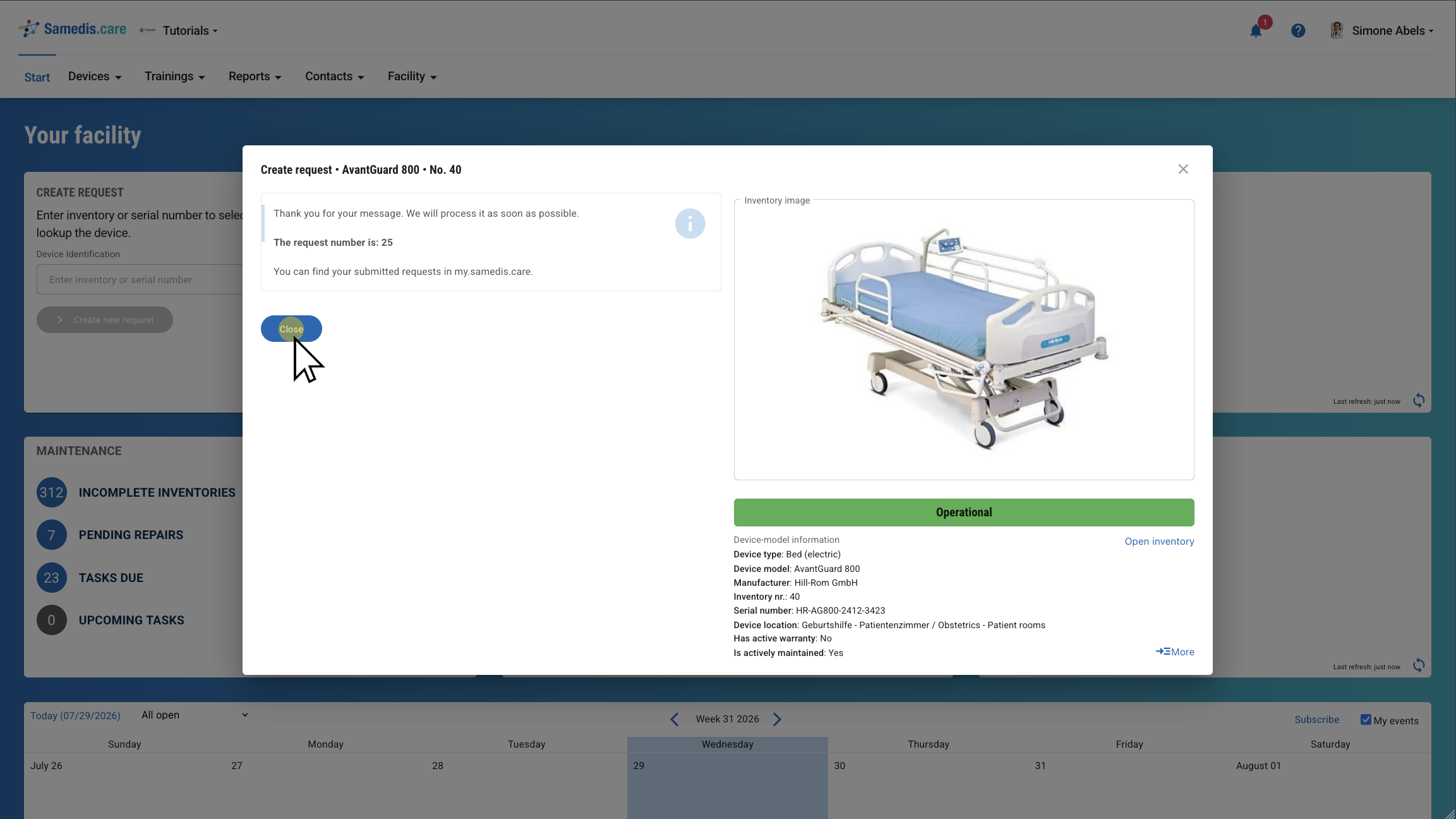
1.4. Request submitted
Your facility has received the message.
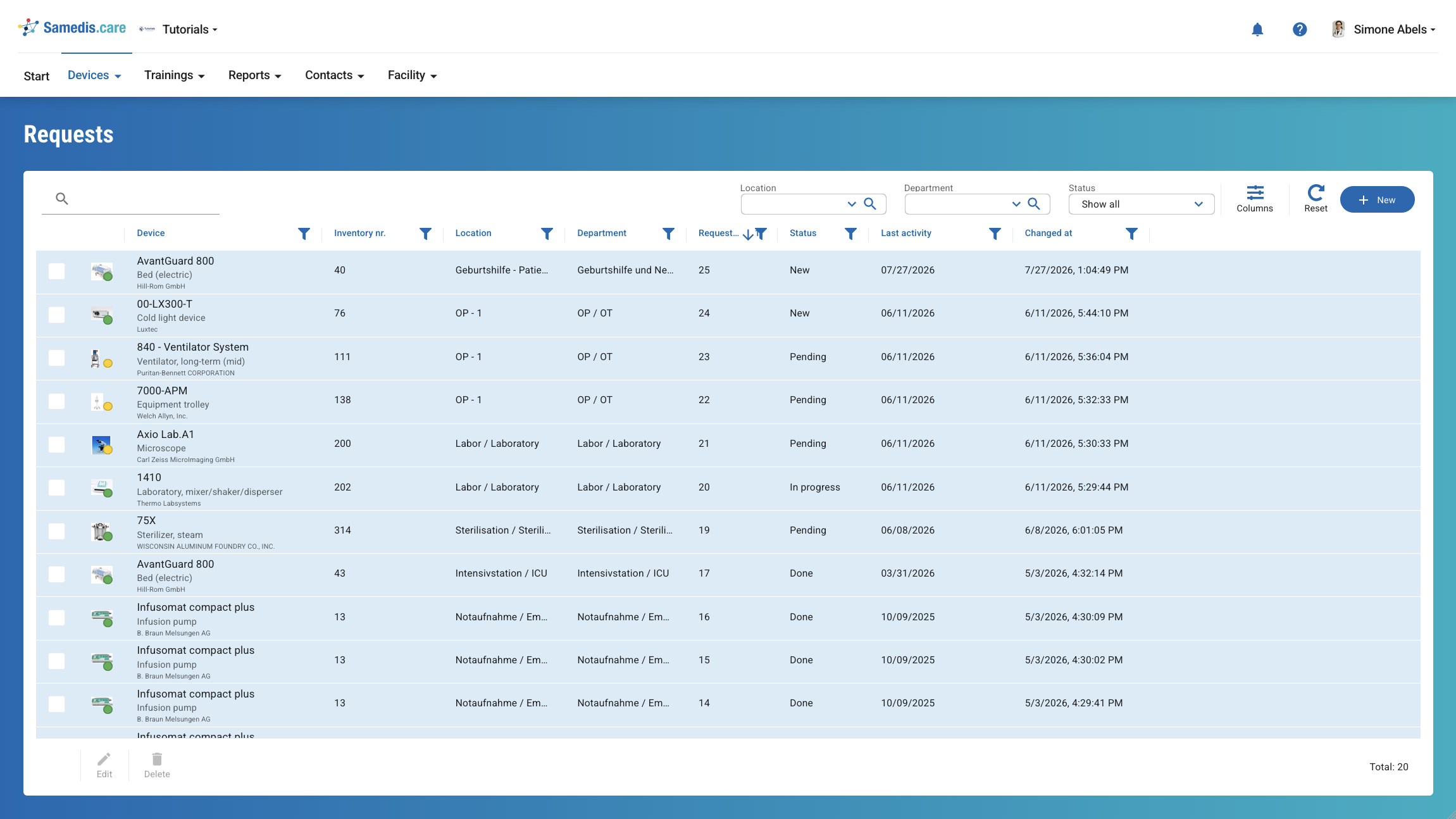
In my.samedis.care, you can view the status and history of your request at any time.
2. Submit a request via the homepage
Instead of scanning the QR code on the device, you can also create your service request directly in Samedis.care. To do this, you’ll first need to select the correct device.
Let’s take a look at the options available to you for finding the device in Samedis.care.
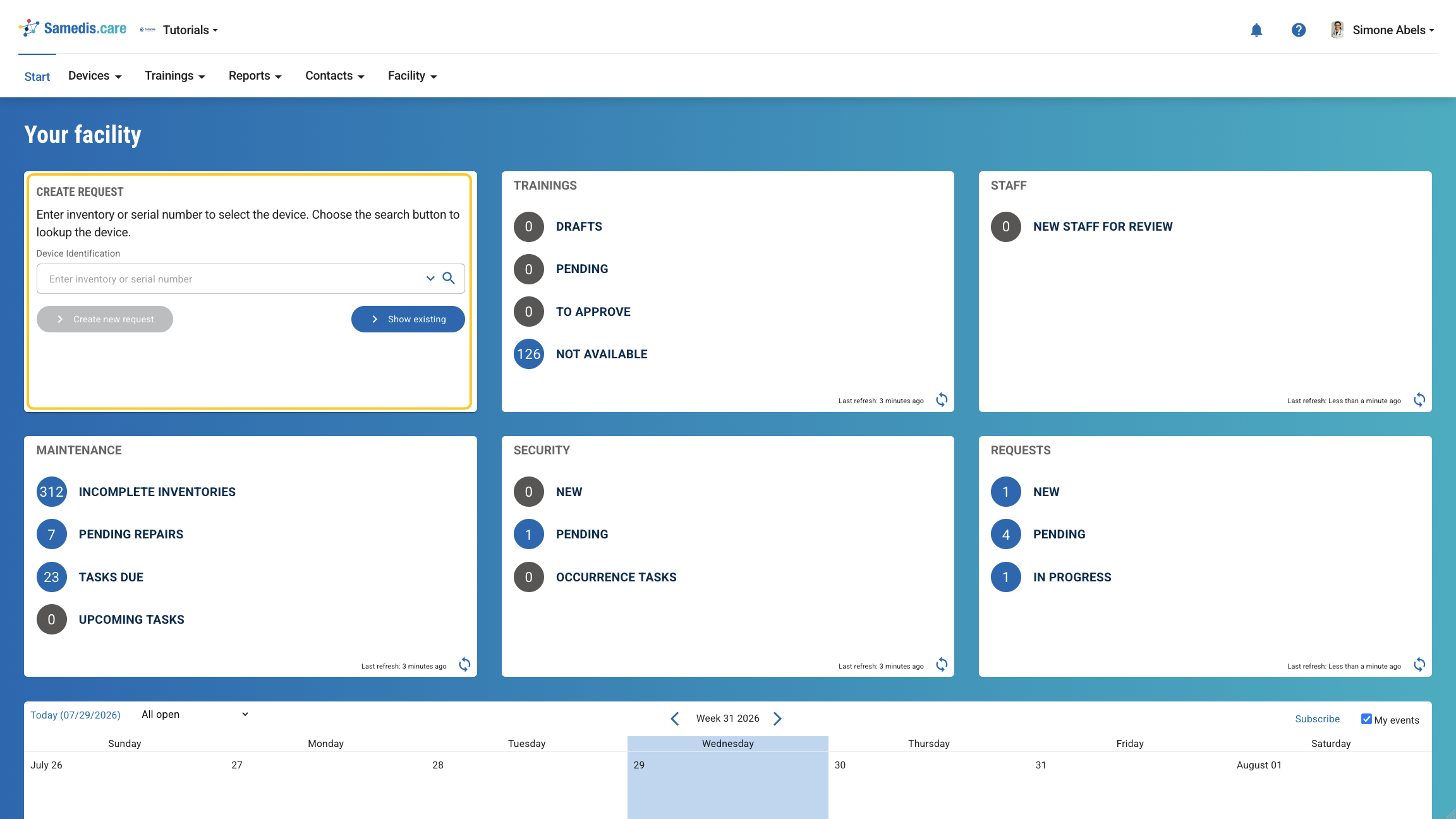
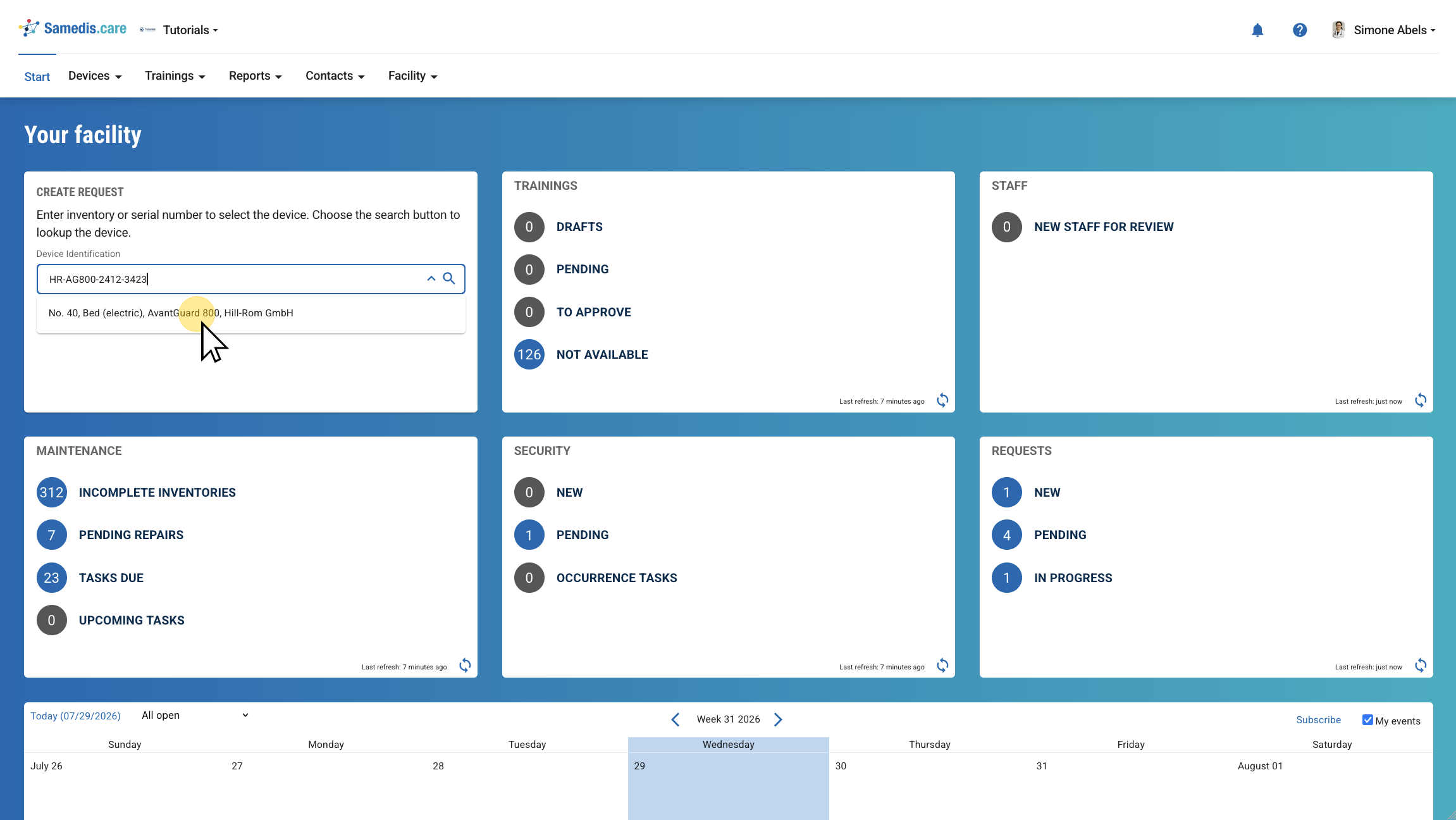
2.1. Enter inventory or serial number
You can search by serial number or inventory number. The corresponding device will then be displayed immediately.
2.2. Catalog search
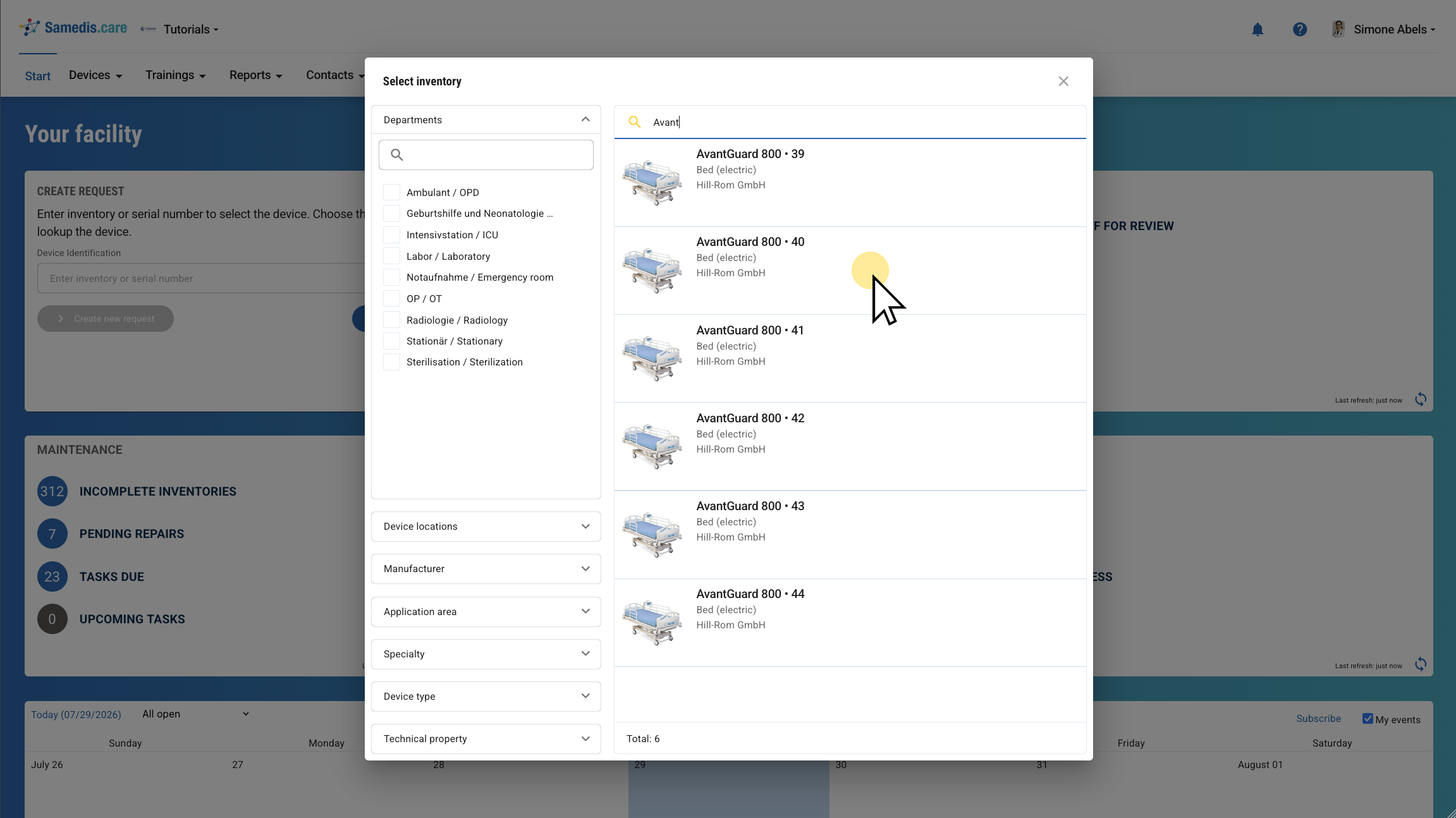
Alternatively, you can use the catalog search if you don’t have the serial number or inventory number.
To do this, click the 🔎 icon and use the various filter options to find the device you’re looking for.
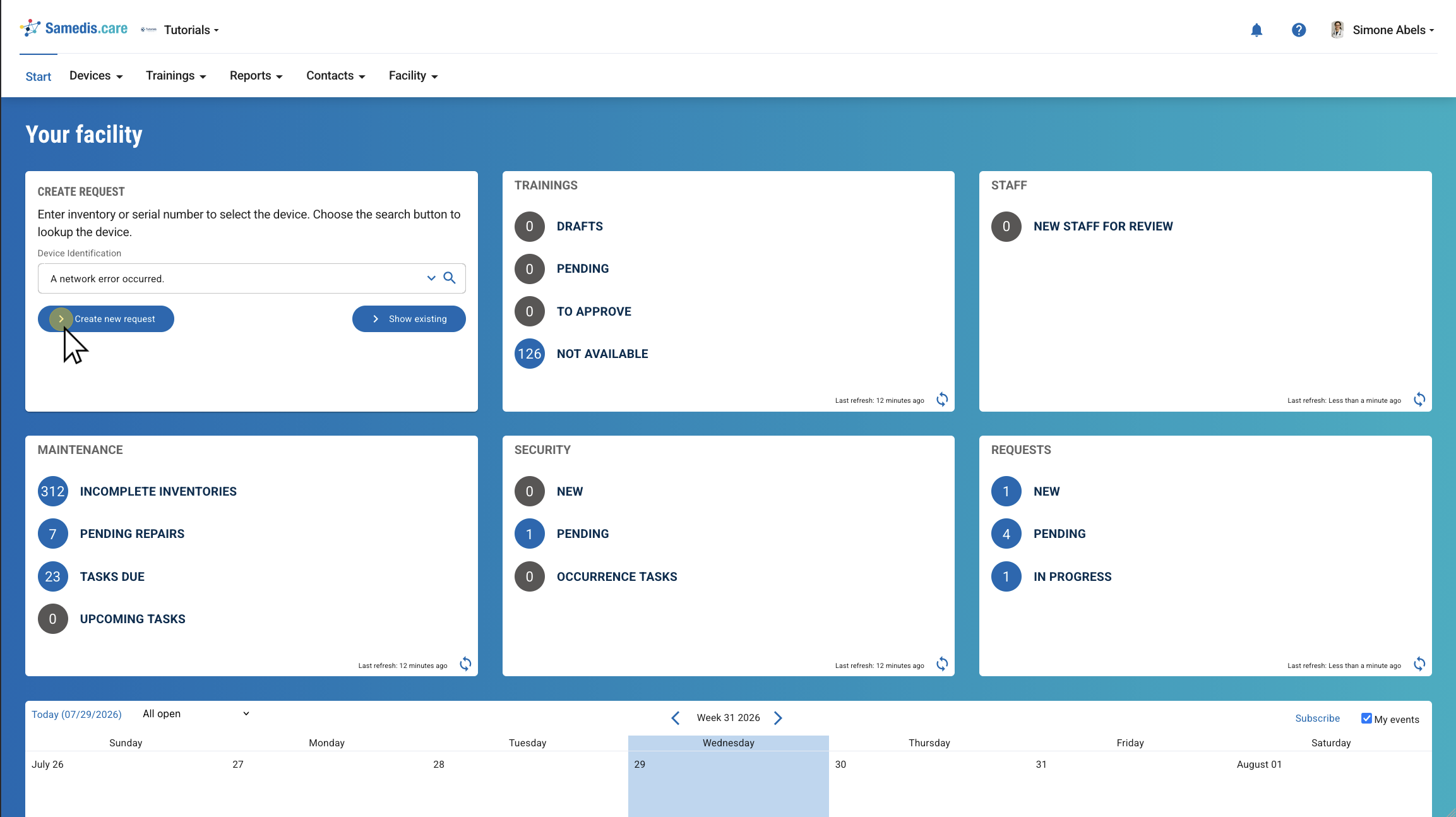
2.3. Create new request
Now click on Create new request to submit your problem report.
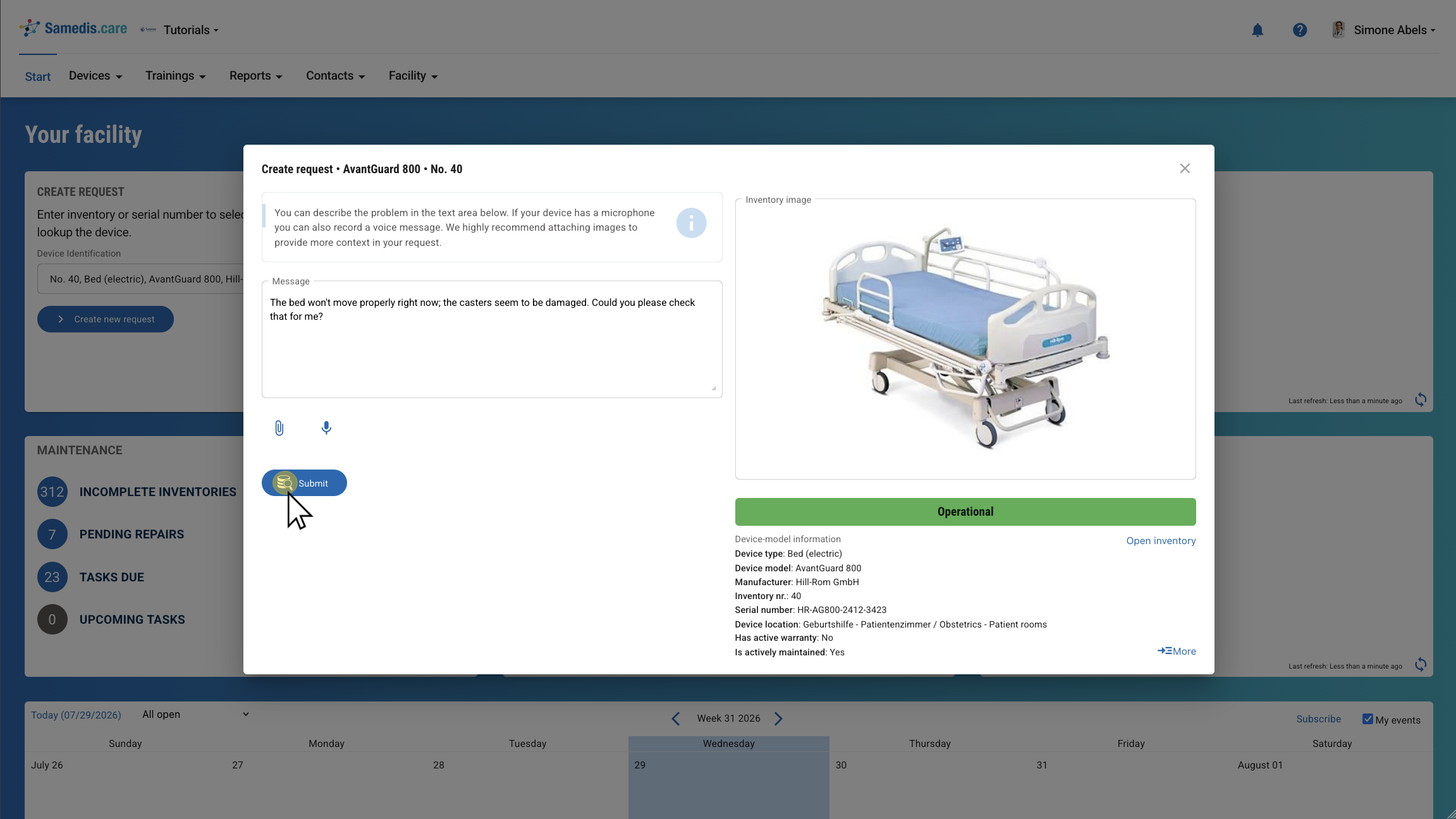
2.4. Enter request
Enter your message in the text box and, if needed, attach a file or a voice message.
Then click Submit.
2.5. Request submitted
You have successfully submitted your request.
Tip
You will receive further updates about your request via the 🔔 icon.
3. Create request from device details
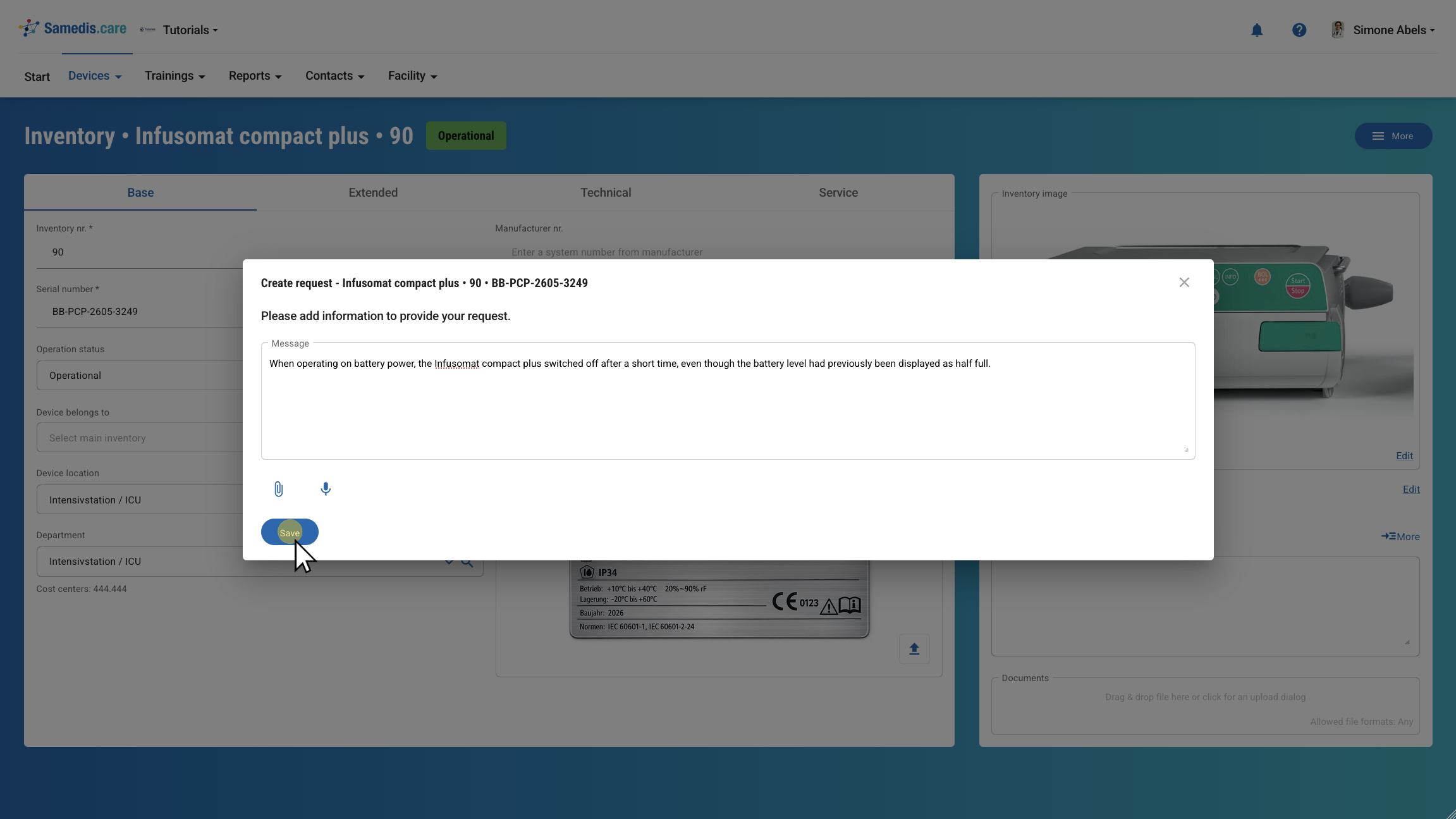
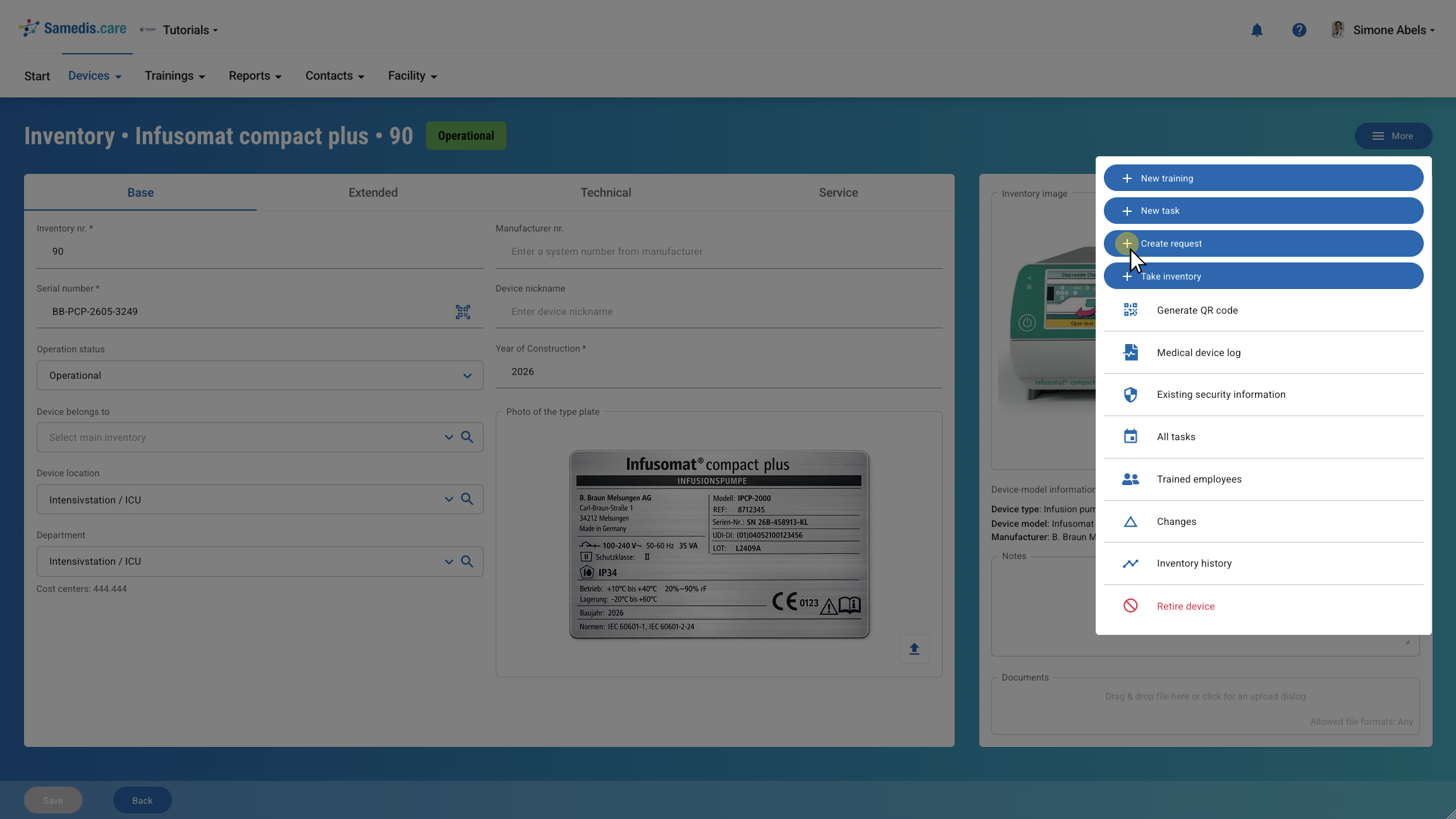
You can also create a request directly from the device details. To do this, open the detail view of the desired device in Samedis.care and select Create request from the More menu.
3.1. Add information
Create your request and then click Save.