Create requests
In this tutorial, we will show you how to create requests or report problems with a device in Samedis.care.
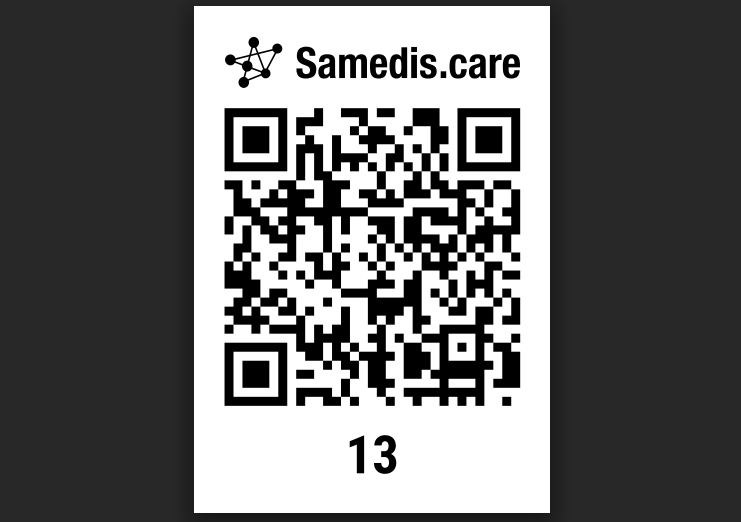
1. Scan QR code
To create a request, first scan the QR code on your device.
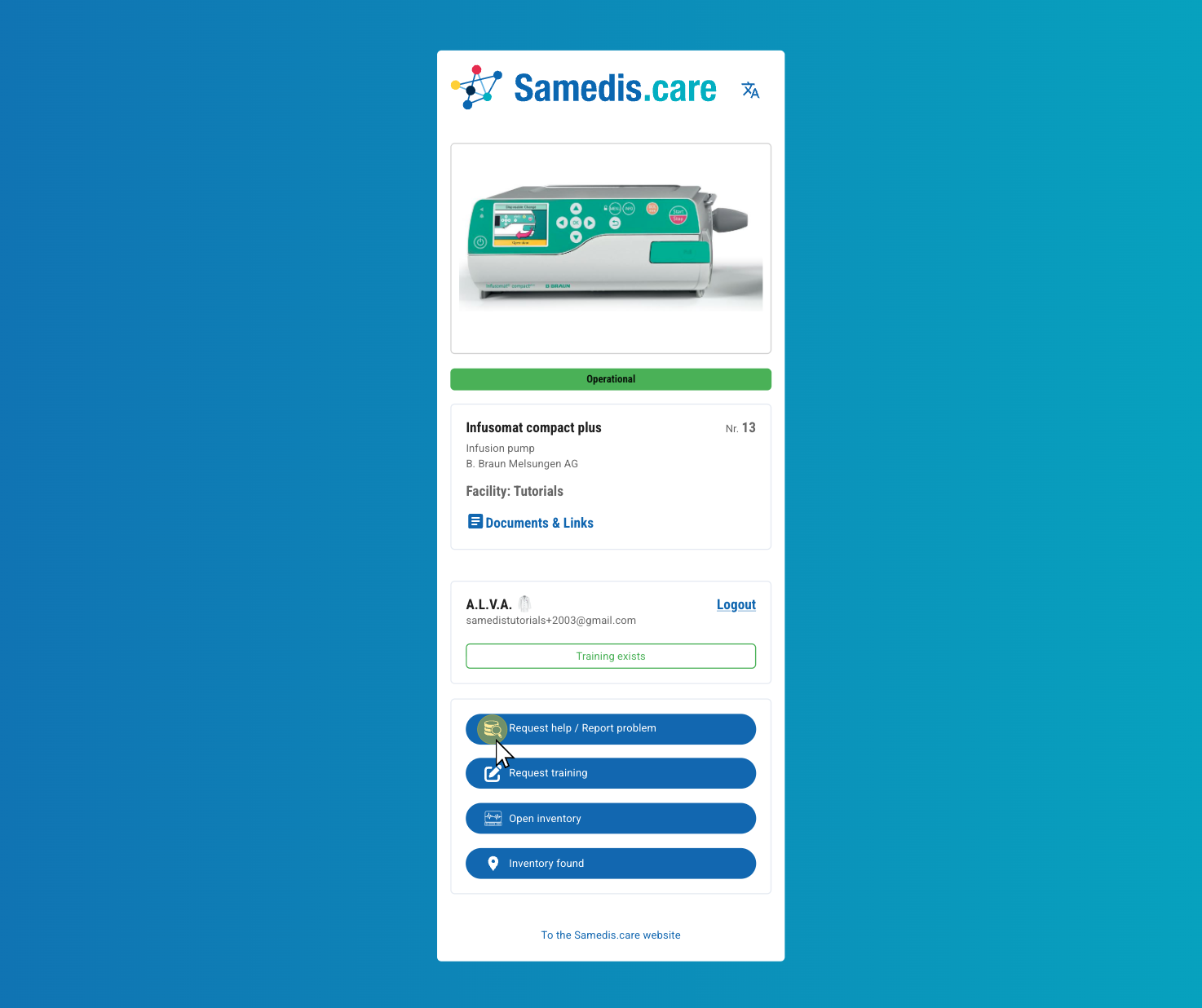
2. Request help / Report problem
Now click on Request help / Report problem.
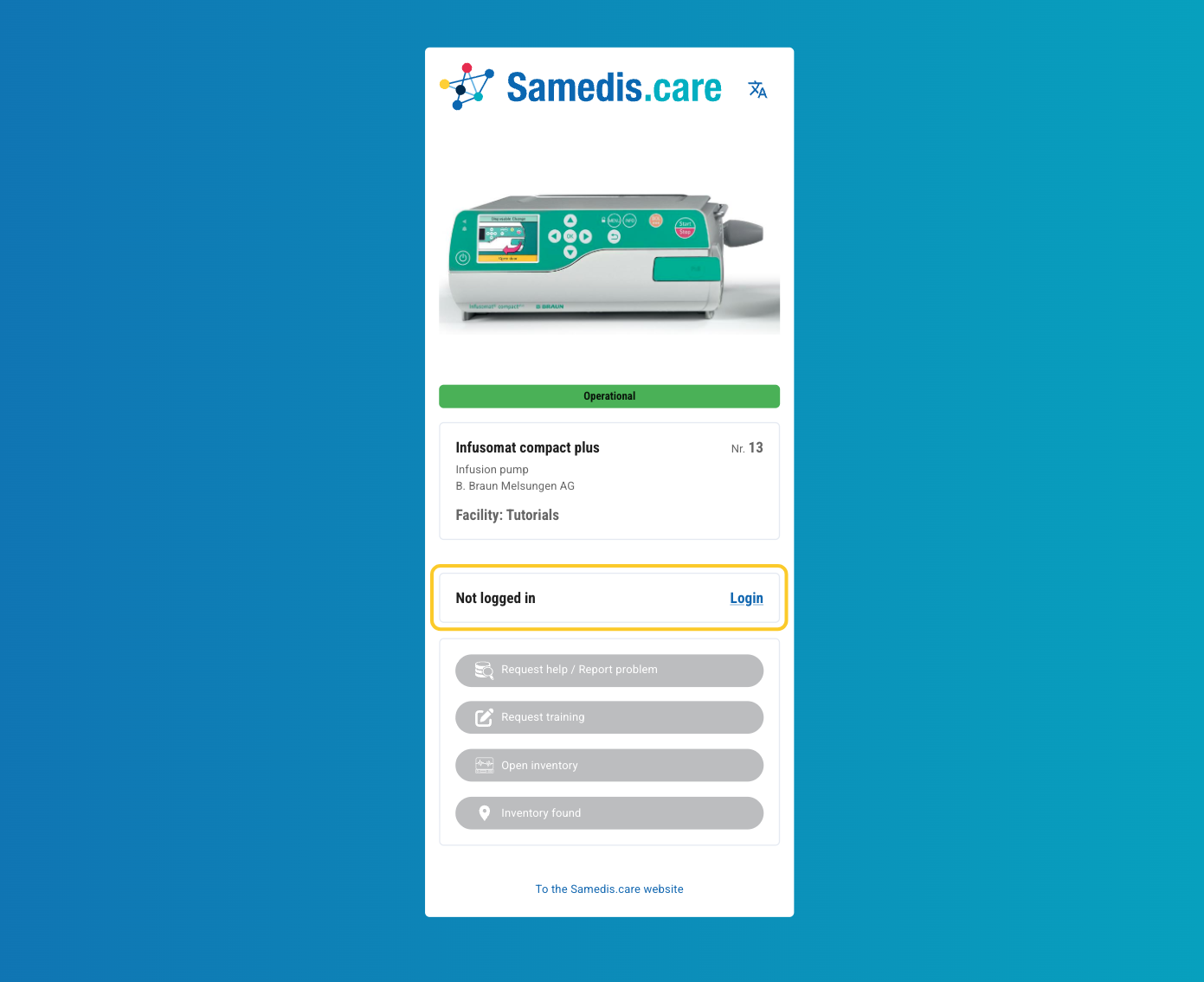
2.1. No access right?
If the fields are shown in grey, you are either not logged in yet or you do not have the access right to create requests.
In this case, log in via Login or contact the person responsible for Samedis.care so that the access right can be granted to you.
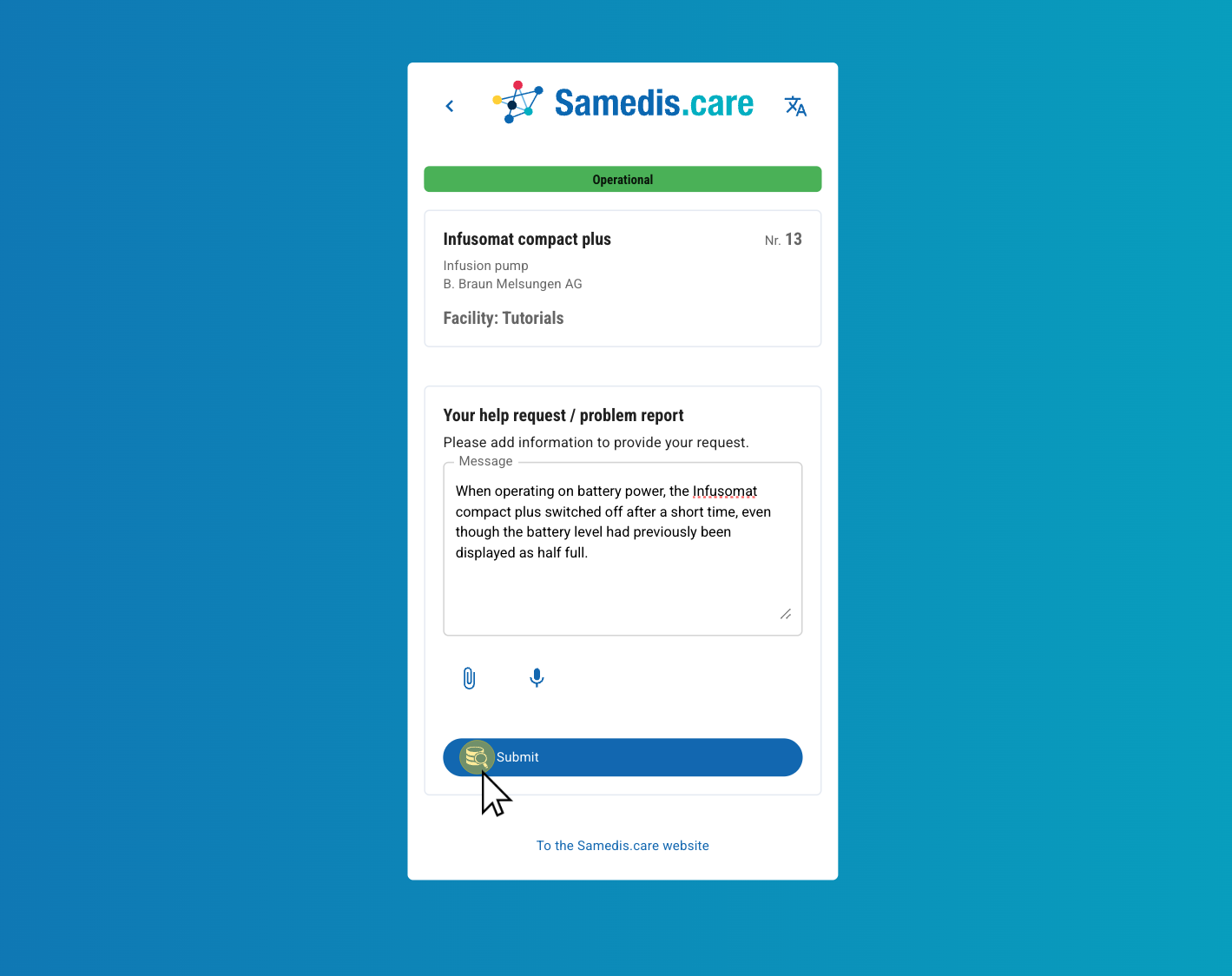
3. Help request / problem report
Enter your request and, if needed, add a voice message or a document.
Then click Submit.
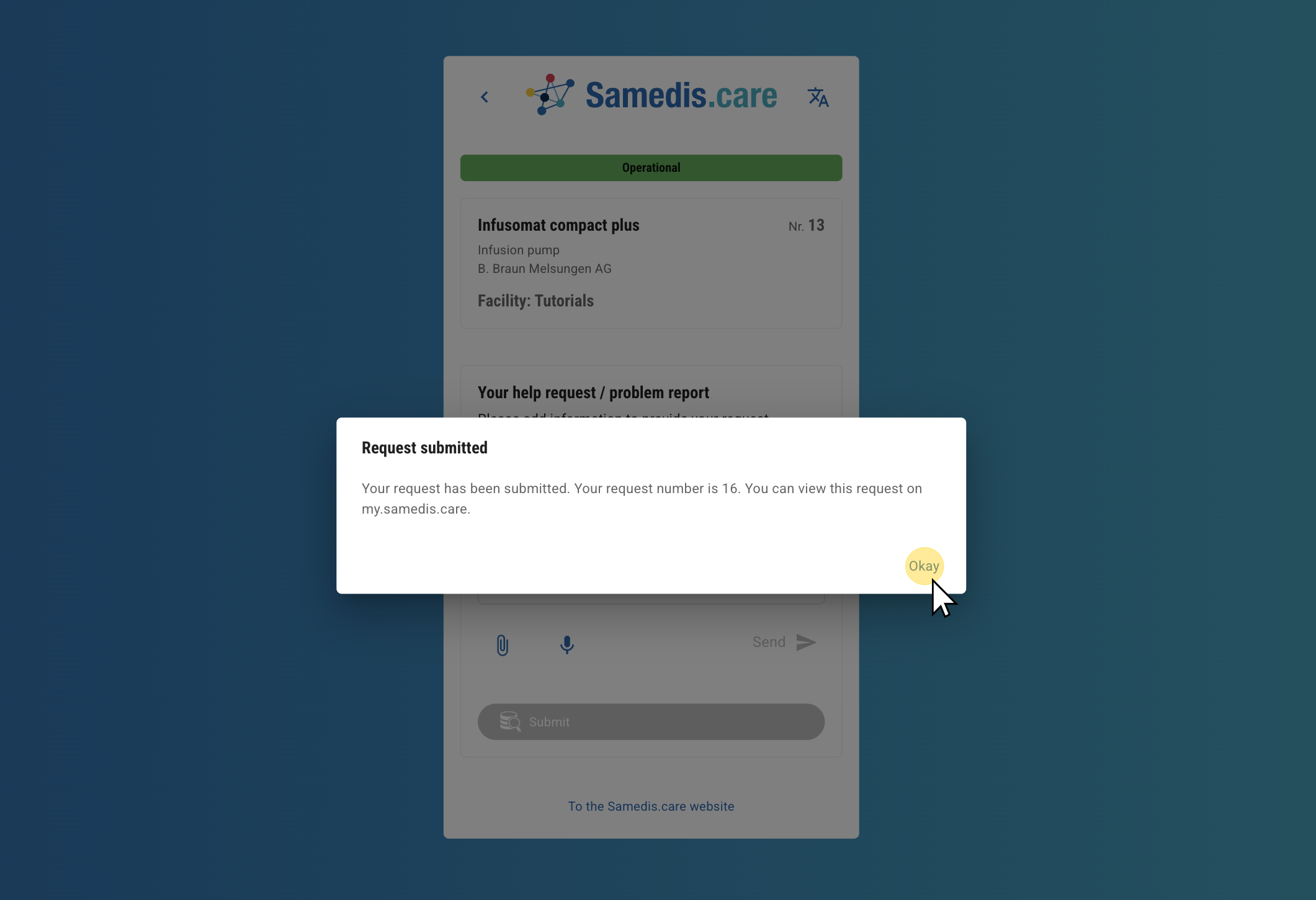
4. Request submitted
Your facility has received the message.
In my.samedis.care, you can view the status and history of your request at any time.
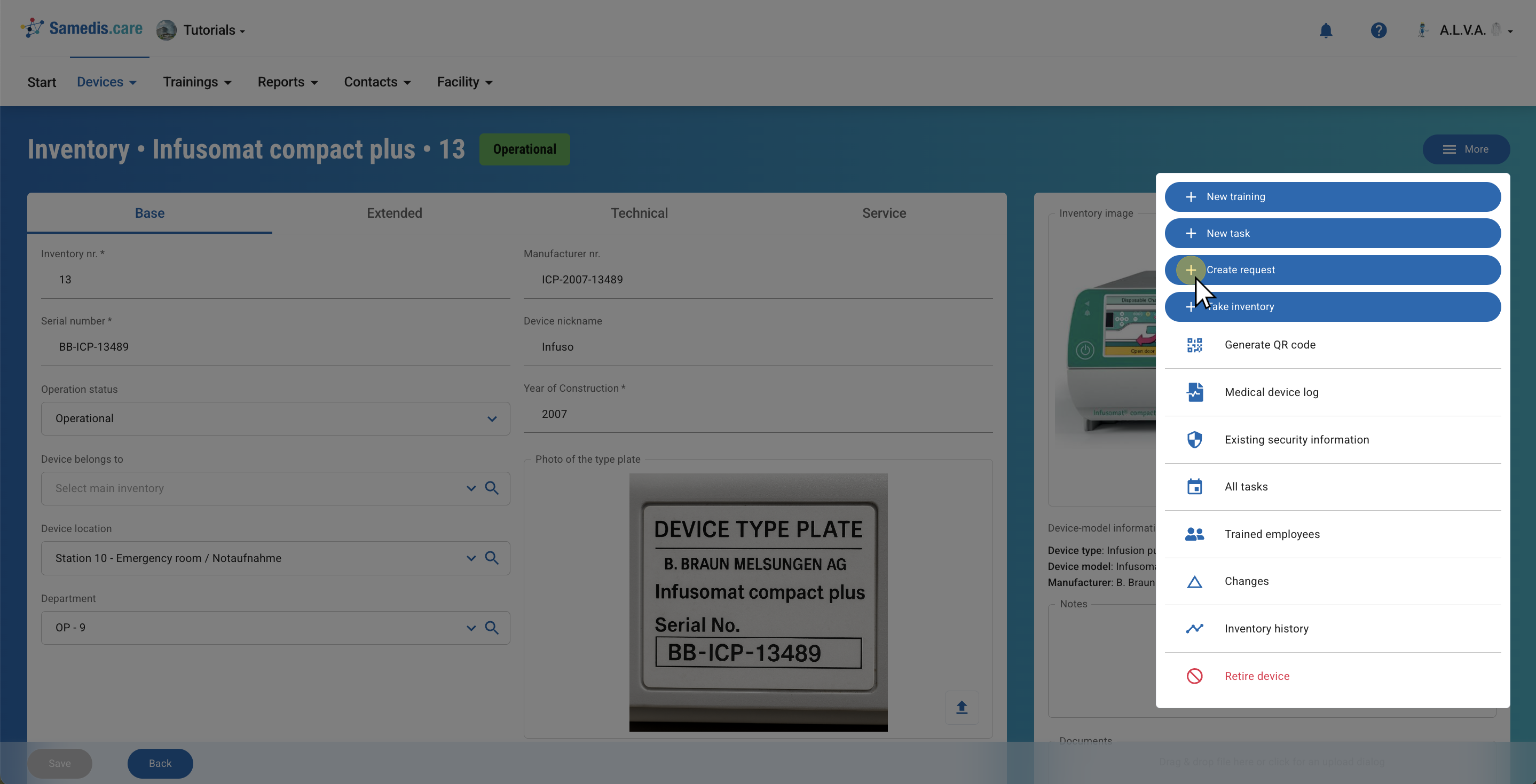
5. Device details
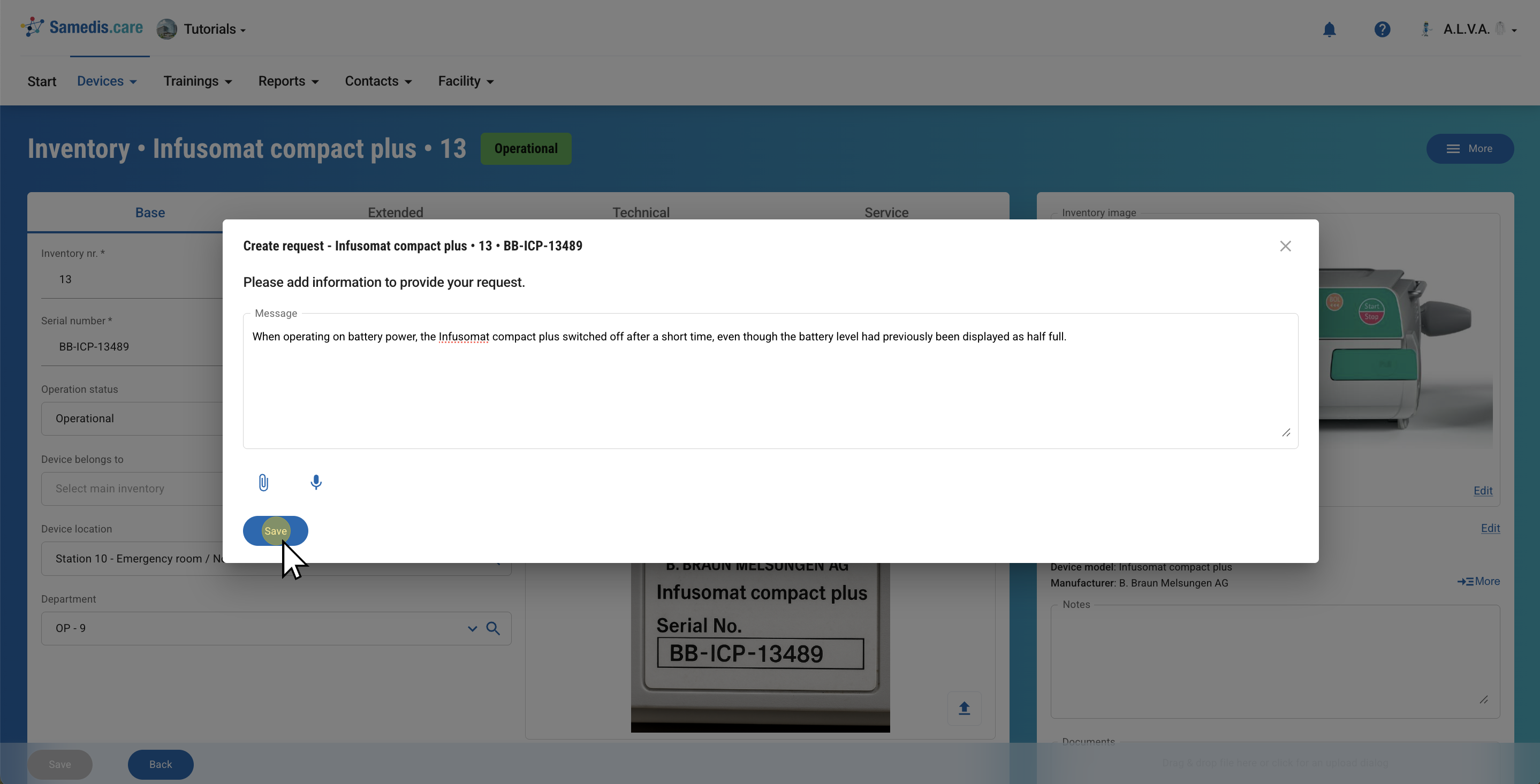
If you do not have a phone or tablet available, you can also create the request on a computer. In Samedis.care, go to the device details and, in the device’s detail view, use the Create request function under More.
5.1. Add information
Enter your request, record a voice message or attach a document, and then click Save.