Add new task
In this tutorial, we’ll take a look at how to easily plan and document tasks for your devices in a legally compliant way using Samedis.care.
1. Select device
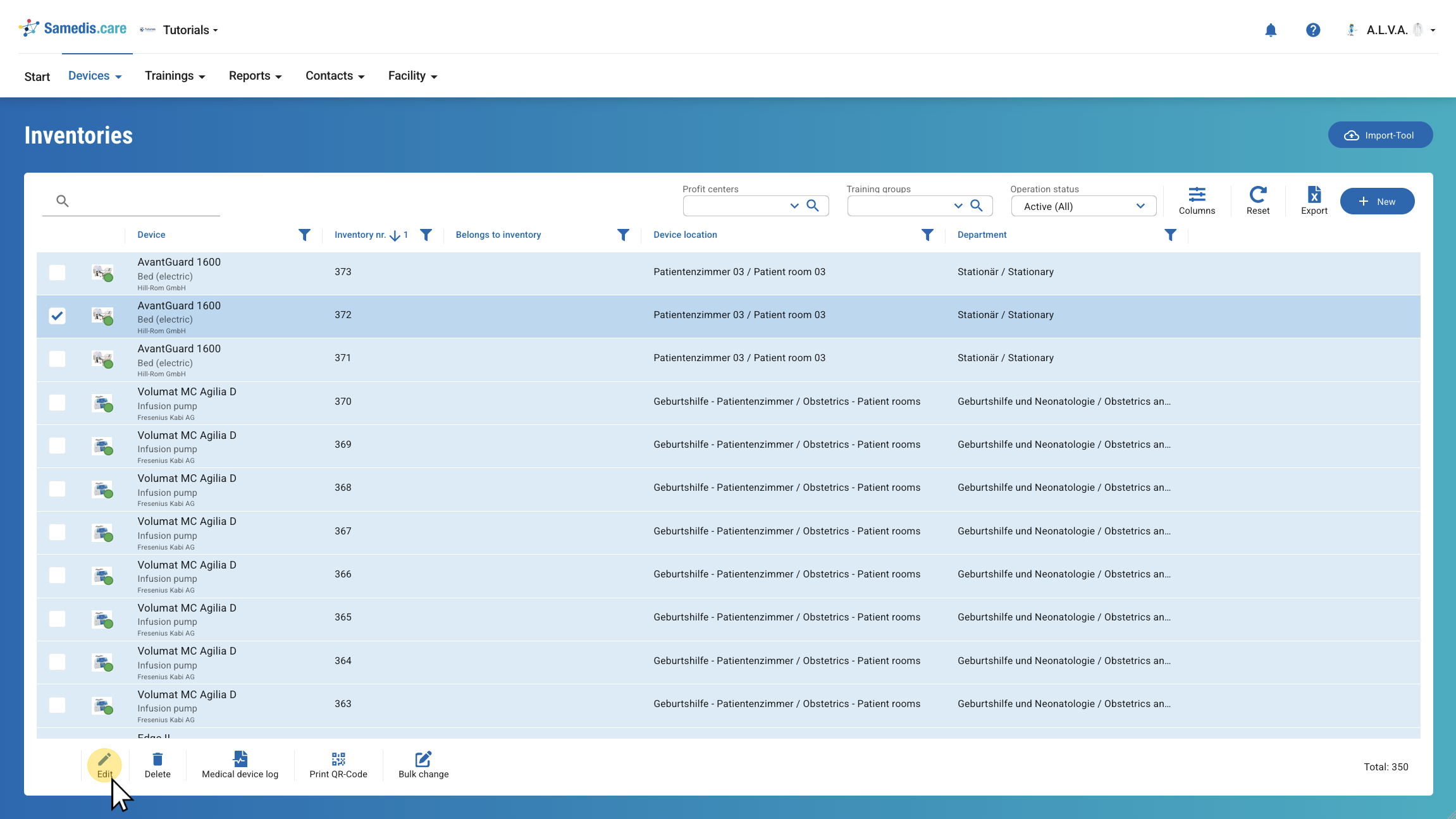
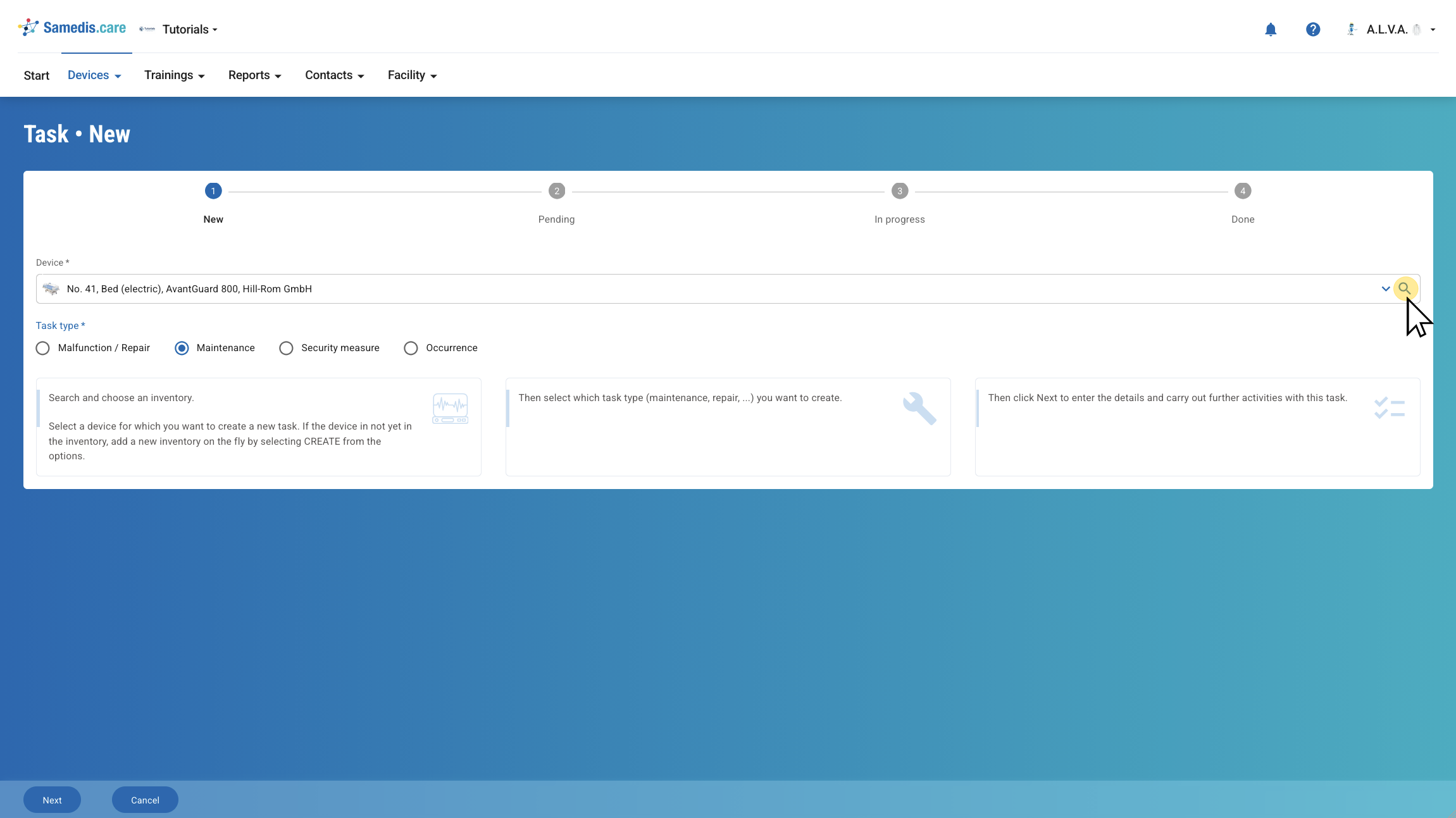
First, select the device for which you want to create the task.
1.1. Document new task
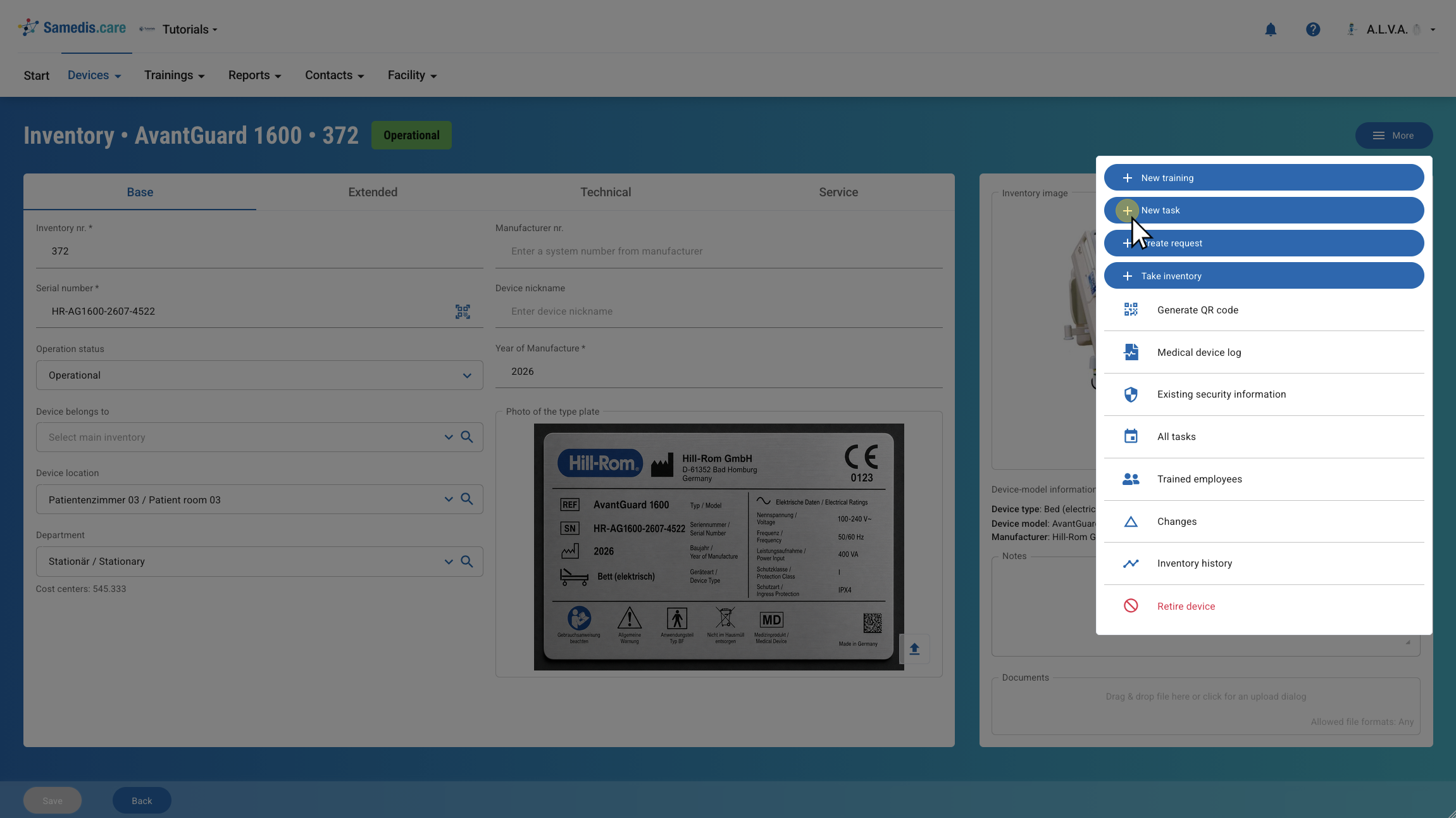
Now use the New task function under More.
1.2. Select task type
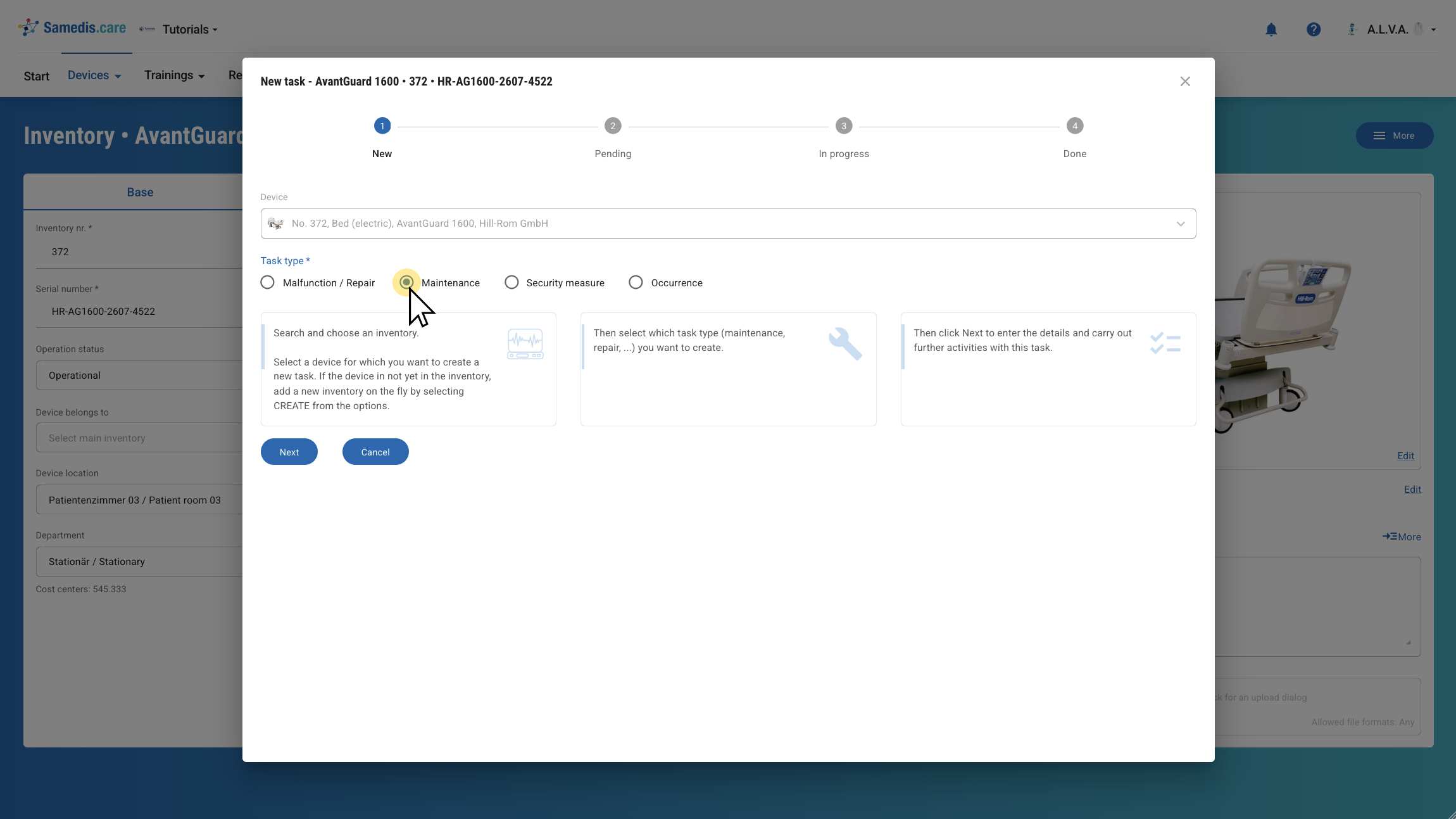
Now select the appropriate task type. You can choose from Malfunction / Repair, Maintenance, Security Measure, and Occurrence.
Click Next to continue.
1.3. Add more details
Depending on the selected task, you can now add further information.
First, update the device’s Operation status. For maintenance or inspections, you can also select the appropriate Maintenance Type and the Test equipment used. Then enter the Due date for completing the task and the Sales o****rder number.
Tip
Check out our tutorial Manage test equipment to learn more about how to handle test equipment in Samedis.care.
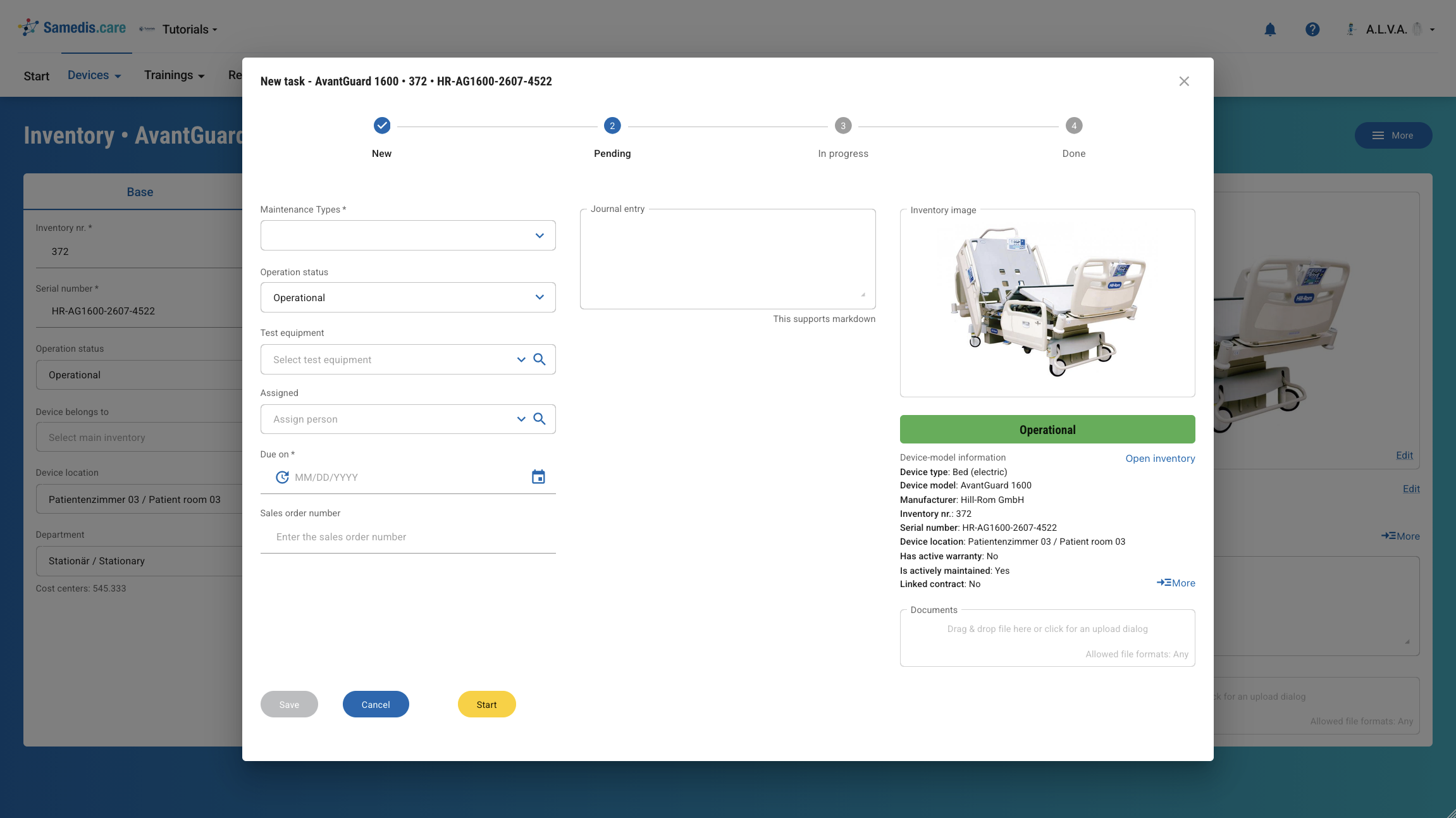
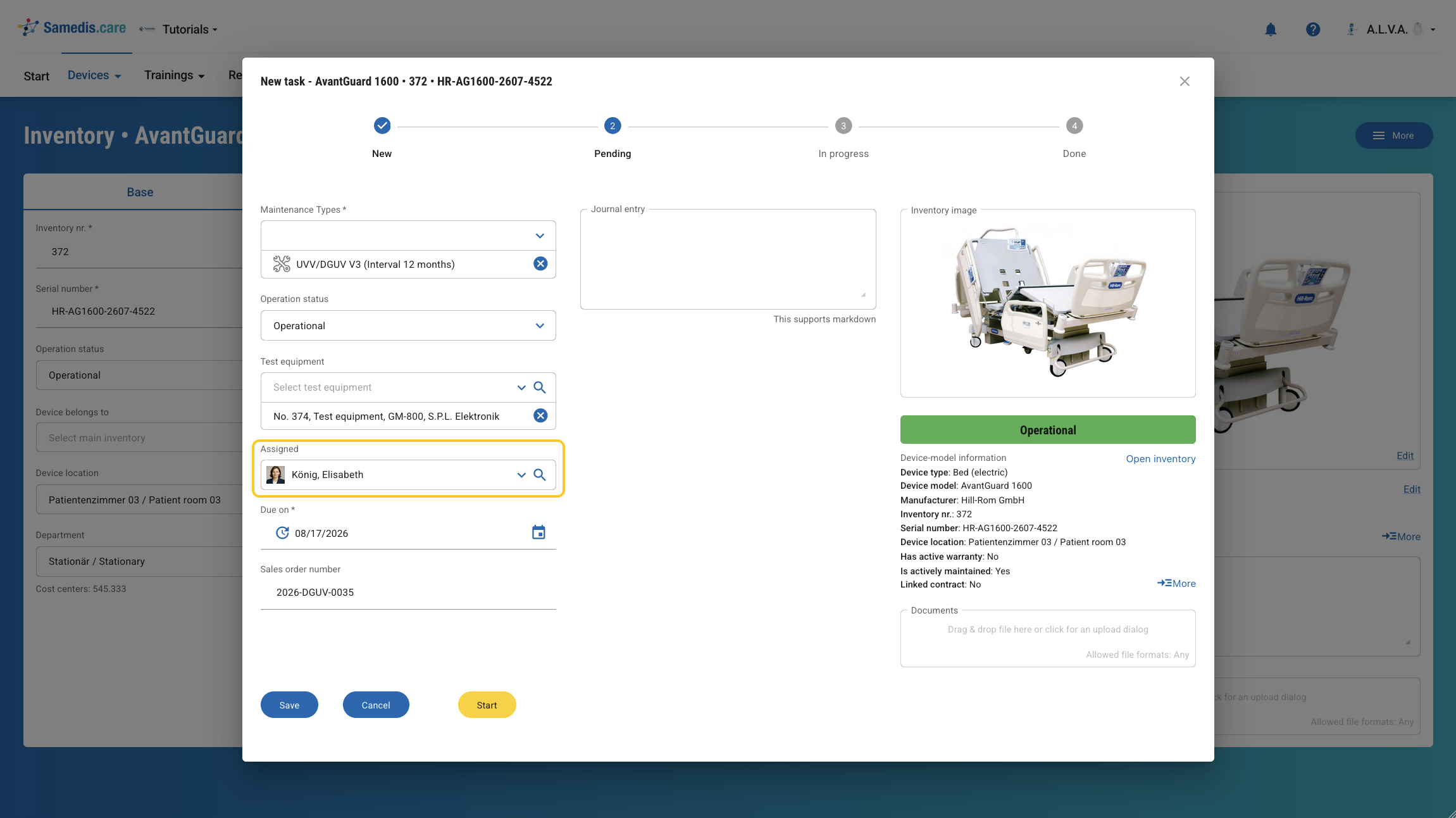
1.3.1. Assign task
Use the Responsible field to select a person for the task. You can choose internal or external users, provided they have access to your Samedis.care facility and the required permissions.
Tip
For more information, take a look at our How-To: Setup request management.
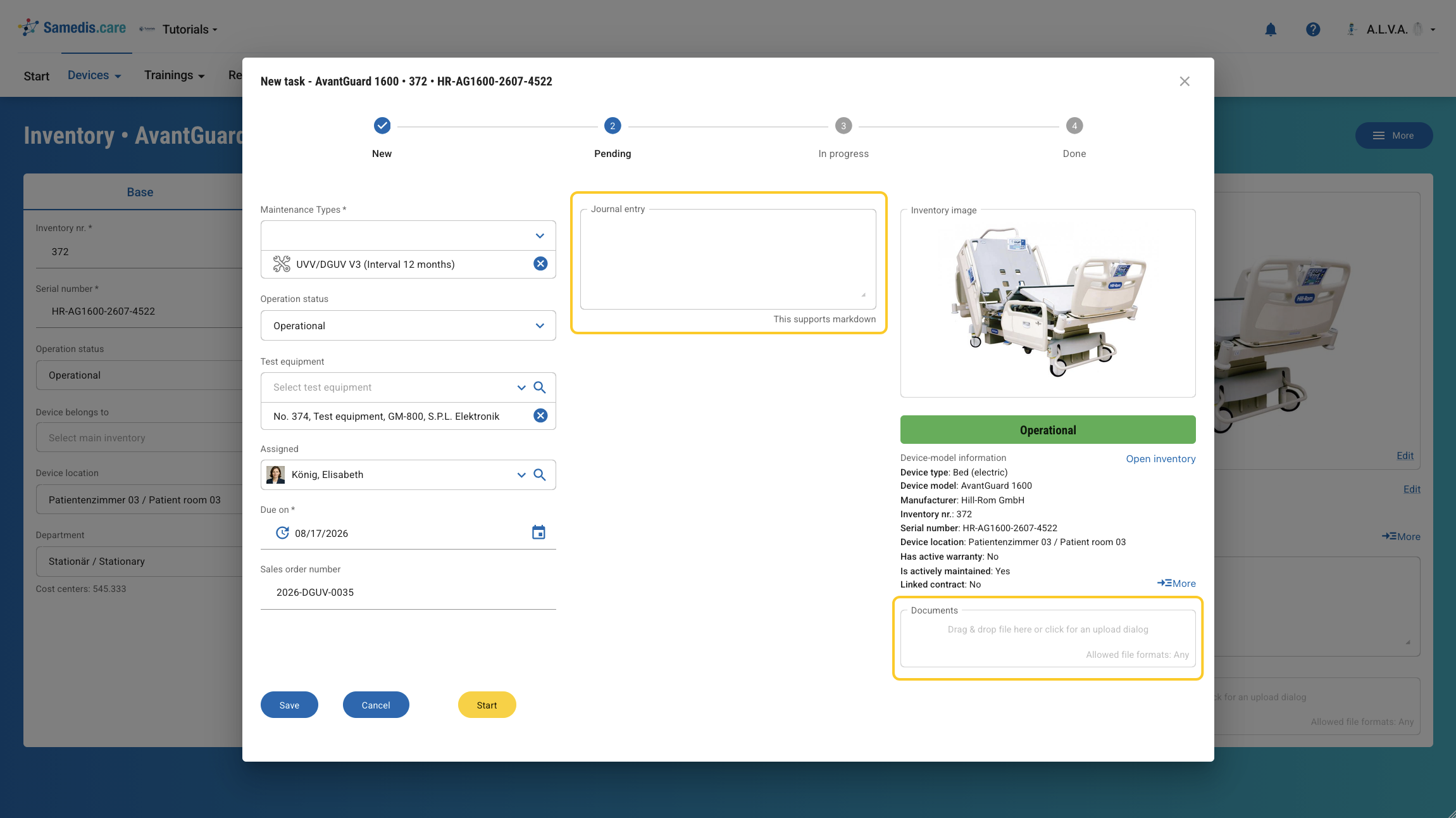
1.3.2. Add notes & documents
Use the Journal entry free-text field to document additional information or individual steps of the task as needed. You can format the text using Markdown.
In the Documents section, you can directly add files related to the task, such as inspection or maintenance reports. This ensures that all documents are always linked to the correct task.
Tip
There is also the option to add multiple notes to a task. All individual entries are automatically saved when the task is saved.
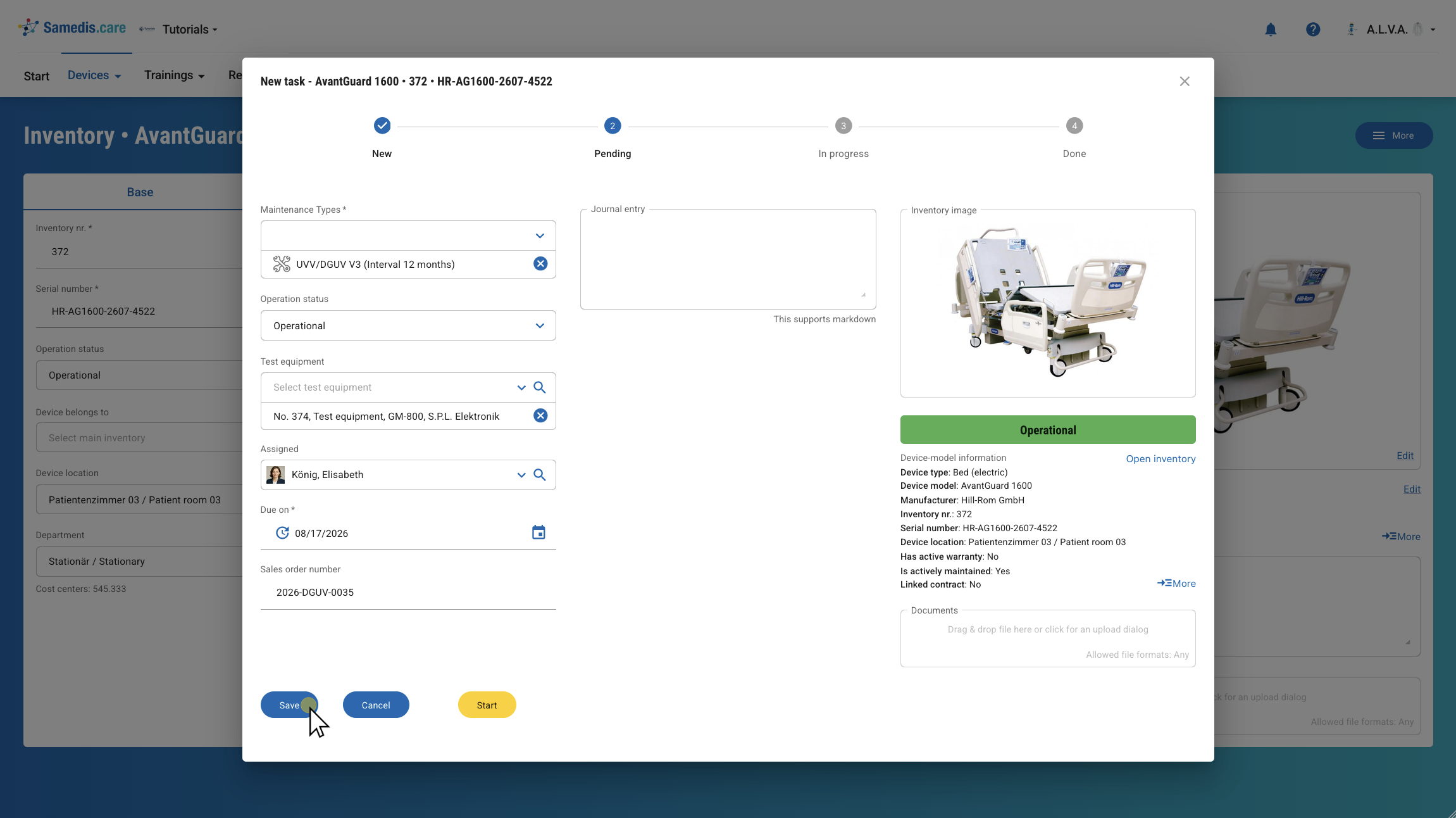
1.4. Save / Start
Then click Save to save the task.
If you want to start carrying out the task right away, click Start.
Tip
The saved task is automatically added to the medical device log.
1.4.1. Checklist
Now select the appropriate Checklist and work through it step by step. Then click Done.
Tip
For more details, check out the tutorial Create checklists.
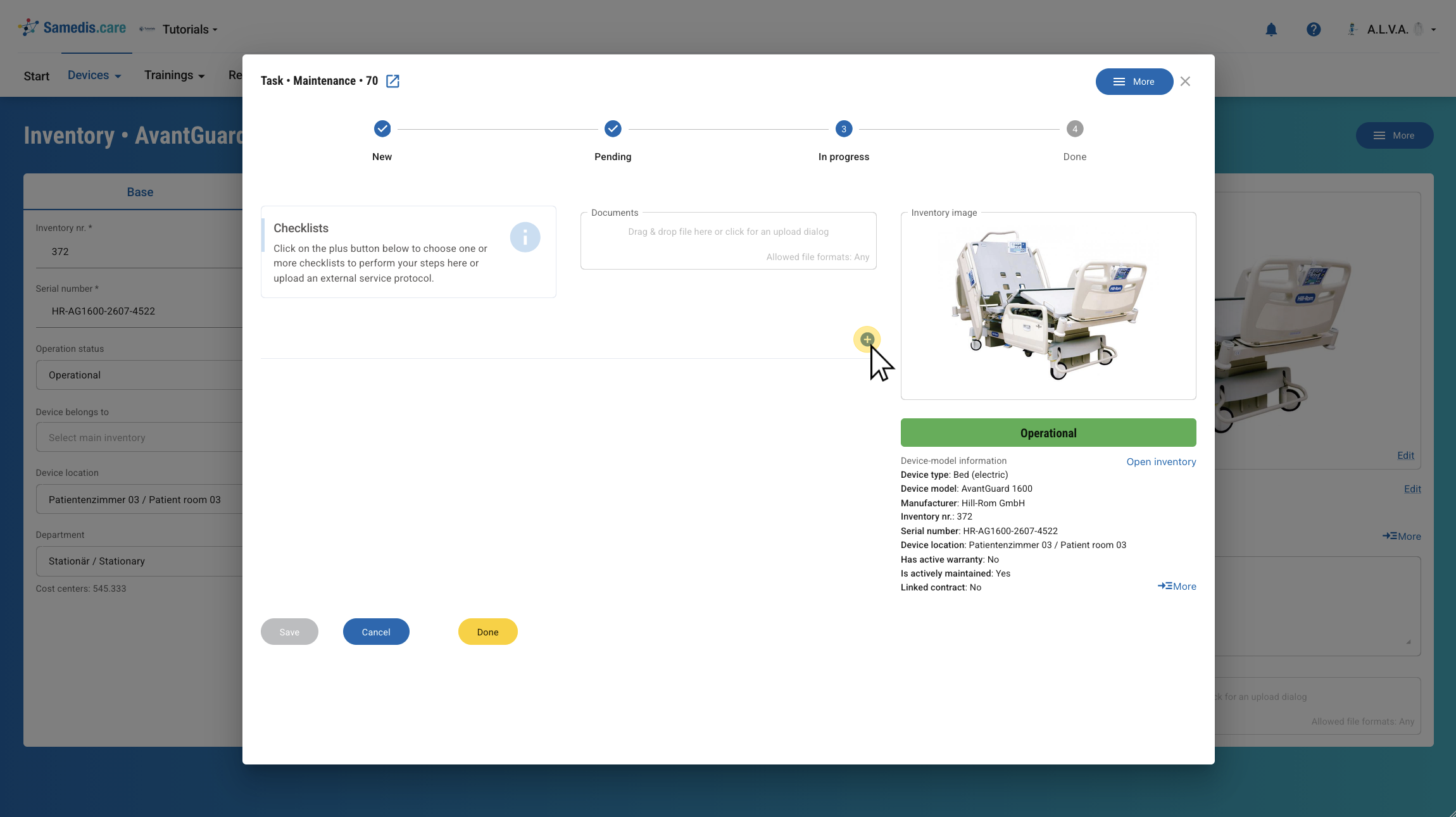
1.4.2. Close
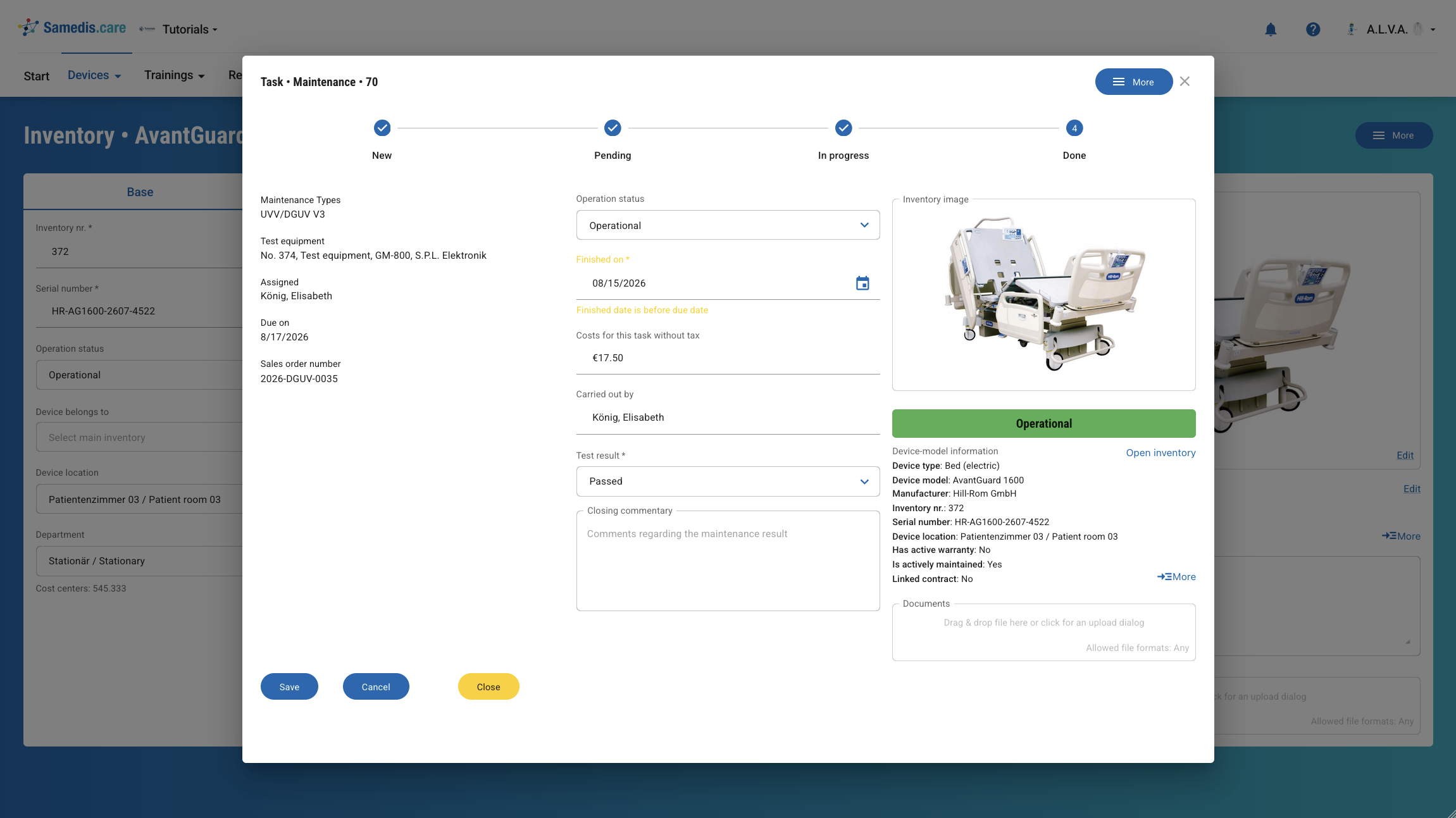
Then update the Operating status and check the completion date (Finished on) of the task.
Next, enter the Costs for this task without tax and make sure that the person who actually carried out the task is listed under Carried out by.
Enter the appropriate Test result. If needed, you can add a note under Closing commentary.
Then click Close to finalize and save the task.
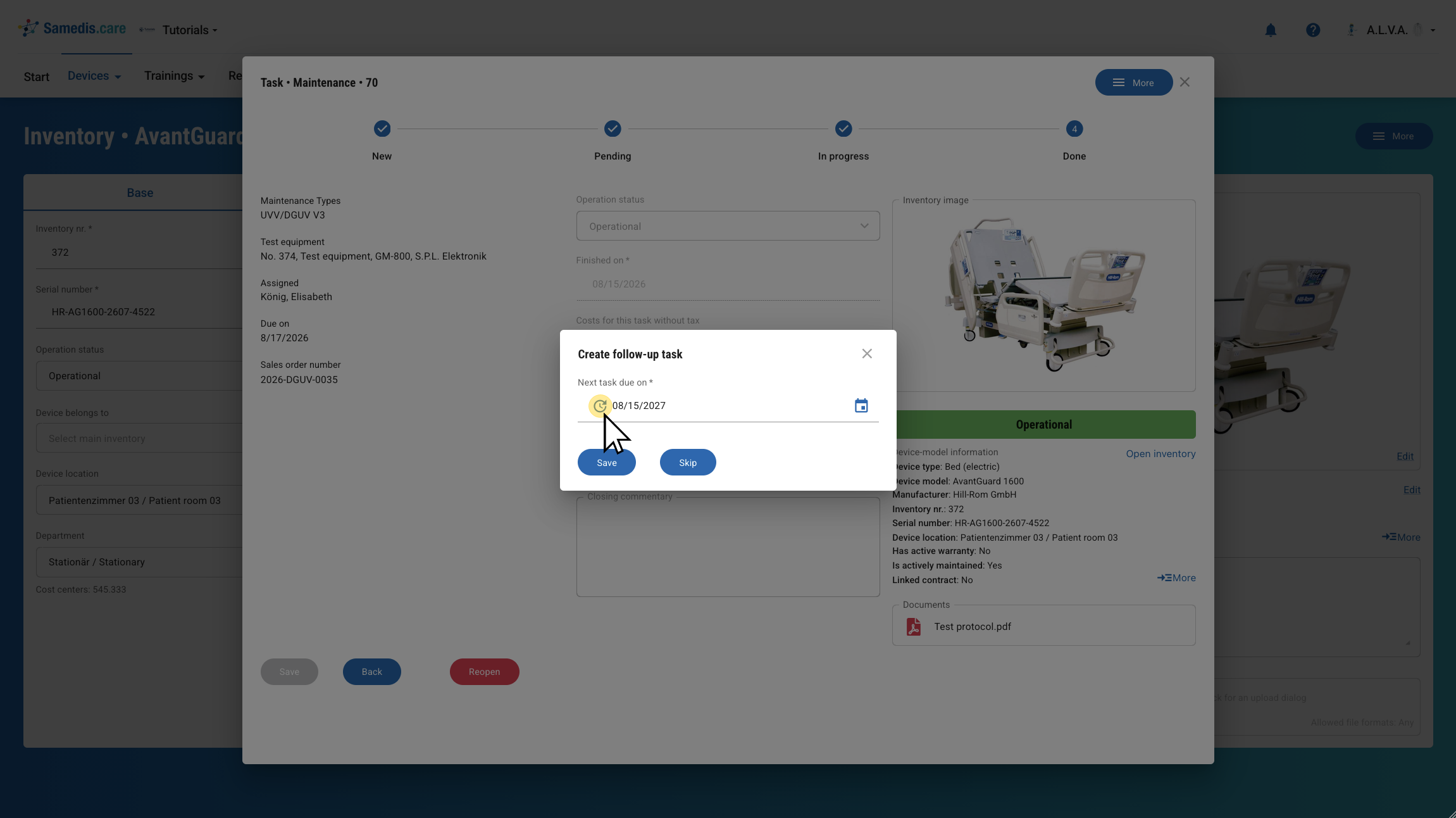
1.4.3. Follow-up task
Finally, create a Follow-up task.
Click Save to create it. If you want to skip this step, click Skip.
Tip
By clicking the clock icon, a date will be automatically suggested based on the predefined maintenance interval.
2. Tasks + New
You can also create a new task directly from the Task overview. To do so, click + New.
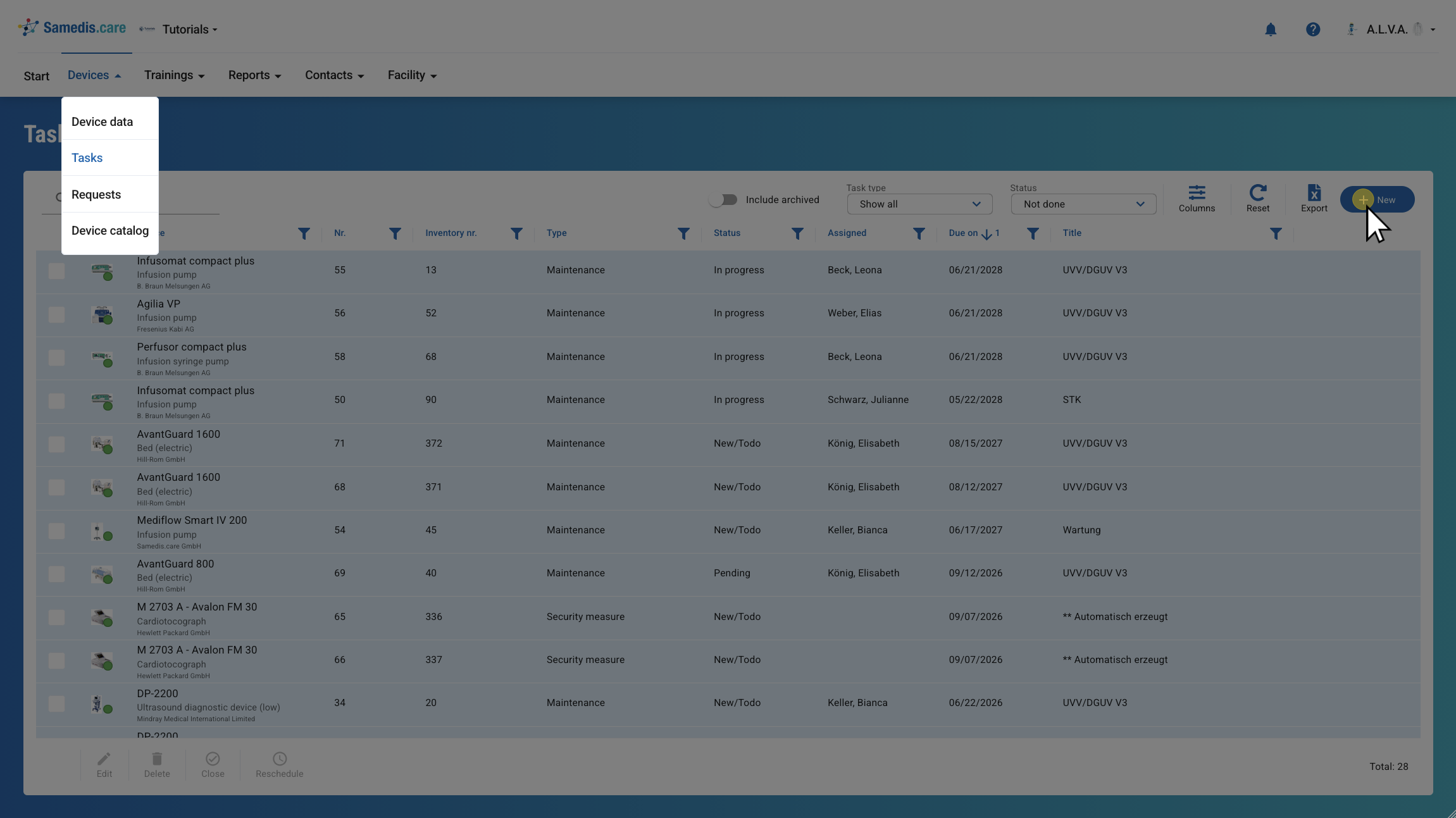
2.1. Select device
Select the device for which you want to create the task. The remaining steps follow the process described above.
3. Automatically created tasks
As soon as we receive a safety notice for a device, Samedis.care automatically creates a task for the affected device.
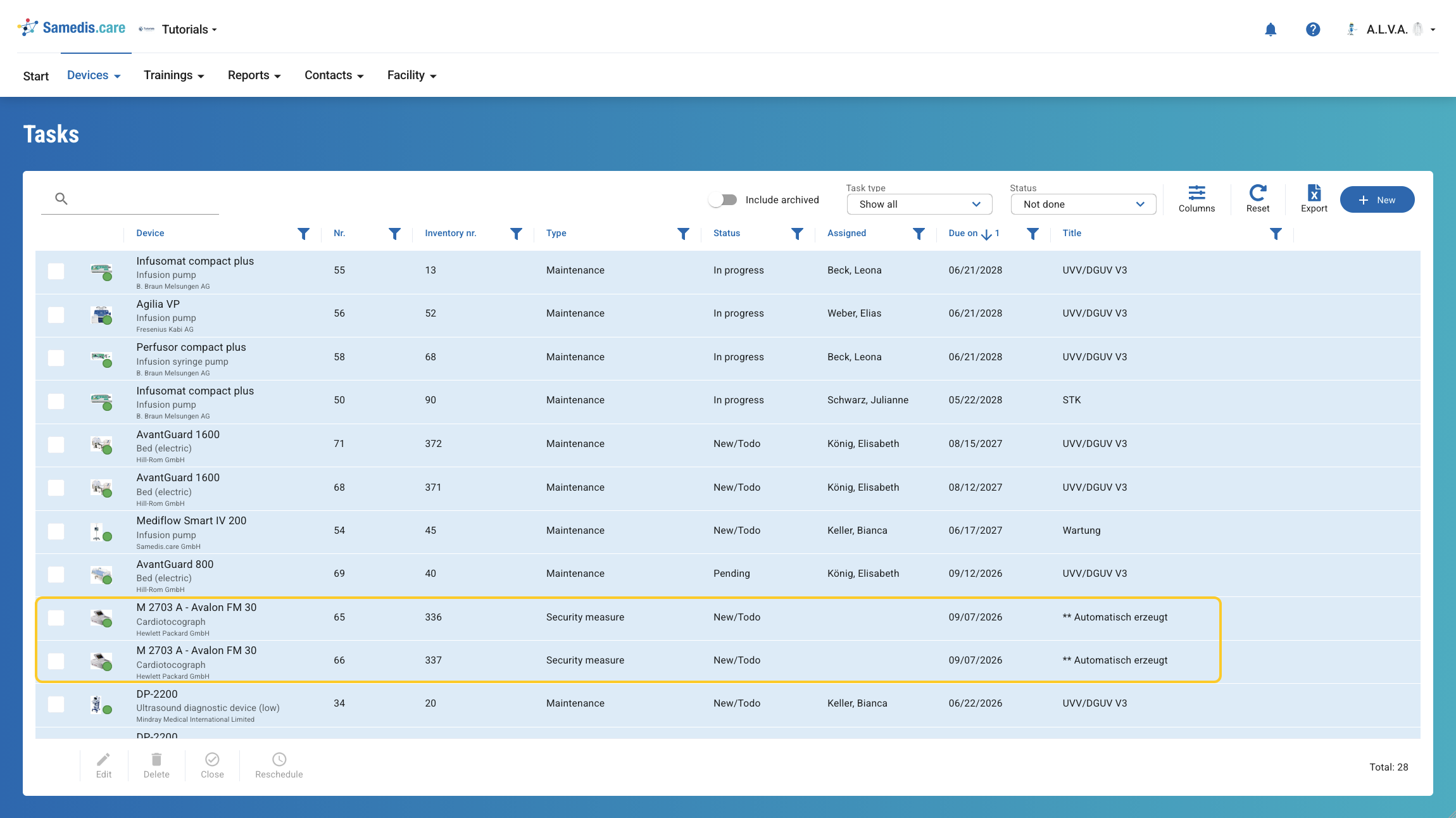
3.1. Security message details
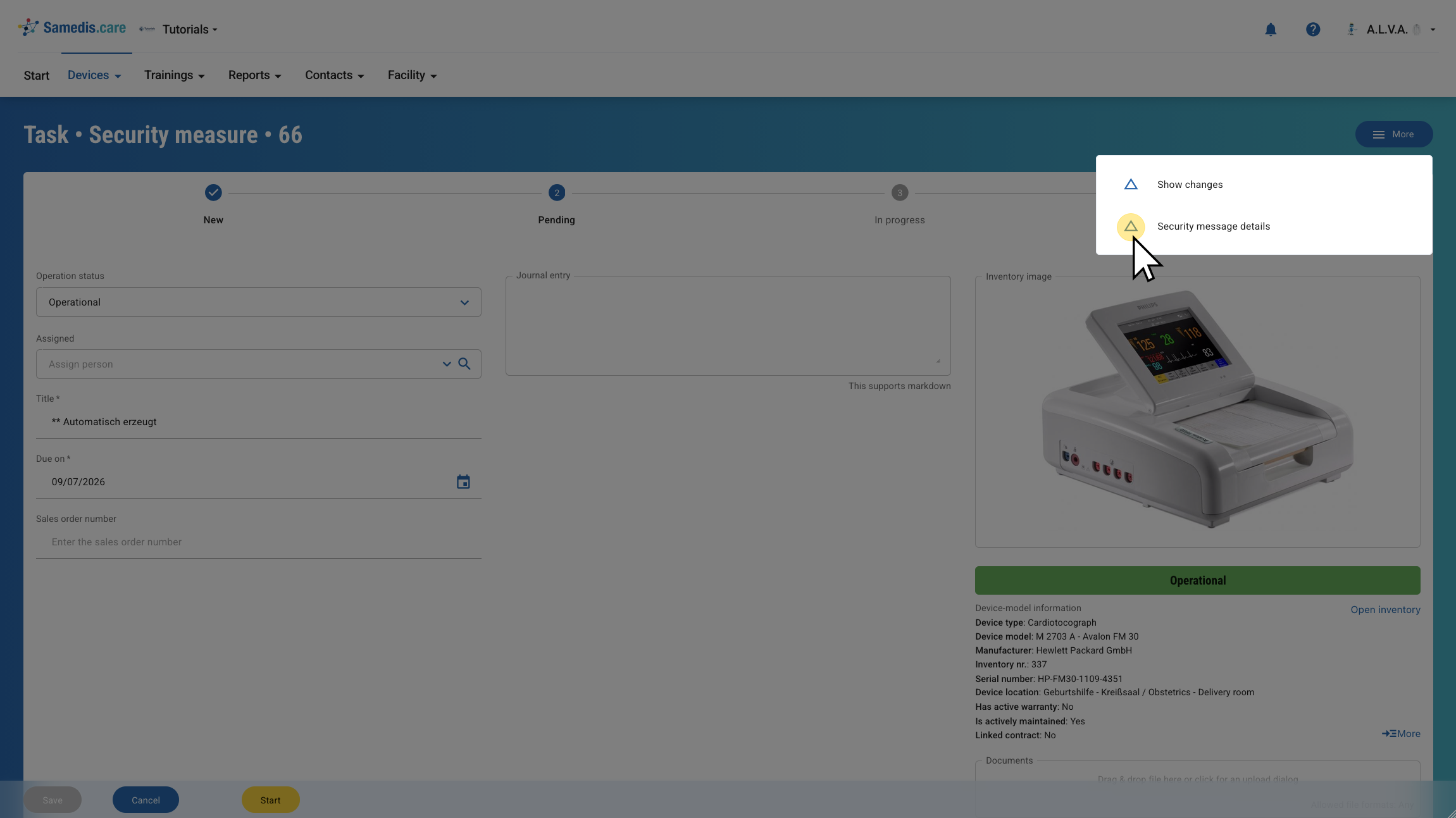
To view more information about the safety notice, open the task and click Security message details under More.