Print QR code
In this tutorial, we’ll take a look at how to create and print QR codes for your devices in Samedis.care.
1. Printer & Settings
You can print Samedis.care QR codes with a label printer of your choice. The default output format is 24 mm.
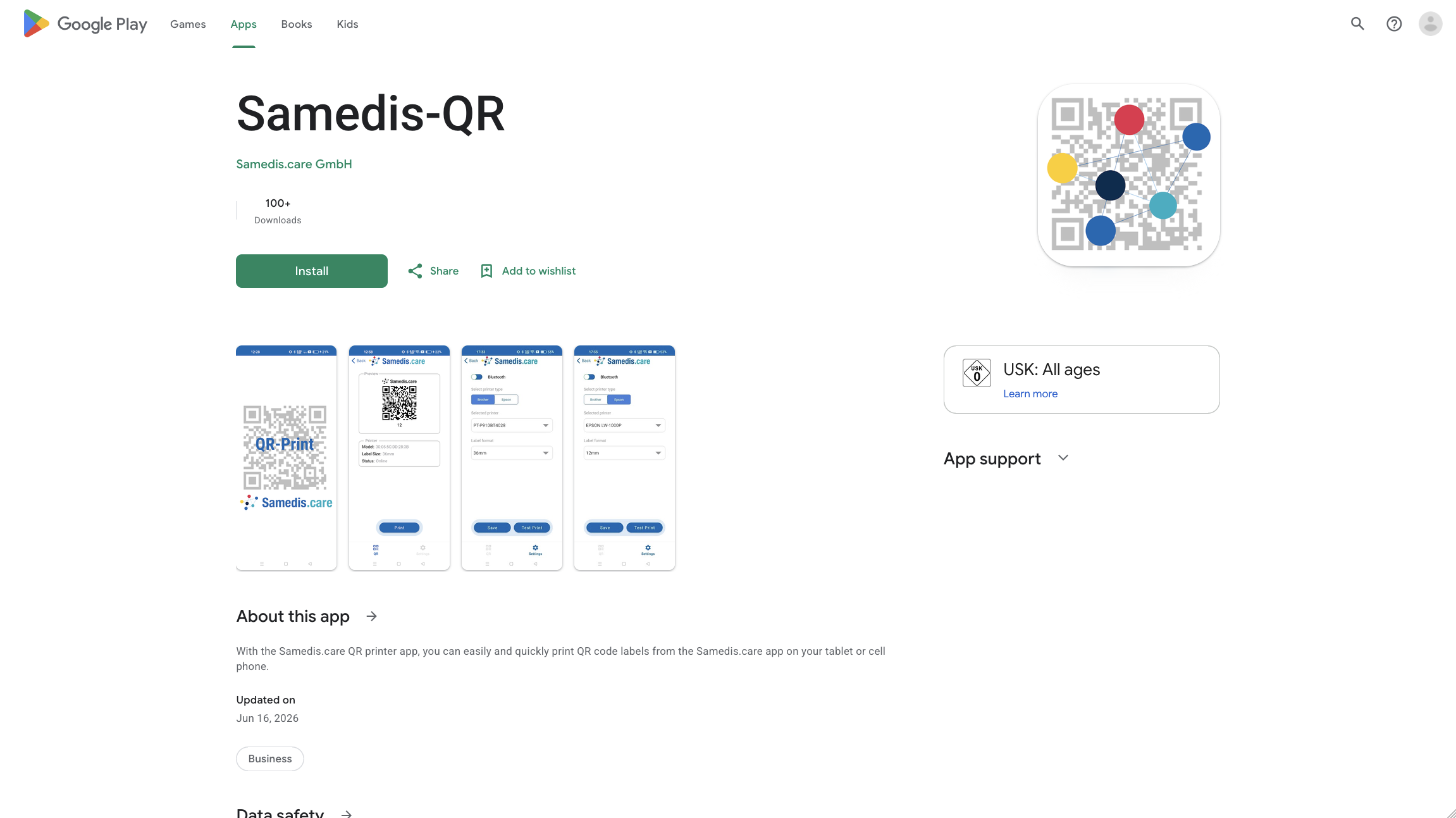
Before using the printer for the first time, connect it to your device and install the appropriate printer driver. Alternatively, you can use our Samedis-QR app for Android or iOS devices.
Tip
Our current printer recommendations include the following models:
Brother: P-touch CUBE Pro PT-P910BT, including the compatible TZe 651 tapes, PT-E720BT (up to 24 mm), and PT-E920BT (up to 36 mm). For tapes up to 12 mm, the PT-P910BT and PT-E920BT are recommended due to their higher resolution.
2. Generate QR code
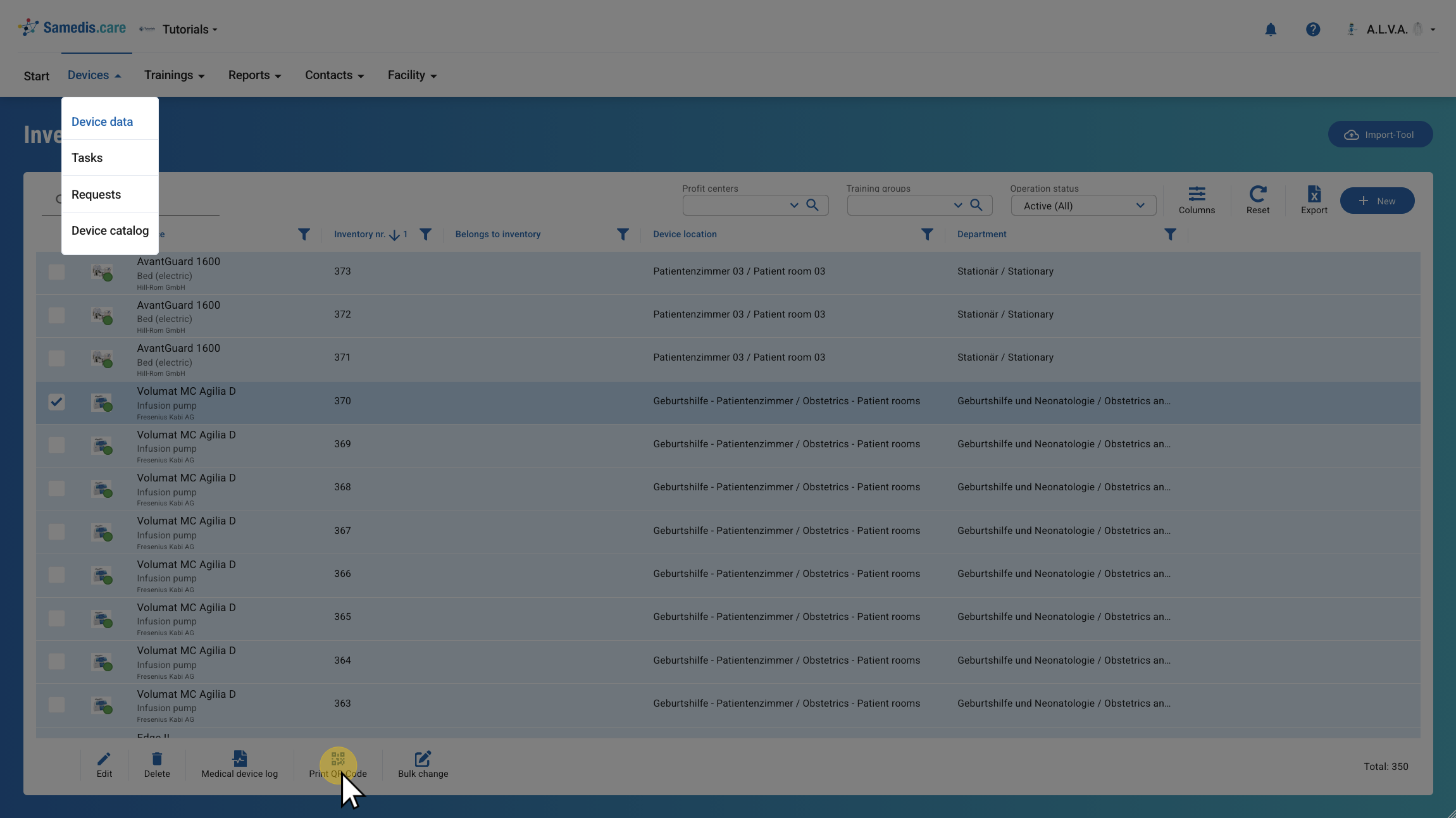
There are two ways to generate a QR code. One option is to select your device and then click Print QR Code.
Tip
You can also select multiple devices at once and print all the corresponding QR codes together.
2.1. Device details
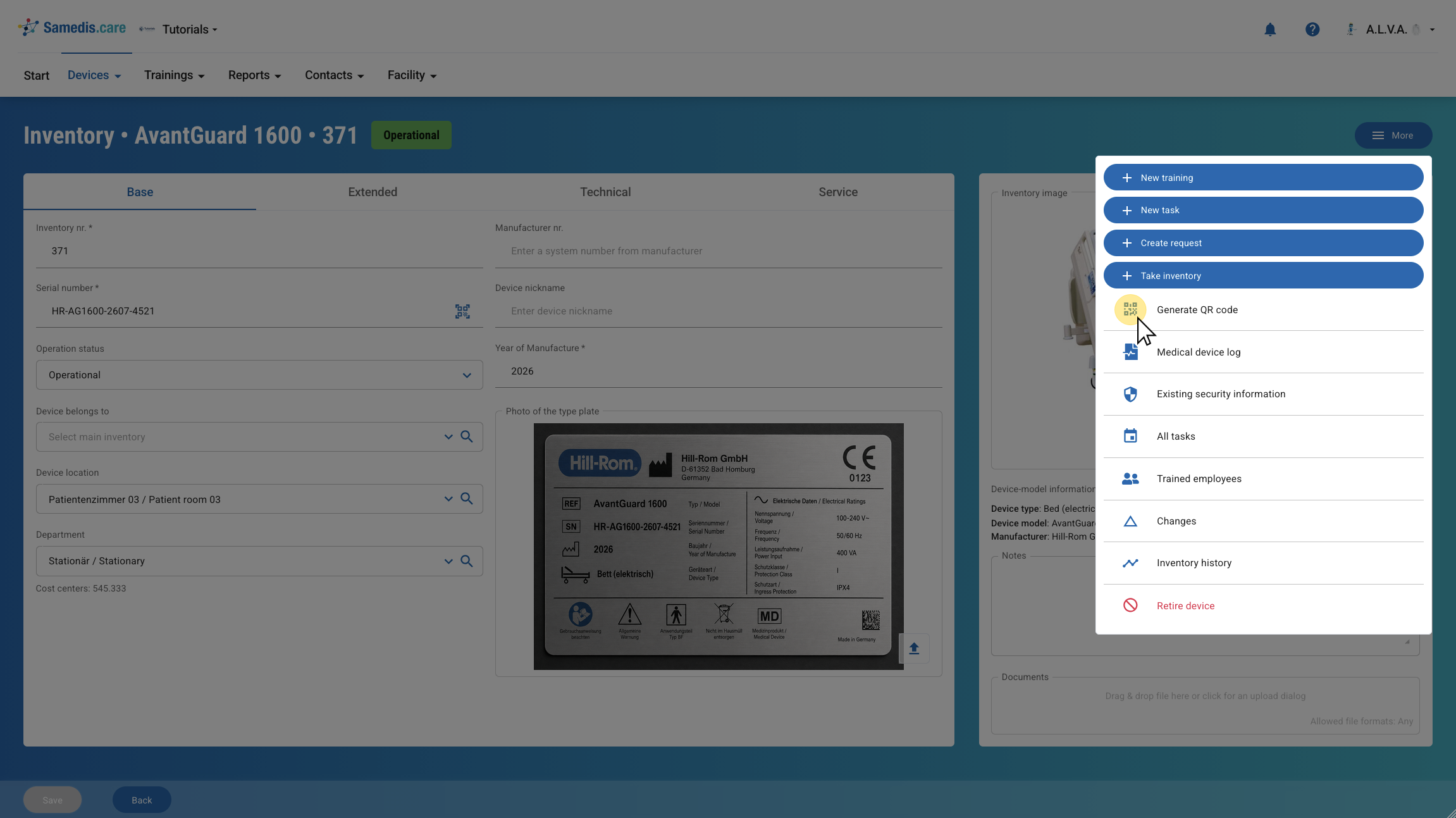
Another option is to print the QR code by opening the details of the device and selecting Generate QR code under More.
3. Print QR code
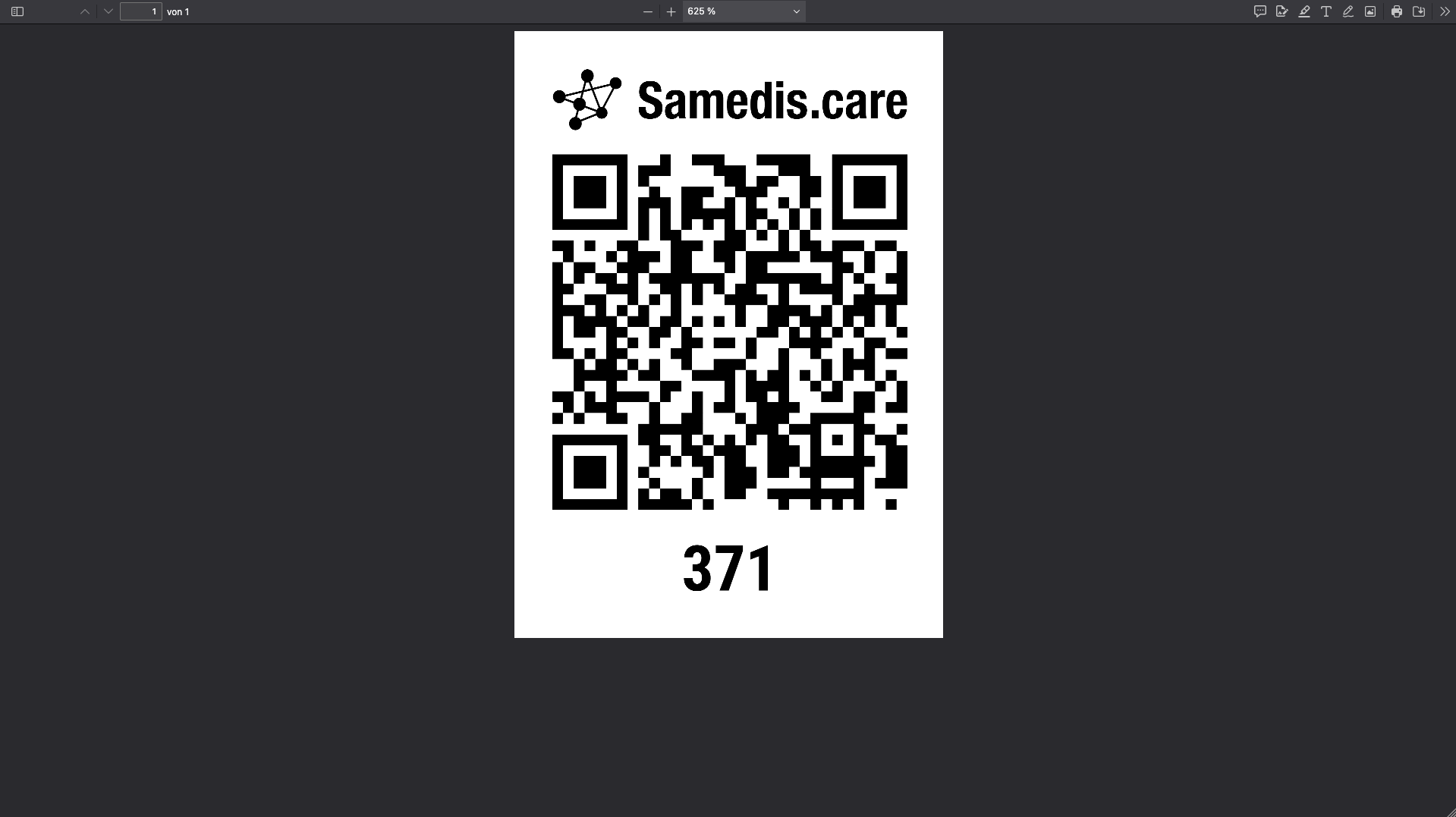
If you’re not using the Samedis-QR app, the QR code will now be displayed as a PDF file, which you can print using any printer of your choice.
4. Samedis-QR App
If you use Samedis.care on a tablet or smartphone, you can print QR codes directly from your mobile device using the Samedis-QR app and a supported label printer.
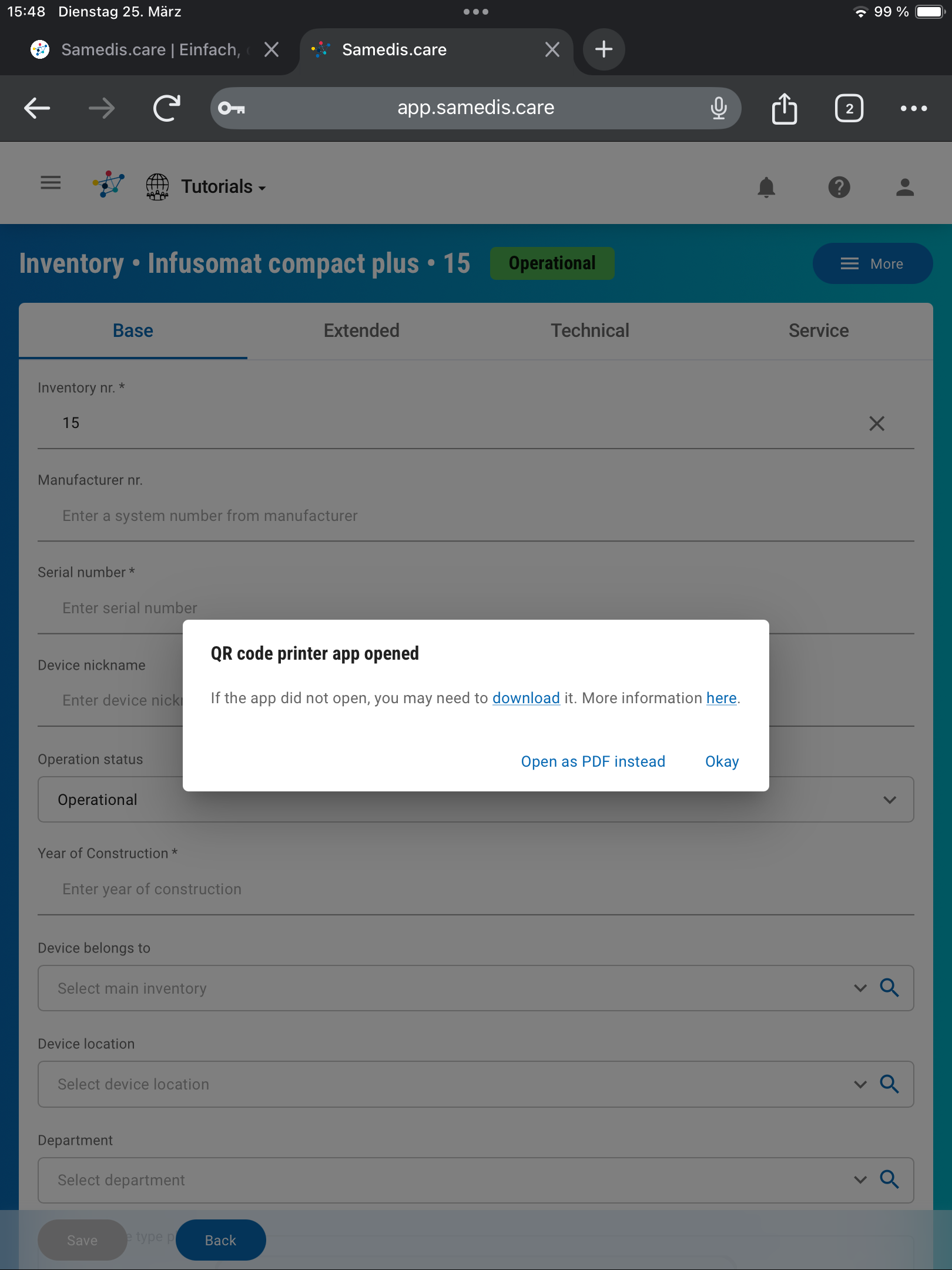
After clicking Print QR code, you’ll either be redirected directly to the Samedis-QR app or, depending on your device, prompted to open the QR code with the Samedis-QR app. In this case, click OK to confirm.
Tip
Please note that you need to download the Samedis-QR app before you can use it.
5. Print
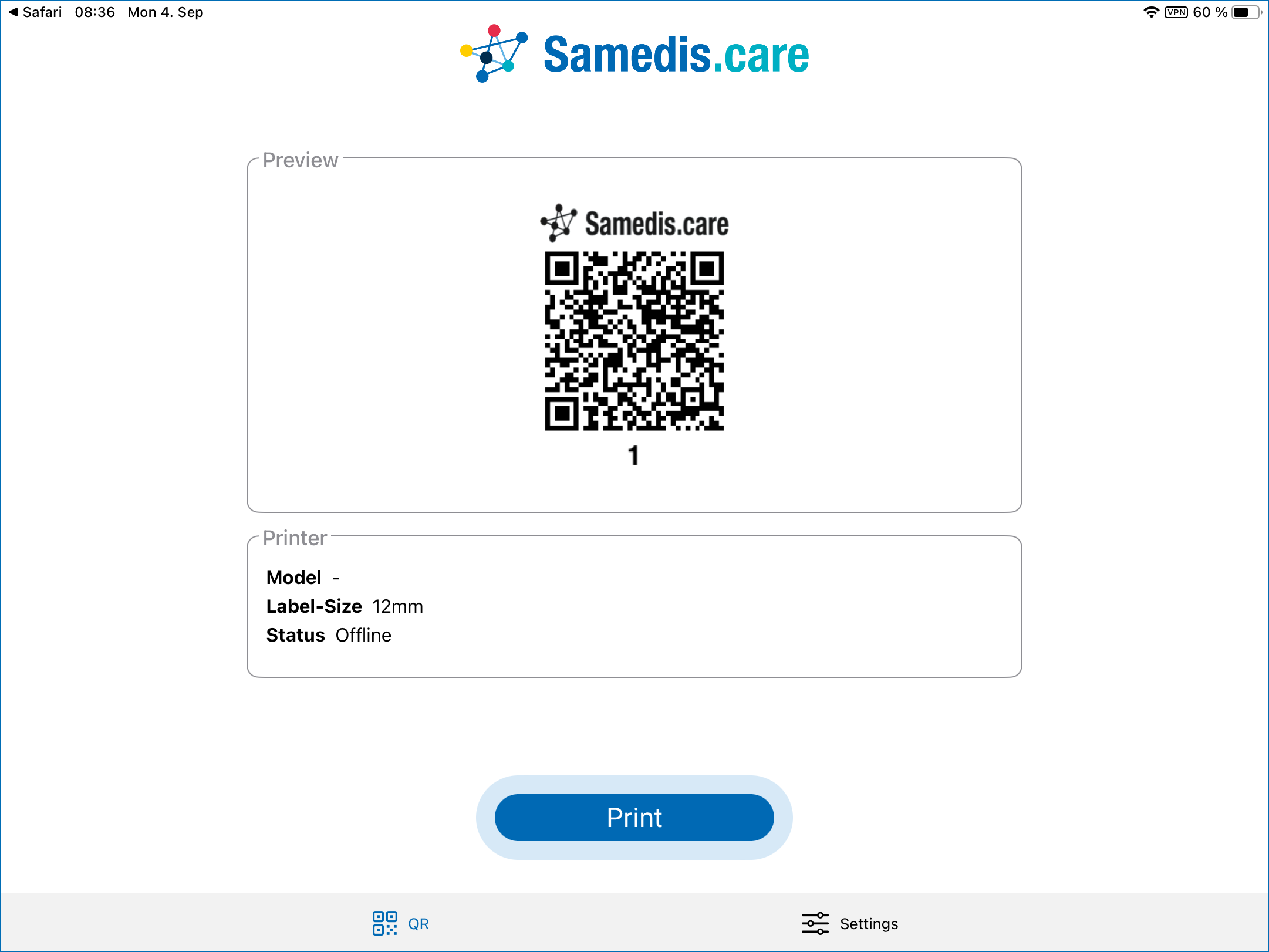
In the Samedis-QR app, the QR code will be displayed in the preview. Click Print to create the label.
Tip
Before you can print a QR code, you need to pair the label printer with your mobile device via Bluetooth and then select it in the printer settings of the Samedis-QR app. There, you can also specify the label size you are using.