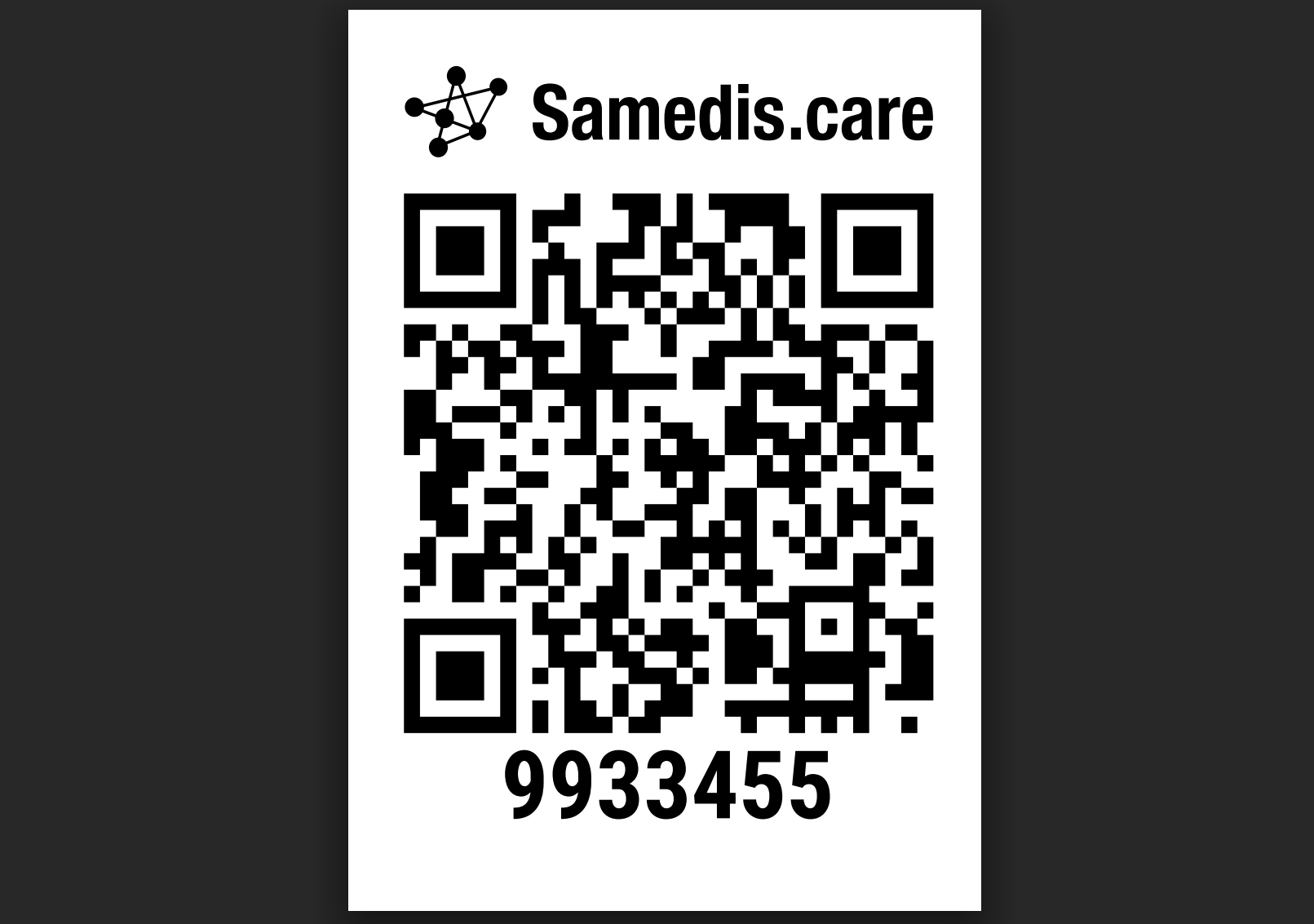
Print QR code
Use the Samedis.care QR codes to uniquely identify your devices with just one scan.
1. Printer & Settings
You can print Samedis.care QR codes with a label printer of your choice.
The default output format is 24 mm.
Connect the printer to your PC before the initial use and install the corresponding printer driver.
Alternatively, you can use our Samedis-QR app for Android or iOS devices.
Tip
Our current printer recommendation is the Brother P-touch CUBE Pro (PT-P910BT) incl. the corresponding tapes TZe 651, along the Epson LabelWorks LW-Z710 and LabelWorks LW-600P.
2. Generate QR code
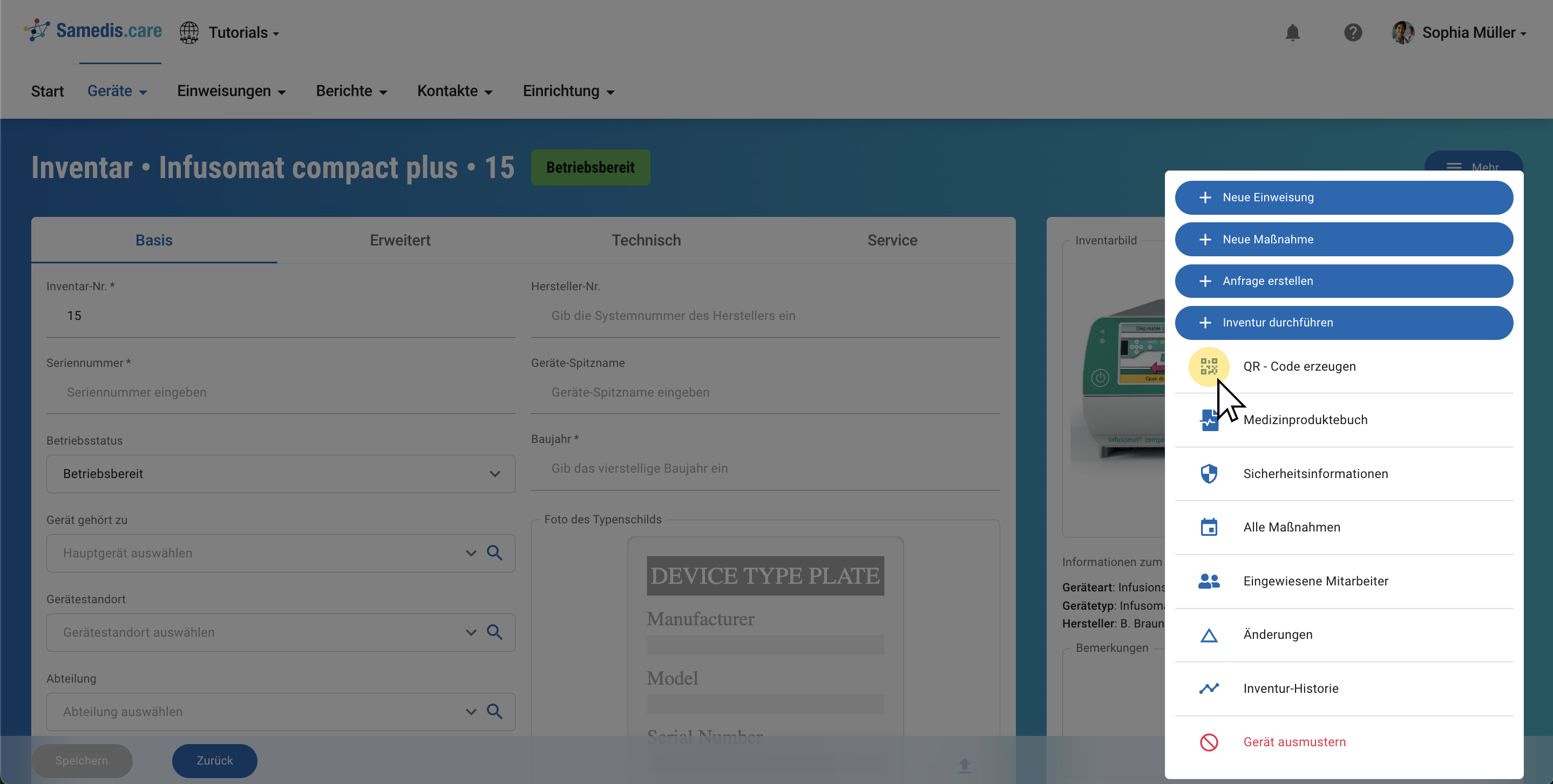
Open the selected device and click on Generate QR code under More.
The QR code will then be displayed as a PDF file and can be printed using the print function.
3. Serial printing
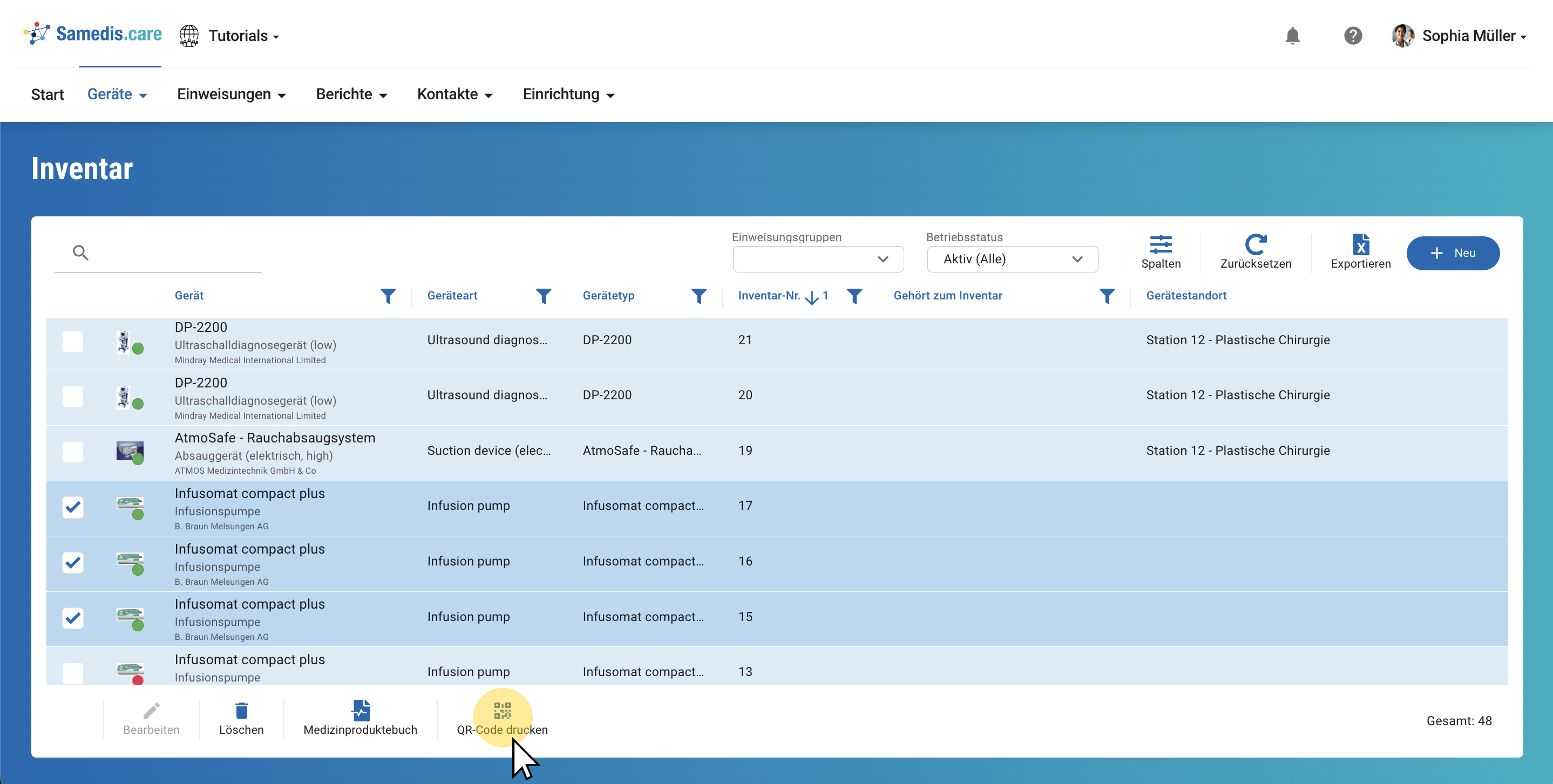
Alternatively, you can also print multiple QR codes at once.
Simply select the desired devices and click on Print QR code.
4. Mobile printing
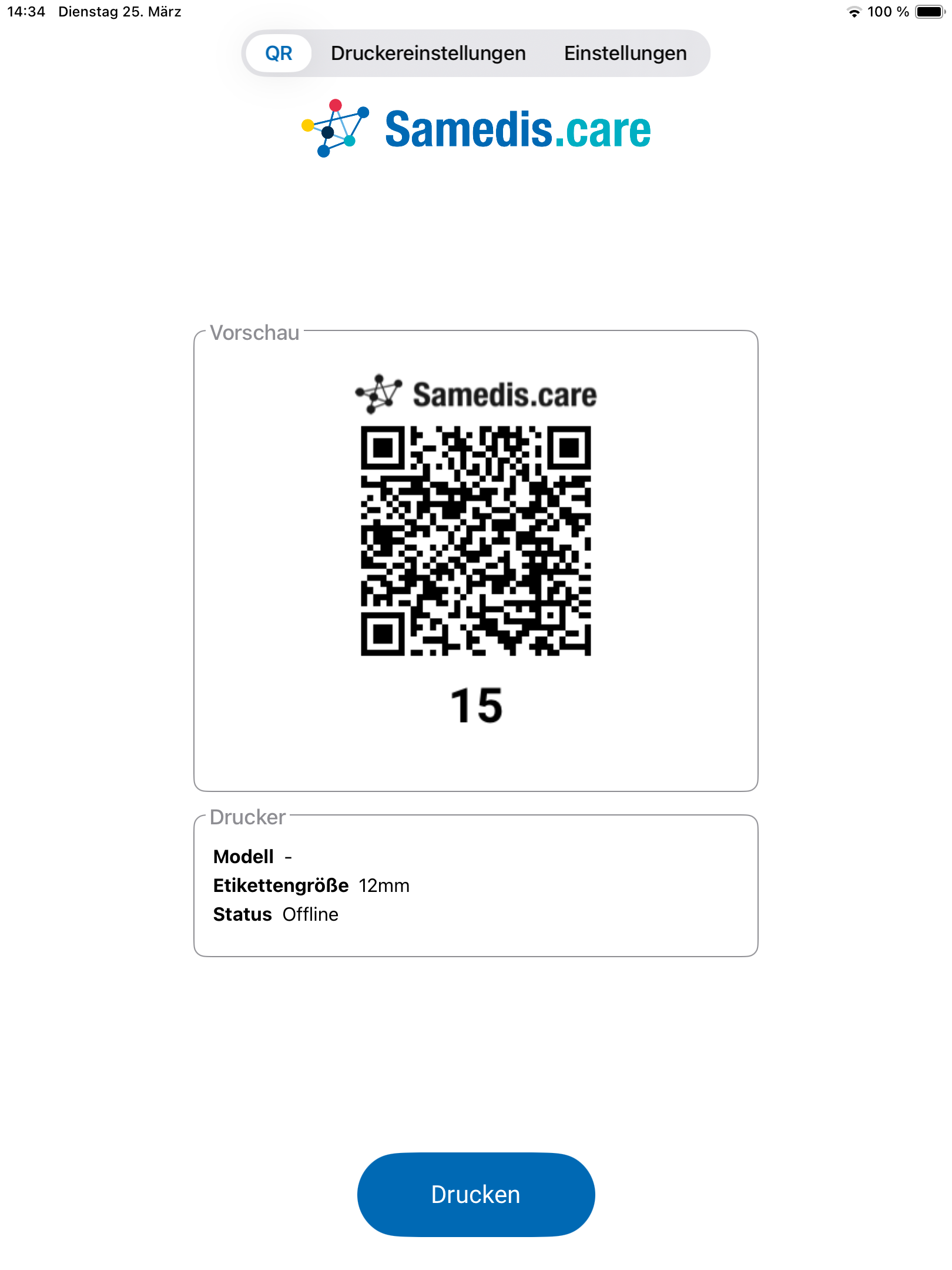
If you are using Samedis.care on a tablet or smartphone, you can print the QR codes directly from your mobile device using the Samedis-QR app and a supported label printer.
Click on Print QR code as usual below More.
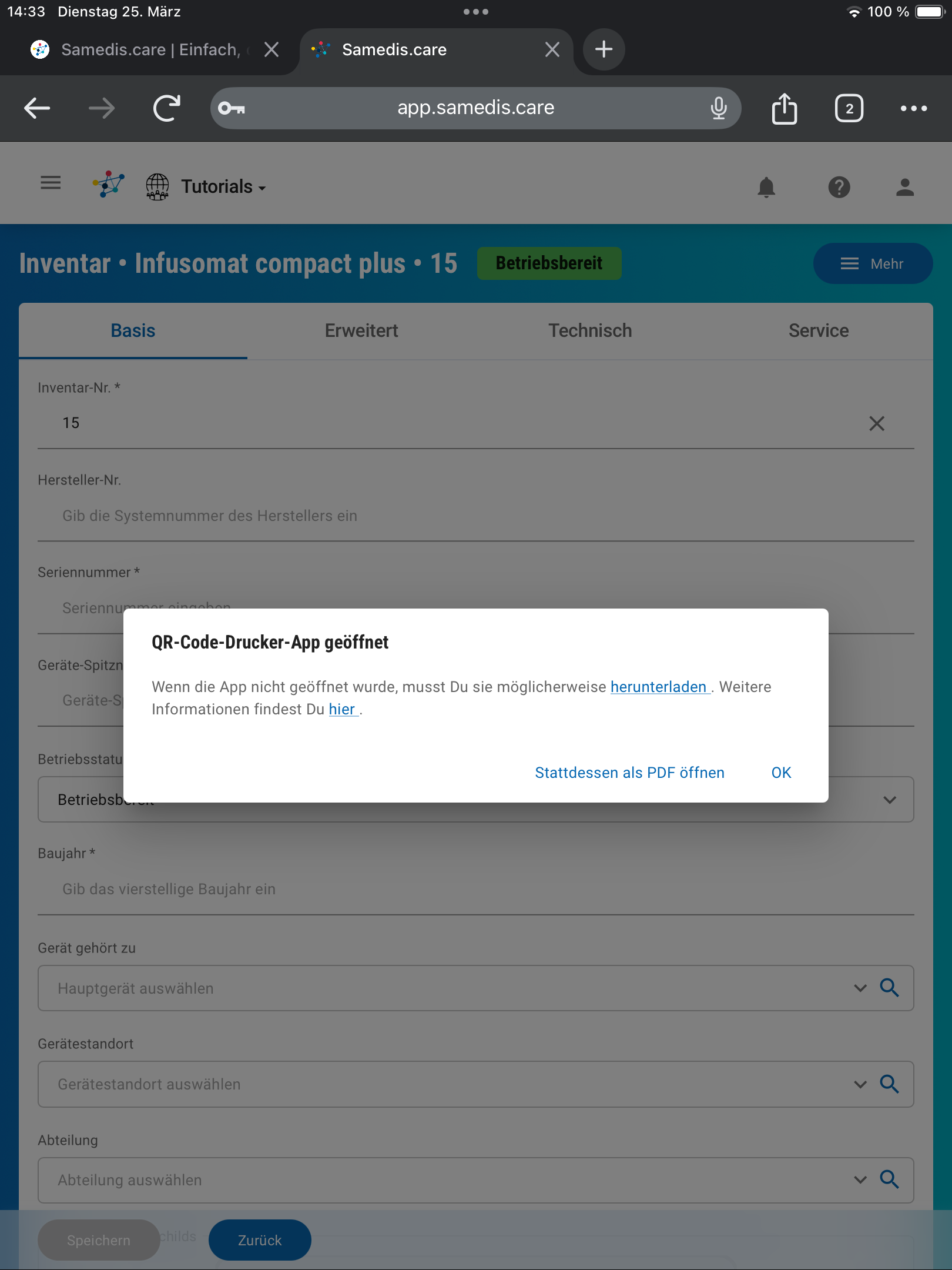
Subsequently, Samedis.care will ask if you want to open the QR code with the Samedis-QR app.
Confirm the displayed dialog with OK to open the Samedis-QR app.
Tip
You haven’t installed the Samedis-QR app yet? Just click on Download and install the Samedis-QR app on your Android or iOS device.
5. Samedis-QR app.
In the Samedis-QR app, the QR code is displayed as a preview.
Click on Printto directly output the QR code on your label printer.
Note
Before you can print a QR code, you need to pair the label printer with your mobile device via Bluetooth and then select it in the printer settings of the Samedis-QR app. Additionally, you must also set the label format used there.