Add new device
In this tutorial, we’ll take a look at how to add a new device in Samedis.care.
1. New
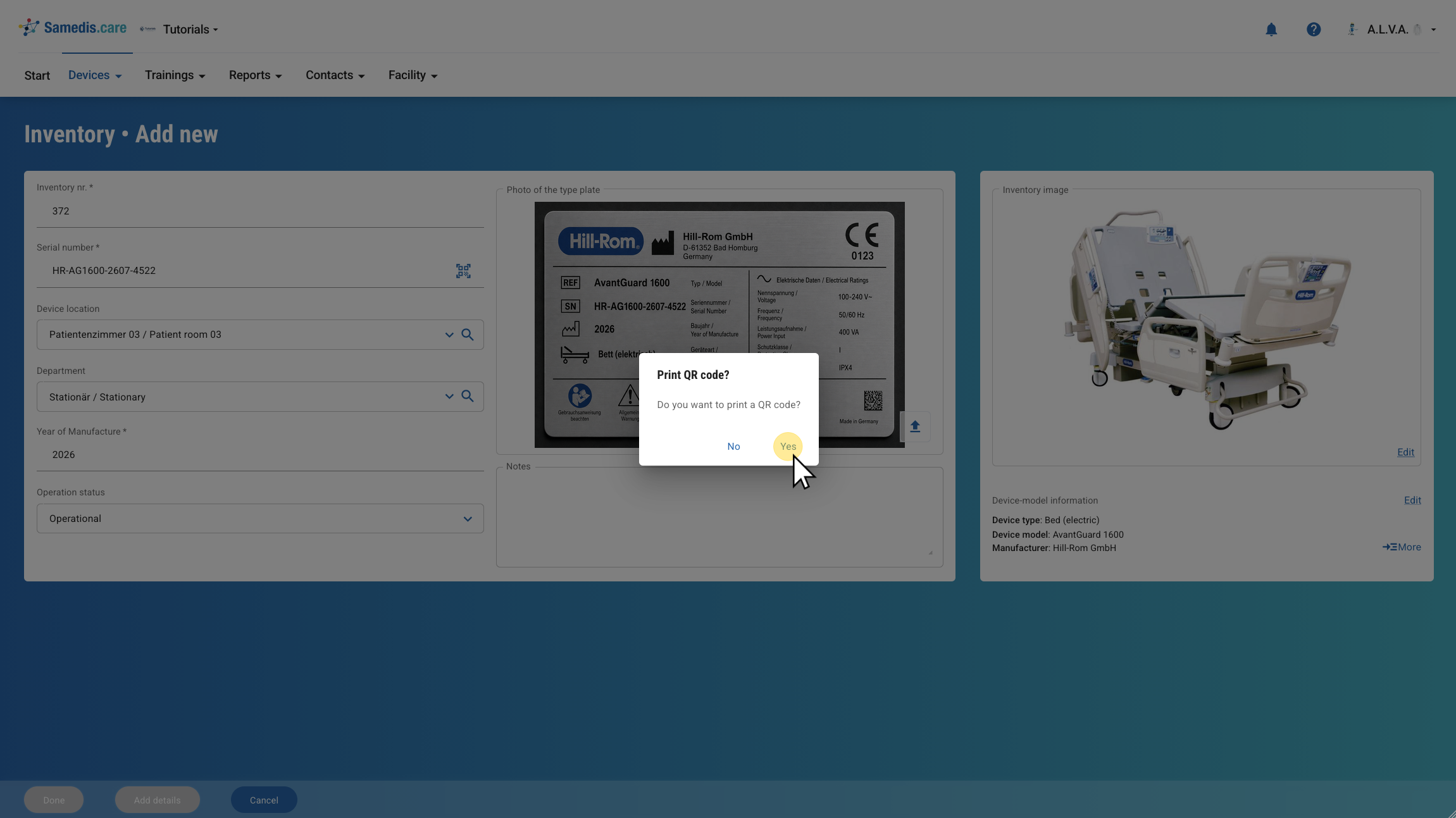
Click + New to add a new device.
2. Select device model
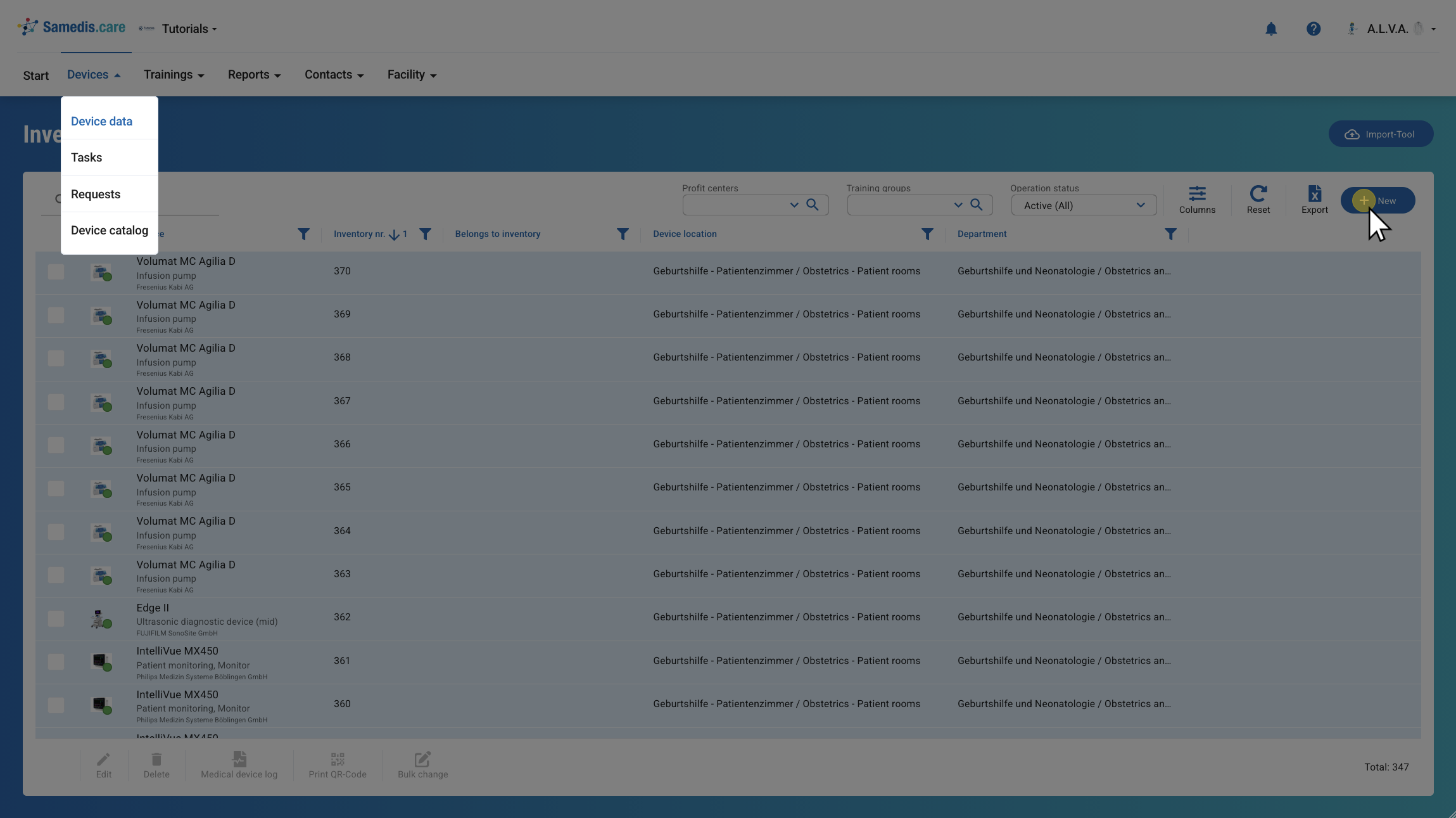
First, select the appropriate device model.
You can open the global device catalog by clicking the 🔍 icon and select the desired device model. If the device’s type plate has a Data Matrix code, you can also scan it by clicking Click to open camera. If you have used the device model recently, you can also find it by clicking the downward arrow in the selection menu.
If the appropriate device model is not available in the catalog, you can click Continue without device model and add the device model later.
Then click Next.
3. Enter basic information
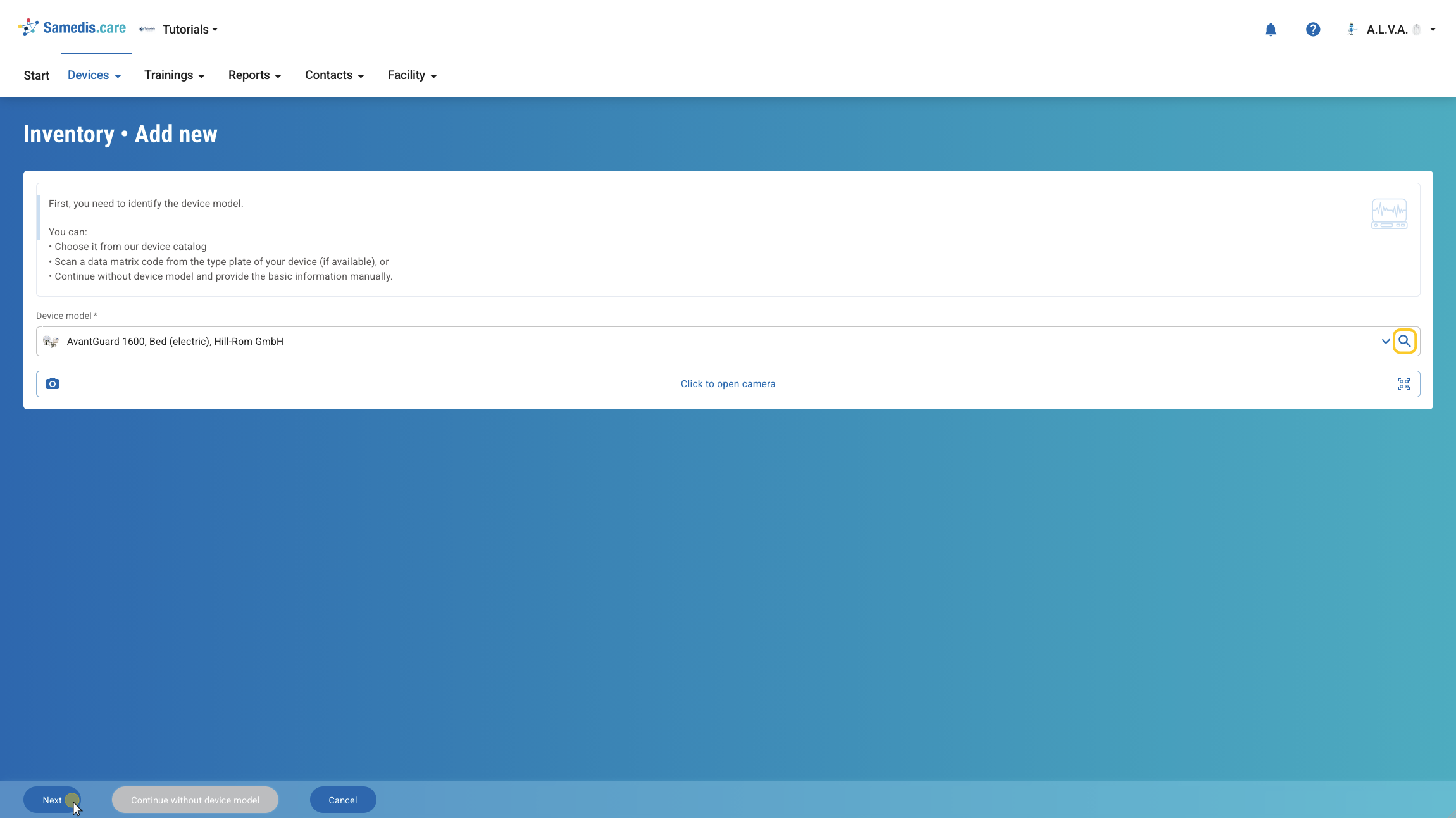
Now enter the basic information of your device by filling in the provided fields.
Then click Done.
Tip
If you want to add more information about your device, click Add details.
4. Print QR code
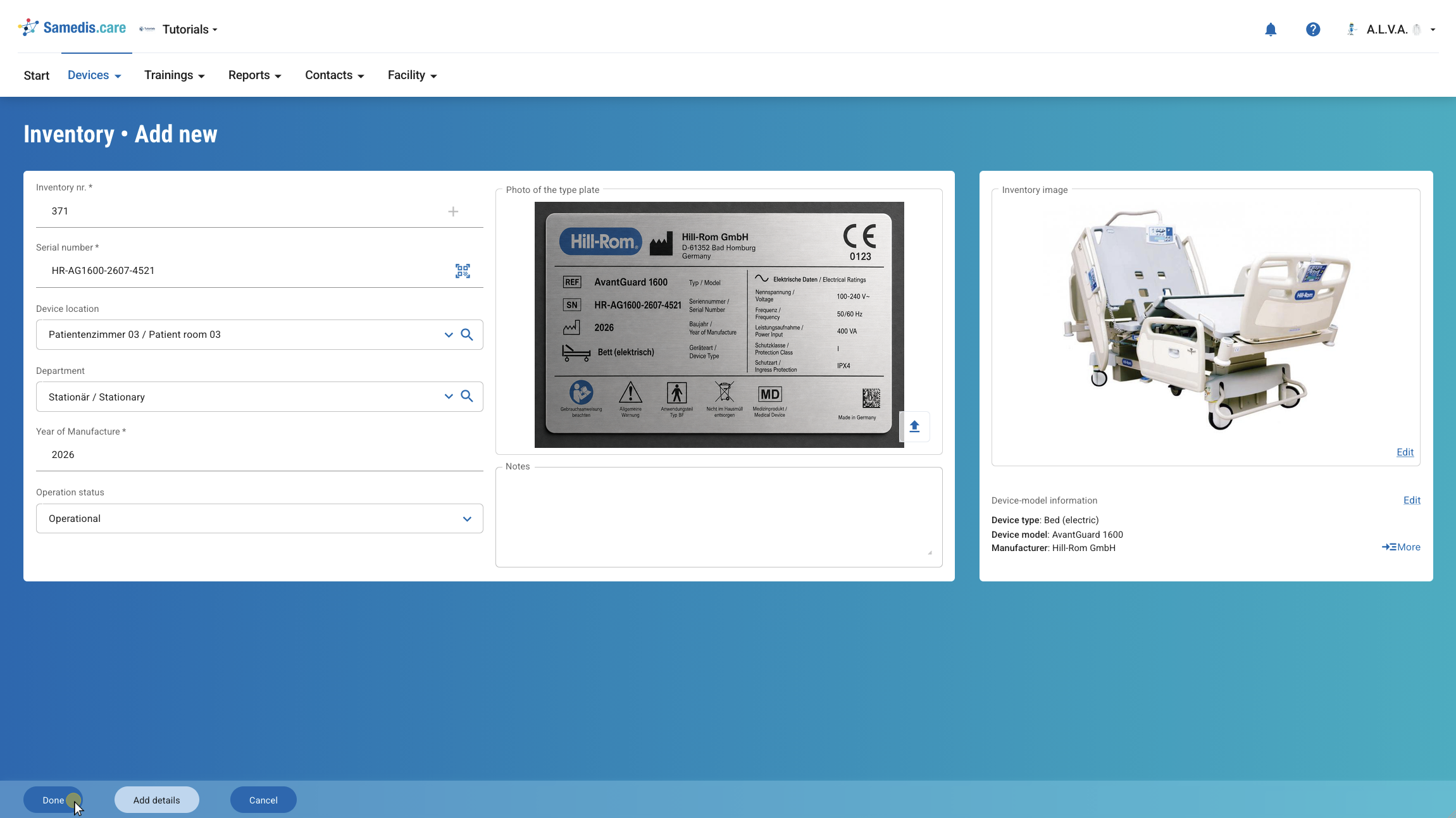
After saving, you’ll be asked if you want to print the QR code for your device.
Click Yes to print the QR code. Click No to return to the device overview.
Tip
You can print the QR code again at any time. For more information on printing QR codes, see the tutorial Print QR Code.