Reset
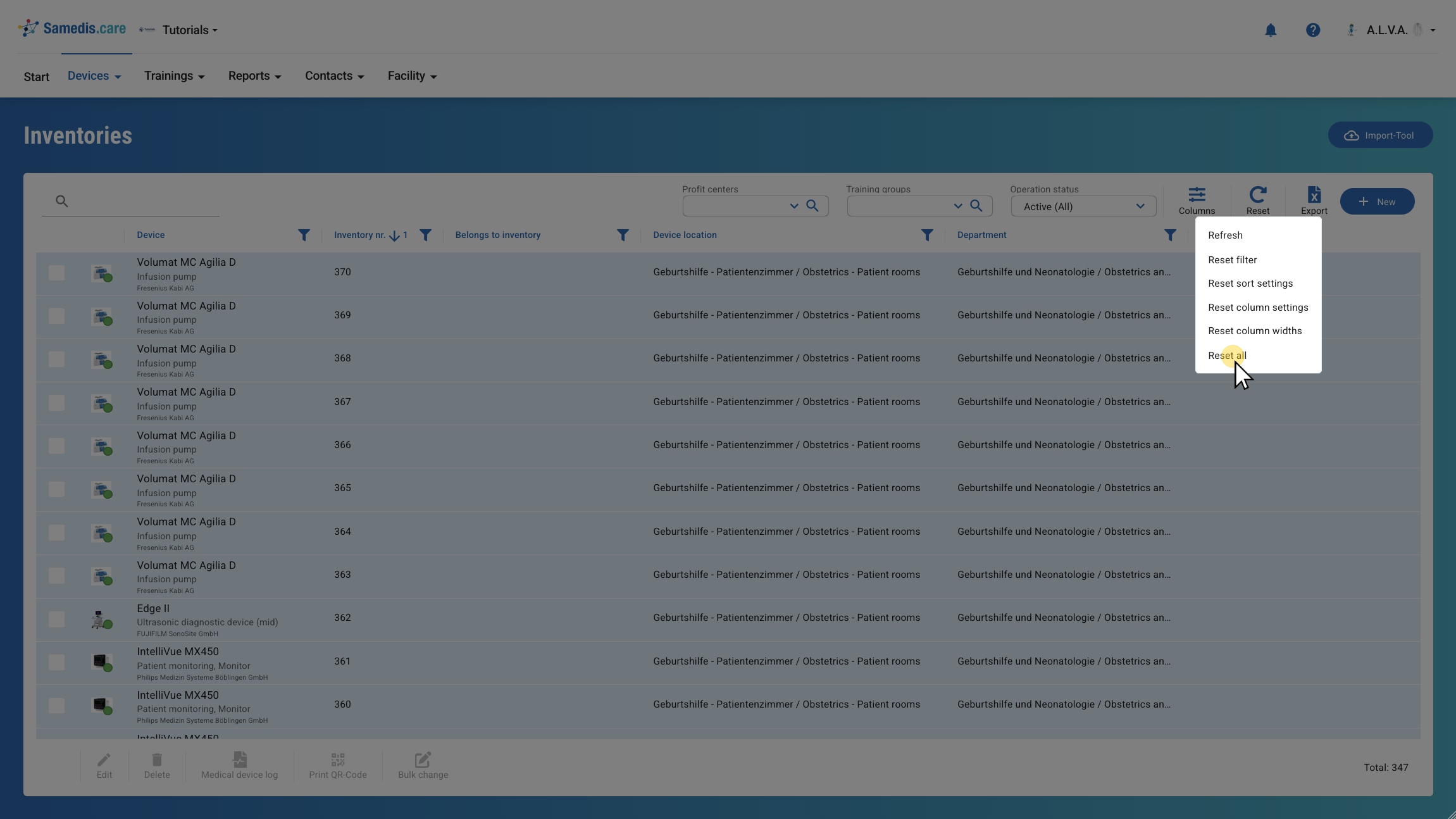
In this tutorial, we’ll look at how to reset filters, sorting, and search terms in Samedis.care.
1. Reset
First, click Reset. You will then see several options for resetting your view, either completely or partially, to its default state.
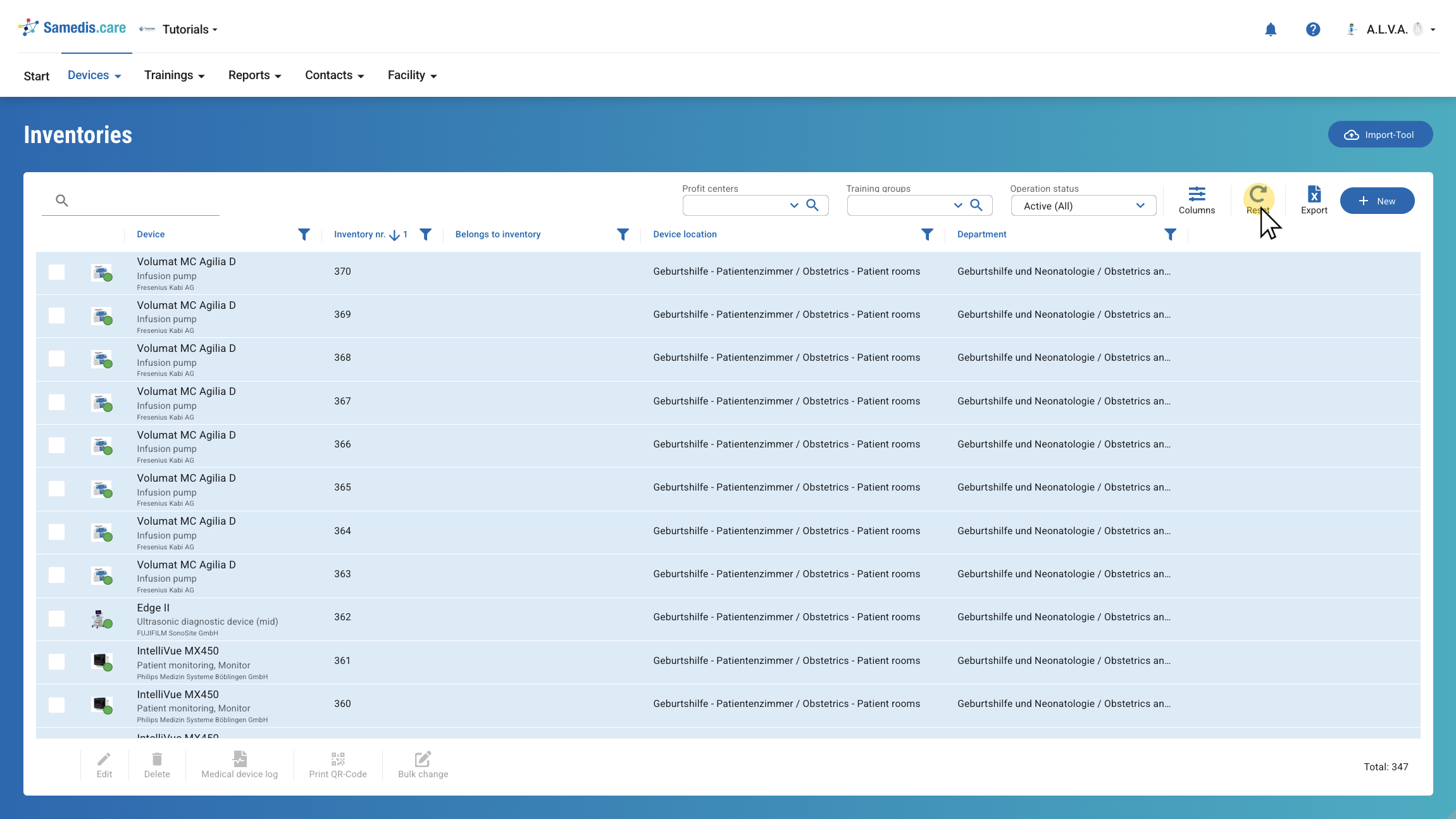
2. Refresh
With the Refresh option you can reload your view to ensure it’s up to date.
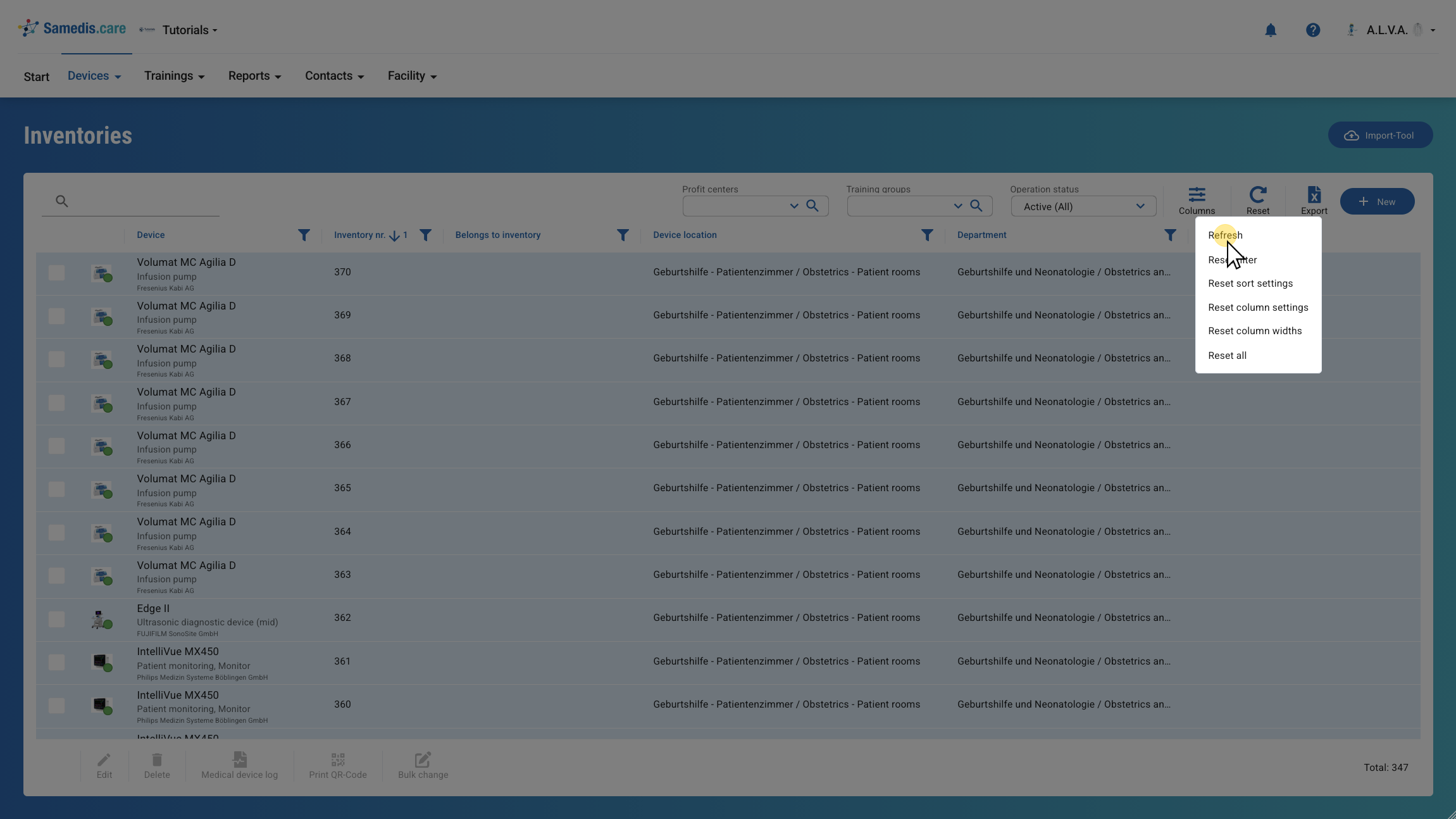
3. Reset filter
By using the Reset filter function you can undo all previously applied filter settings.
Tip
If a specific record is not displayed, it may be hidden by an active filter. Click Reset filter to display all records again.
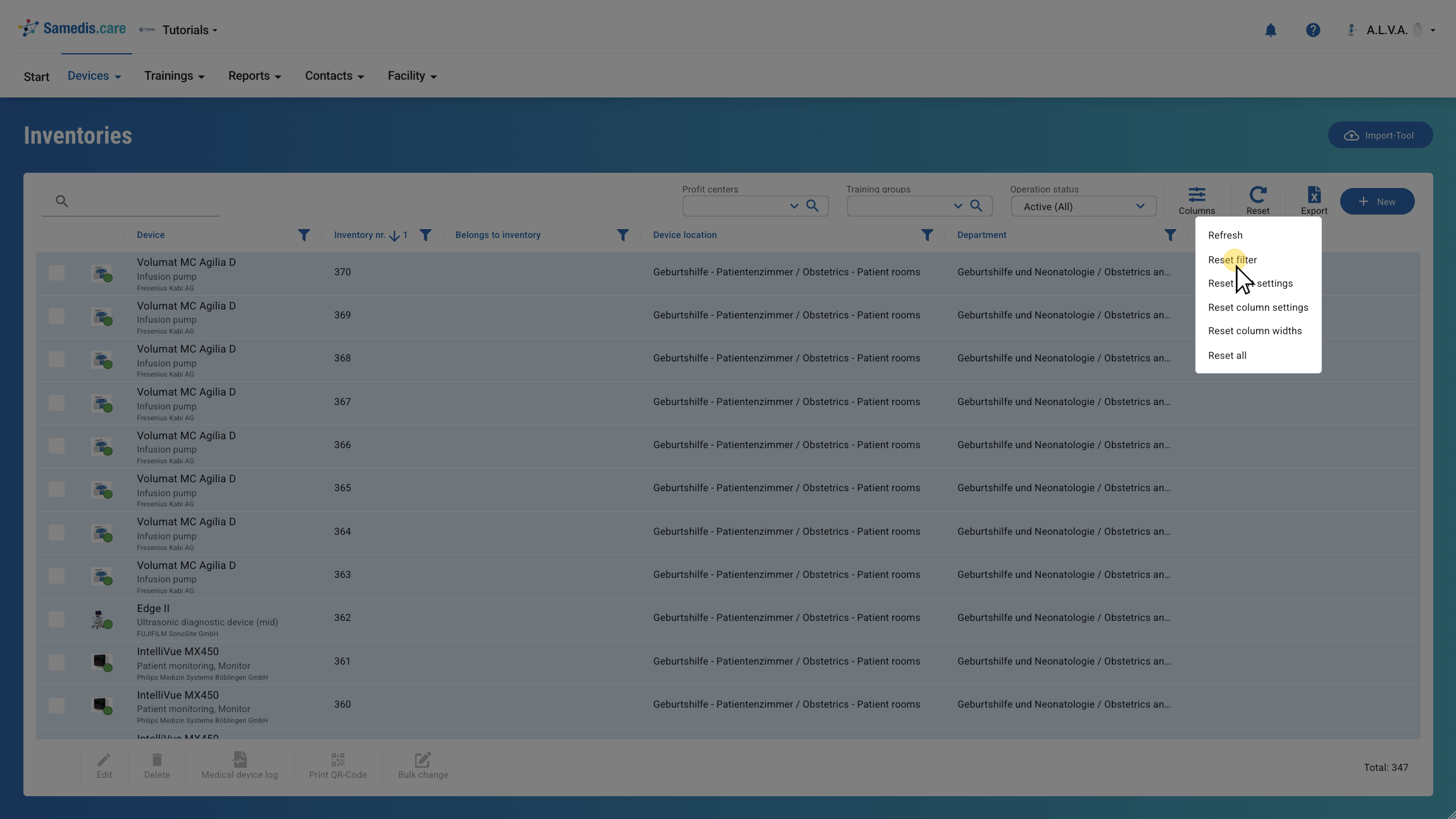
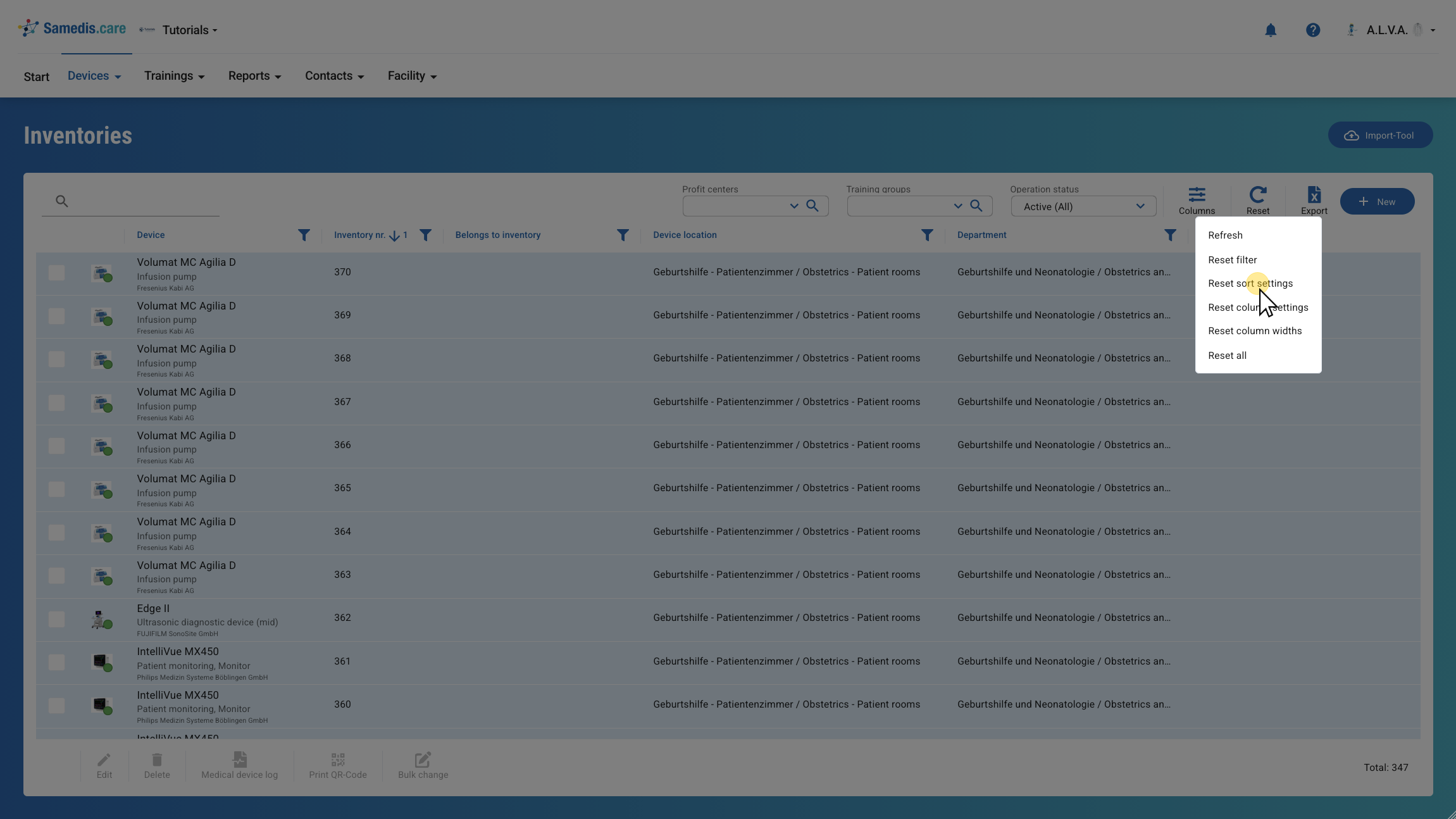
4. Reset sort settings
The Reset sort settings option allows you to reset all previous changes to the sorting to their default values.
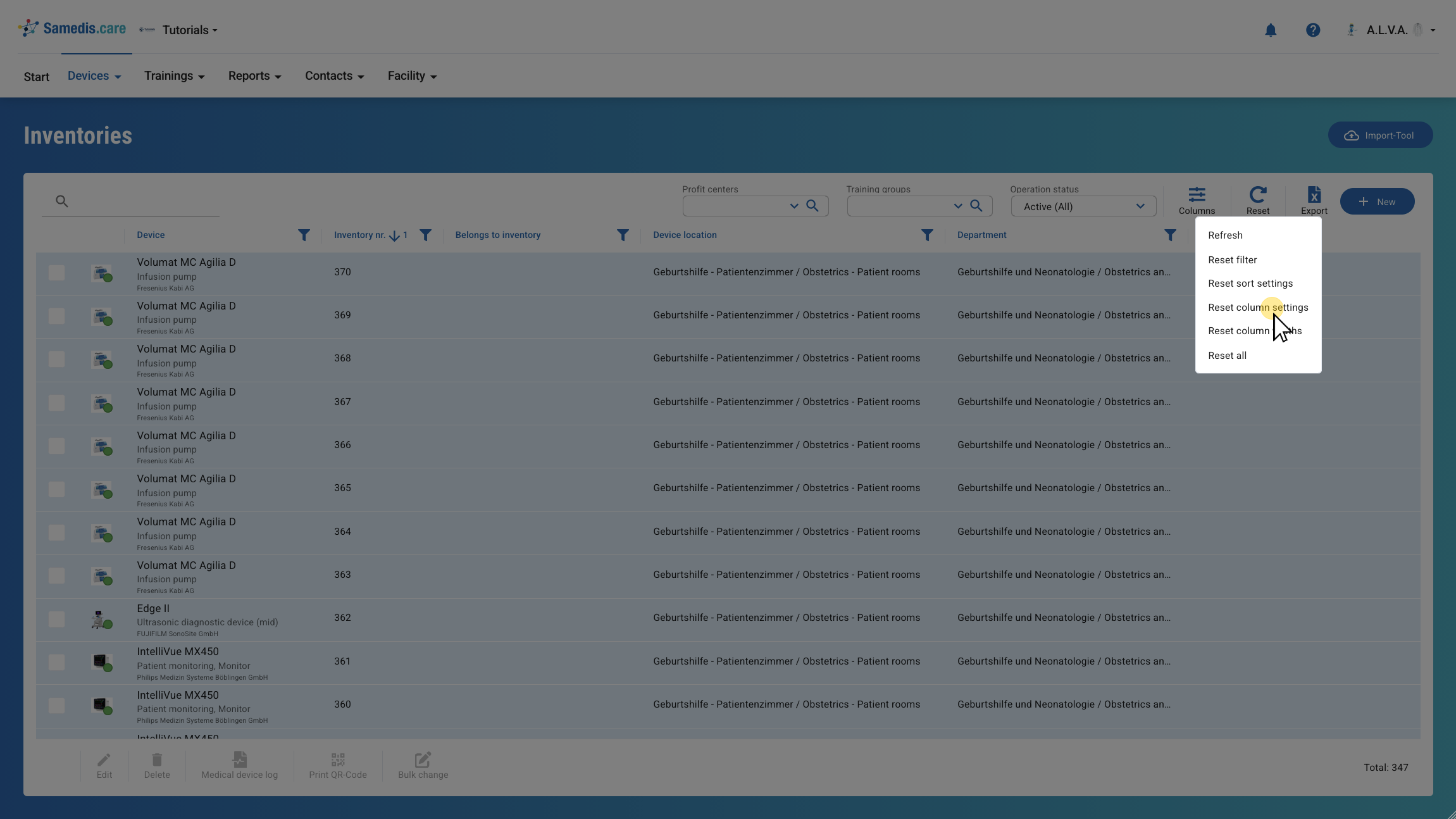
5. Reset column settings
This function allows you to undo all changes made to your columns.
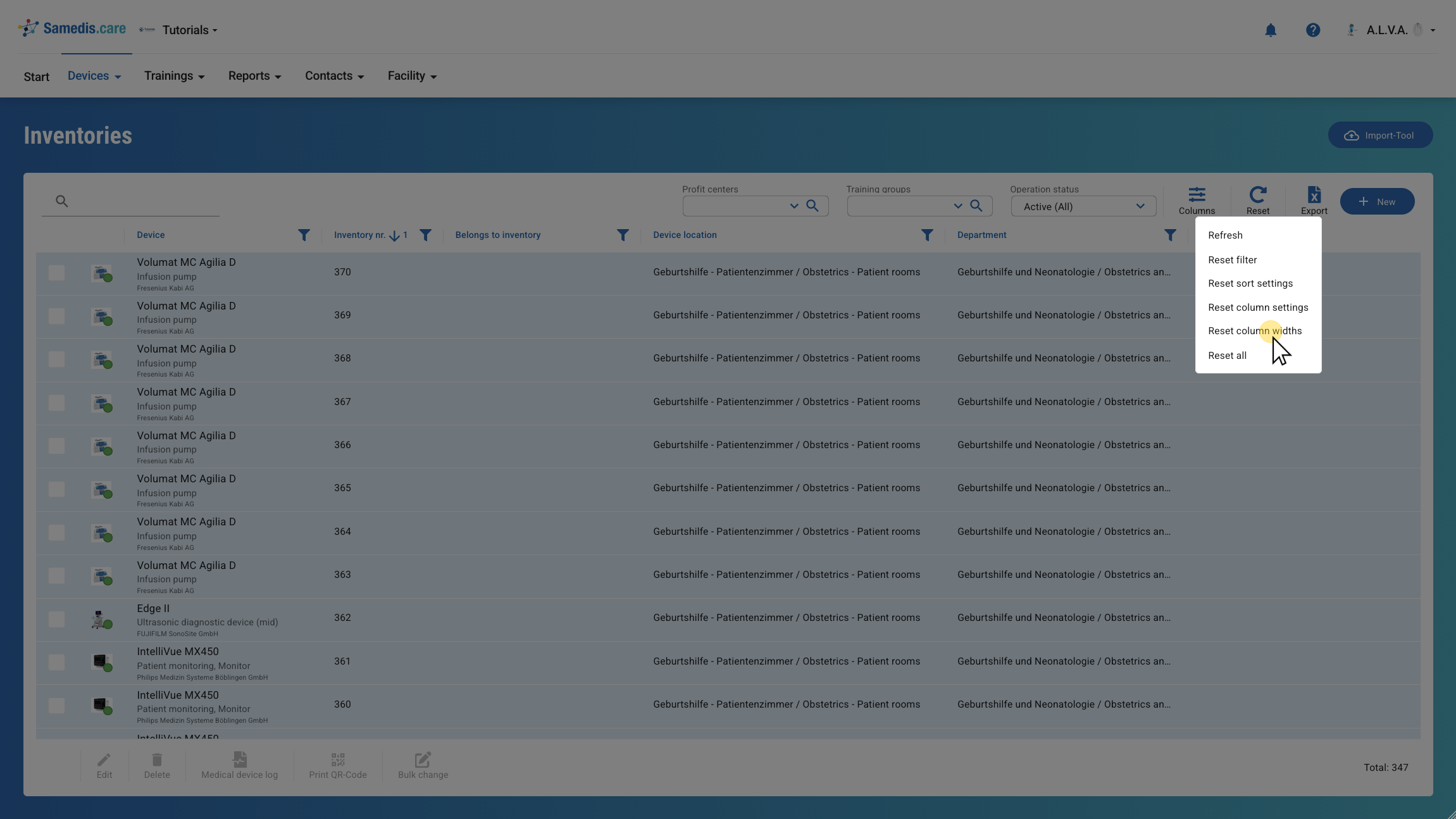
6. Reset column widths
With this setting you can reset the width of your columns to their original size.
7. Reset all
By selecting the Reset all option you can undo all adjustments made to the appearance and sorting.