Search function
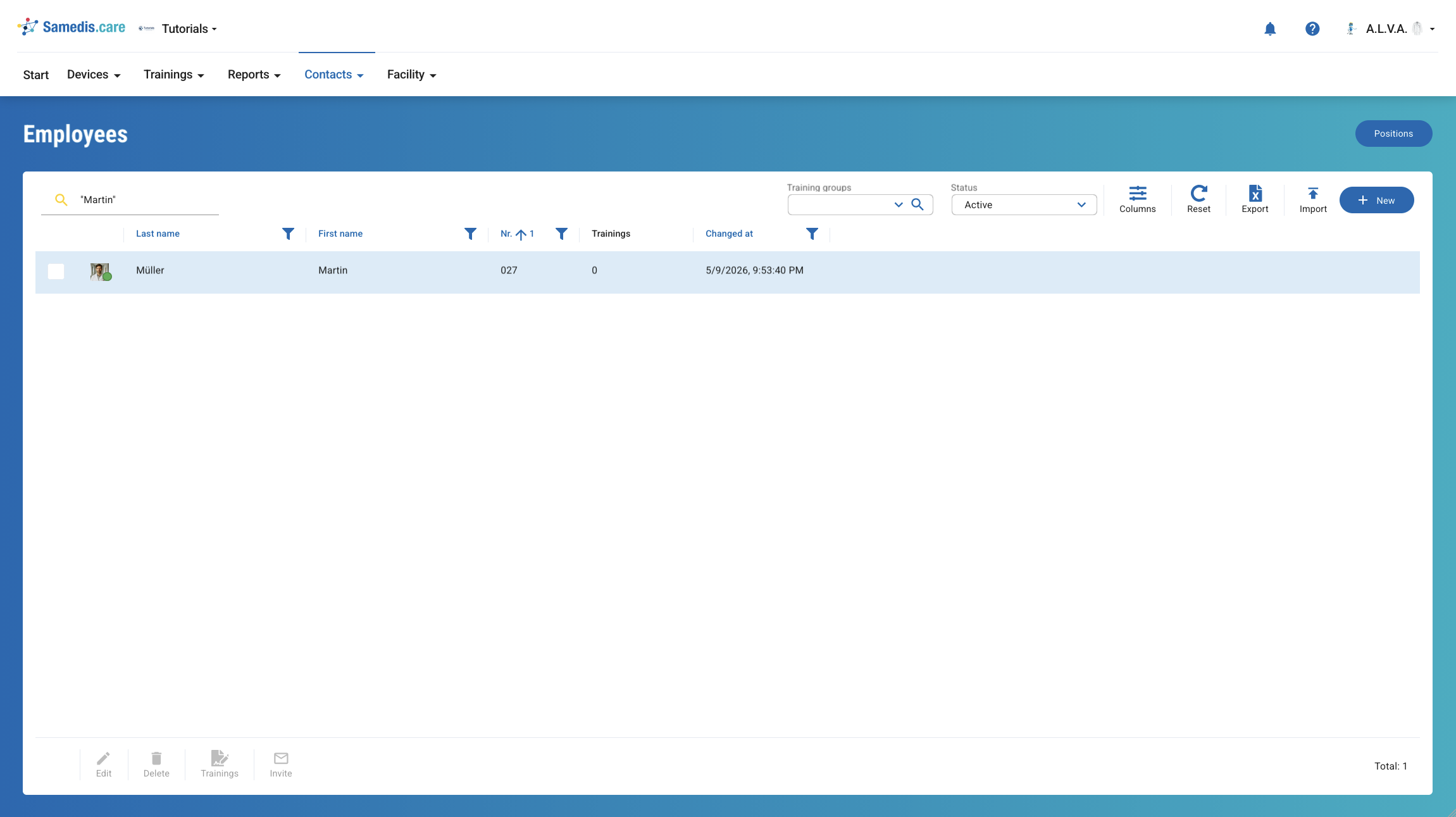
The Search function 🔍 in Samedis.care helps you quickly find the entries you’re looking for.
1. Quick Search
With Quick Search, you can quickly search your entries for the information you need.
To learn how to use it most efficiently, check out the Tips & Tricks at the end of this tutorial.
2. Detailed Search
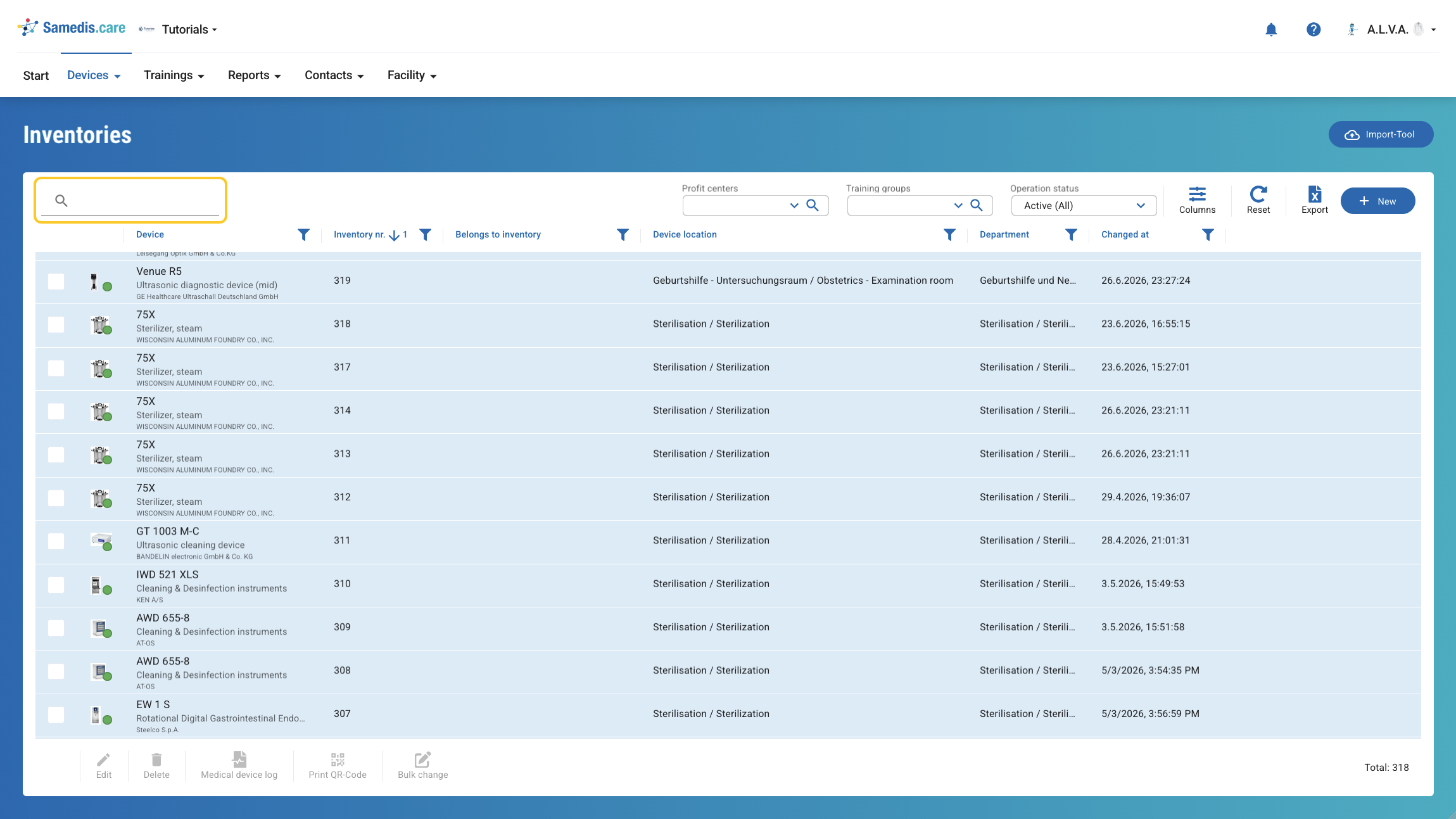
Click the magnifying glass 🔍 in the selection field to open the detailed search. There, you can use the quick search or the additional filter options to search for the entries you need.
3. Tips & Tricks
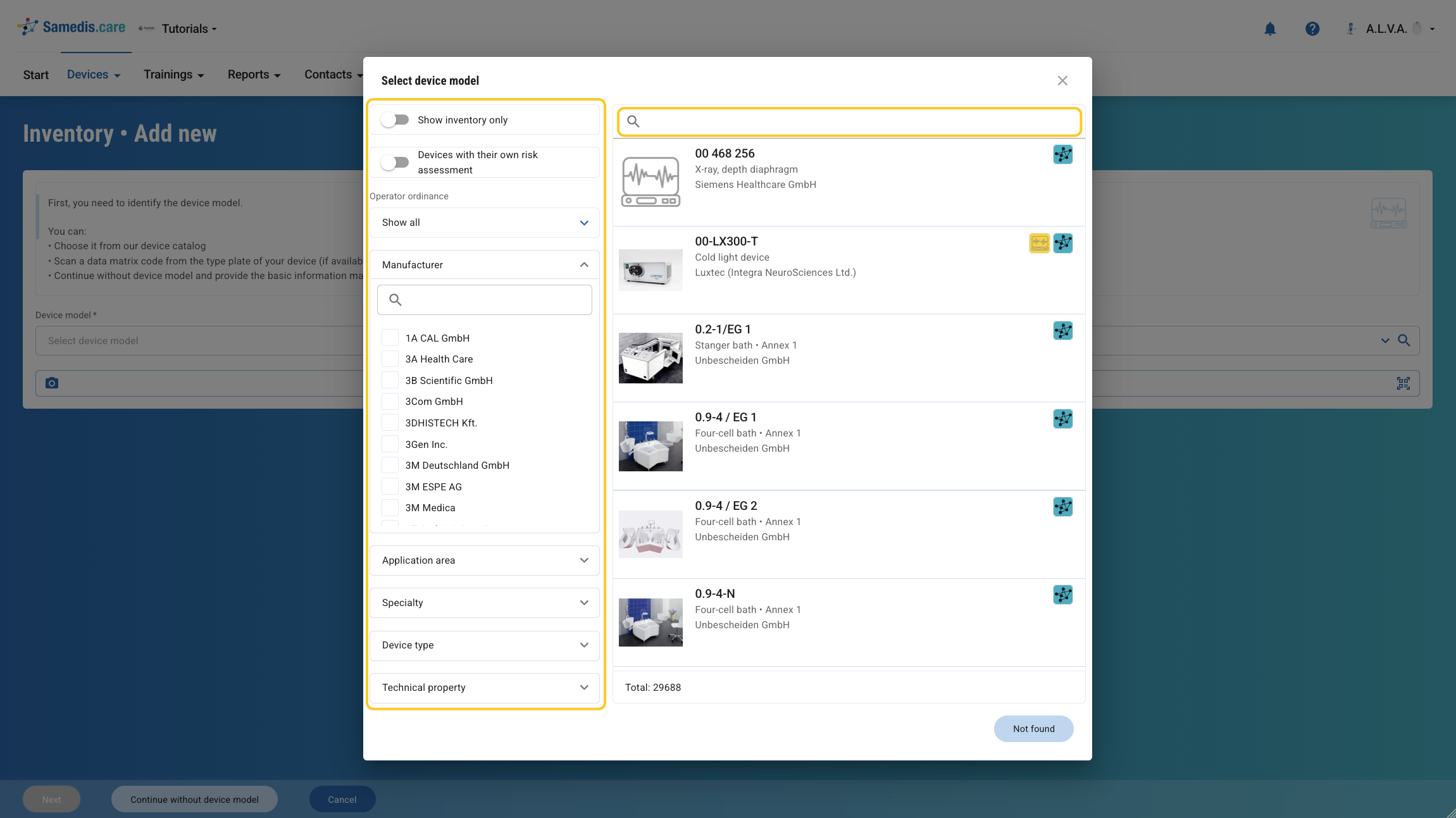
Quick search 🔍 in Samedis.care offers more possibilities than it might seem at first glance. Let’s take a look at the best way to search, some helpful tips & tricks, and what you can do if you can’t find an entry.
3.1. What the search covers
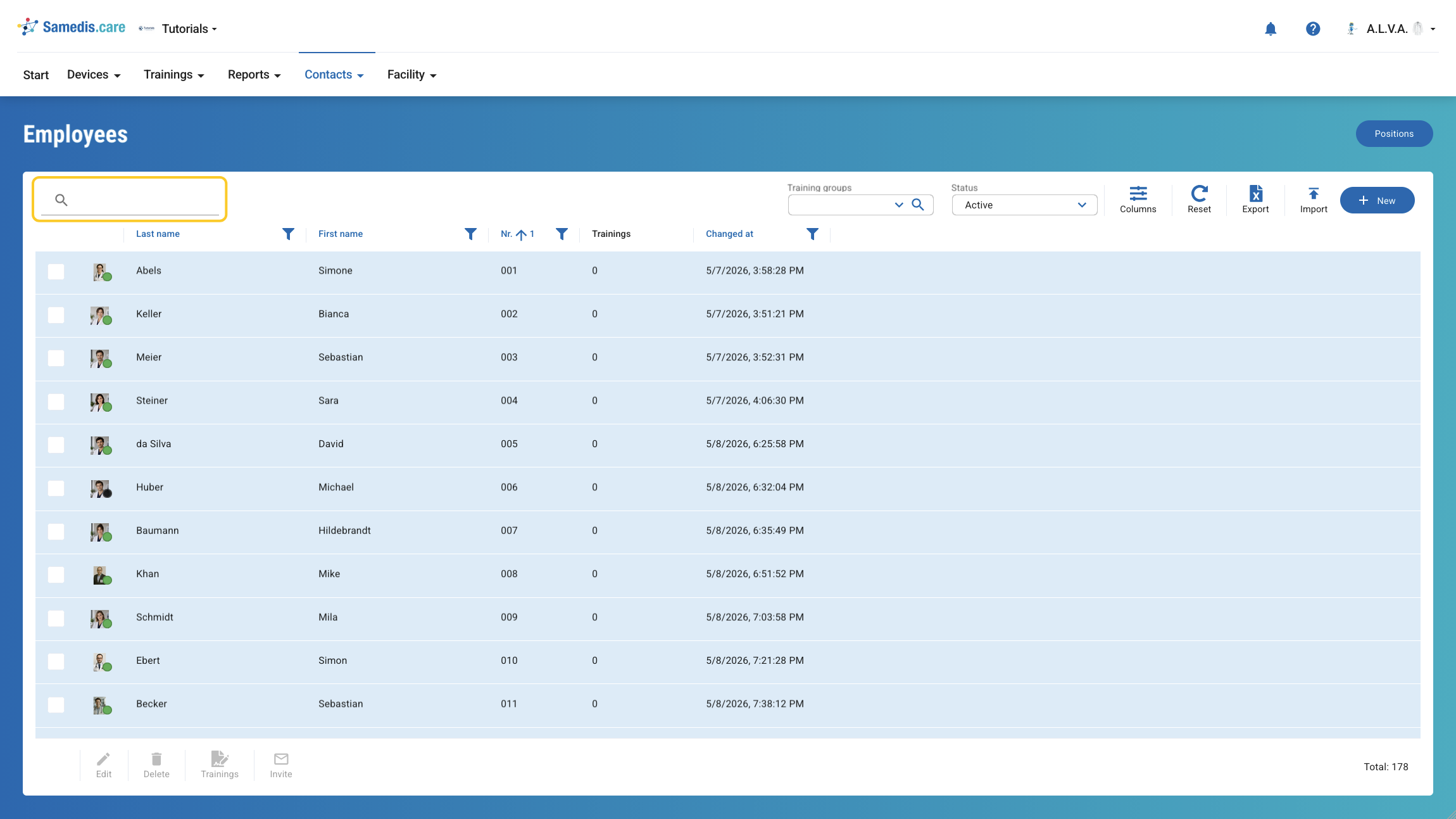
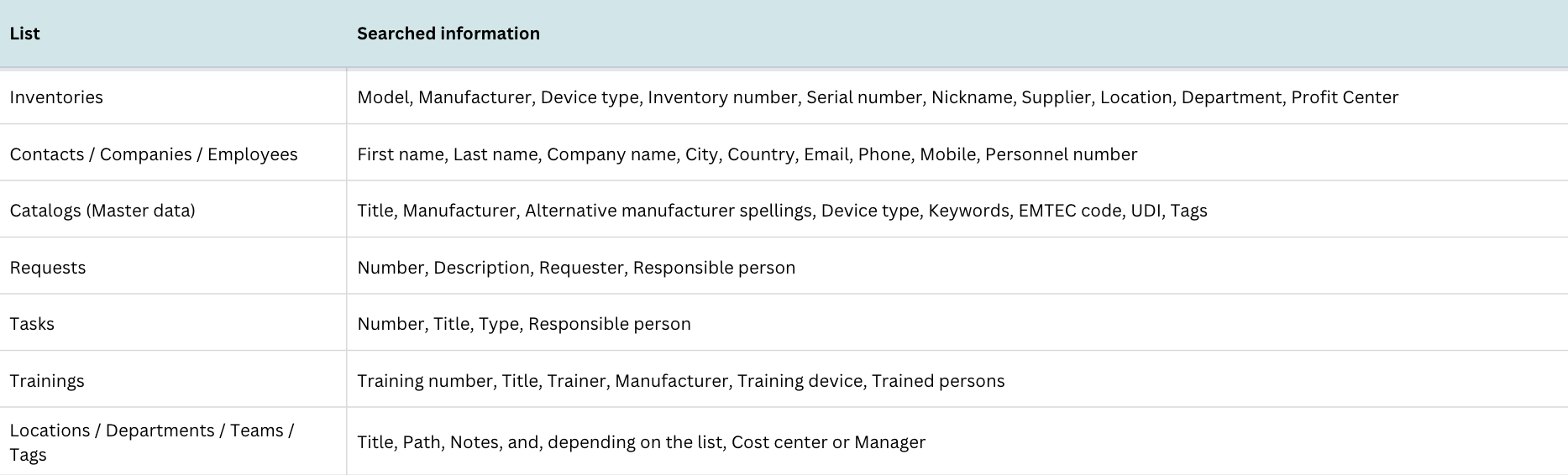
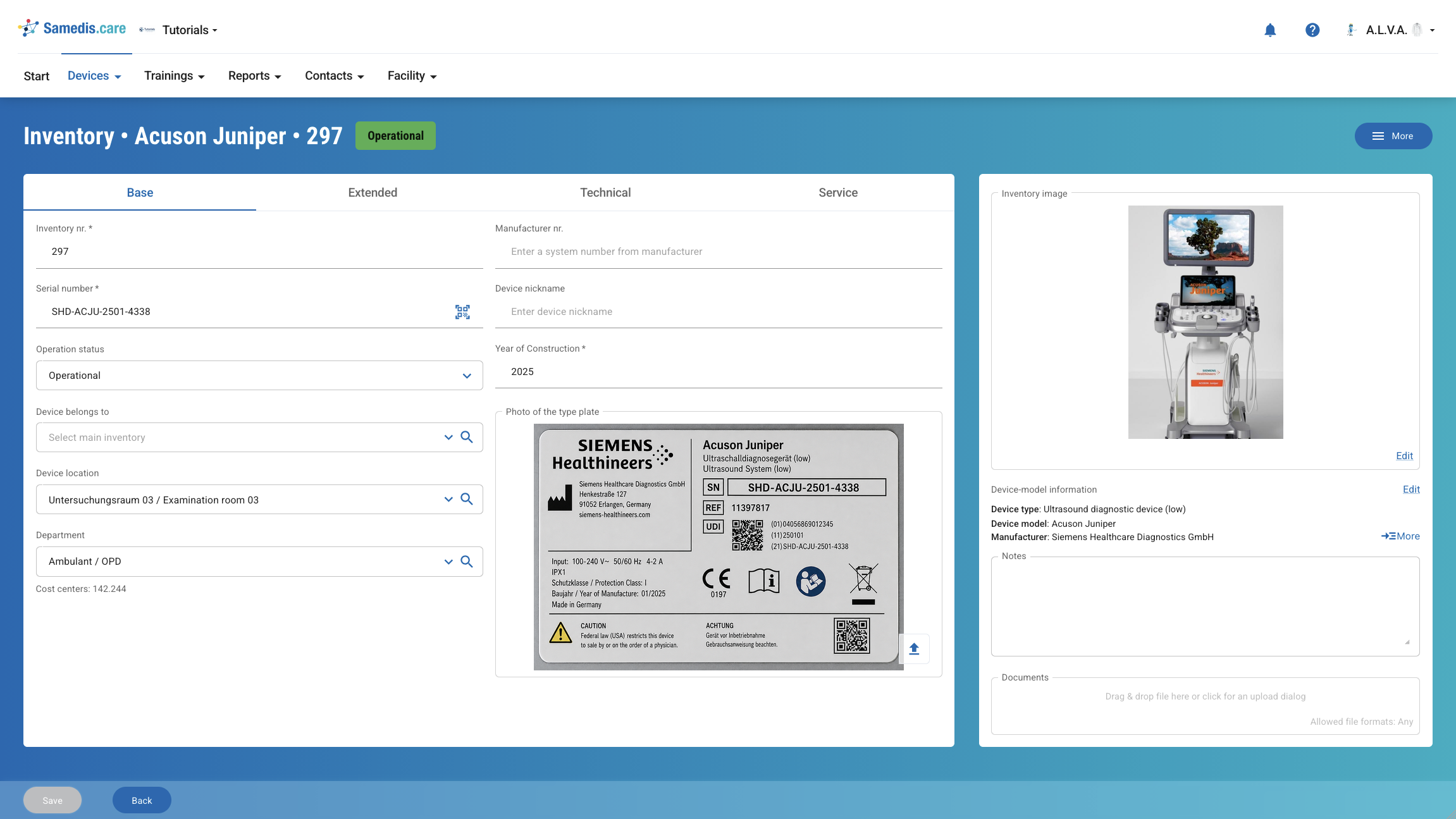
Each list has its own search function. Depending on the section, different information is searched. The search also takes related information into account that is not directly shown in the entry, such as the device model in an inventory. This often helps you find the right entry even if your search term is not directly visible.
The following examples give you an overview of which information is searched in each section.
3.2. Search examples
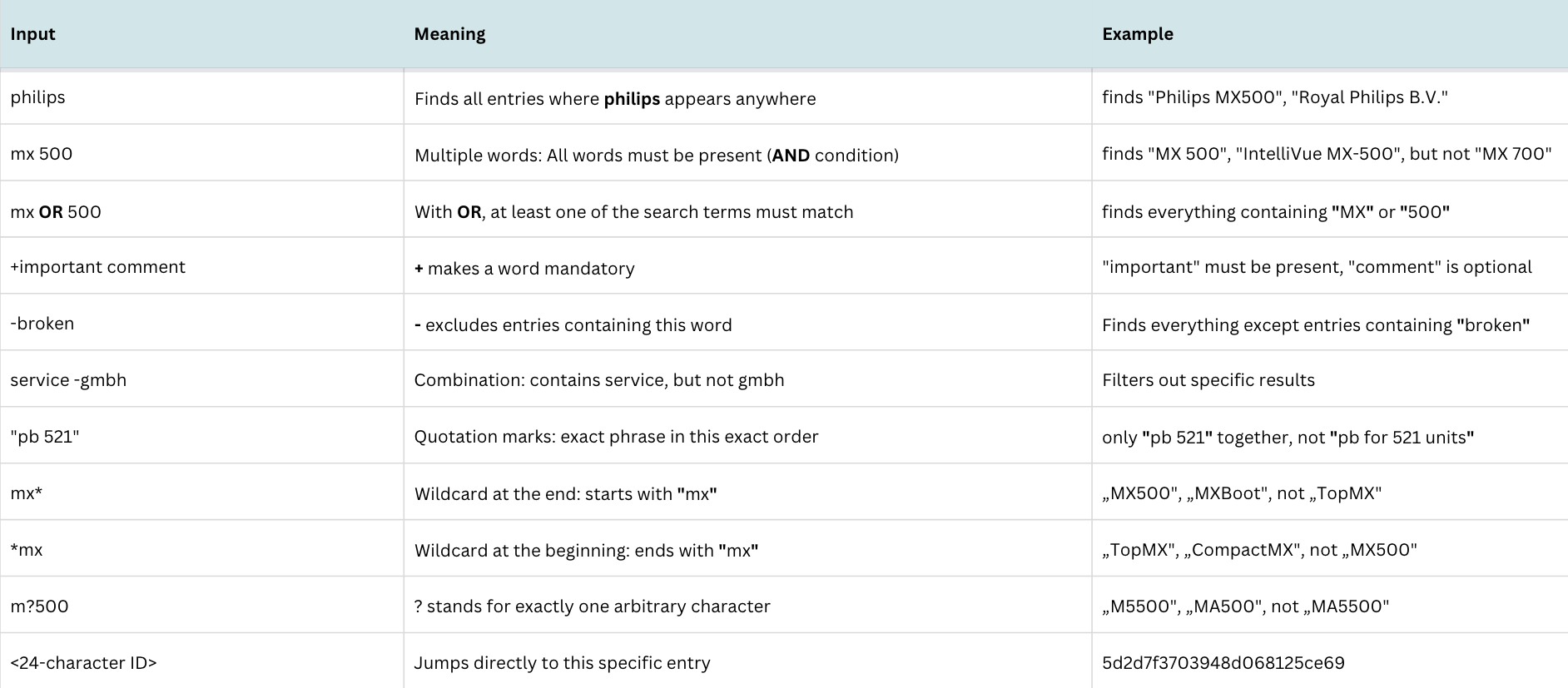
The following table shows how to use the search, what inputs are possible, and what they mean.
Warning
OR must be written in uppercase. A lowercase or is treated as a normal search term and is not recognized as a logical operator.
3.3. Real-life examples
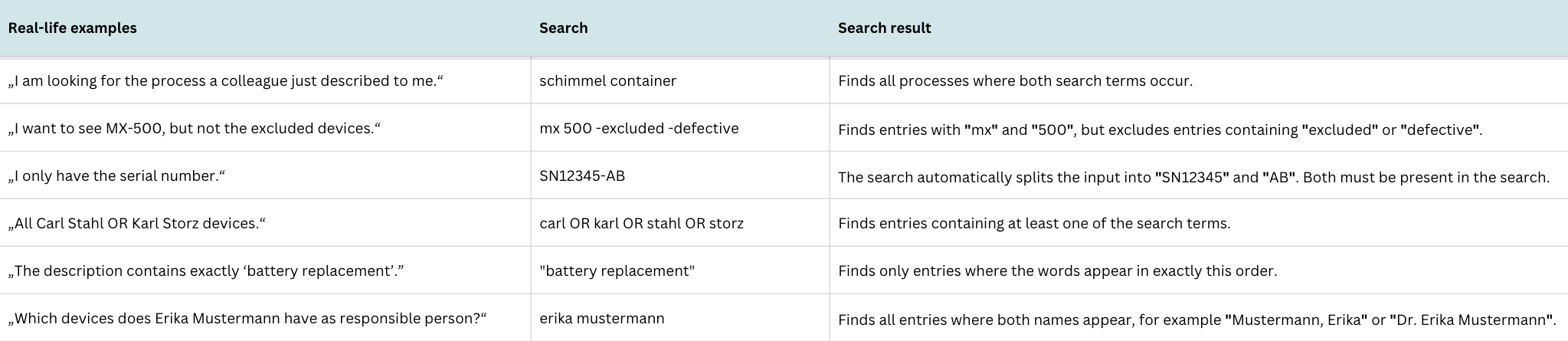
Here you will find some real-life examples from everyday work and the corresponding search terms.
3.4. How the search thinks along
The search does not only find the exact term you entered. For example, if you search for service, it will also find entries containing terms such as Service-Center, Helpservice, maintenance service, Servicedesk, or E2E-Service.
In addition, the search automatically splits inputs at hyphens (-), slashes (/), backslashes (\), colons (:), commas (,), semicolons (;), pipes (|), and exclamation marks (!). Dots (.) are kept intact so that, for example, decimal numbers, version numbers, and IP addresses are searched as a single unit.
The following table shows how the search processes different inputs.
Warning
-E2E-Service only excludes entries that contain both E2E and Service. Entries that contain only one of the two terms will still be found.

3.5. Jump directly to an entry (by entering ID)
If you have the 24-character ID of an entry, for example 69eb39245ab69c3d7581045e, you can simply enter it into the search. The search automatically recognizes the ID and opens the corresponding entry directly.
To ensure the search recognizes the ID, it must be exactly 24 characters long and may only contain the digits 0–9 and the letters a–f. Uppercase and lowercase letters do not matter. Leading or trailing spaces are automatically ignored. It is also important that the ID is entered on its own in the search field. If additional search terms are included, it will be treated as a normal text search.
If the ID belongs to another list or a different tenant, no result will be shown. The search always looks only within the list you are currently in.
3.6. Search tips
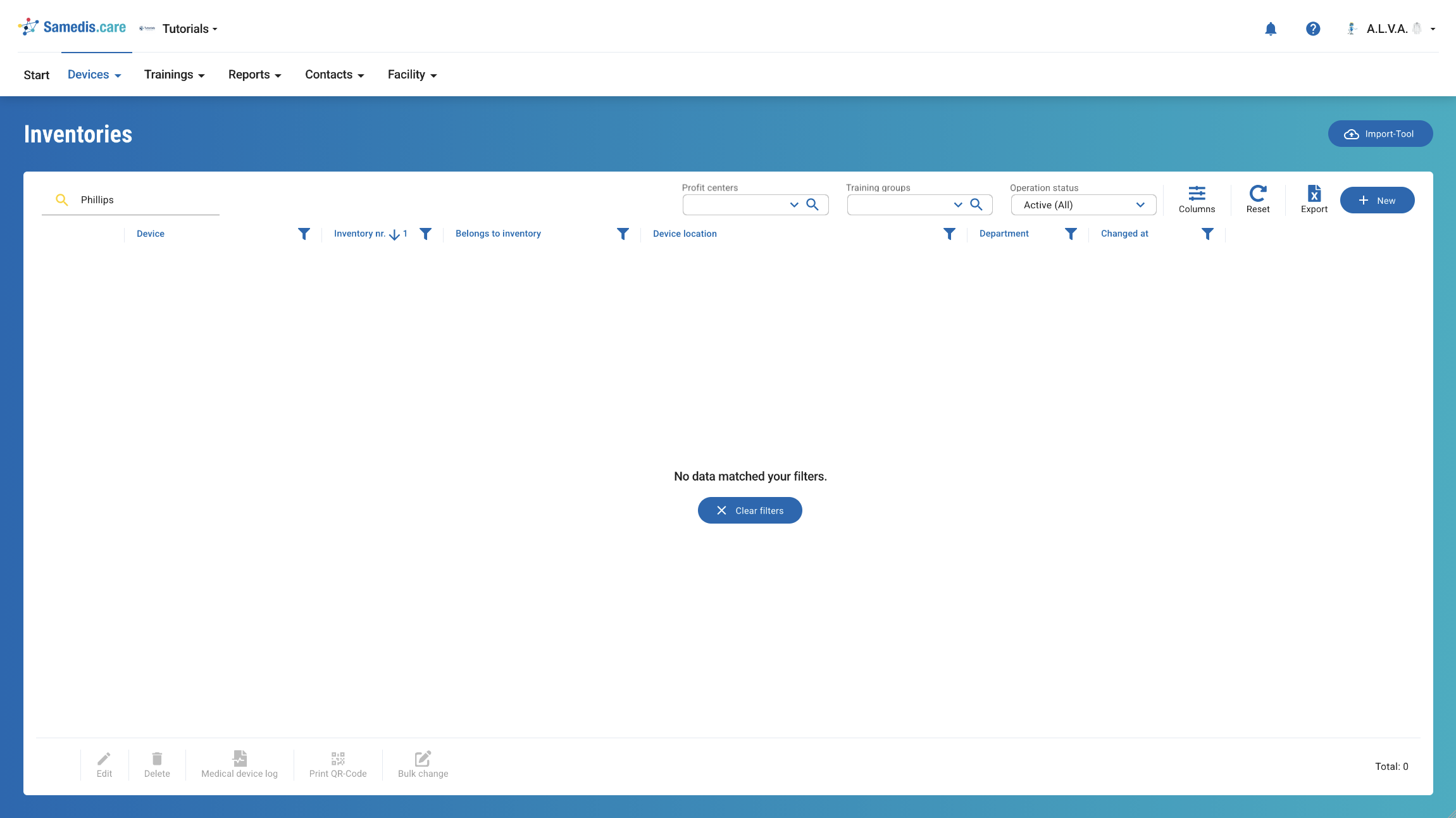
Typos are not corrected automatically.
If you search for „Phillips", for example, „Philips" will not be found. In this case, use a shorter search term, for example „phil", or the part of the term you are sure about.
Exact word sequences only work with quotation marks.
Searching for „change battery", for example, will not find „replace the battery". If you remove the quotation marks, the search works more flexibly.
The search always looks only within the current list.
If the entry you are looking for is in another section, switch to the corresponding list first.
Very general search terms can return many results.
For performance reasons, a maximum of around 10,000 results is displayed. Refine your search with additional terms to narrow down the results.
3.7. Search faster
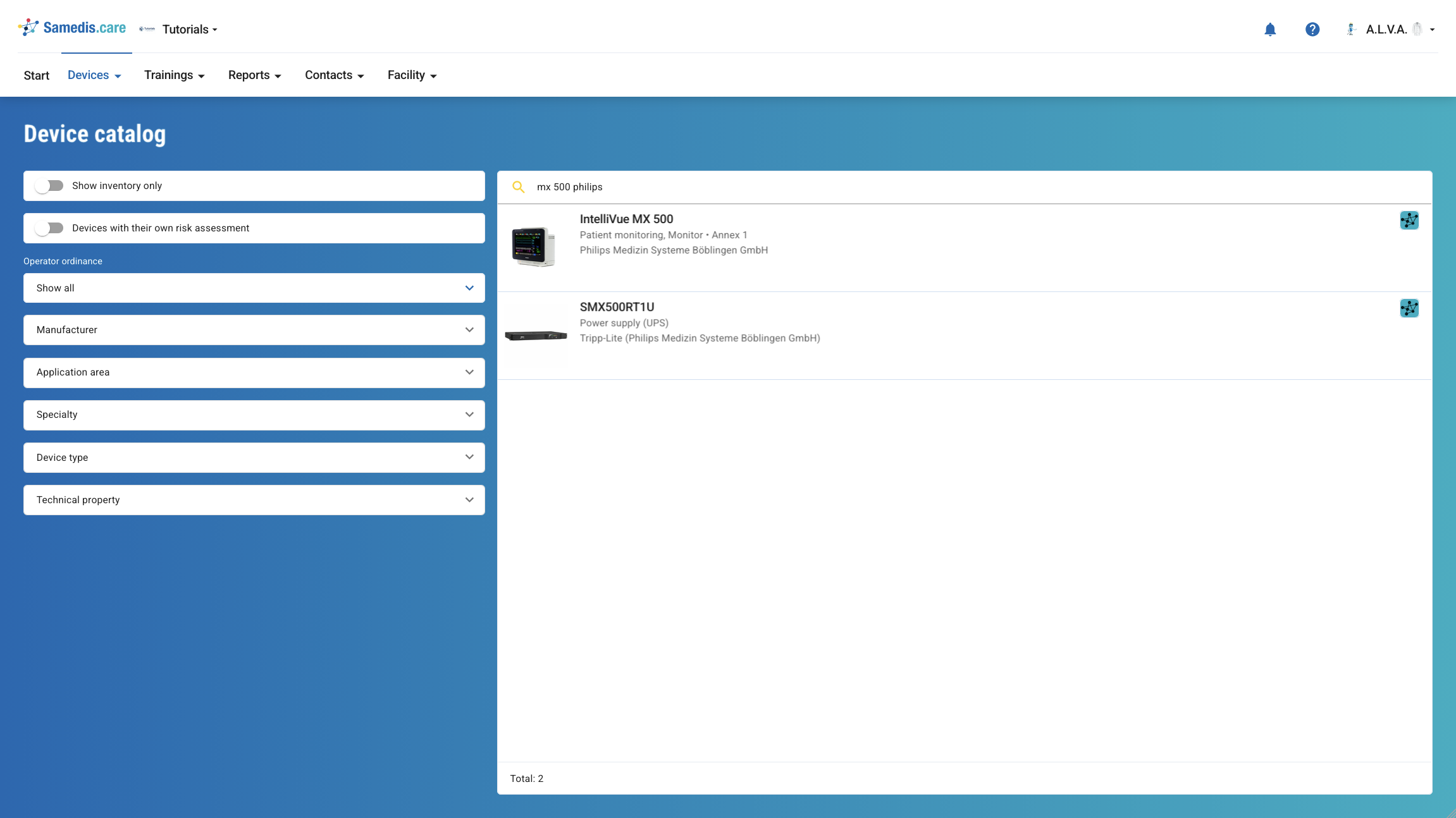
With a few simple tips, you can quickly find the entry you need, even in large lists. The more specific your search terms are, the fewer results will be displayed and the faster you’ll find what you’re looking for. It is especially helpful to combine multiple terms, for example mx 500 philips instead of just mx. This makes the search much more precise. If you are looking for entries that begin with a specific term, you can also use an asterisk at the end, for example mx*.
If a search takes longer than one or two seconds, the search term is usually too general. In that case, try refining your search by adding more terms.
3.8. I can’t find my entry – what should I do?
If you can’t find an entry, it often helps to adjust your search. For example, use fewer characters, as a short search term like MX5 will also find MX500, MX505, or MX-5.
Also make sure you are in the correct list and the correct tenant. The search only displays data from your current section.
If you have an ID, you can enter it directly into the search. This bypasses the entire search logic and takes you straight to the corresponding entry.
For very specific terms an exact phrase search can also help, for example e2e-service. This searches only for that exact phrase.
If an entry has just been created, it may take a few moments before it appears in the search. In that case, wait a few seconds and try searching again.
Note
Uppercase and lowercase letters do not matter. Umlauts are automatically taken into account, so, for example, Müller, Mueller, and muller all return the same results.